Why Your AirPods Case Is Flashing Orange (And How to Fix It)
If your AirPods case is flashing orange, it can be confusing if you’re not sure what the light is trying to tell you.
In some situations, the orange light on AirPods simply means the case or earbuds are charging normally. In other cases, though, an orange or amber light can mean a connection problem, pairing error, or another issue that needs attention.
This guide explains what it means when your AirPods case is flashing orange and why it happens. We’ll walk you through how to assess what’s going on — whether the orange light is part of normal charging behavior or a sign that something needs to be fixed. We will also give you tips to try before deciding whether it’s time to contact Apple support.
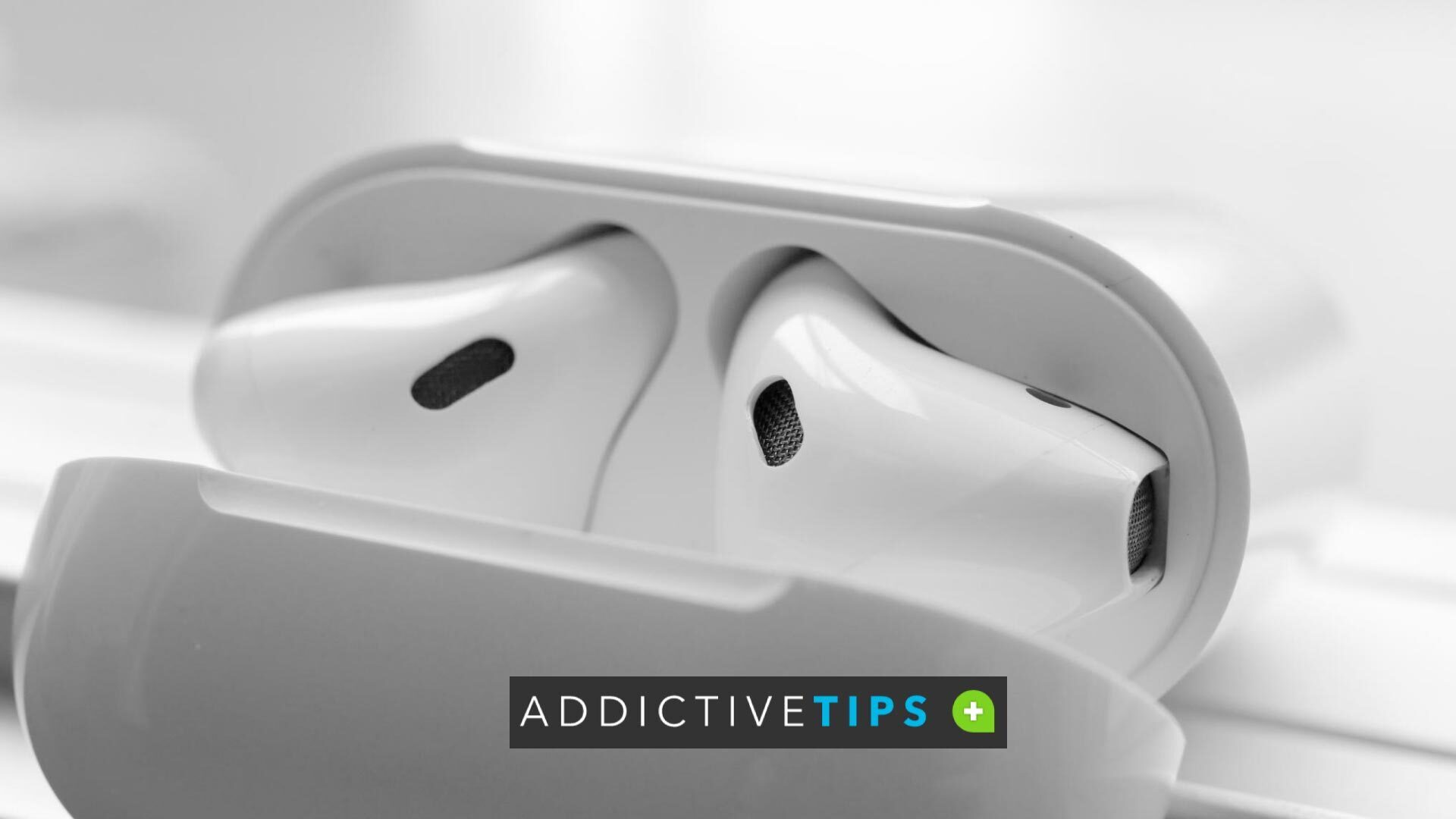
Why Is Your AirPods Case Flashing Orange?
AirPods show flashing or solid lights of different colors to inform you that they require your close attention. Here are the two main reasons you see the orange or amber light on your AirPods:
- They are charging: You’ll see a pulsing orange or amber light on the charging case while the AirPods are inside the case or if the case is empty and not fully charged.
- There’s an error: Your AirPods could also be trying to tell you that they’ve encountered an unrecoverable error and need troubleshooting.
How to Fix It When Your AirPods Case Is Flashing Orange
Some amber lights are harmless and just indicate charging, but others could mean there’s a connection or pairing problem that needs troubleshooting. Fortunately, there are several ways to fix the flashing orange light.
Below are some things you can try at home. These tips are ordered in a specific way so that you start with the simple fixes before moving on to resetting the AirPods or contacting Apple.
Recharge the AirPods and Case
On modern models, the AirPods status light will pulse amber when your device or its charging case is less than 95% charged.
The fix is simple: put the AirPods in their case. Assuming the case itself is charged, the AirPods will regain juice over time as long as they are inside the charging case.
If the case itself won’t charge your AirPods, charge the case. If you want to learn more about what a MagSafe case is, you’ll find that it lets you power your case wirelessly; a cable works, too.
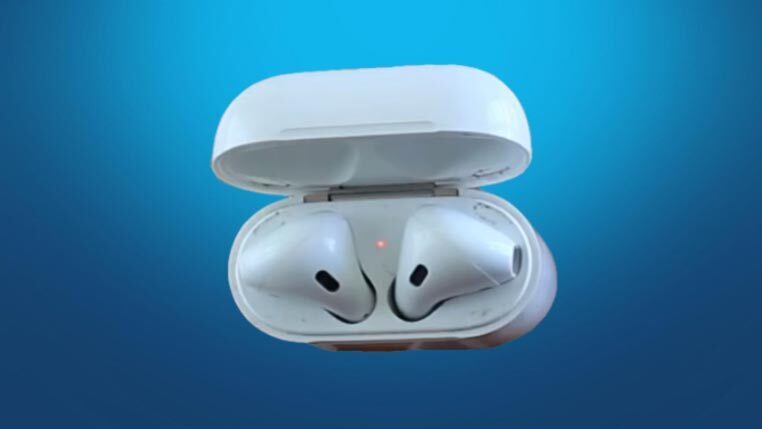
Update AirPods Firmware
If the flashing orange light on your AirPods case is related to outdated firmware, try updating the software. Keeping firmware current can prevent many issues that cause the AirPods case is flashing orange warning to appear.
This is a simple fix because firmware updates happen automatically every time your AirPods are charging. Just make sure they are also within Bluetooth range of your Apple device and that the device is connected to Wi-Fi.
What you do next depends on the kind of AirPods you have. For AirPods or AirPods Pro, do this next:
- Connect the case to power as described above.
- Put the AirPods in their case and then close the lid.
- Keep the lid closed and your AirPods close to your phone, tablet, or computer.
- The firmware will update within the next 30 minutes.
AirPods Max work similarly, but charging is a little different:
- Plug the charger into the bottom-right earphone.
- Plug the other end into a USB port.
- Keep the headphones close to your iPhone, iPad, or Mac for at least 30 minutes.
Restart Your Device
Sometimes the issue is with the phone or computer rather than the AirPods. Restart your device to see if the connection is restored and the light goes away. This can also help if AirPods playback stops unexpectedly.
Tip: A restart is very different from a reset (below). Try a restart/reboot first before moving on to the next tip!
Factory Reset Your AirPods
A factory reset is the go-to for unexplainable tech troubles. If charging or restarting didn’t fix the AirPods case’s orange light, then there’s probably a deeper error going on.
In that case, try a full reset:
- Put the AirPods in the case and close the lid for 30 seconds.
- On the Apple device it’s paired with, go to Settings > Bluetooth.
- Tap the (i) icon next to the device, and then choose Forget This Device.
- Open the case lid and start the reset process using the method for your model:
- AirPods (1, 2, 3) and AirPods Pro (1st and 2nd gen.): Press and hold the setup button on the back of the case for about 15 seconds.
- AirPods 4 (all models) and AirPods Pro 3: Double-tap the front of the case while the status light is on, double-tap again when the light flashes white, and double-tap a third time when the light flashes faster.
You’ll know the AirPods reset is finished when the status light flashes amber, then white. At this point, you’ll need to reconnect the AirPods to your device to use them, and if you have the Pro model, you may also want to review AirPods Pro active noise cancellation settings.
Contact Apple Support
Sometimes, the troubleshooting we do ourselves just isn’t enough. The next best method for fixing the orange light on your AirPods is to have an Apple technician take a look.
Visit Apple’s AirPods Support page for links to more support options. A Genius Bar appointment might be what you’re after if you need support quickly.
Common Connectivity Problems When the AirPods Case Is Flashing Orange
Several connectivity problems can trigger the orange light on your AirPods case. Here are some examples:
- Pairing errors: A flashing orange light can mean the AirPods can’t connect to the phone, tablet, or computer they were paired with.
- Corrupted pairing data: Bluetooth connections can become unstable if interference or distance is introduced. When that happens, the case may report an error until the AirPods are reset and paired again.
- Firmware issues: Buggy and outdated AirPods firmware can interfere with its connection and trigger the orange light.
- Charging-related pairing issues: If the case or earbuds have low battery levels or aren’t charging properly, they can fail to establish a reliable connection and show the amber warning light. Check the AirPods battery level to confirm.
- Temporary glitches: Bluetooth interference or software bugs can cause the AirPods to lose their connection state and potentially lead to the flashing orange error. This is usually fixed once the connection is reset.
Final Words
Now you know the true meanings behind the orange light on AirPods and what to do when your AirPods case is flashing orange. You’ve also learned how to fix AirPods flashing orange with several practical steps. You should now feel more confident in using and troubleshooting your AirPods.
If, after resetting, you still have trouble pairing them, you might be dealing with a connection problem. In that case, check out our detailed guide on why won’t my AirPods connect for quick fixes that work.
Do you also have this common question in mind, “are AirPods waterproof?” Find out by reading the linked article to better understand AirPods water resistance.
Frequently Asked Questions
What do I do if my AirPods are flashing amber and won’t reset?
Charge the AirPods and case for at least 15 minutes, then try the reset again with both earbuds in the case and the lid open. If the light never switches to a white pairing light, remove the buds from your device’s Bluetooth list and try again.
If the amber light continues, contact Apple Support; the case or earbuds may need a professional assessment.
Why is my AirPods case flashing orange?
A flashing orange light usually means there’s a pairing or connection problem. The AirPods and the device they were connected to may have gone out of sync.
What does a solid orange light on AirPods mean?
A steady orange light usually indicates the AirPods or case are charging. When connected to power, the light shows the charging status of the earbuds or the case battery.
Why are my AirPods flashing white instead of orange?
A flashing white light means the AirPods are in pairing mode and ready to connect to a device. This might happen after opening the case near a device or after a factory reset.
What does a green light on AirPods mean?
A green light indicates a full charge. If the AirPods are in the case, both earbuds are fully charged; if the case is empty, it means the case itself has a full battery.

Your AirPods are charging inside the case.