How to Connect Your Airpods to an iPhone: A Complete Guide
Apple Airpods use an H1 chip to perform most of their functions, and it uses Bluetooth technology to pair up with your iPhone. With Bluetooth enabled on your iPhone, you’ll be up and running in no time.
Just got a new pair of Airpods? It may seem tricky to set up if you’re a first-timer. But, with the guide you’ll find here, you’d be surprised how easy and convenient Apple has made things for all users.
Read on below to find out how to connect AirPods to your iPhone.
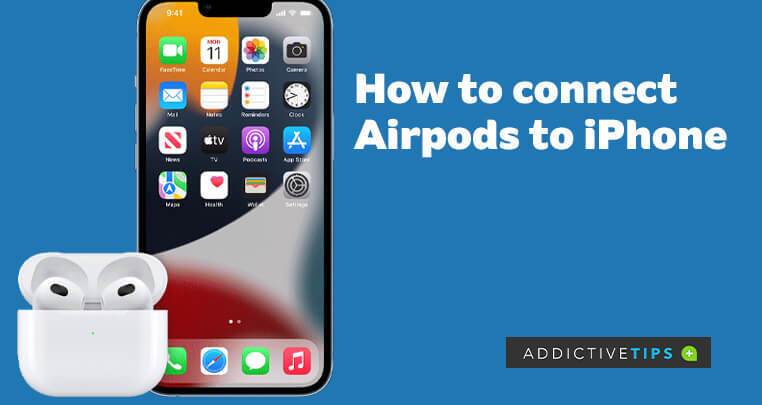
How to Set Up Your Airpods for your iPhone
Setting the Airpods up for your iPhone is hassle-free. The following steps will guide you on how to go about it:
Place Your Airpods in their Case
To establish a connection with your iPhone, place the Airpods in their case and then close the case. Leave the Airpods in the case for a minimum of 15 seconds. To prevent any issues while following these steps, ensure your Airpods battery are fully charged.
Return to Your iPhone’s Home Screen
Go to Your iPhone’s home screen by swiping down from the bottom of the screen on iPhone X and later models or pressing the round home button on iPhone 8 and earlier models.
Hold Your Airpods Next to Your iPhone
Now, open the case of your Airpods and hold the case next to your iPhone as close as possible.
Connect from the Prompt Box
A box should pop up on your screen, prompting you to tap Connect. Tap the button, and you’ll see a guide for other settings, including how to enable the ‘Hey Siri’ feature.
There are many other prompts and guides to follow from here, but you can skip them altogether by tapping the circled X at the top-right corner of the prompt box.
Once you’ve established a connection between your iPhone and Airpods, a small notification will pop up at the top of your screen with your Airpods name and a ‘Connected‘ message. You should be up and running after this. Also, your Airpods will automatically connect the next time you bring them out of their case to put in your ears.
However, things aren’t all that straightforward sometimes, as the Airpods may not connect automatically on some iPhones. If that’s the case, use the following method.
How to Connect Airpods to Your iPhone Manually
Connecting the Airpods to your iPhone manually is relatively easy, albeit a little less convenient than the automatic pairing. Use the following steps to pair them manually,
- Put the Airpods in their case and close it.
- Next, open the case close to your iPhone, then press and hold the button on the case’s back until a white light starts blinking.
- Tap the Connect button once it pops up on your home screen.
Final Notes
That’s it! Connecting the Airpods to your iPhone is that easy. If you’re experiencing difficulty connecting the Airpods, try switching your Bluetooth off and on and ensure your iPhone is not in low power mode. You can also try disconnecting other Bluetooth devices and then restart your iPhone. If you found this article handy, here’s how to connect Airpods to other Apple and Non-Apple devices
