How to Update Discord on Your Computer or Device
Discord, like other apps, goes through multiple versions. Each new version either has more/new features or fixes bugs in existing features. Regardless of the nature of the update, it’s a good idea to learn how to update Discord regularly. An updated app will be safer and more optimized for your desktop or mobile platforms than an out-of-date version.
Following the steps in this article, you can safely update Discord on all Windows, Linux, Mac, Android, and iOS devices. Knowing how to update Discord on each platform ensures you always have the latest features and security fixes.
How to Update Discord on Windows or Mac
Discord has a dedicated desktop app for PC users. The good news is, Discord can be updated in place i.e., you do not have to uninstall the app and then download and install the latest version. The somewhat bad news is that there is no button to click to update the app.
Figuring out how to update Discord on a PC is quite easy. Discord checks for updates automatically when you run it, so if the app isn’t running, you can update it via the following steps:
- Open Discord.
- Allow the client to check for an update(s).
- If updates are available, Discord will download and install them.

- When the app has updated, you will see a change log/new features list, and you’ll be able to use Discord to send and receive messages.
You do not necessarily have to close and relaunch Discord to check for updates. You can check for an update and install it while the app is still running. In order to find out how to manually update Discord, follow these steps:
- Maximize the Discord app window.
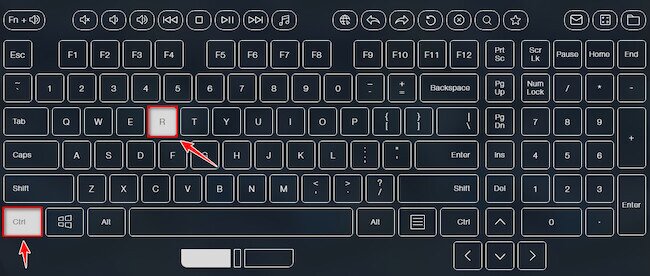
- Press the “Ctrl + R” keyboard shortcut on Windows. It’s “Command + R” for Mac.

- The app’s UI will refresh/reload.
- If an update is available, Discord will detect and download it.
- When you next open the app, it will install the update.
How to Update Discord on Linux
Updating Discord on Linux works differently from Windows and macOS because the correct method depends entirely on how you originally installed the app. Unlike Windows and Mac, most Linux installs do not rely on Discord’s built-in in-app updater. Follow the steps that match your installation method.
Distro package manager or software center
If you installed Discord through your distribution’s software center or package manager — for example, apt on Ubuntu or Debian, or pacman on Arch or Manjaro — update it the same way you update other system packages. Open your terminal and run your distro’s standard upgrade command. On Ubuntu/Debian-based systems that would be:
sudo apt update && sudo apt upgrade
On Arch-based systems such as Manjaro, use:
sudo pacman -Syu
Discord will be updated alongside your other installed packages.
Flatpak
If you installed Discord via Flatpak, open a terminal and run:
flatpak update
This updates Discord and any other Flatpak apps that have new versions available.
Snap
If Discord was installed as a Snap package, run this command in your terminal:
sudo snap refresh discord
Manually downloaded package
If you downloaded a .deb or .tar.gz package directly from Discord’s website, you will need to download the latest version from discord.com/download and install it manually — just as you did the first time. Installations using this method do not use Discord’s in-app updater, so the app will not update itself automatically.
How to Update Discord on Android or iPhone
If you have updated other apps through the Google Play Store or Apple’s App Store, then updating Discord on your phone will be a walk in the park. For Android users, the steps are:
- Open the Google Play Store app on your Android device.
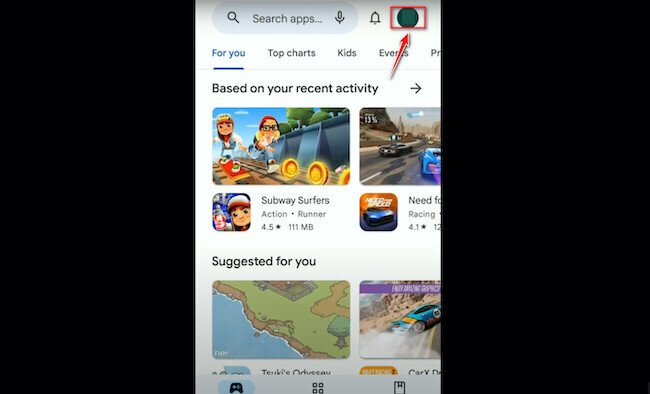
- Tap on your Google profile icon in the top right corner.

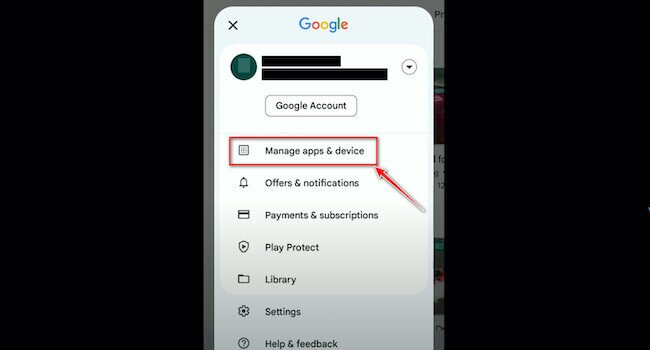
- Tap on the “Manage Apps and Device.”

- Now select “Updates Available”.

- A list of all the apps on your Android device that need updating will be shown. Simply find Discord and tap on the “Update” button next to it.

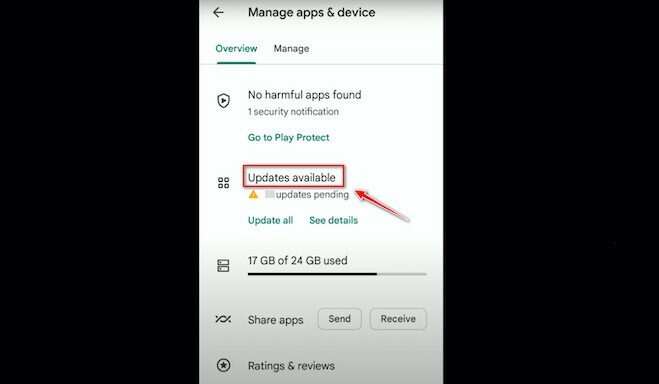
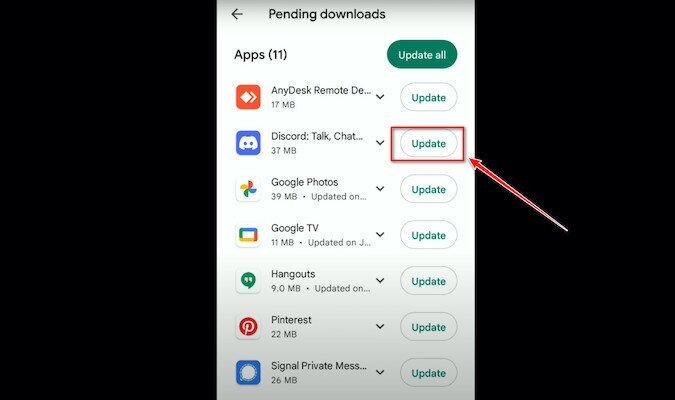
Now, the update will be downloaded and installed on your Android device. Alternatively, you can find the Discord app on the Play Store by typing the name into the search bar.
iOS users need to go through very similar steps to update Discord using the App Store:
- Open the App Store on your iPhone or iPad.
- Tap on the profile icon in the top right corner.
- On the opened page, scroll down to find Discord. If there is an “Update” button next to it, then you can update the app by touching the button.

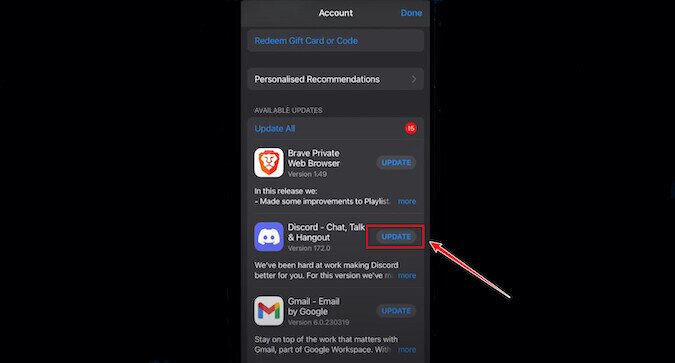
If there is an “Open” option next to the app’s name, then the newest version has already been installed.
How to Revert Discord Update
There is no official source for finding out how to revert a Discord update. So, if the newest version of the Discord app doesn’t function as it should or you just like the old UI design, there are only unofficial ways to access older versions of Discord.
Downloading an older version of the app from other websites like Uptodown won’t help with reverting updates because Discord enforces the updates upon launching the app, and there is no secure way to block the app from updating.
However, there might be some modified versions of Discord that can bring back the old design. We don’t recommend installing modified apps from unreliable sources. You might find an unreliable guide online on updating Discord and reverting it, but be aware of the risks.
Note: Using a modified version of Discord has the potential to create compatibility issues and security risks.
Conclusion
Discord has no “Update” or “Check for update” button that users can click. Most users only encounter an update when they relaunch the app. The only problem is that many users don’t regularly quit the app or shut their systems down, which gives the impression that a restart is necessary.
You should know that when you update Discord, the process can take up to five (or more) minutes to download and additional time to install. If your internet is slow, the download will take much longer.
Frequently Asked Questions
Does Discord update automatically?
Yes, Discord usually updates to the latest version upon launching the app. You can also enable automatic updates on your smartphone for every app. If the app wasn’t updated automatically on your PC or mobile, you can follow the steps in this article to manually update Discord.
Can I revert the Discord update?
No, you can’t revert the Discord update. There are only some unofficial ways to install an older or modified version of Discord. We don’t recommend using an unofficial version, mainly because of the security risks.
How can I check if Discord is up to date?
If you’re on a PC, launch the app and tap “Ctrl + R” on your keyboard (Command + R for Mac users) to check if there is a new update. Mobile users can check it via Google Play Store and App Store. If there is an “Open” button next to the app’s name, then indeed you have the latest version installed on your device. Discord, like other apps, goes through multiple versions. Each new version either has more/new features, or it fixes bugs in existing features. Regardless of the nature of the update, it’s a good idea to keep the Discord app up to date. An updated app will be safer and more optimized for your desktop than an out-of-date version.
How to confirm Discord is fully up to date
Knowing whether you already have the latest version — and what changed in it — is just as useful as knowing how to update Discord. Here is how to verify on each platform.
On desktop (Windows, Mac, Linux)
Fully quit Discord and relaunch it. If the app opens normally without showing an update progress screen, it is already running the latest version available to your account. To see exactly which version is installed, go to User Settings → About in the app’s sidebar.
You can then compare that version number against Discord’s official changelog — which Discord posts on their website and surfaces in-app after an update — to confirm which features and fixes have actually rolled out. This is especially useful when you have heard about a new feature but cannot find it yet, since Discord sometimes stages rollouts gradually.
On Android
Open the Google Play Store and go directly to Discord’s app listing — either by searching for it or tapping the link from Discord’s website. If the page shows an Open button, you have the latest version installed. If it shows an Update button, a newer version is ready to download.
The Play Store listing also displays the latest update date and version number in the app details section, which you can use to cross-reference against Discord’s changelog to see exactly what changed.
On iPhone or iPad
Open the App Store and navigate to Discord’s listing by searching for it directly, or tap your profile icon and scroll through recent updates to find Discord. If the button next to the app reads Open, you are on the latest version. If it reads Update, tap it to install the newest release.
Discord’s official changelog is the most reliable way to confirm whether a specific feature or bug fix has actually reached you yet — not all updates arrive for all users at the same time due to staged rollouts.
How to Update Discord on Windows 10
Discord has a dedicated desktop app for Windows 10. It’s like most other apps for the platform, but there are some differences, e.g., how an update for the app is installed. The good news is, Discord can be updated in-place i.e., you do not have to uninstall the app and then download and install the latest version. The somewhat bad news is that there is no button to click to update the app.
1. Update Discord on launch
Discord is an app that checks for updates automatically when you run it, so if the app isn’t running, you can update Discord via the following steps.
- Open Discord.
- Allow the client to check for an update(s).
- If updates are available, Discord will download and install them.
- When the app has updated, you will see a change log/new features list, and you’ll be able to use Discord to send and receive messages.

2. Update Discord while running
You do not necessarily have to close and relaunch Discord to check for updates. You can check for an update, and install it while the app is still running.
- Maximize the Discord app window.
- Tap the Ctrl+R keyboard shortcut.
- The app’s UI will refresh/reload.
- If an update is available, Discord will detect and download it.
- When you next open the app, it will install the update.

Discord update fails
Discord normally updates without any problems, but sometimes it gets stuck in an update loop or fails to apply a new version. If that happens, work through these fixes in order:
- Fully quit Discord and reopen it. Right-click the Discord icon in the system tray (Windows) or menu bar (Mac) and choose Quit — simply closing the window is not enough. Once Discord is fully closed, relaunch it and let it check for updates again.
- Restart your device. A full restart clears temporary files and frees up background processes that may be blocking the update from completing.
- Visit Discord’s download page directly. Go to discord.com/download and download the latest installer. Running it over your existing installation forces the update without relying on the in-app updater to work correctly.
- Reinstall the app. If the updater is stuck and the above steps haven’t helped, uninstall Discord completely and then install the latest version from the official download page. This is the most reliable fix for a broken or looping updater.
- On mobile, go directly to the app’s store listing. Instead of checking the general updates list in the Play Store or App Store, search for Discord and open its dedicated listing page. If an update is available, the Update button will appear there — this sometimes works when the general updates list hasn’t refreshed to reflect the latest version yet.
If Discord is already showing as up to date but is broken or behaving oddly after a recent update, reinstalling the latest official version from discord.com/download is the safest first step. If you specifically need to fix Discord sending issue, use our dedicated troubleshooting guide. Check Discord’s official support site or status page to confirm whether a known issue is affecting the app — and avoid using old third-party builds, which can introduce additional security and compatibility risks.
Additionally, if you’re launching games and notice the Discord overlay not showing, it might be due to update conflicts or missing permissions — our guide has solutions. Understanding how to update Discord properly can prevent many of these overlay and compatibility issues from occurring in the first place.
Conclusion
Discord doesn’t have an ‘Update’ or ‘Check for update’ button that users can click. Most users encounter an update only when they relaunch the app. The only problem is that many users don’t regularly quit the app or shut their systems down, giving the impression that a restart is necessary.
You should know that when you update Discord, the process can take up to five (or more) minutes to download, and additional time to install. If your internet is slow, the download will take much longer. Keeping Discord updated is straightforward once you know how to update Discord on your specific platform — whether that’s Windows, Mac, Linux, Android, or iOS.
