25 Awesome Fall Wallpapers For Your Desktop
Fall is officially here. The leaves are going to change color soon and there really isn’t anything quite like Autumn foliage. If you love the way leaves change color in fall and want a fall wallpaper for desktop to match the season, we’ve got 25 awesome fall wallpapers for your desktop. The images in this post are resized and compressed versions of the original.
To get the image in its original quality and size, click the download link at the bottom of each fall wallpaper for desktop entry below.
We’ve got everything from scenic landscapes to abstract wallpapers so you’re bound to find something you like. Here’s a quick guide to help you narrow things down before you scroll through all 25.
Scenic foliage — If you want a classic fall wallpaper for desktop full of colorful trees, winding paths, or dramatic skies, start with #1 Leaves, #6 Fall Foliage, #16 Untrodden Fall, and #23 Autumn Leaves & Blue Sky. These have wide, open compositions with strong horizontal framing that keeps desktop icons readable along the bottom or sides.
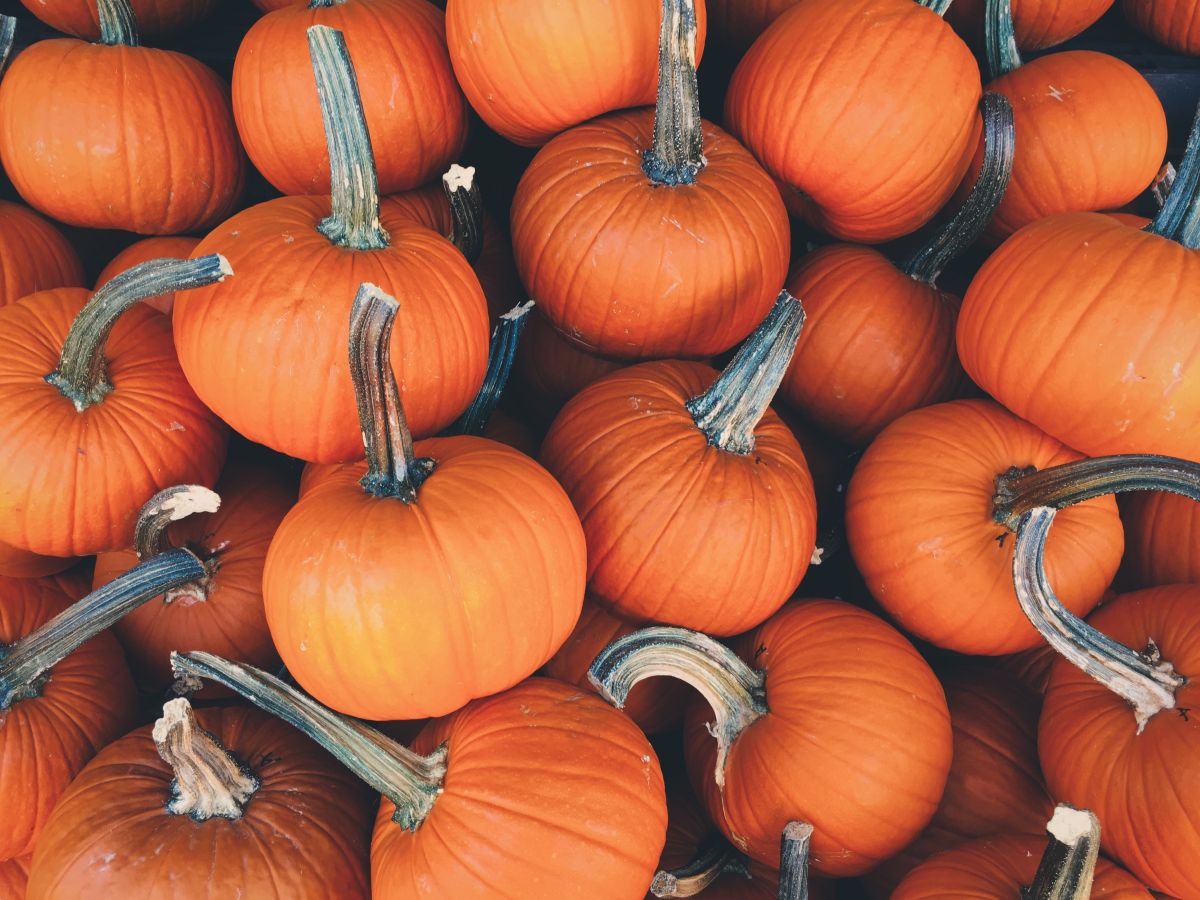
Cozy and homey — For a warm, inviting fall desktop, check out #4 All The Leaves, #12 Harvest, #18 Pumpkins, and #20 Corn. Rich orange, brown, and amber tones make these feel like the heart of the season. These work especially well on personal laptops and home desktops.
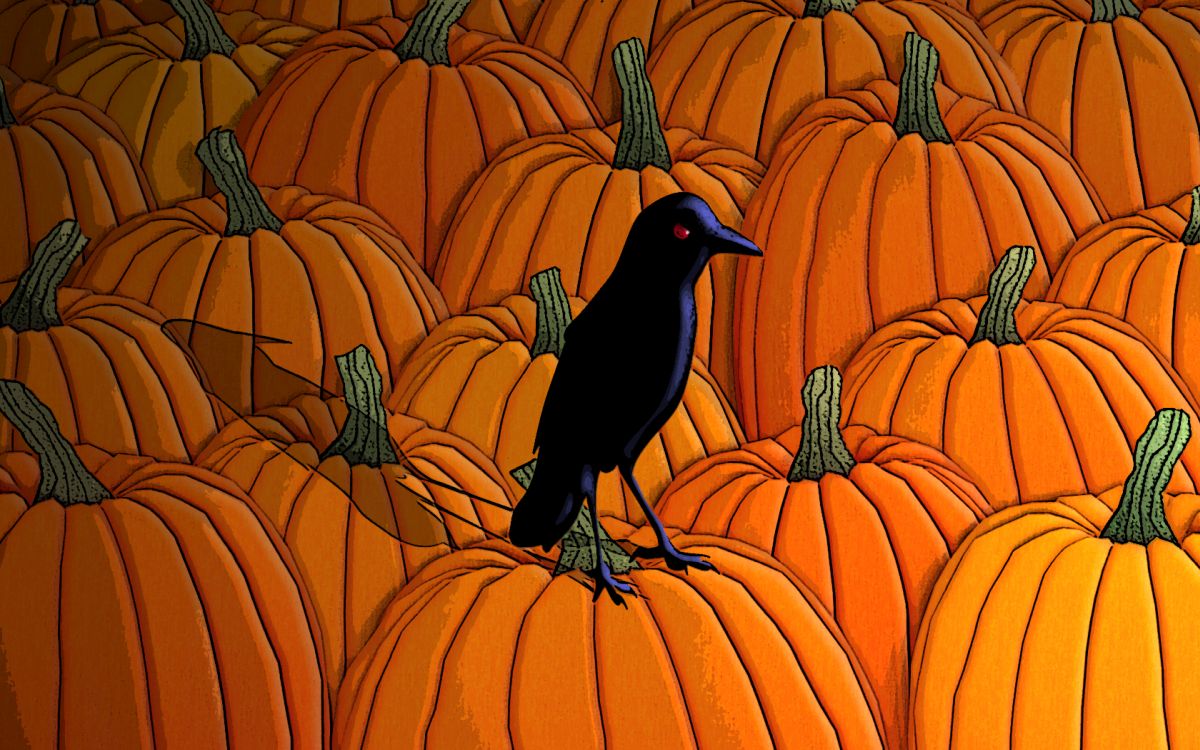
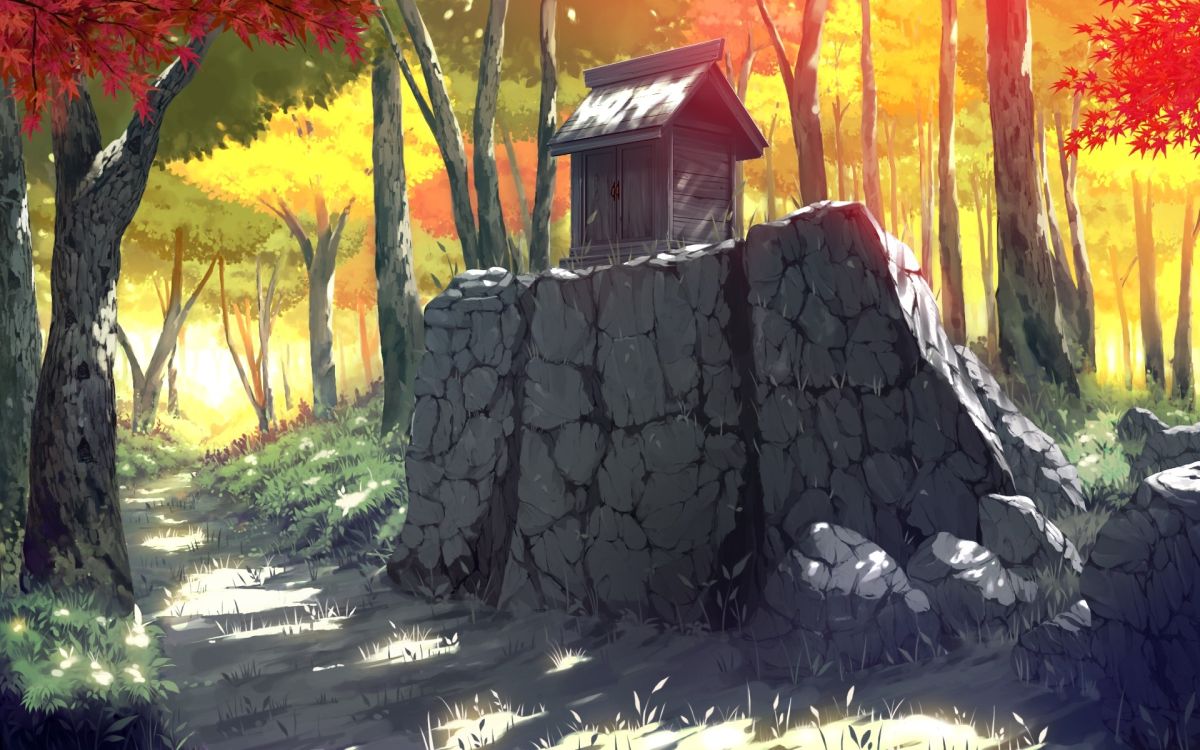
Dark or moody — If you prefer a more dramatic or atmospheric fall background, #14 The Crow, #17 Overcast Autumn Sky, and #22 Autumn Woods Digital all lean into shadow, muted color, and brooding compositions. These hold up well on work monitors where you want something visually striking but not distracting.
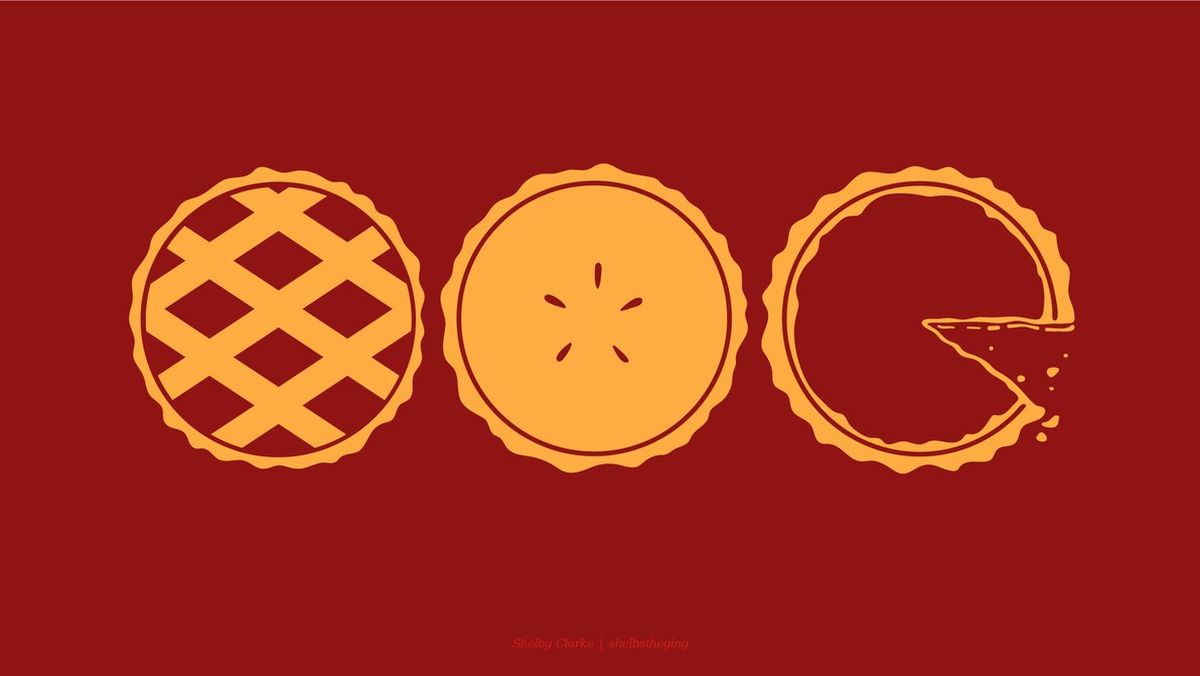
Minimalist and abstract — Low-clutter options with clean lines are best for work desktops where you need to see icons clearly. #9 Autumn Poly Trees, #10 Autumn Polyscape, and #7 Red are illustrated or geometric rather than photo-real, which keeps things tidy and elegant.
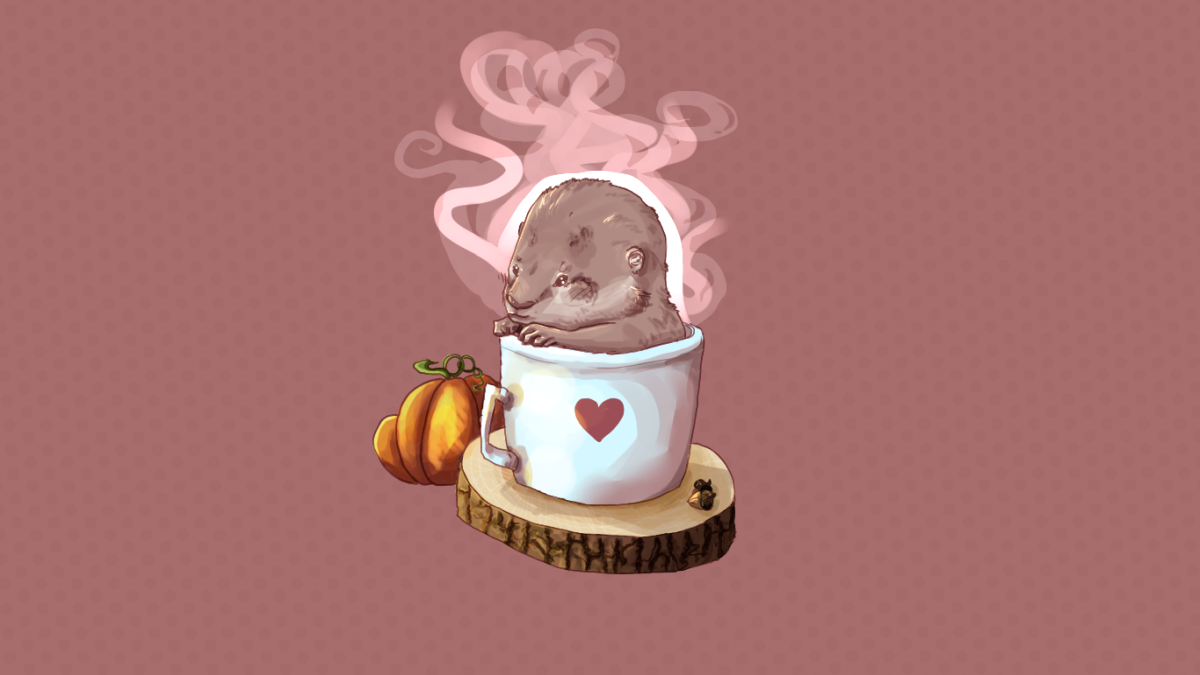
Cute and animal-themed — For a lighter, more playful fall computer background, #2 Cat, Mouse, Leaves, #3 Cat & Fall Leaves, #11 Sparrows, and #15 An Otter Fall are illustrated and charming. These are better suited to personal setups than professional work desktops.
Choose the right size and resolution for your fall wallpaper for desktop
Finding a wallpaper you love is only half the job — picking one that actually fits your screen cleanly is the other half. Here’s what you need to know before you download.
Common desktop resolutions and what they mean for you:
- 1920×1080 (Full HD / 1080p) — The most common desktop and laptop resolution. Nearly every wallpaper in this list will display well at this size.
- 2560×1440 (QHD / 1440p) — Increasingly common on gaming monitors and premium laptops. Wallpapers sourced at 1920×1080 will be slightly upscaled and may show minor softness at close inspection.
- 3840×2160 (4K UHD) — High-end monitors and modern Mac displays. For truly sharp results at 4K, look for wallpapers that were originally created or photographed at this resolution. #1 Leaves is a confirmed 4K source (3840×2160).
- 3440×1440 (Ultrawide 21:9) — Standard 16:9 wallpapers will either be cropped on the sides or show black bars when set to “Fit.” For ultrawide monitors, choose “Fill” only if you are comfortable with some cropping on the top and bottom.
- 2560×1600 or 2880×1800 (16:10 laptop screens) — Common on MacBook Pro and some Windows laptops. Wallpapers at 16:9 will show a small letterbox effect in “Fit” mode or a slight crop in “Fill” mode. Either is usually acceptable at this scale difference.
What happens when a wallpaper is smaller than your screen?
When the source image is lower resolution than your display, Windows and macOS have to stretch the image to fill the screen. The result is a blurry or pixelated desktop background. To avoid this, always try to download the highest resolution version available (use the download links in each entry below) rather than right-clicking the preview image on this page.
Understanding Fill, Fit, and Stretch:
- Fill — Scales the image up until it covers the entire screen, cropping any excess. Best choice for most 16:9 wallpapers on 16:9 monitors. Use this by default.
- Fit — Scales the image to fit within the screen without cropping, which may leave black bars on the sides or top. Good when you do not want any of the image cropped.
- Stretch — Forces the image to exactly match your screen dimensions, which distorts the aspect ratio. Avoid this unless the wallpaper was made specifically for your screen size.
- Tile — Repeats the image in a grid. Rarely useful for fall wallpapers.
- Center — Places the image at its native size in the middle of the screen with black bars around it. Only use this if the wallpaper is already the exact size of your display.
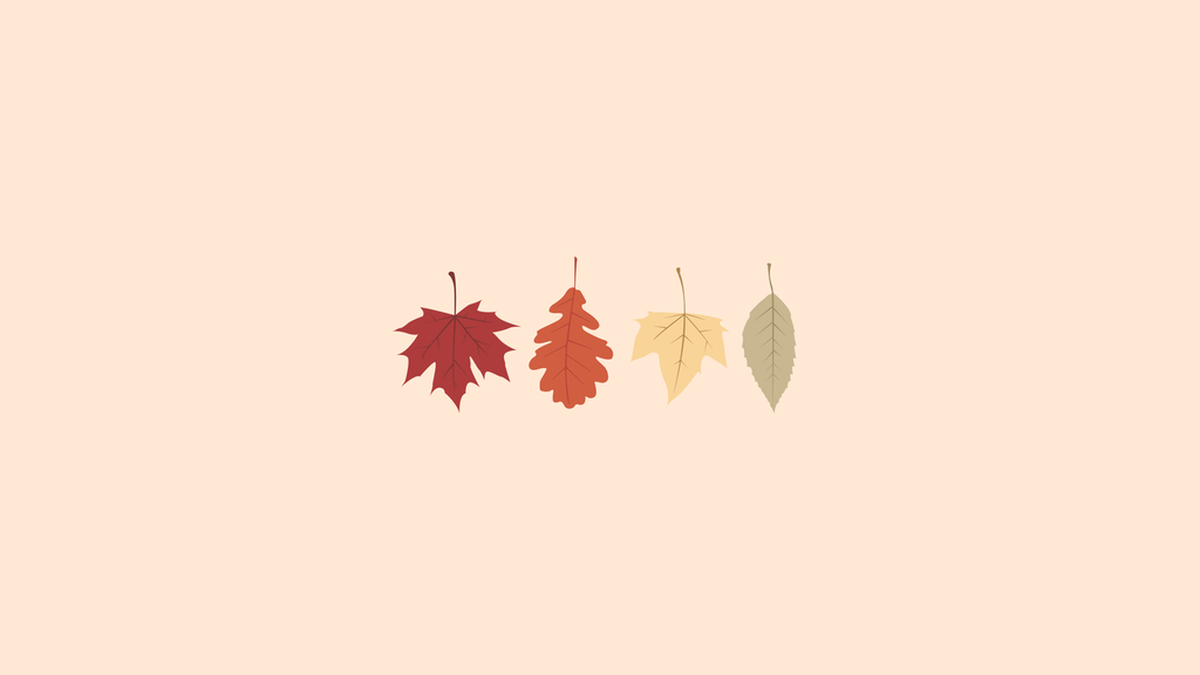
1. Leaves
Credit to Reddit user: jewzak
Original resolution: 3840×2160 (16:9, 4K) | Best for: standard desktop, 4K monitors
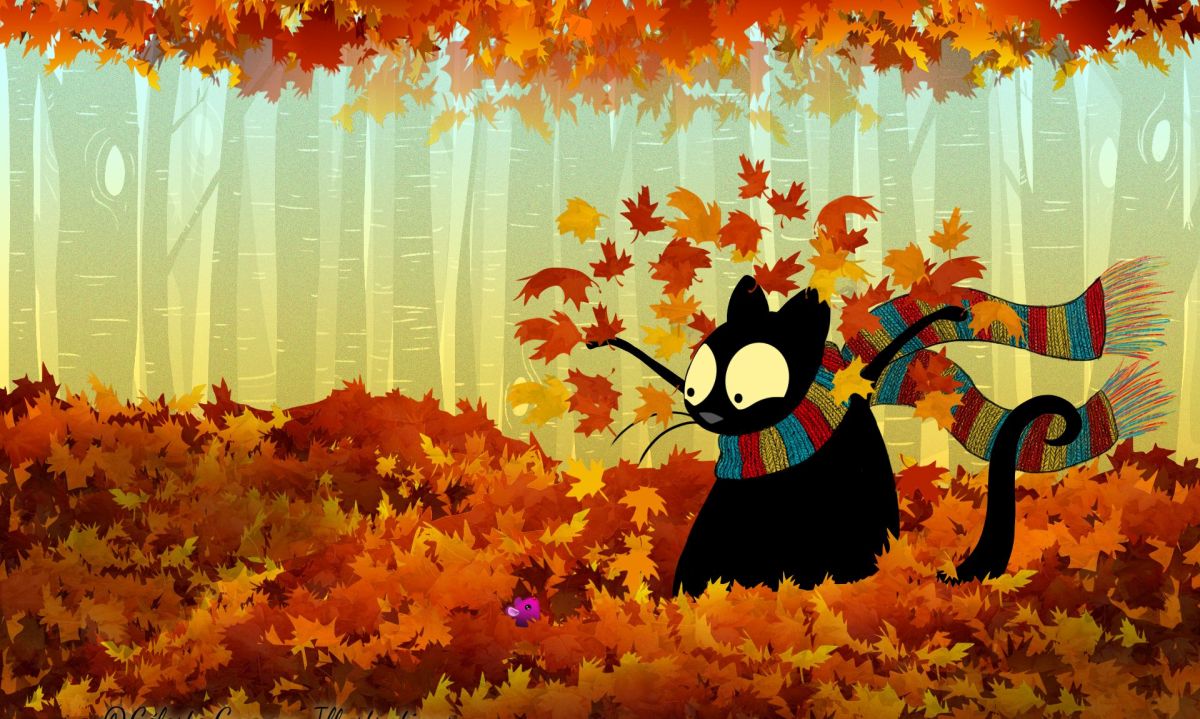
2. Cat, Mouse, Leaves
Original resolution: approx. 1920×1150 (16:9 landscape) | Best for: standard desktop, laptop
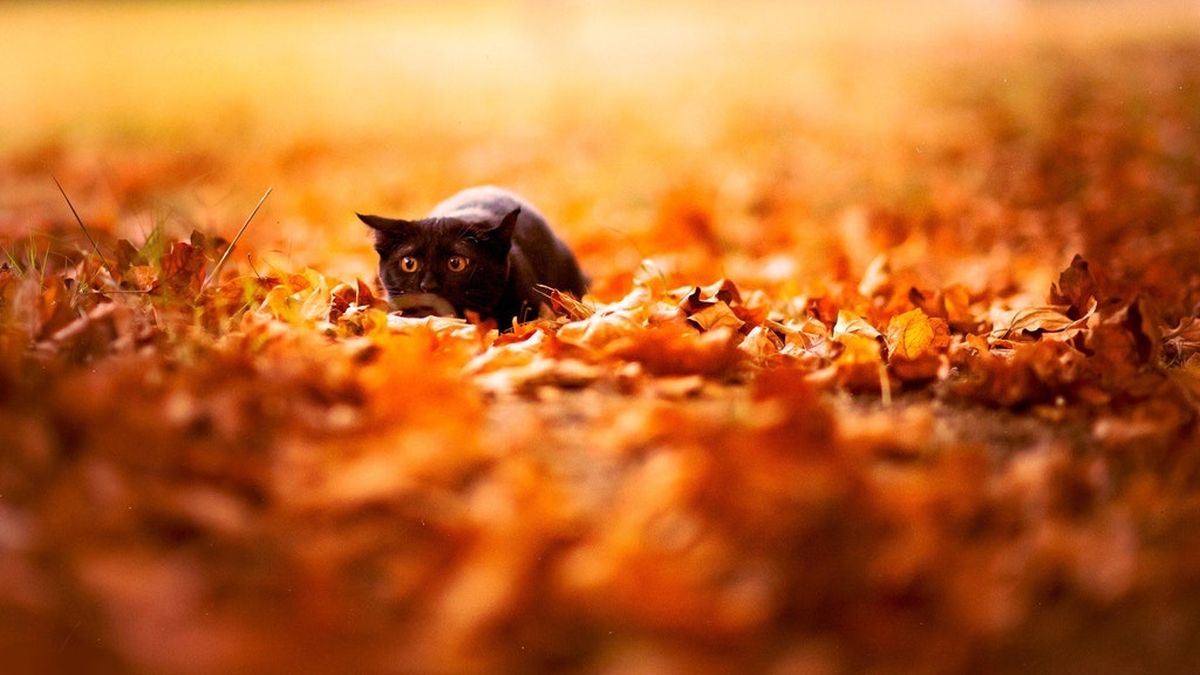
3. Cat & Fall Leaves
Original resolution: approx. 1920×1080 (16:9, Full HD) | Best for: standard desktop, laptop
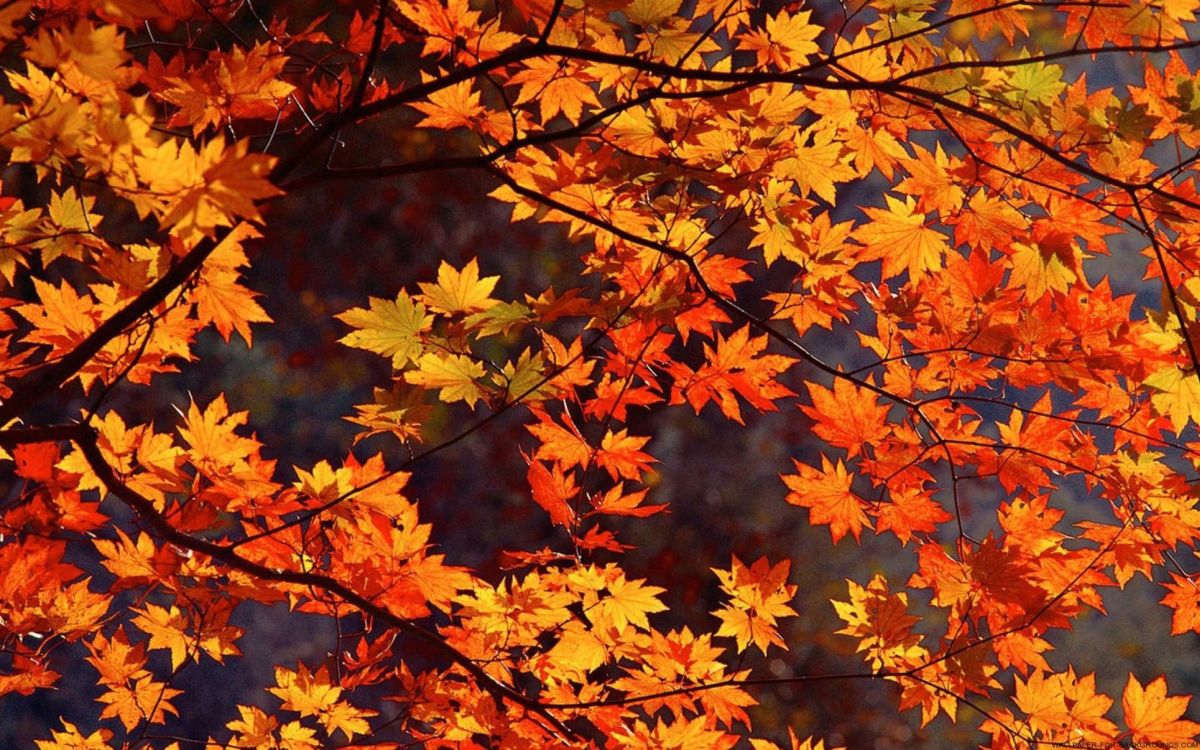
4. All The Leaves
Original resolution: approx. 1920×1200 (16:10) | Best for: laptop, 16:10 displays
5. Fall With Looming Winter
Credit to Reddit user: funnar
Original resolution: approx. 1920×1080 (16:9, Full HD) | Best for: standard desktop, laptop
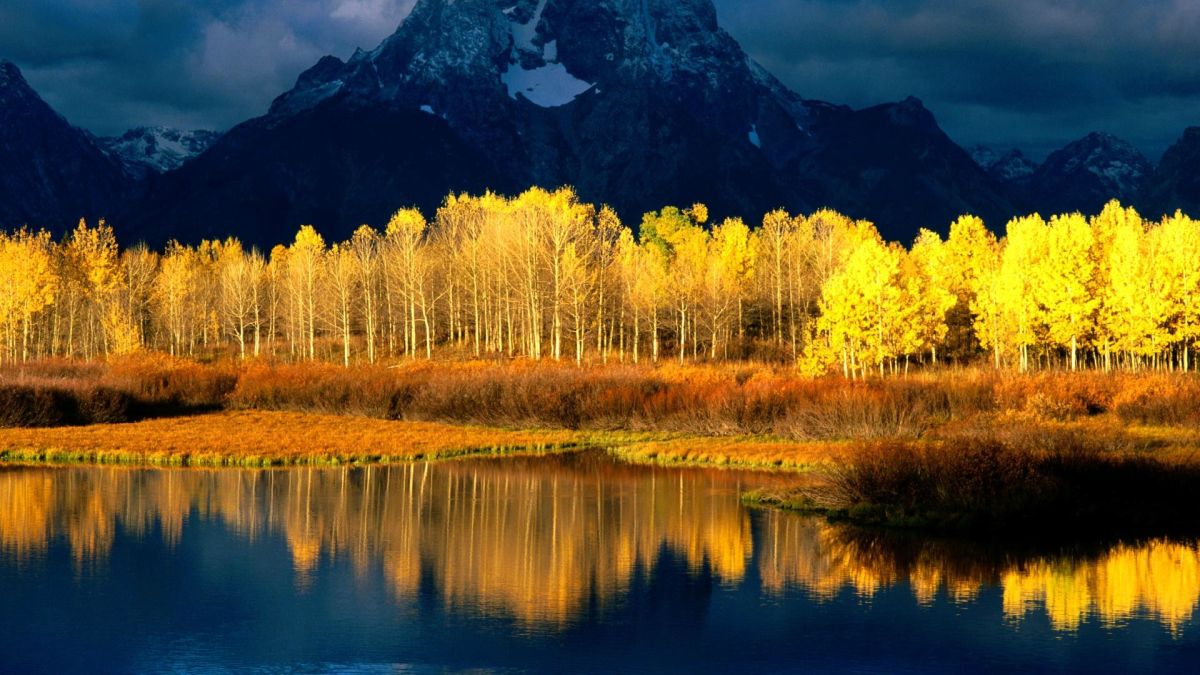
6. Fall Foliage
Original resolution: approx. 1920×1080 (16:9, Full HD) | Best for: standard desktop, laptop
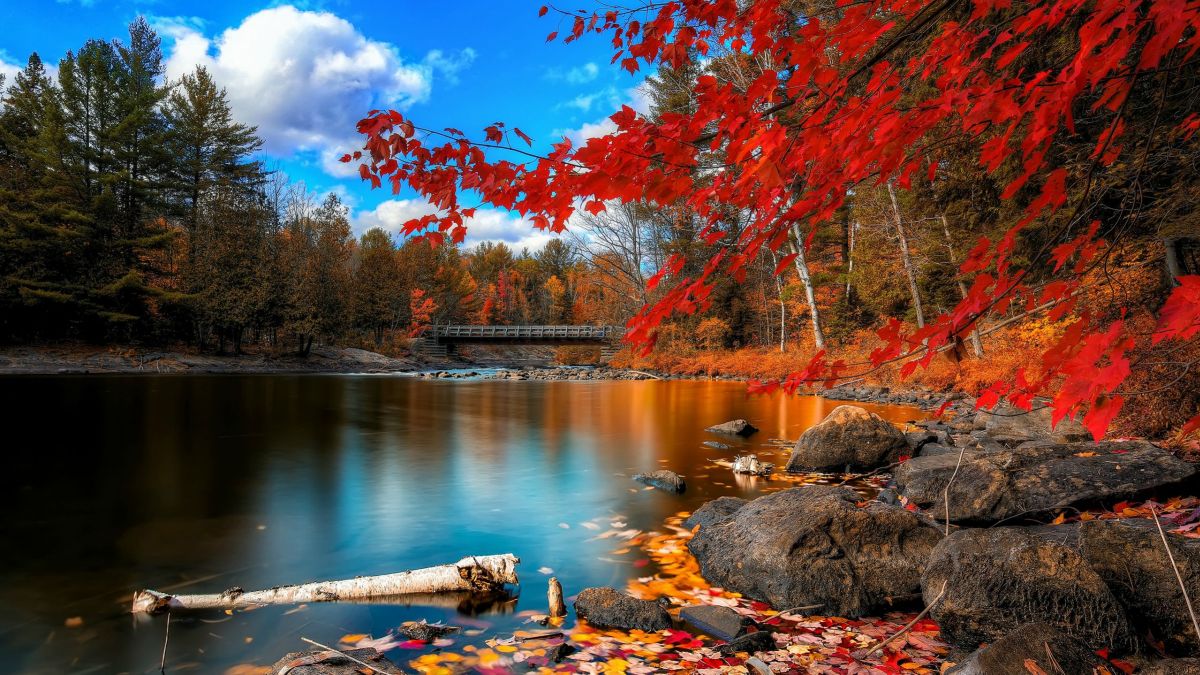
7. Red
Original resolution: approx. 1920×1080 (16:9, Full HD) | Best for: standard desktop, laptop
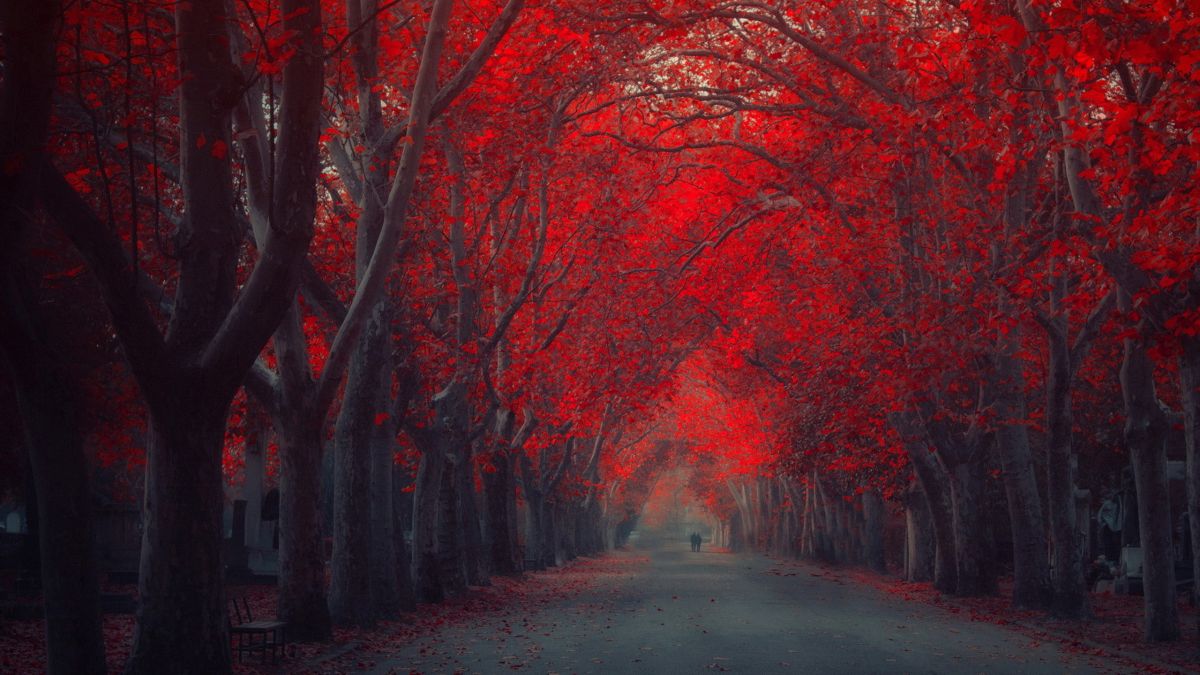
8. White Flowers
Original resolution: approx. 1920×1280 (3:2) | Best for: standard desktop; slight crop expected on widescreen displays in Fill mode
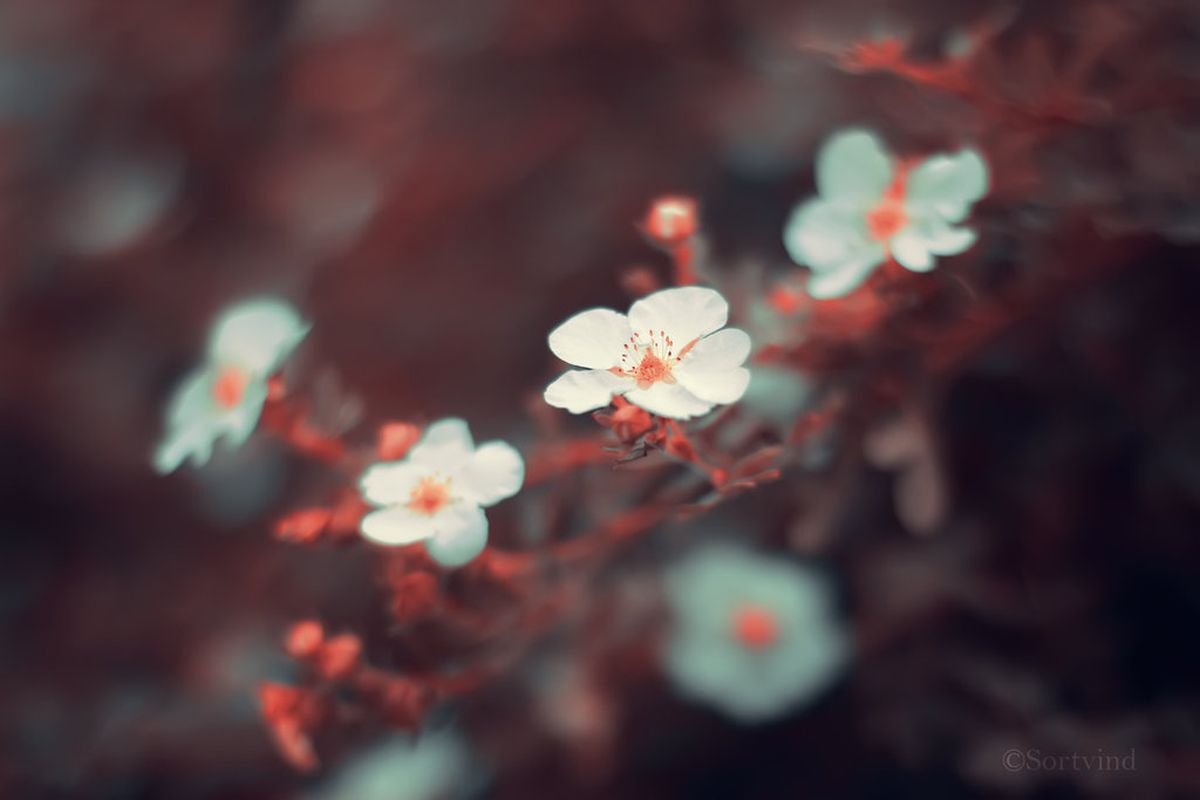
9. Autumn Poly Trees
Original resolution: approx. 1200×960 (5:4) | Best for: standard desktop; slight crop on widescreen in Fill mode
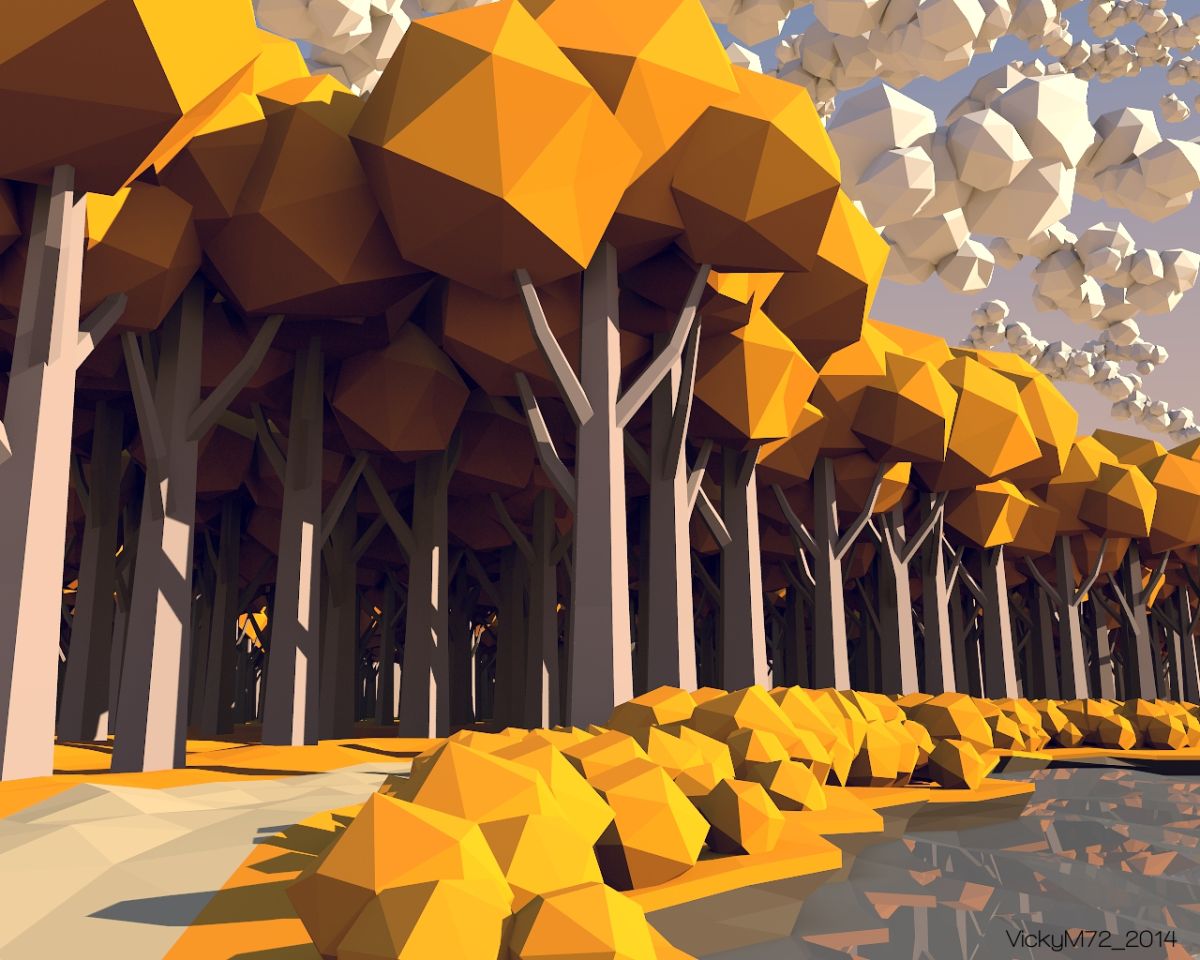
10. Autumn Polyscape
Original resolution: approx. 1920×1200 (16:10) | Best for: laptop, MacBook displays

11. Sparrows
Original resolution: approx. 1920×1200 (16:10) | Best for: laptop, MacBook displays
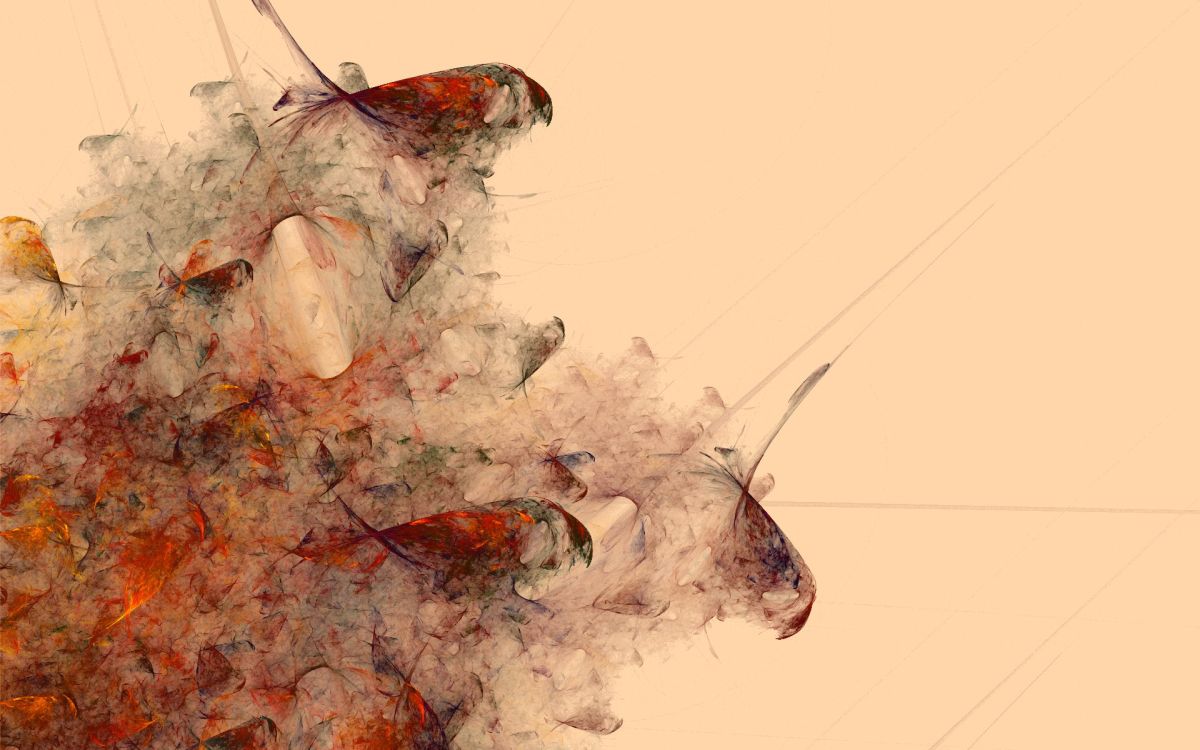
12. Harvest
Original resolution: approx. 1920×1080 (16:9, Full HD) | Best for: standard desktop, laptop
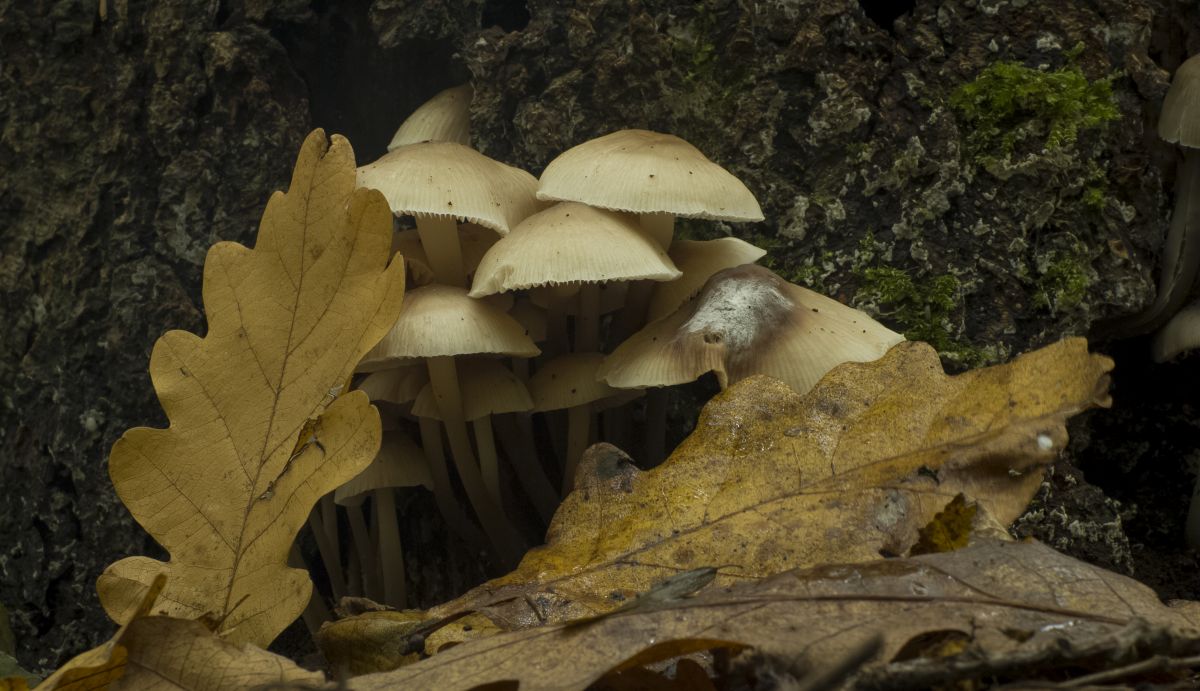
13. Mushrooms
Original resolution: approx. 1920×1105 (16:9 landscape) | Best for: standard desktop, laptop
14. The Crow
Original resolution: approx. 1920×1200 (16:10) | Best for: laptop, MacBook displays
15. An Otter Fall
Original resolution: approx. 1920×1080 (16:9, Full HD) | Best for: standard desktop, laptop
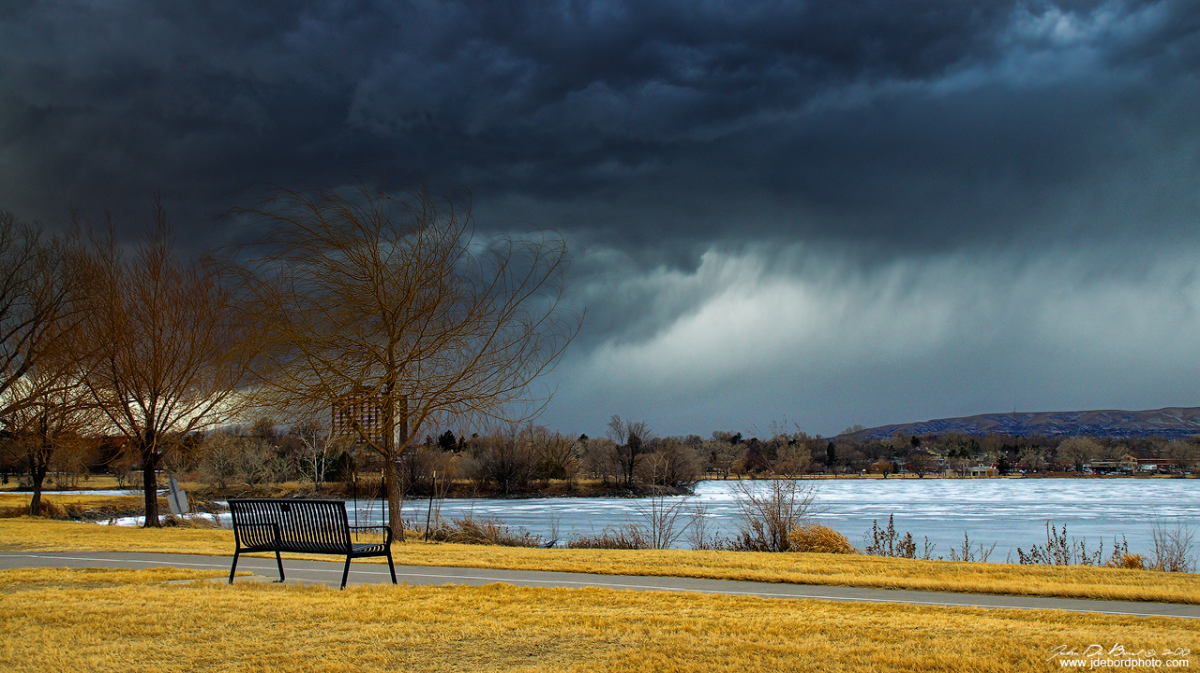
16. Untrodden Fall
Original resolution: approx. 1920×1080 (16:9, Full HD) | Best for: standard desktop, laptop

17. Overcast Autumn Sky
Original resolution: approx. 1920×1077 (16:9, Full HD) | Best for: standard desktop, laptop
18. Pumpkins
Original resolution: approx. 1600×1200 (4:3) | Best for: standard desktop; significant crop expected on widescreen in Fill mode — use Fit instead
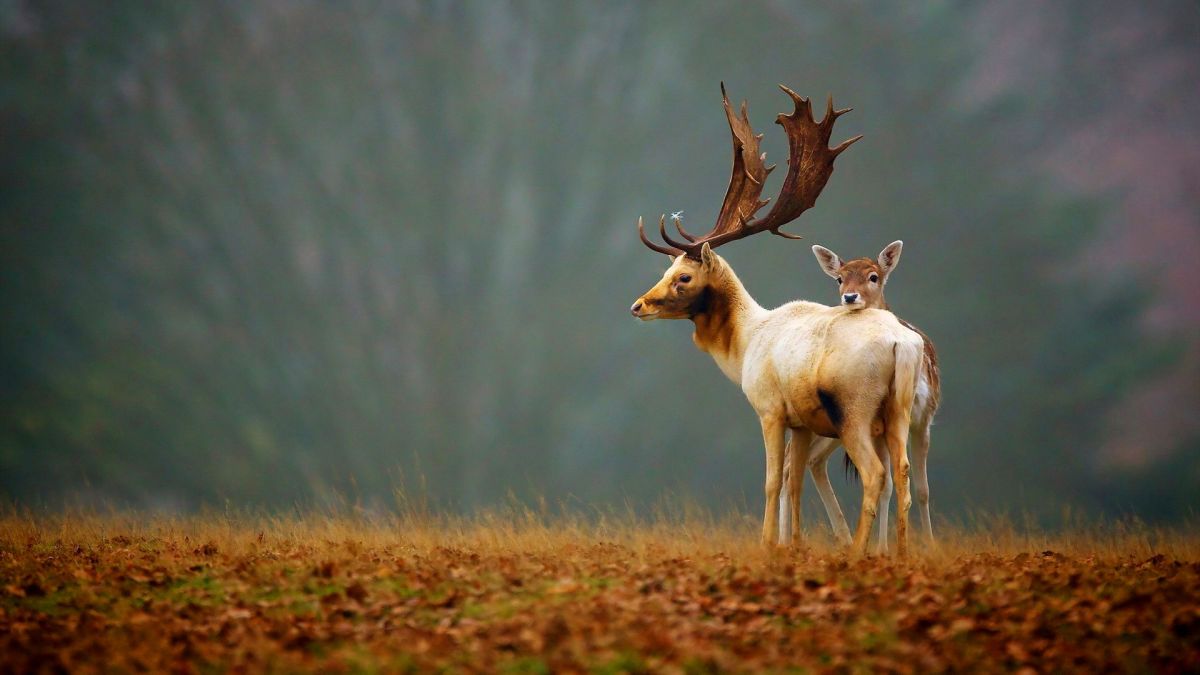
19. Stag & Foal
Original resolution: approx. 1920×1080 (16:9, Full HD) | Best for: standard desktop, laptop
20. Corn
Original resolution: approx. 1920×1280 (3:2) | Best for: standard desktop; slight crop on widescreen in Fill mode

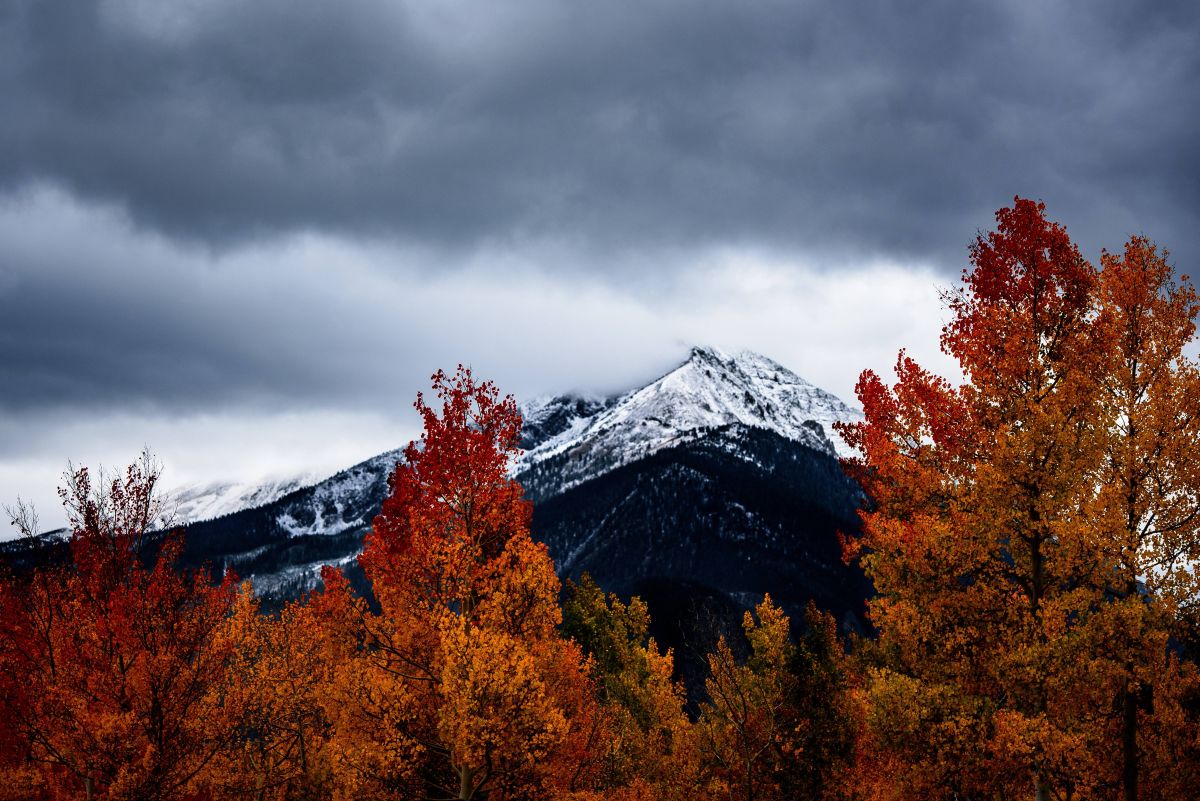
21. Autumn Trees & Snowy Peaks
Original resolution: approx. 1920×1282 (3:2) | Best for: standard desktop; slight crop on widescreen in Fill mode
22. Autumn Woods Digital
Original resolution: approx. 1920×1200 (16:10) | Best for: laptop, MacBook displays
23. Autumn Leaves & Blue Sky
Original resolution: approx. 1920×1280 (3:2) | Best for: standard desktop; slight crop on widescreen in Fill mode

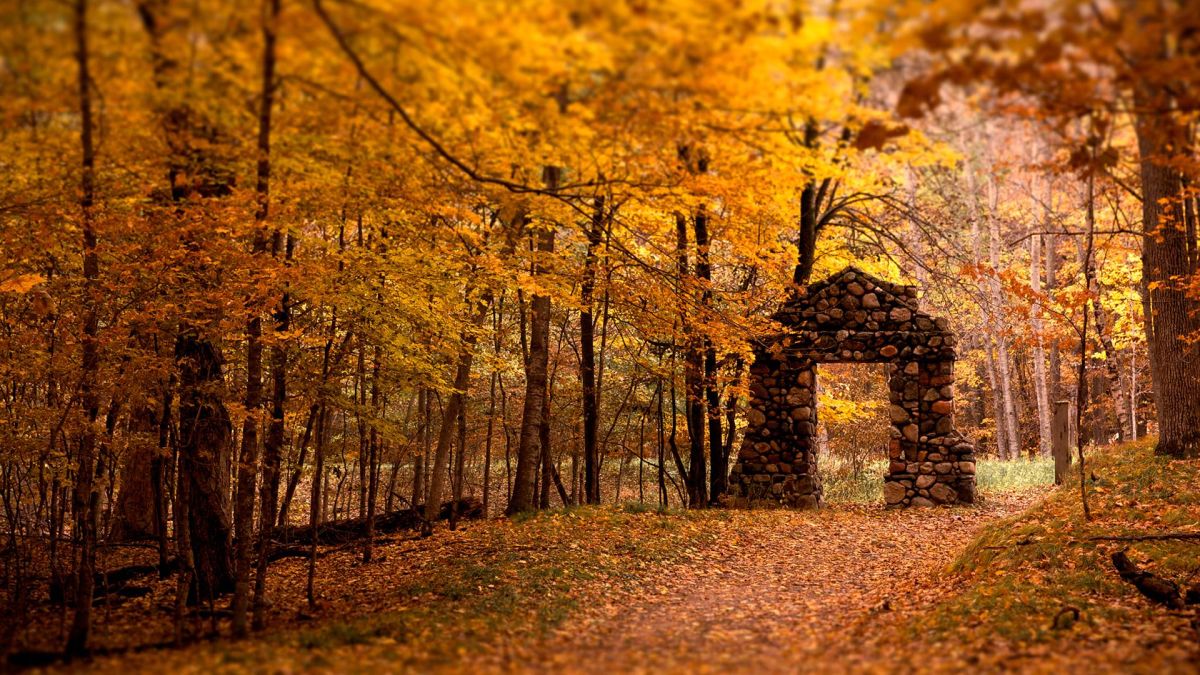
24. Autumn Arch Way
Original resolution: approx. 1920×1080 (16:9, Full HD) | Best for: standard desktop, laptop
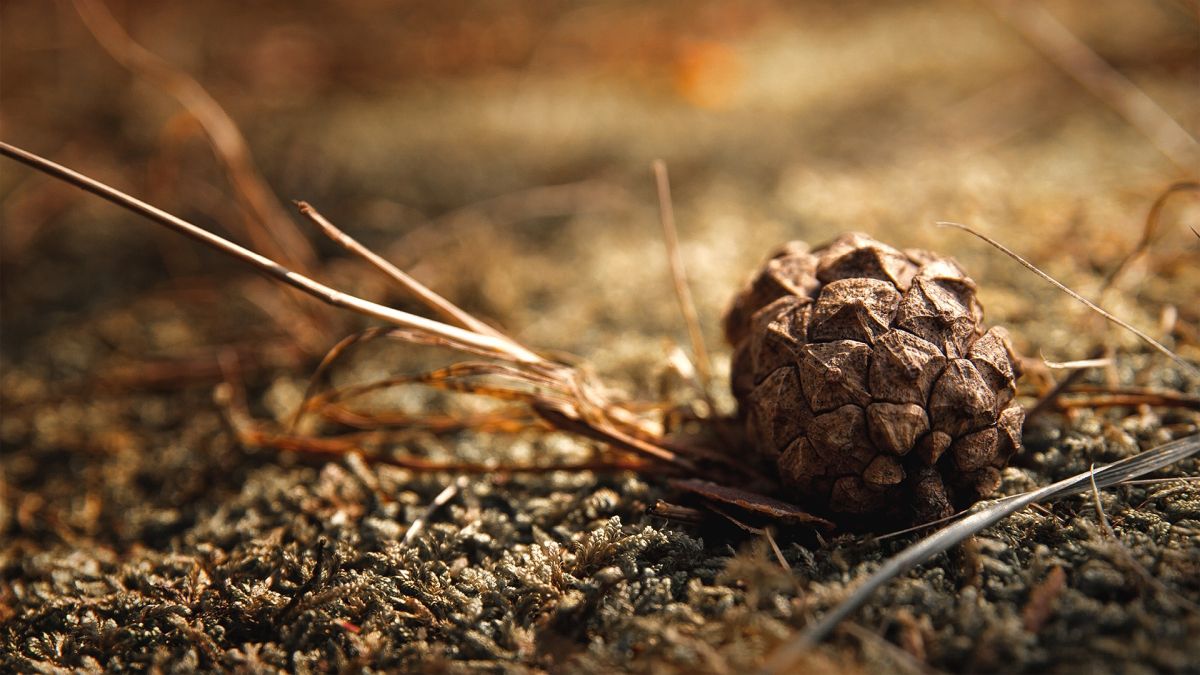
25. Pine Cone
Original resolution: approx. 1920×1080 (16:9, Full HD) | Best for: standard desktop, laptop
How to set a fall wallpaper for desktop on Windows and Mac
Once you’ve downloaded your favorite fall wallpaper for desktop, here’s exactly how to apply it on both Windows and macOS.
Setting a wallpaper on Windows 11 or Windows 10
- Download the wallpaper image from the link in each entry above and save it somewhere easy to find, such as your Pictures folder.
- Right-click on your desktop and select Personalize.
- Under Background, choose Picture from the drop-down menu.
- Click Browse photos (Windows 11) or Browse (Windows 10) and select your downloaded wallpaper.
- In the Choose a fit drop-down, select Fill for most 16:9 wallpapers on a standard monitor. If the image has an aspect ratio that differs from your screen (for example, a 4:3 or 3:2 image on a widescreen display), choose Fit to avoid cropping important parts of the image.
Enabling a wallpaper slideshow on Windows
If you want to rotate through multiple fall wallpapers for desktop automatically:
- Right-click the desktop and select Personalize.
- Under Background, choose Slideshow from the drop-down.
- Click Browse and select a folder containing your downloaded fall wallpapers.
- Set how often you want Windows to switch images — options range from 1 minute to 1 day.
- Toggle Shuffle on if you want the rotation order to be random.
Dual-monitor tip (Windows): If you run two monitors, right-click any wallpaper in the Personalization screen and choose Set for monitor 1 or Set for monitor 2 to assign different fall backgrounds to each display independently.
Setting a wallpaper on macOS
- Download and save the wallpaper image to your Mac, ideally into a dedicated folder inside Pictures.
- Open System Settings (macOS Ventura or later) or System Preferences (macOS Monterey and earlier) and click Wallpaper.
- Click Add Photo or Add Folder and navigate to your downloaded wallpaper.
- Click the image to set it as your desktop background.
- Use the drop-down next to the image to choose how it fills the screen: Fill Screen works best for 16:9 images on most Mac displays. If you have a 16:10 MacBook screen and the wallpaper is 16:9, Fill Screen will crop a small amount from the top and bottom — usually acceptable. Choose Fit to Screen if you prefer no cropping.
Rotating wallpapers from a folder on macOS: In the Wallpaper settings, after adding a folder, enable the Rotate Picture toggle and set your preferred interval (every hour, every day, on login, and so on). macOS will cycle through all compatible images in that folder automatically. This is a great way to enjoy all 25 fall wallpapers for desktop throughout the season without manually switching.
Prefer a functional fall wallpaper for desktop? Calendar, organizer, and wordless options
The 25 wallpapers in this collection are primarily decorative — beautiful images designed to make your desktop look and feel like autumn. But many people searching for a fall wallpaper for desktop actually want something that does a job at the same time. Here’s a quick overview of the main functional fall wallpaper types worth knowing about.
Monthly calendar wallpapers — These combine a scenic fall background with a printable or on-screen calendar grid overlaid on the image. They’re popular in September, October, and November and are a practical way to keep dates visible on your desktop without opening a separate app.
Before downloading one, check whether the calendar starts on Sunday or Monday (this varies by creator and region) and confirm it’s for the correct month and year. Many creators release updated versions each month.
Organizer-style desktop wallpapers — These use labeled zones or boxes built into the image design to help you organize desktop icons into categories — for example, a “Work,” “Personal,” and “Files” section. Fall-themed organizer wallpapers typically use warm colors and seasonal imagery around the edges while keeping central areas clean and dark enough for icon labels to remain readable.
If you use a second monitor, look for creators who release matching second-screen versions so both displays stay visually consistent.
Quote wallpapers — Fall-themed quote wallpapers pair a seasonal phrase or motivational line with an autumnal background. These are popular on Pinterest and creative communities. The text is baked into the image, so choose one where the font and color contrast well against your icon labels.
If you find a background you love but the quote feels distracting at work, look for a wordless version from the same artist — many creators release both.
Wordless and minimalist alternatives — If your priority is a clean workspace, a wordless fall wallpaper for desktop with a clear center area and subtle edges is the best choice. Several wallpapers in this collection — particularly #7 Red, #9 Autumn Poly Trees, and #10 Autumn Polyscape — use illustrated or abstract styles that keep the composition low-clutter and let desktop icons breathe.
Photo collage wallpapers — Some users prefer a mosaic of fall images rather than a single scene. These are widely available on sites like Canva and Pinterest, often as customizable templates where you can swap in your own photos. They work best at larger resolutions (1920×1080 or above) since the individual photos within the collage can look pixelated at smaller sizes.

Hi Fatima Wahab all wallpapers are so beautiful but i like the most Red and Overcast Autumn Sky wallpapers