Classic Shell Adds Classic Start Menu In Windows 7
Classic Shell is a free application that brings back the classic XP-styled Start menu and Classic Explorer toolbar buttons — such as Up, Cut, Copy, and Paste — to Windows Vista and Windows 7. If you are looking for a Classic Shell Windows 7 solution, this tool is developed specifically for users who don’t feel comfortable with the default Start menu in Windows 7 or Windows Vista and miss the familiar toolbar buttons from Windows XP.
What Classic Shell for Windows 7 Offers
During installation, you are presented with three optional components. The first is Classic Start Menu — an XP-styled menu featuring recent documents, drag-and-drop support for organizing applications, and easy keyboard navigation through installed programs. The second is Classic Explorer, a plugin for Windows Explorer that adds a toolbar with buttons for Up, Cut, Copy, Paste, and more, along with an optional status bar that shows file counts, sizes, and other folder details. The third component is Classic IE, which restores a classic toolbar and status bar to Internet Explorer. On Windows 7, Classic Start Menu and Classic Explorer are the most relevant components for most users, while Classic IE is optional and less commonly installed. You can choose to install any combination of the three depending on your needs.
The classic Start menu closely mirrors the look and feel of Windows XP’s Start menu, making the transition from XP to Windows 7 far less jarring. Users who have spent years navigating the two-column XP-style layout will find this immediately familiar. The drag-and-drop functionality for organizing pinned applications is particularly useful, as it gives you direct control over how your programs are arranged without diving into settings menus.
Classic Explorer, on the other hand, restores the toolbar that Microsoft removed when it redesigned Windows Explorer for Vista and Windows 7. The “Up” button alone is something many power users missed deeply, as it allowed quick navigation to the parent folder without using the breadcrumb bar. Having Cut, Copy, and Paste buttons directly in the toolbar also speeds up everyday file management tasks considerably. On Windows 7, Classic Explorer also enables the Classic Copy UI, which replaces the default file copy dialog with a more detailed progress view — a feature exclusive to the Windows 7 version of Classic Shell.
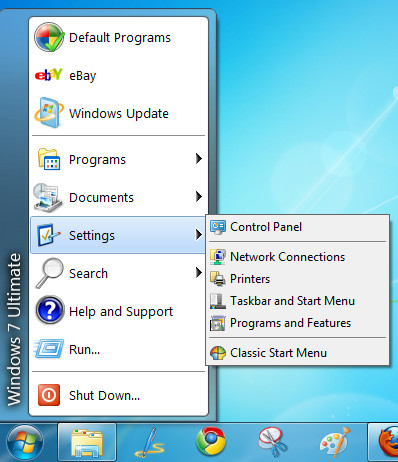
Configuring Classic Shell on Windows 7
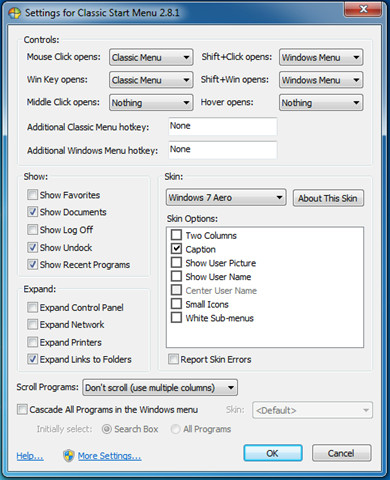
Start menu settings can be adjusted through a step-by-step process. Right-click the Start button and select Settings to open the Classic Shell settings panel. By default the panel opens in basic view — click Show all settings at the top to unlock the full range of options before making any changes.
From there, you have several concrete choices to work through:
- Menu style: Choose from three layouts — Classic (single column, XP-style), Two Columns (mimicking the Windows XP default with a left and right pane), or Windows 7 (which keeps the visual style of Windows 7 but adds Classic Shell behavior on top).
- Skin and Start button: Under the Skin tab, pick from the included skins to change the visual theme of the menu. You can also set a custom Start button image to replace the default Windows orb.
- Search integration: The Search tab lets you control how the search box behaves, including whether it searches programs only, files and folders, or the internet, and how results are displayed.
- Recent, frequent, and pinned programs: Under the Start Menu Items tab, configure how many recent or frequently used programs appear, enable or disable pinned items, and choose whether recent documents are shown.
- Sorting options: Programs in the menu can be sorted automatically or left in a custom order you define by dragging items.
- Menu size and icon tweaks: Adjust the size of small and large icons, the width and height of the menu, and font sizes for menu items.
- Explorer toolbar and status bar: If you installed Classic Explorer, open its settings to toggle individual toolbar buttons on or off and enable the status bar that shows item counts and total file sizes in each folder.
Once you have made your selections, click OK to apply. Changes take effect immediately — you do not need to restart Windows.
An important thing to note is that installing Classic Shell does not disable the native Windows 7 Start menu. The Windows 7 and Vista-styled Start menu remains fully accessible — simply press Shift and then click the Start button to open it. This means you can switch between the two menus at any time, which is helpful if you occasionally need features that are exclusive to the Windows 7 Start menu.
Compatibility, Uninstall, and Reverting to the Default Windows 7 Start Menu
Classic Shell supports both 32-bit and 64-bit editions of Windows 7, as well as Windows Vista and Windows XP. It does not support Windows RT, since that platform restricts the installation of standard desktop applications.
Temporarily accessing the native Windows 7 Start menu: You do not need to uninstall Classic Shell to use the built-in menu. Simply hold Shift and click the Start button to bypass Classic Shell and open the default Windows 7 Start menu. This works at any time without changing any settings.
Disabling or uninstalling Classic Shell cleanly: To disable it temporarily, right-click the Start button, select Settings, and uncheck the option to replace the Start menu — this leaves Classic Shell installed but inactive. To remove it completely, open Control Panel > Programs and Features, find Classic Shell in the list, and click Uninstall. Windows will restore the default Start menu and Explorer behavior automatically once the uninstall completes.
If an uninstall or upgrade does not complete cleanly: Restart Windows after the uninstall attempt and check Programs and Features again to confirm the entry has been removed. If the Classic Shell Start button or Explorer toolbar still appears after uninstalling, a second restart usually resolves the issue. For a cleaner removal, run the original installer and choose the Remove option rather than going through Programs and Features directly.
If you are an XP user who recently upgraded to Windows 7 and miss the classical Start menu layout and classic Explorer toolbar buttons, Classic Shell is well worth trying. It is lightweight, free, and does not interfere with system stability. The application has been widely used and praised by the Windows community as one of the most effective ways to restore familiar navigation to newer versions of Windows.
Testing was done on a system running Windows 7 x86.
Note: Classic Shell is no longer actively developed. Development officially ended on December 3, 2017, and the final stable release was version 4.3.1, published on August 12, 2017. The project has since been continued by the community as Open-Shell, which is maintained on GitHub and is the recommended successor for users who want ongoing updates and bug fixes. Whether you choose the original Classic Shell or Open-Shell, always download from the official sources — the Classic Shell SourceForge page or the Open-Shell GitHub releases page — rather than third-party mirrors, which may bundle unwanted software.
Previously, we covered a useful tip that required the Classic Shell application.

Classic Shell is an excellent way to restore sanity to the Windows 8 desktop. Thank God! I will use this until Micro$oft manage to produce a better alternative. The present UI formerly known as Metro is a mess.