How To Lock Windows Xp Securely And Easily
If you are stepping away from your computer, you might want to lock Windows XP for security reasons so that it is not intruded by passersby — especially if you are in an office or some public place. This post will come in handy if you are looking for a solution to this problem. We will walk you through several methods without the need for any additional software so that you can quickly and easily follow them to stay secure.
Here are some different ways to lock your PC running Windows XP.
1. Lock Windows XP Via Keyboard Shortcut
This is by far the easiest way to lock Windows XP. Simply hold down the Windows key and the letter ‘L’ key on any Microsoft-compatible keyboard. Note that this step won’t work if you don’t have a Microsoft-compatible keyboard with a Windows key.
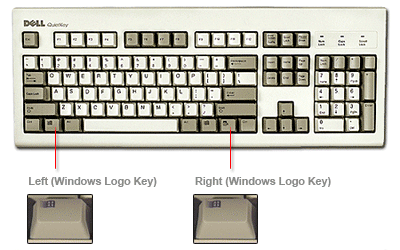
2. Lock Windows XP Via a Desktop Shortcut
If you cannot perform the above step for any reason, you can use this method as an alternative. All you have to do is create a shortcut by right-clicking on the desktop, as shown in the image below.
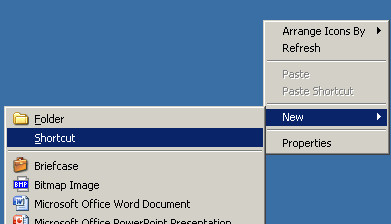
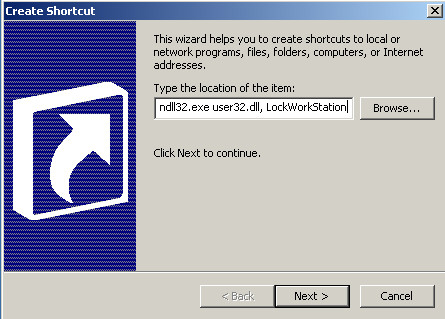
Just copy and paste the following code into the command line field: ‘rundll32.exe user32.dll, LockWorkStation’, and press NEXT.
You can name this shortcut anything you like. I have named it LOCK so that it is easily recognizable on the desktop.
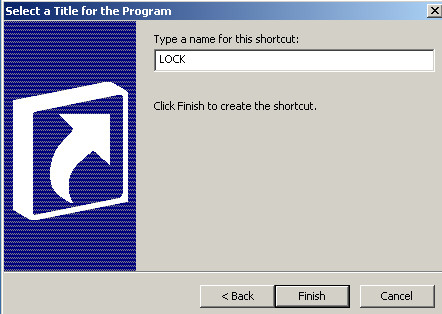
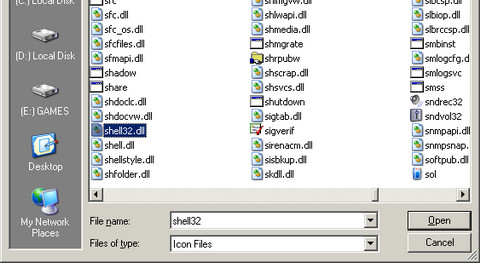
Just double-click the icon to lock your computer. You can also change the icon of this shortcut to make it look more presentable on the desktop. Go to Properties, then click on the Change Icon tab and select the file shell32.dll, which is located in the Windows/System32 folder.
3. Via Command Line
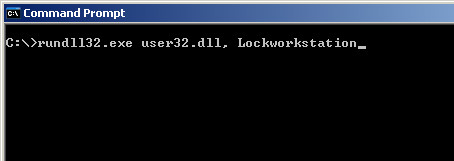
This step is similar to the previous one. All you have to do is type the same code in the command prompt. Open the command line either from the Start Menu, or by opening the Run dialog and typing CMD. Then paste the code ‘rundll32.exe user32.dll, LockWorkStation’ into the command prompt and press Enter. This is a quick way to lock Windows XP without creating any permanent shortcuts.
4. Via Batch File
Making a batch file is easy enough. Open your Notepad and type in the following commands:
@echo off
rundll32.exe user32.dll, LockWorkStation
cls
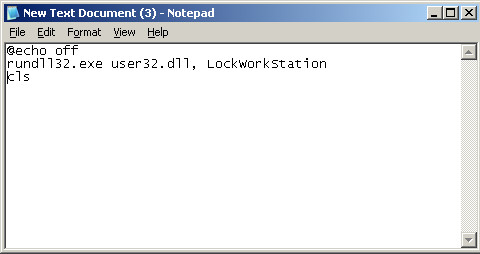
Save this file with a .BAT extension, as shown in the picture below.
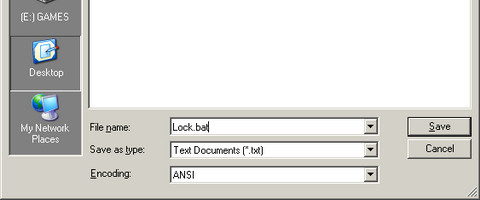
Whenever you want to lock your PC, just double-click this BAT file and your PC will be locked immediately. This method is especially useful if you want a one-click solution that does not require any third-party software.
Lock and unlock Windows XP with Ctrl+Alt+Delete
If you do not have a Windows key on your keyboard and prefer not to use a shortcut or script, there is a straightforward built-in option available through the Windows Security dialog. Here is how to use it:
- Press Ctrl+Alt+Delete on your keyboard. The Windows Security dialog will appear.
- Click Lock Computer. Your session will be locked immediately.
How to unlock your PC
Unlocking is just as simple:
- Press any key or move the mouse to dismiss the screensaver or blank screen.
- If the Welcome screen appears, click your user account name.
- Enter your password and click OK.
Important: If your account has a blank password, the lock screen provides very little real protection — anyone can click your account and get straight in. Always set a strong password before relying on the lock screen to secure your session.
I should not conclude this article without mentioning that if your domain account is not password protected, anyone can access your user account even if you have locked your PC. Make sure to protect your account with a strong password. According to Microsoft’s official Windows support documentation, keeping your account password-protected is one of the most important steps for PC security. You can change or add a password by going to Control Panel, then User Accounts, and selecting Change or Add Password.
NOTE: Fast User Switching also plays a major role in how you lock Windows XP. Windows XP offers two sign-in modes, and the one you are using affects lock behavior directly. When the Welcome screen and Fast User Switching are enabled, pressing Windows+L or using Lock Computer may display the Welcome screen rather than a traditional password-protected lock screen, which changes how your session is secured. When the Welcome screen and Fast User Switching are disabled (classic logon mode), the standard workstation lock behavior is available, presenting a dedicated lock screen that requires your password to resume. To check or change your current setting, go to Control Panel > User Accounts > Change the way users log on or off, then toggle Use the Welcome screen and Use Fast User Switching as needed.
If Windows XP will not lock or Windows+L does not work
If locking your PC is not working as expected, run through this checklist before assuming something is seriously wrong:
- Check your keyboard for a Windows key. The Windows+L shortcut requires a Windows key. Many older or non-Microsoft keyboards do not have one. If yours is missing it, use the Ctrl+Alt+Delete method described above as a reliable fallback.
- Try Ctrl+Alt+Delete instead. If Windows+L does nothing, pressing Ctrl+Alt+Delete and clicking Lock Computer bypasses any shortcut-related issues and is always worth trying first.
- Check whether the Welcome screen and Fast User Switching are enabled. As described in the note above, having these features turned on can change or limit lock behavior. Go to Control Panel > User Accounts > Change the way users log on or off and disable both options to restore the standard workstation lock.
- On Windows XP Professional, check for a lock policy. A Group Policy setting or registry value called DisableLockWorkstation can prevent the Lock Computer option from appearing or functioning entirely. If you are on a corporate domain, your IT administrator may have applied this policy. You can check the registry at HKEY_CURRENT_USER\Software\Microsoft\Windows\CurrentVersion\Policies\System — if DisableLockWorkstation is set to 1, locking has been disabled by policy.
- Be aware of a known XP quirk. Microsoft Knowledge Base article 835410 and community reports note that lock-policy behavior in Windows XP can be inconsistent while Fast User Switching is enabled. Turning Fast User Switching off is often the most reliable fix for erratic locking behavior.
I hope I haven’t missed anything or any step for locking up your Windows XP easily and securely. Feel free to share your thoughts in the comments section below.

How do I unlock files in Windows XP 2002? I didn't lock them in the first place so virus scan cannot scan them.
How do I unlock files in Windows XP 2002? I didn't lock them in the first place so virus scan cannot scan them.
How do I unlock files in Windows XP 2002? I didn't lock them in the first place so virus scan cannot scan them.