How to Fix the ERR_INTERNET_DISCONNECTED Error [SOLVED]
“`html
ERR_INTERNET_DISCONNECTED is an Internet error that occurs in Google Chrome when trying to access an online page. It’s accompanied by the T-Rex image and the No internet message.
Google Chrome displays three recommendations that you can try to get your Internet connection up and running again. However, if they fail, you can try other possible solutions.
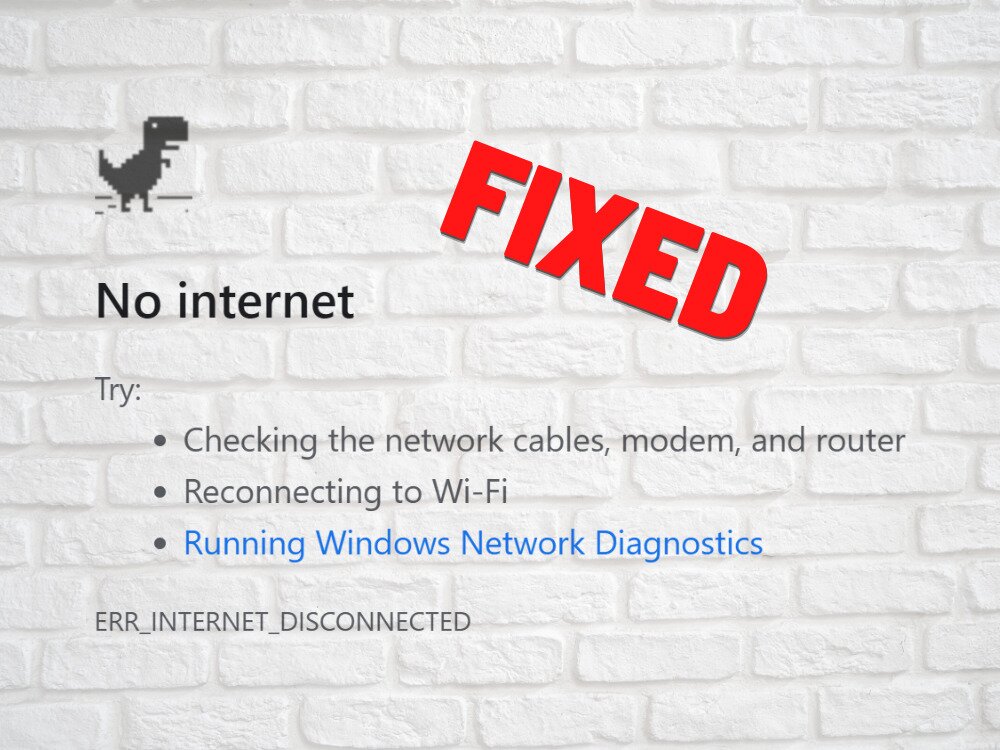
How to fix ERR_INTERNET_DISCONNECTED on Windows, Mac, Android, and iOS
We’re going to start with the recommendations made by Chrome.
1. Check your Internet connection
Before beginning to troubleshoot your device, you should check the quality of your Internet connection. Here are some suggestions:
- Make sure your Ethernet cable is properly connected to your PC, Mac, and router
- Try to connect to the Internet using a different browser
- Use another device to go online
- Connect to another Wi-Fi network or switch to your mobile data plan (3G/4G)
- Reboot your router
- Switch from wireless to wired mode
- Test your Internet speed
2. Run the Internet Connections troubleshooter on Windows 10
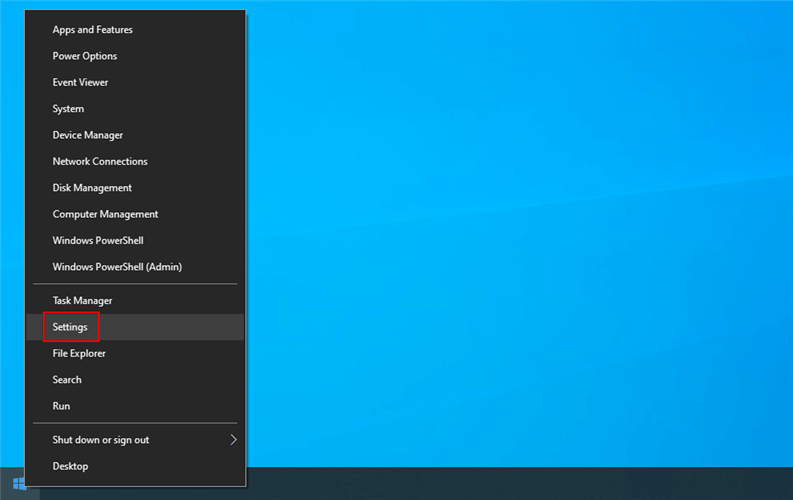
Windows 10 has built-in troubleshooters that fix common problems to various utilities and features, including the Internet connection. Here’s how to use it:
- Right-click the Windows 10 Start button and go to Settings

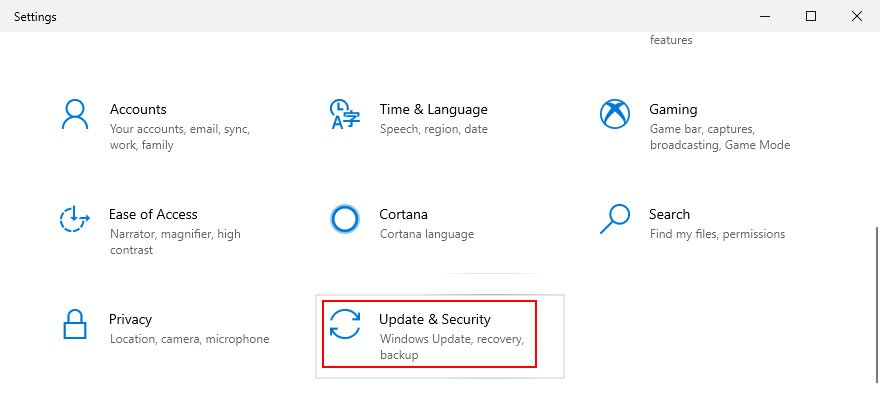
- Select Update & Security

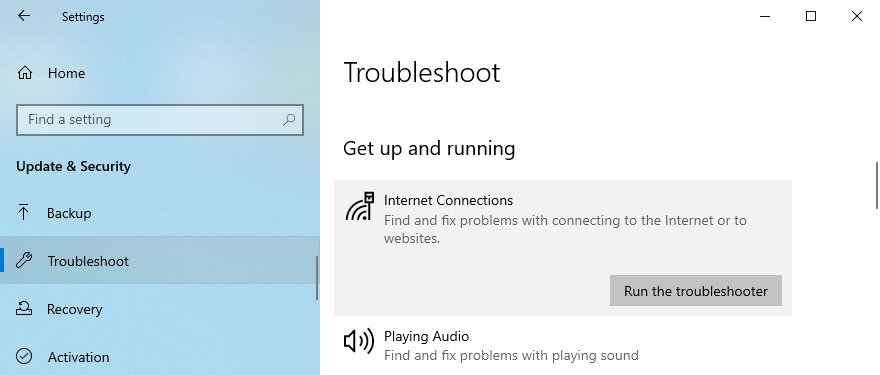
- Go to Troubleshoot on the left side
- Select Internet Connections and click Run the troubleshooter

- Follow the on-screen instructions
- Restart your computer and try using Chrome
3. Update Chrome
It’s essential to keep Google Chrome updated to the latest version. If there are any known connectivity problems in a previous version that caused the ERR_INTERNET_DISCONNECTED error, they will likely get fixed in the next update.
How to update Chrome on Windows and Mac:
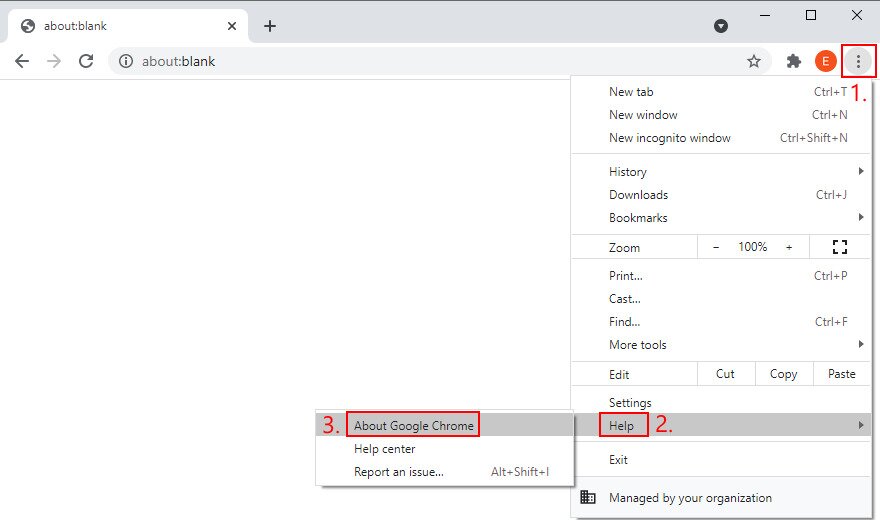
- Launch Chrome and open the main menu on the top-right corner
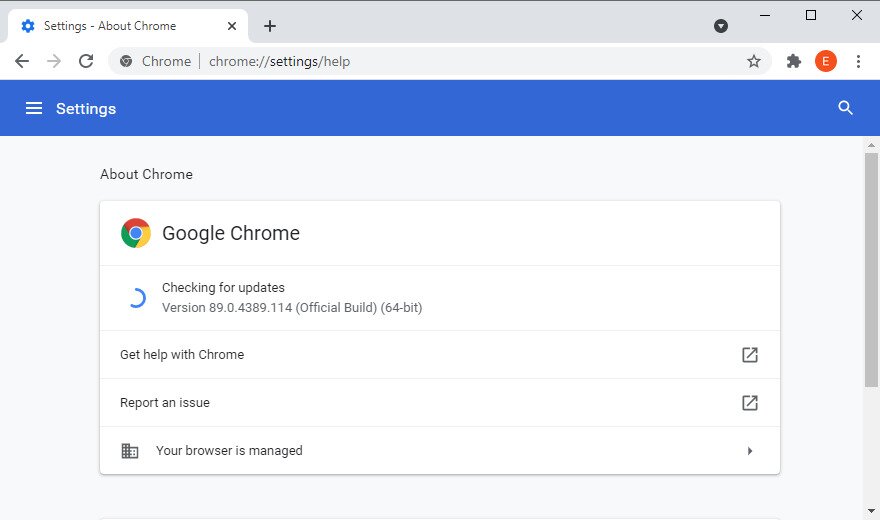
- Go to Help and click About Google Chrome

- Alternatively, you can visit the
chrome://settings/helpaddress - The app will start looking for updates right away. It automatically downloads any pending updates

- Once the update is complete, click Relaunch
How to update Chrome on Android:
- Open the Play Store app
- Tap your Google account and go to My apps & Games
- Look for Google Chrome in the Updates section. If you find it, click Update. Otherwise, the browser is already updated
How to update Chrome on iOS:
- Launch the App Store
- Tap Updates
- If you spot Google Chrome in that area, click Update. If it has an Open button instead, it means that it’s already updated
4. Reinstall Chrome
The ERR_INTERNET_DISCONNECTED error could also be caused by a corrupt file in Google Chrome, which cuts off the Internet connection. To solve this problem, you can try uninstalling Chrome and setting it up again. When it comes to Windows 10, make sure to install Chrome in the default location.
How to reinstall Chrome on Windows 10:
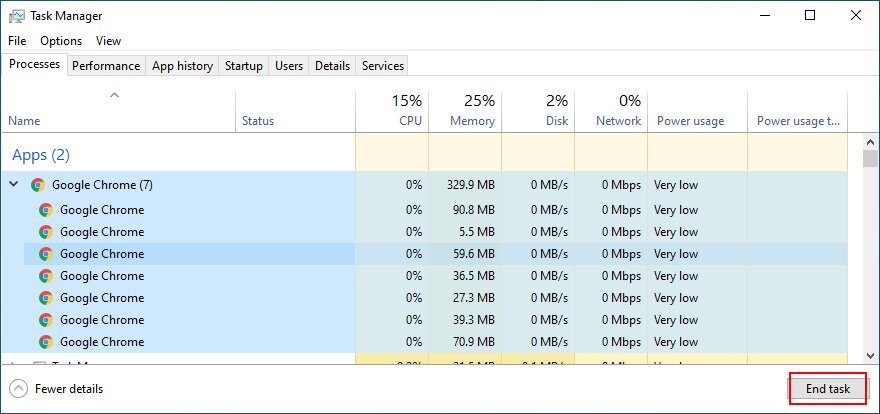
- Right-click the taskbar and go to Task Manager

- Select each Chrome process you can find and click End task

- Exit Task Manager
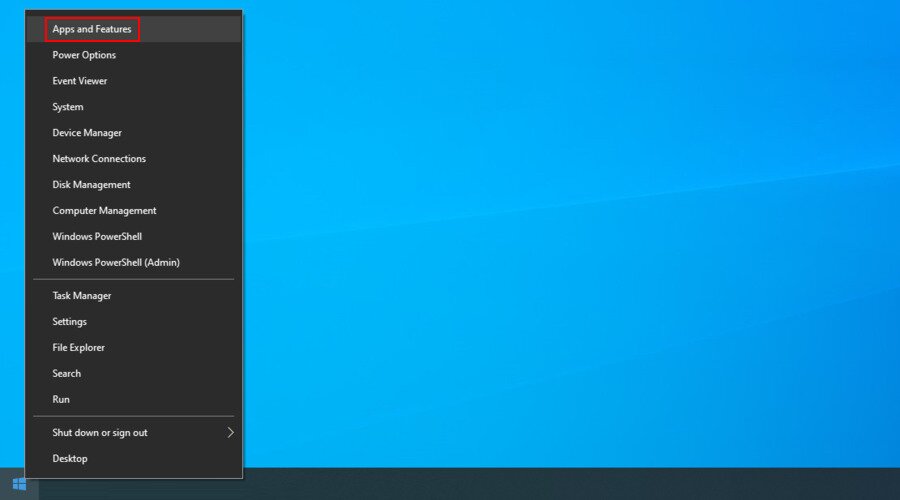
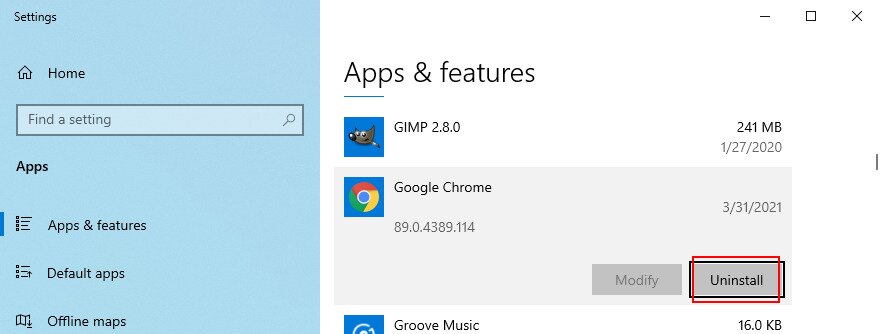
- Right-click the Start button, and go to Apps and Features

- Find and select Google Chrome

- Click Uninstall and then again to confirm
- Download Chrome from the official website
- Set up the browser, open it, and try to open a webpage

How to reinstall Chrome on Mac:
- Switch to the Google Chrome window
- Open the Apple menu in the top-left corner and click Force Quit
- Open Finder and locate Chrome
- Drag and drop the Chrome app to the Trash
- Specify your admin username and password if asked
- Use Finder and select Empty Trash
- Download Chrome from the official website
- Install the app, launch it, and try to visit a website
How to reinstall Chrome on Android:
- Open the Play Store and find Google Chrome
- Tap Uninstall and then again to confirm
- Restart your Android
- Go to Play Store > Chrome and tap Install
How to reinstall Chrome on iOS:
- Tap and hold the Chrome app
- Tap Remove App > Delete App, and then Delete to confirm
- Open App Store and find Google Chrome
- Tap the cloud icon to download and install the app
5. Clear browser cache
The browser cache can affect the page loading process and even prevent Google Chrome from opening any page. As a result, you will see the ERR_INTERNET_DISCONNECTED error on your screen. Similar cache-related browser errors can also disrupt your browsing experience.
To fix this problem, you have to clear browser cache. Here’s what you need to do.
How to clear Chrome cache on Windows, Mac, and Android:
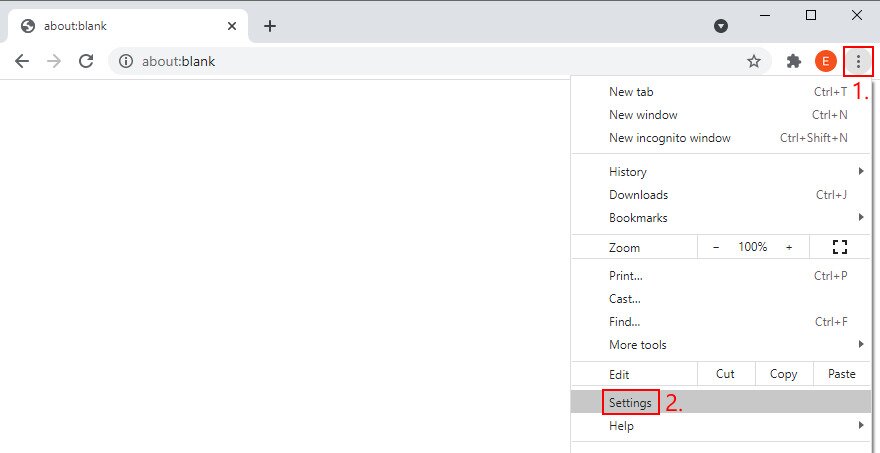
- Launch Chrome and open the main menu
- Go to Settings

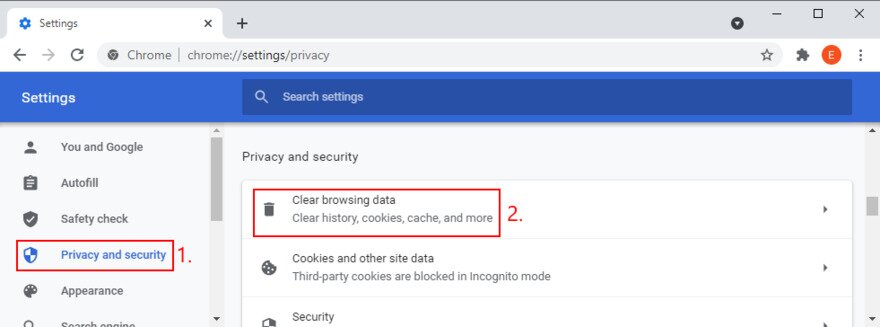
- At Privacy and security, click Clear browsing data

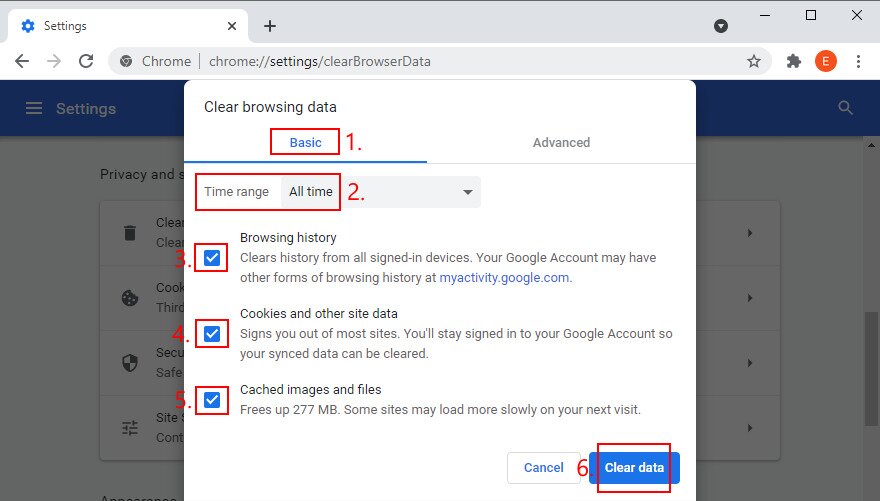
- Go to the Basic tab and set Time range to All time
- Check Browsing history
- Select Cookies and other site data
- Check Cached images and files
- Click Clear data

- Relaunch Chrome and try to visit a website
How to clear Chrome cache on iOS:
- Open the Chrome app and tap the More button on the bottom
- Tap History > Clear browsing data
- Check Browsing history, Cookies and other site data, and Cached images and files
- Tap Clear browsing data
6. Reset Chrome settings to default
A customized browser configuration could have a negative impact on your Internet connection. It could be the reason why you keep getting the ERR_INTERNET_DISCONNECTED error.
However, you can quickly fix this problem by resetting the Chrome configuration to default.
How to reset Chrome settings on Windows and Mac:
- Click the More button and go to Settings (or type
chrome://settings/in your address bar) - Scroll down and click Advanced
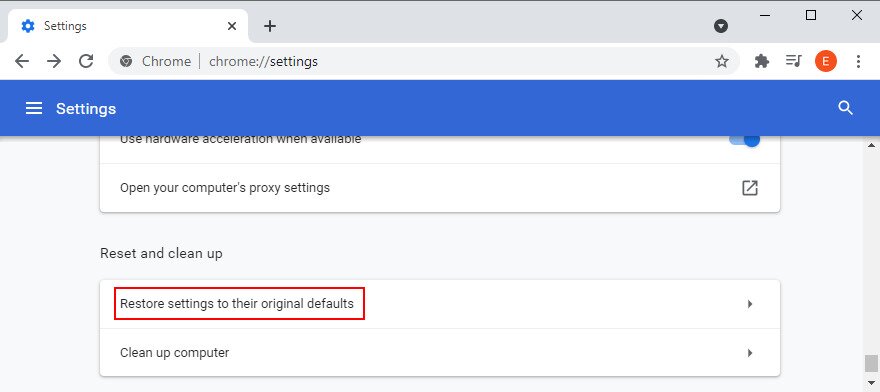
- At Reset and clean up, click Restore settings to their original defaults

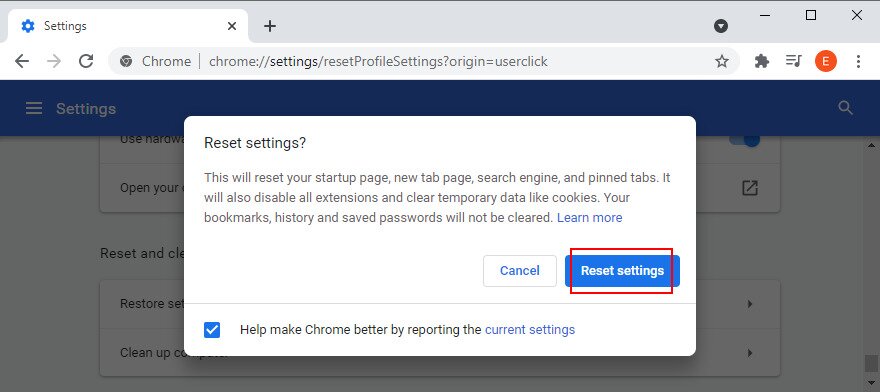
- Click Reset settings to confirm

- Relaunch Chrome and try to access a webpage
7. Uninstall suspicious Chrome extensions
The Chrome Web Store is filled with various extensions. Although Google does its best to keep out any dangerous apps, it doesn’t always succeed.
If you have at least one fishy extension installed on Chrome, it might change your IP settings and block your Internet access. And that’s why you keep seeing the ERR_INTERNET_DISCONNECTED error.
On the bright side, you can fix this problem by clearing Chrome of all untrusted extensions. Here’s what you need to do:
How to remove suspicious Chrome extensions on Windows and Mac:
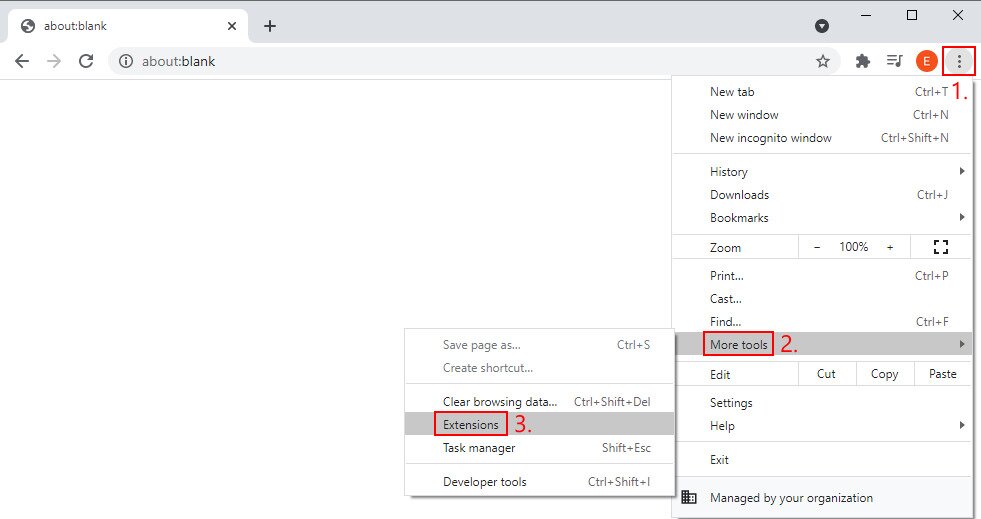
- Launch Chrome and click the More button on the top-right corner
- Go to More tools and click Extensions

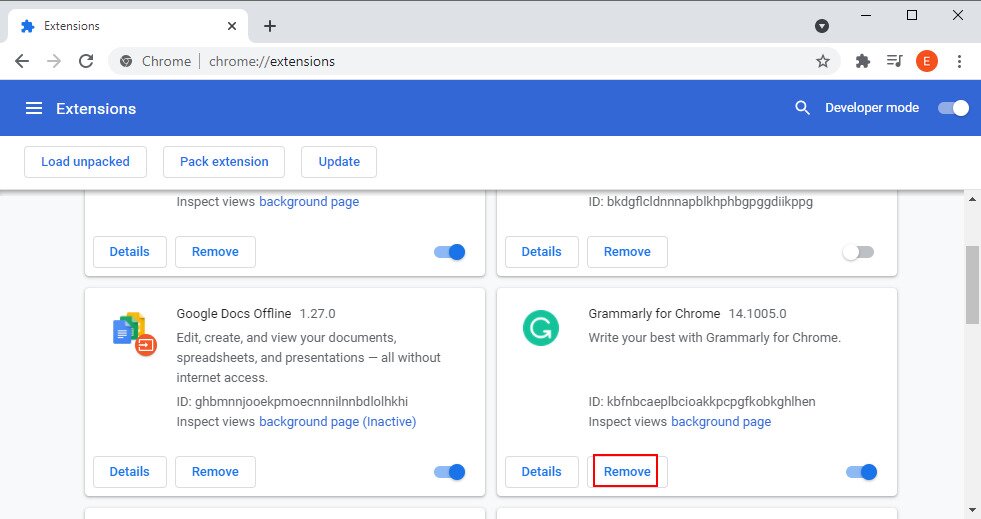
- Click Remove at any extension you don’t need or trust. This includes free VPN and proxy extensions

- Restart Chrome and try to access websites
8. Check your proxy and VPN settings
If you have configured a proxy server or VPN service to change your IP, it could have messed up your Internet settings and that’s why you can’t go online anymore, getting the ERR_INTERNET_DISCONNECTED error instead.
It’s a good idea to check your proxy and VPN settings to make sure that everything is in order. If you’re not keen on using them, then you should disable the proxy and VPN to create a direct Internet connection.
How to disable VPN and proxy settings on Windows 10:
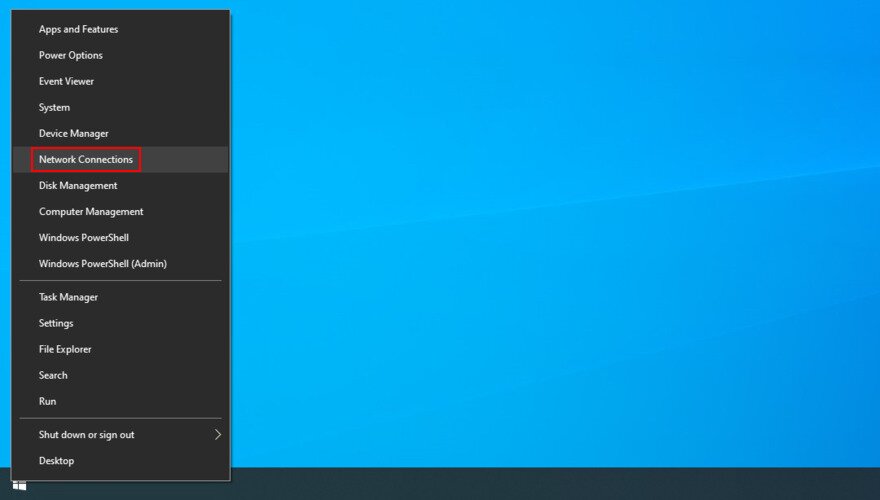
- Right-click the Start button and go to Network Connections

- Go to the VPN section and disconnect any active VPN connections
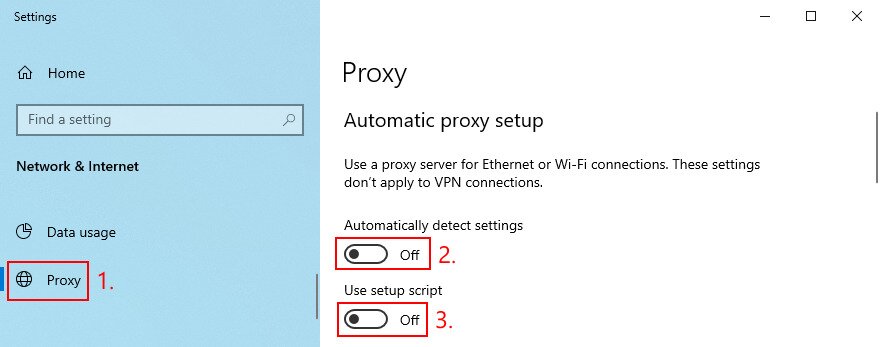
- Head over to the Proxy area
- Disable Automatically detect settings and Use setup script

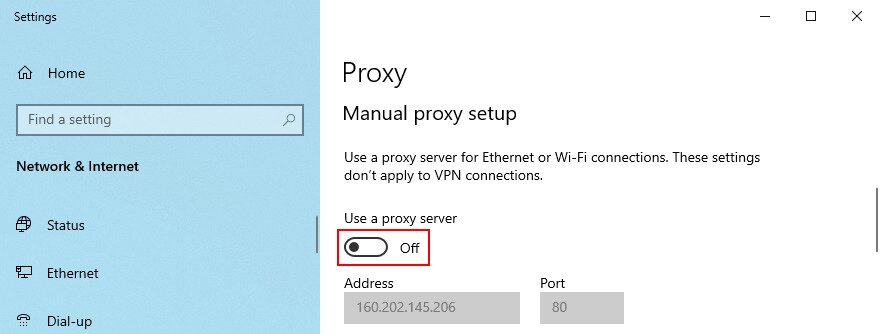
- Scroll down and deactivate Use a proxy server

- Click Save
- Restart your computer
- Launch Chrome and try to access any webpage
Chrome doesn’t have integrated proxy or VPN settings. Instead, it uses the computer’s proxy server and VPN connection (if any).
How to disable VPN and proxy settings on Mac:
- Open the Apple menu from the upper-left corner
- Visit System Preferences
- Go to Network
- Select VPN on the left panel with all network connections
- Click Disconnect
- Select your Internet connection and click Advanced
- Switch to the Proxies tab and disable all options
- Click OK
- Restart your Mac, open Chrome, and try to visit any website
How to disable VPN and proxy settings on Android:
- Go to Settings and access the Network section
- Tap the VPN area and remove any VPN connections
- Tap and hold your Wi-Fi connection
- Select Modify network
- Check Show advanced options
- Tap Proxy and set it to None
- Restart your Android
- Open Chrome and try to go online
How to disable VPN and proxy settings on iOS
- Head over to the Settings area and tap General
- Tap VPN
- Disable any VPN connection on this list
- Go to the Wi-Fi section
- Open the advanced settings of your Wi-Fi connection
- Set HTTP Proxy to Off
- Restart your iPhone or iPad
- Launch Chrome and try to visit a website
9. Change your DNS settings
Your DNS servers are assigned by your ISP. However, if they aren’t optimized, your Internet connection might slow down to a crawl. In certain cases, Chrome can’t even load a simple text page, resulting in error code ERR_INTERNET_DISCONNECTED.
However, you can change the DNS settings of your device or web browser to make your web connection faster and stop receiving error codes. Here’s what you need to do.
How to change DNS settings on Windows 10:
- Sign in to Windows 10 as the PC administrator
- Right-click the Start button and go to Network Connections
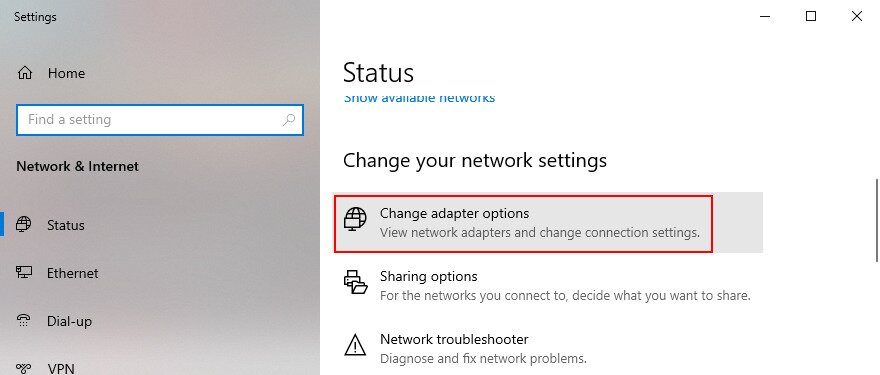
- Click Change adapter options

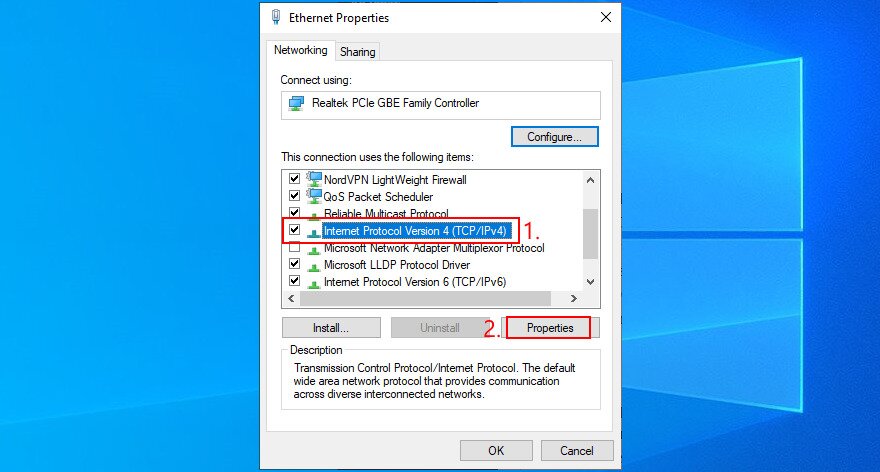
- Right-click your Internet connection and select Properties
- Double-click Internet Protocol Version 4 (TCP/IPv4) to open its properties

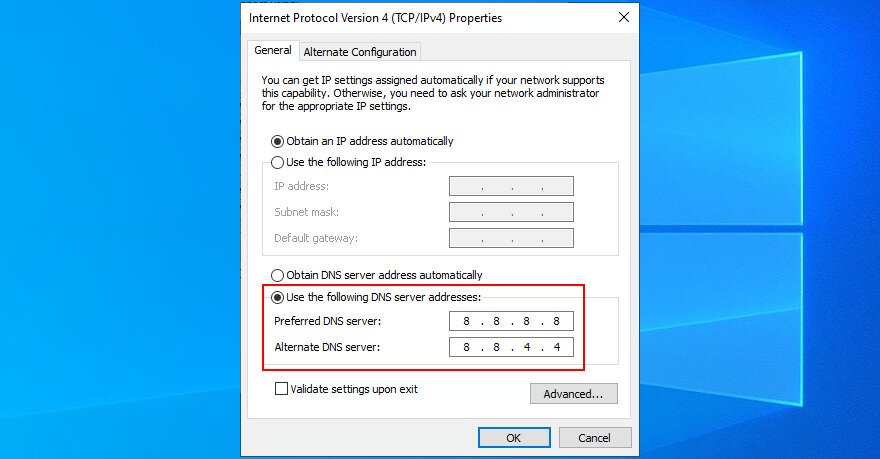
- In the General tab, select Use the following DNS server addresses
- Set Preferred DNS server to 8.8.8.8
- Set Alternate DNS server to 8.8.4.4
- Click OK

- Launch Chrome and try to visit a webpage
How to change DNS settings on Mac:
- Open the Apple menu and go to System Preferences
- Select Network
- Click Advanced and switch to the DNS tab
- Click the + sign to add a new DNS server address
- Type 8.8.8.8 and press Enter
- Click the + sign again to add another entry
- Type 8.8.4.4 and press Enter
- Click OK
- Open Chrome and try to load a page
How to change DNS settings on Android:
- Go to the Settings area and access Network & Internet
- Select Advanced and tap Private DNS
- Select Configure Private DNS and enter dns.google
- Save settings
- Open Chrome and try to visit a website
How to change DNS settings on iOS:
- Access the Settings area and go to Wi-Fi
- Tap the i icon next to your Wi-Fi connection
- Tap DNS and enter 8.8.8.8, 8.8.4.4
- Save settings
- Launch the Chrome app and try to access any page
10. Check your device for malware
Your device might have been infected with malware agents that paralyzed system processes, services, and drivers. If the Internet access was blocked because of this, that’s why you can’t use Chrome and get the ERR_INTERNET_DISCONNECTED error instead.
So you should scan your computer, smartphone or tablet to find and delete any infected files. Here’s what you need to do.
How to find and remove harmful software with Chrome:
- Click the More button and head over to Settings (or type
chrome://settings/in the address bar) - Scroll down and click Advanced
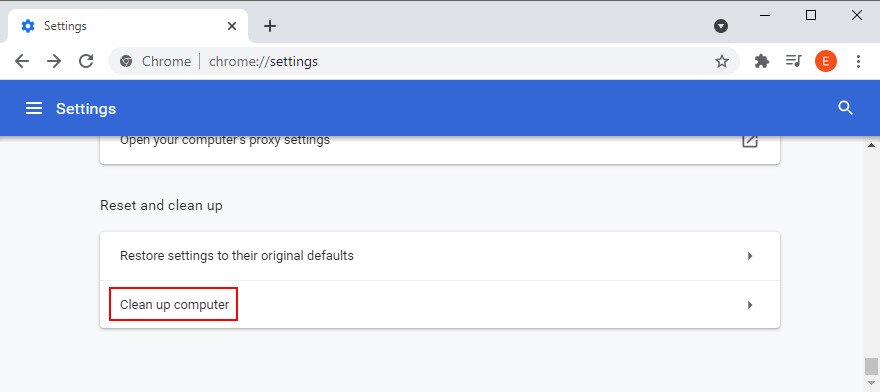
- At Reset and clean up, click Clean up computer

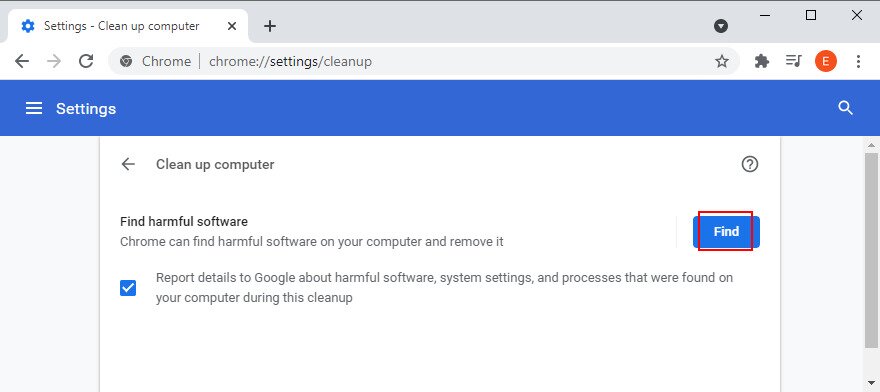
- Click Find and wait until the checkup is complete

- Relaunch Chrome and try to access a webpage
The Find harmful software feature represents the previous Chrome Cleanup Tool (now discontinued). However, if it failed to fix the problem, you turn to the Defender app on Windows 10.
How to remove malware with Windows Defender:
- Click the Start

None of these suggestions fixed the problem.
I can access any website except my local router, which loads the web page, then fails to load any css or js file with an ERR_INTERNET_DISCONNECTED error for each file, leaving the login page unstyled and disabled. Clearly something on my mac but I can’t find what it is.