Fix PFN List Corrupt [BSOD] in Windows 10/11
If you’ve encountered a PFN LIST CORRUPT error, you’re dealing with a common Blue Screen of Death (BSOD) issue. When your monitor turns blue and displays this error message, it freezes your computer and blocks access. But don’t worry—BSOD errors, including this one, can be resolved, no matter how complex they may seem.
Editor's Pick August 2026

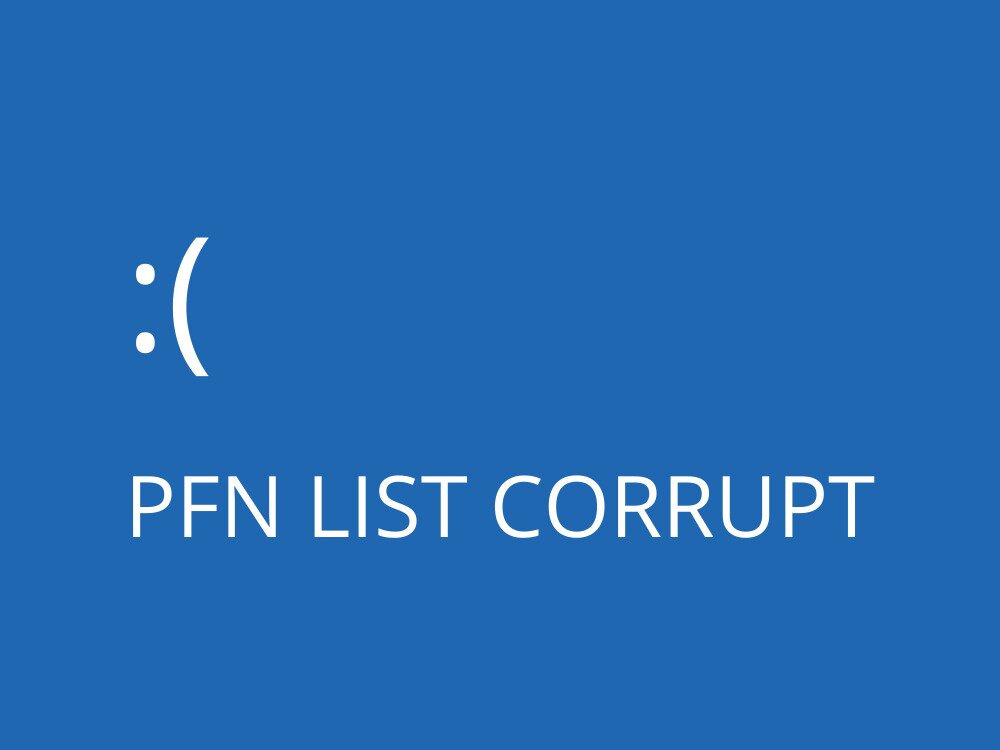
What Does PFN List Corrupt Mean?
The PFN LIST CORRUPT Windows 11/10 error is a Blue Screen of Death stop code. It indicates data corruption in the Page Frame Number (PFN), which is a database list that deals with system memory. Your operating system locks you out to protect itself from further corrupted system files and data loss. If the crash interrupted your work, you may also need to recover corrupt Office documents.
The PFN_LIST_CORRUPT error could be caused by a problem at the hardware or software level. It can be tricky to diagnose, but easy to fix by following a series of workarounds that generally apply to blue screen issues.
What Causes PFN_LIST_CORRUPT?
Before jumping into fixes, it helps to understand what most commonly triggers this error. Narrowing down the likely cause first can save you a lot of troubleshooting time. Here are the main buckets:
Faulty or unstable RAM
This is the most frequent hardware culprit. If PFN_LIST_CORRUPT appears during gaming, right after a hardware upgrade, or immediately following a clean Windows install, suspect your RAM first. A newly installed kit that is incompatible with your motherboard or running at an unstable XMP/EXPO profile can also trigger this error.
Recently updated or incompatible drivers
Chipset, GPU, and storage controller drivers are common offenders. If the BSOD started appearing right after a driver update — especially a chipset or graphics driver — roll back or reinstall that specific driver before doing anything else.
Problematic third-party utilities
RGB lighting control software (such as Gigabyte RGB Fusion or similar tools), aggressive antivirus programs, and overclocking utilities have all been linked to PFN_LIST_CORRUPT. If the error started after installing one of these, that program is a prime suspect. Try uninstalling it and monitor for BSODs.
Storage or file-system corruption
A failing hard drive or SSD, or a corrupted file system, can cause Windows to misread memory-mapped data and trigger this stop code. If the error appears randomly during normal use and your PC is older, run a disk check early in your troubleshooting process.
System instability after a clean install or Windows Update
If PFN_LIST_CORRUPT shows up immediately after a Windows Update or a fresh OS installation, hardware is the more likely culprit — particularly RAM or a storage device — rather than Windows itself. In that scenario, start with memory and disk diagnostics before reinstalling or rolling back Windows.
How to fix PFN LIST CORRUPT on Windows 11/10
Follow the easy instructions below to get rid of the corrupt PFN list stop code on your Windows 10 or 11 PC. However, before getting started, it’s advisable to create a System Restore point as a backup measure. If you can’t get into your computer, try booting into Safe Mode. If your display stays blank instead of showing a BSOD, start with this black screen recovery guide. Otherwise, these tips are only useful if this issue comes and goes, as you’re limited in what you can do if you can’t log in to Windows!
1. Check Drivers
If any of your device drivers are obsolete, they could prevent your operating system from working normally, resulting in stop code PFN_LIST_CORRUPT. Another issue could be that your devices are not properly connected to your PC, or that they are equipped with incompatible drivers.
How to reinstall drivers on Windows 10 and 11:
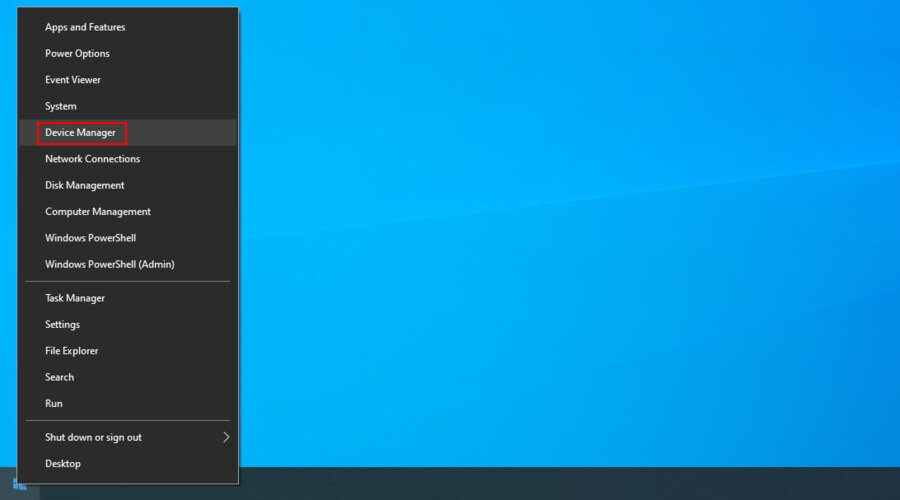
- Right-click the Start button and select Device Manager.

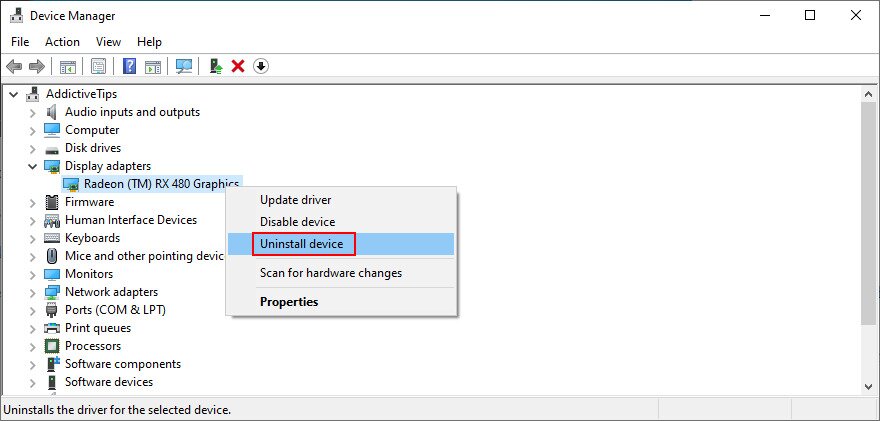
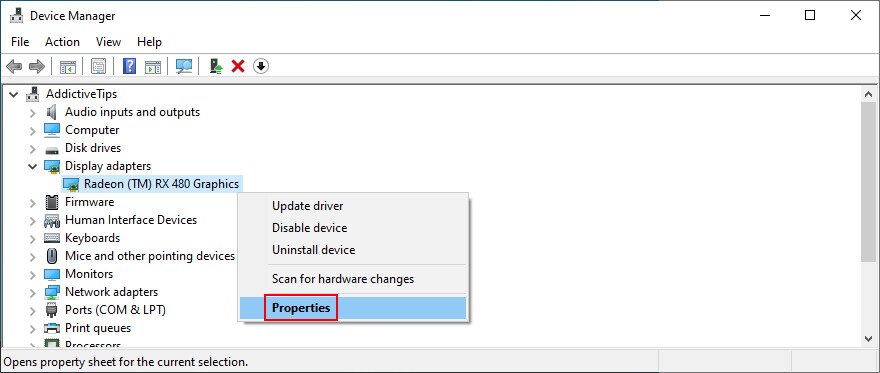
Expand the hardware categories and look for any devices with a yellow exclamation point. Right-click one and select Uninstall device.

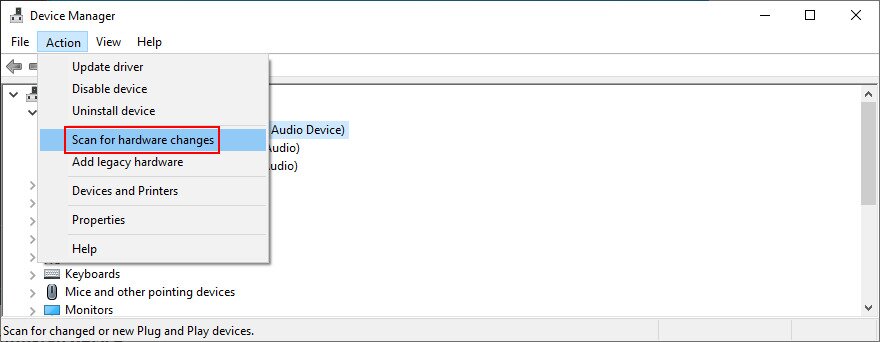
- Open the Action menu and select Scan for hardware changes.

- Exit Device Manager and restart your PC. Windows will reinstall the missing drivers automatically.
If the PFN LIST CORRUPT error is persistent, you should check for driver updates. We suggest getting started with the graphics and network drivers since these usually have issues.
How to update drivers on Windows 10 and 11:
- Return to Device Manager.
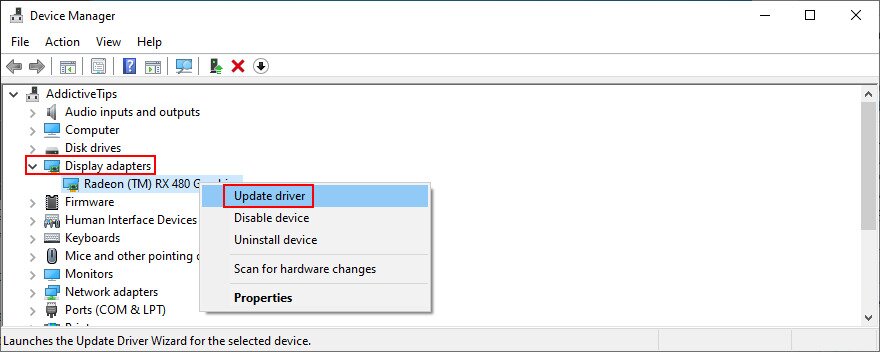
- Expand the Display adapters group.
- Right-click your GPU device.
- Click Update driver.

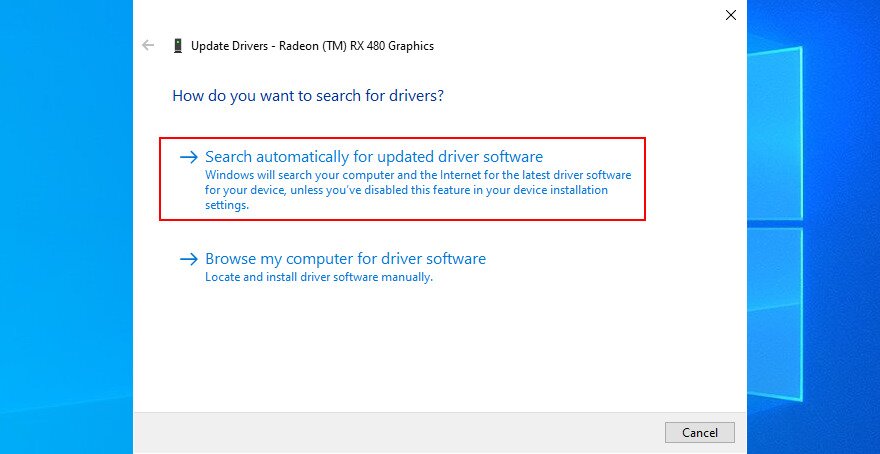
- Select “Search automatically for drivers” or “Search automatically for updated driver software.”

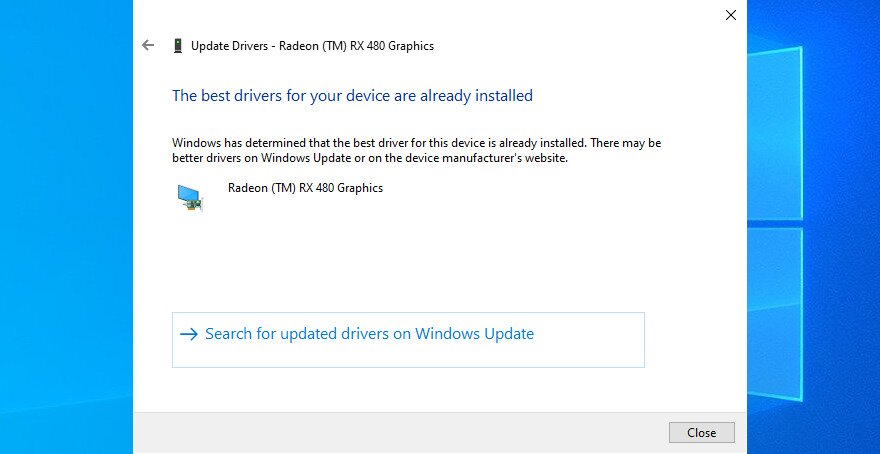
- If the search is unsuccessful, select Search for updated drivers on Windows Update.
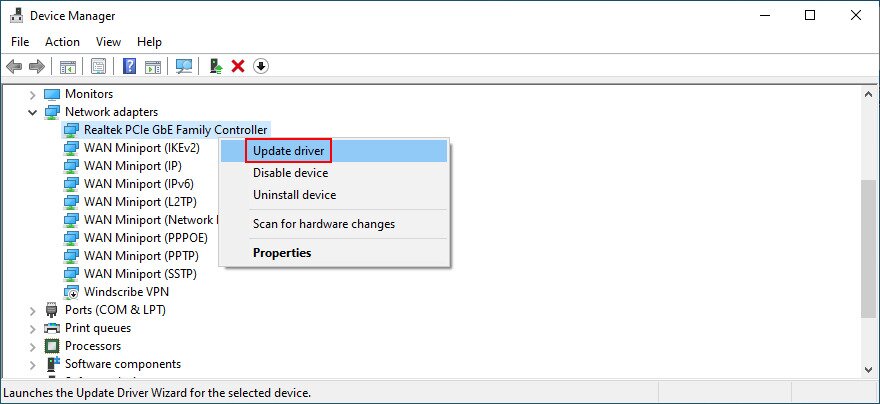
Do the same for your network driver (in the Network adapters category).
An alternative solution is to visit the website of each device manufacturer to locate, download, and install a newer driver. That’s the ideal way to get drivers, but it doesn’t always work well; it typically takes a while, and you risk getting incompatible drivers that will further damage Windows.
Another option is to employ the services of a driver updater to bring all your drivers up to speed. They’re extremely useful because most of them don’t make you get the drivers manually; they’ll download and install them for you through the app.
On the other hand, you should immediately roll back a driver to a previous version if it’s unsupported by your operating system. Here’s how:
How to roll back drivers on Windows 10 and 11:
- Go to Device Manager (right-click the Start button for the shortcut).
- Right-click the device that needs the driver roll-back, and select Properties.

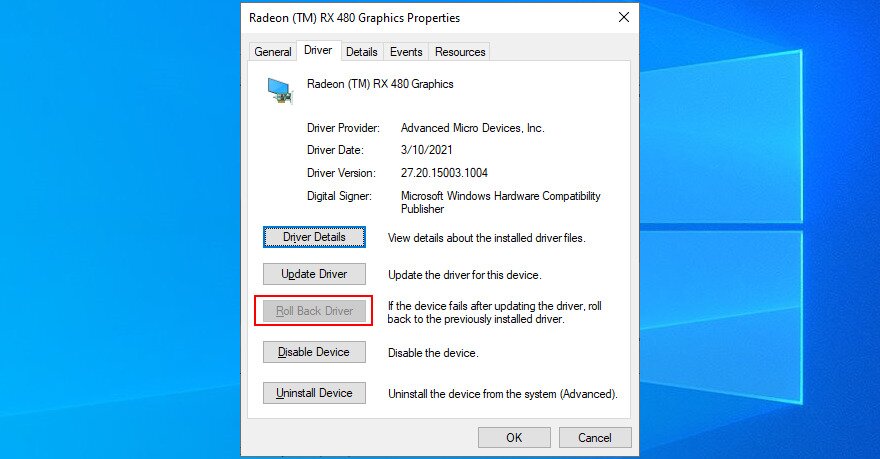
- Switch to the Driver tab.
- Select Roll Back Driver and follow the on-screen instructions.
- If the button is greyed out, it means that you can’t perform the rollback since no previous version exists on your PC.

2. Update Windows
It’s essential to keep your operating system updated to the latest version. Besides improving your PC experience, you will also avoid irritating BSOD errors such as PFN LIST CORRUPT in Windows 10/11. Here’s what you need to do to fix system files by installing Windows updates:
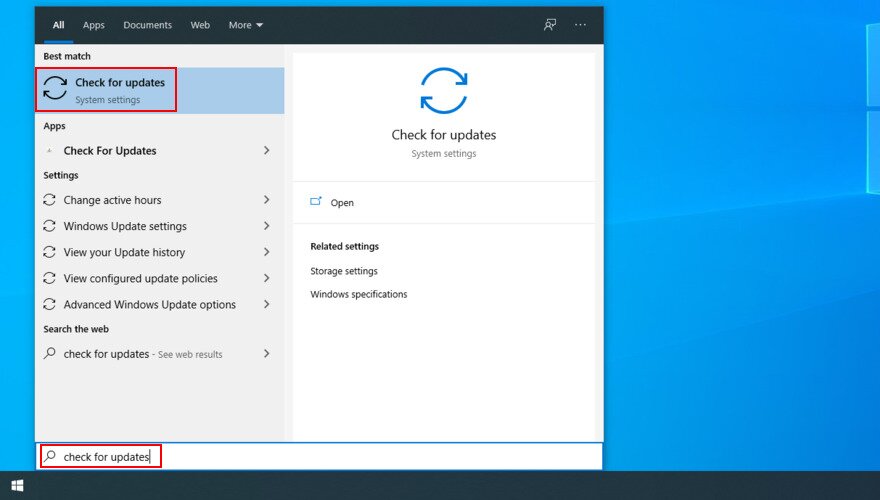
- Press the Win key, search for Check for updates, and press Enter.

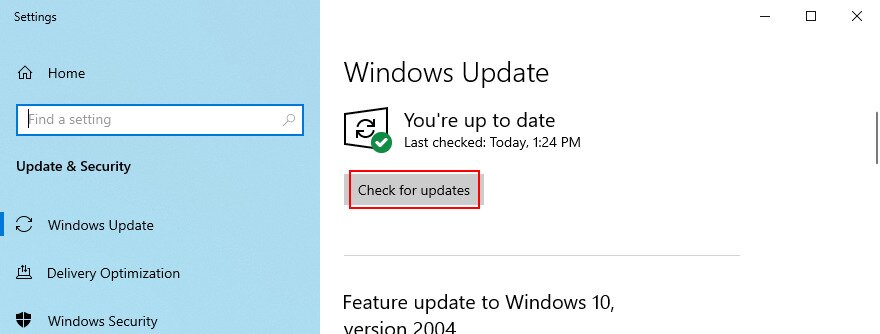
- Windows should autostart the update search. If it doesn’t, Select Check for updates.

- If it finds any new updates, select Download.

- Restart your PC once the update is complete.
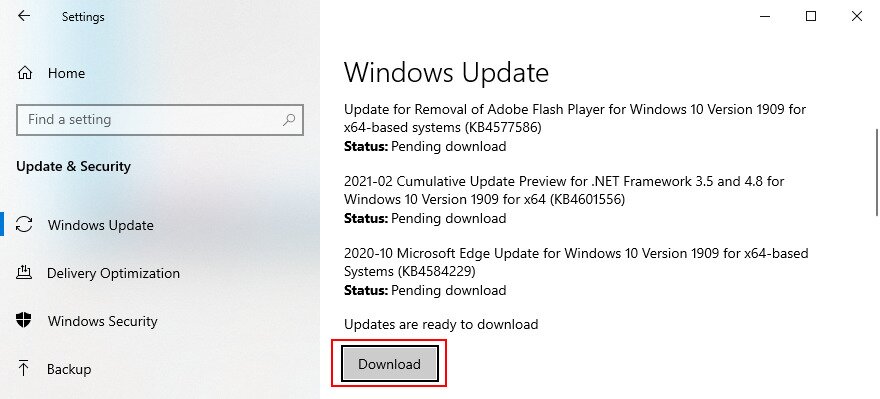
Note: If OS updates aren’t working, then you should turn to the Windows Update troubleshooter.
3. Run BSOD Troubleshooter
Windows 11 and Windows 10 include a BSOD troubleshooter wizard that can help with this error. It’s easy to use because it’s built into Windows (no download necessary). If you want to inspect crash files yourself, a BSOD minidump reader can also help. These Windows BSOD repair steps apply to many stop code errors, not just PFN_LIST_CORRUPT, so if you’re dealing with a different crash, this KMODE_EXCEPTION_NOT_HANDLED fix or system service exception fix may also help.
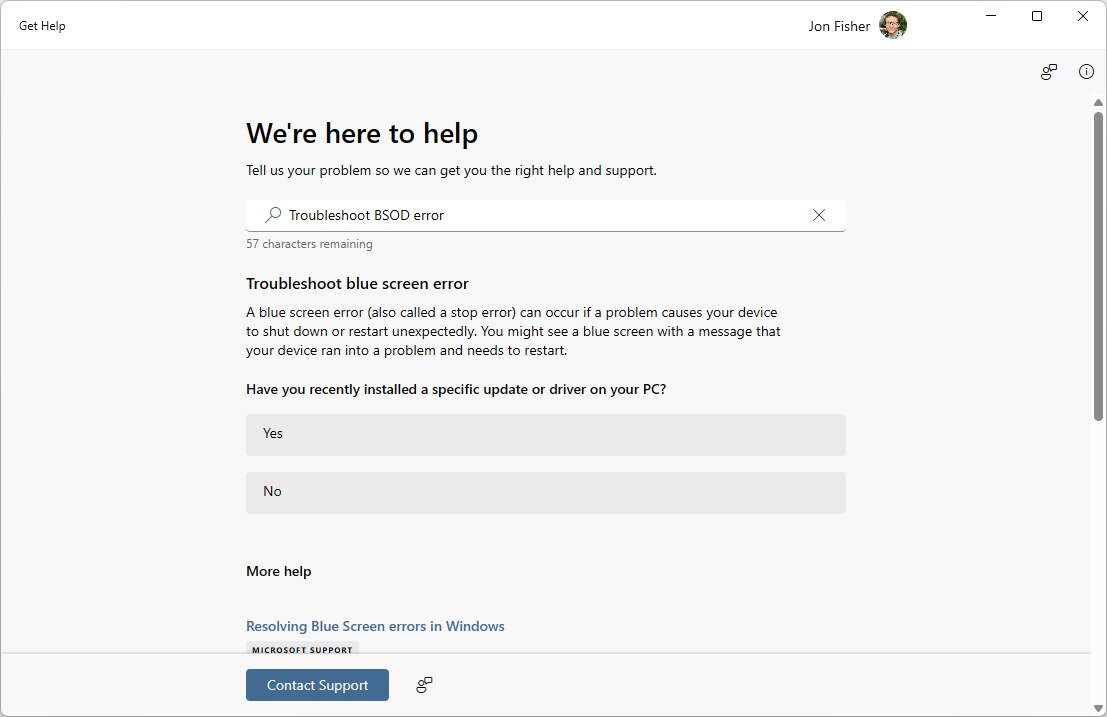
- Search the Start menu for Get Help, and then click the shortcut in the results.
- Type Troubleshoot BSOD error.
- Follow the on-screen questions. Microsoft’s tool walk you through the necessary steps to address the blue screen issue.
4. Check Hard Drive for Errors
Storage and file-system corruption can contribute to PFN_LIST_CORRUPT, so it’s worth running a proper disk check early in the troubleshooting process. Windows has two ways to do this: the CHKDSK command and the built-in error-checking tool in File Explorer.
Option A: Run CHKDSK from Command Prompt
- Search for Command Prompt in the taskbar, right-click it in the results, and choose Run as administrator.
- Type
chkdsk /r c:and press Enter. Replacec:with the correct drive letter if Windows is installed on a different partition. The/rflag locates bad sectors and recovers readable data — it is more thorough than the basic/fflag. - Type y and press Enter to schedule the scan at the next restart.
- Restart your PC and let CHKDSK complete. It will find and fix disk errors before Windows loads.
Option B: Use File Explorer Error Checking
- Open File Explorer and click This PC.
- Right-click your Windows drive (usually C:) and select Properties.
- Go to the Tools tab and click Check under the Error checking section.
- Follow the prompts. If Windows reports no errors, the drive is likely not the cause of your BSOD. If errors are found and repaired, restart and monitor for further occurrences.
5. Run Windows Memory Diagnostic Tool to Check RAM
System memory errors can cause PFN list corruption errors, so there might be something wrong with your RAM that’s resulting in the PFN LIST CORRUPT message on Windows 11 or Windows 10. You can check it for errors using a built-in utility called Windows Memory Diagnostic. Here’s how to use it to your advantage:
- Make sure to save any ongoing projects and close all applications.
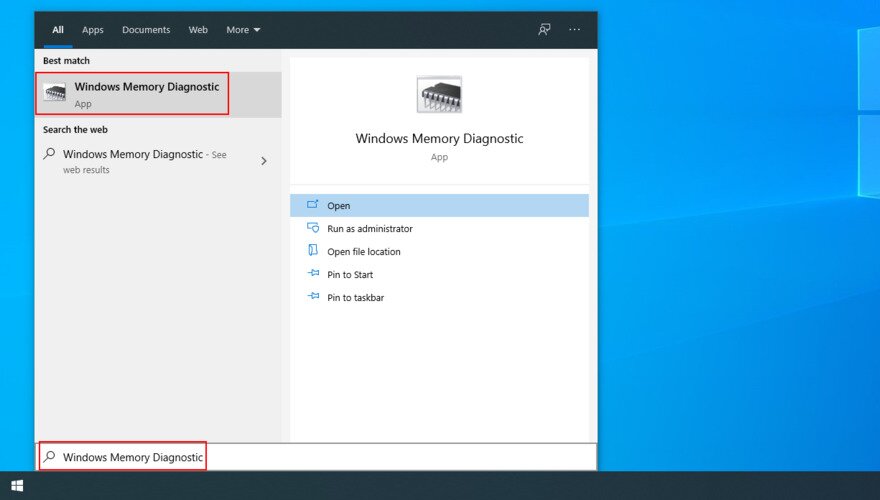
- Select the Start button, search for Windows Memory Diagnostic, and press Enter.

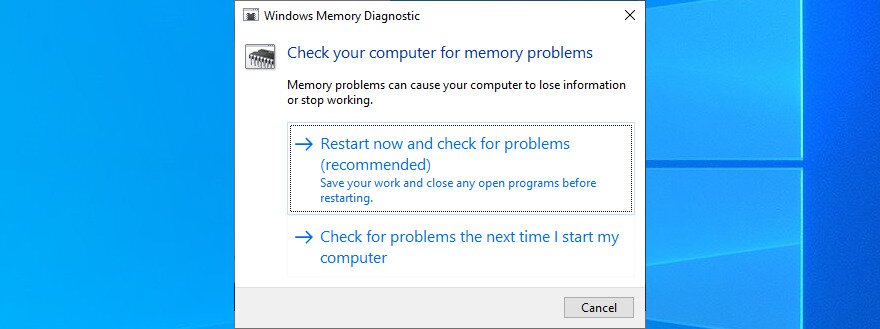
- Choose Restart now and check for problems.

- During reboot, Windows will find and fix any RAM errors.
If Windows Memory Diagnostic reports a problem — or if the BSOD keeps appearing during gaming, Windows Update, or right after a hardware upgrade or clean install — follow these steps to isolate the faulty module:
- Power down your PC completely and unplug it from the wall.
- Open the case and remove all RAM sticks. If you have two sticks, note which slots they occupy. Consult your motherboard manual (or the printed labels near the slots) for the recommended 2-stick configuration — most boards want sticks in slots 2 and 4 (or A2/B2), not slots 1 and 2 side by side.
- Install only one stick (or one matched pair if you have two kits) in the correct slots for your motherboard.
- Boot the PC and run Windows Memory Diagnostic again, or run MemTest86 for at least two full passes. MemTest86 is more thorough because it runs outside of Windows and can catch errors the built-in tool misses.
- If no errors appear, power down again and swap to the other stick or pair. Repeat the test.
- Keep alternating until you identify which stick or kit produces errors.
Outcome: If errors appear with one stick or kit but not the other, the failing module is your culprit — replace it or run only the stable kit. If both sticks pass individually but errors appear when both are installed together, the combination may be incompatible with your board, or an XMP/EXPO memory profile may be causing instability. Try disabling XMP in the BIOS and running at stock speeds to confirm.
6. Uninstall Problematic Software
You might have recently installed third-party software applications that aren’t properly built for Windows, resulting in software conflicts and blue screen errors like PFN LIST CORRUPT. Examples include free antivirus tools, firewalls, VPN services, proxy tools, and web browsers.
For example, this user’s Windows PFN LIST CORRUPT error was caused by multiple RGB programs. They uninstalled them to fix the error. Gigabyte’s RGB Fusion program is one example of software that has caused this error for users.
Tip: Before deleting your anti-malware program, give your computer a quick scan. An infection could be causing the corrupt PFN list error.
If the BSOD error is caused by such programs, you can resolve this problem by removing recently installed third-party programs. Here’s how:
- Right-click the Start button and go to Installed apps (W11) or
- Right-click the Start button and go to Installed apps (W11) or
Kind of useless if I can’t get into the OS wouldn’t you say? Actually, completely useless.