How to Fix the DNS_PROBE_FINISHED_NXDOMAIN Error (Full Guide)
“`html
Web browser errors happen to all users, but most of them can be resolved within a few easy steps. For example, Google Chrome often stops working due to various issues with the DNS resolver, Internet connection settings, or conflicts with other installed software programs.
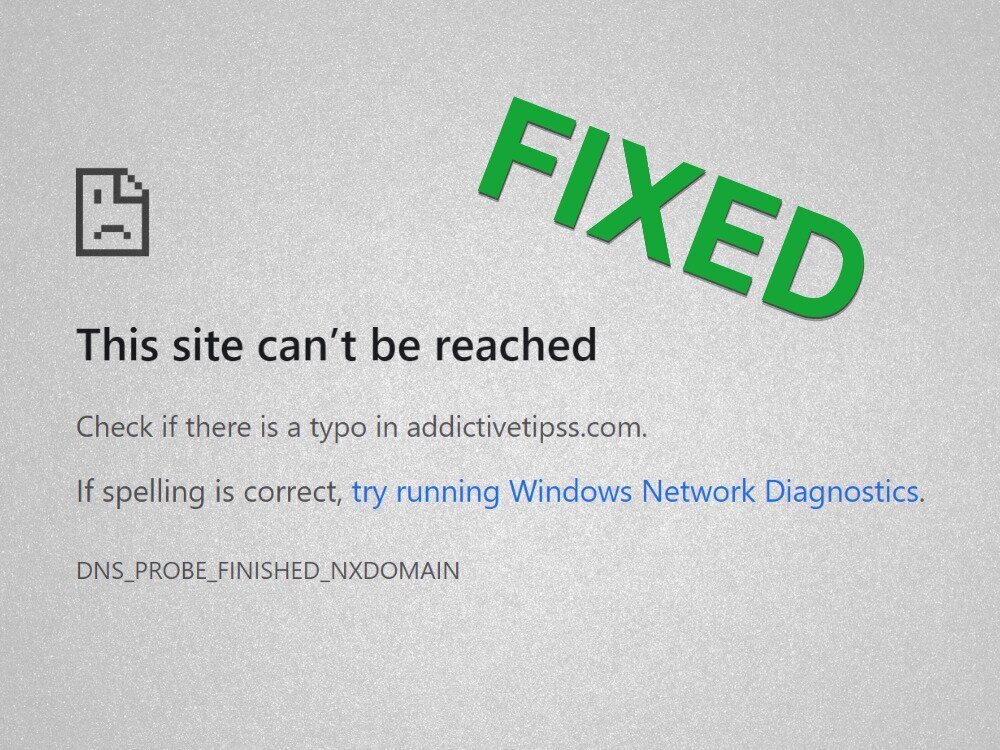
What does DNS_PROBE_FINISHED_NXDOMAIN mean in Google Chrome?
Any browser errors that contain DNS refer to a problem with the DNS resolver, which is responsible for looking up websites by translating the domain name you type in the address bar into an IP address.
NXDOMAIN means Non-Existent Domain. So, by combining the two, DNS_PROBE_FINISHED_NXDOMAIN means that your DNS resolver can’t identify a website because its domain doesn’t exist.
It’s a common error that usually occurs when trying to access websites that don’t exist anymore because the server host is currently in maintenance or the domain expired. Or, perhaps you have a typo in the domain name.
DNS_PROBE_FINISHED_NXDOMAIN is accompanied by the This site can’t be reached error, along with an extra message that advises to check for a typo before attempting to visit a website. It’s only shown in Chrome and Chromium-based web browsers, such as Microsoft Edge or Opera.
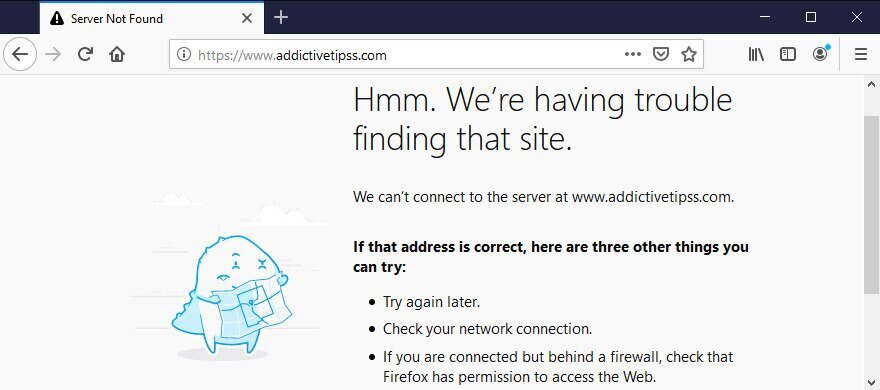
On Firefox, the same error message says Hmm. We’re having trouble finding that site.
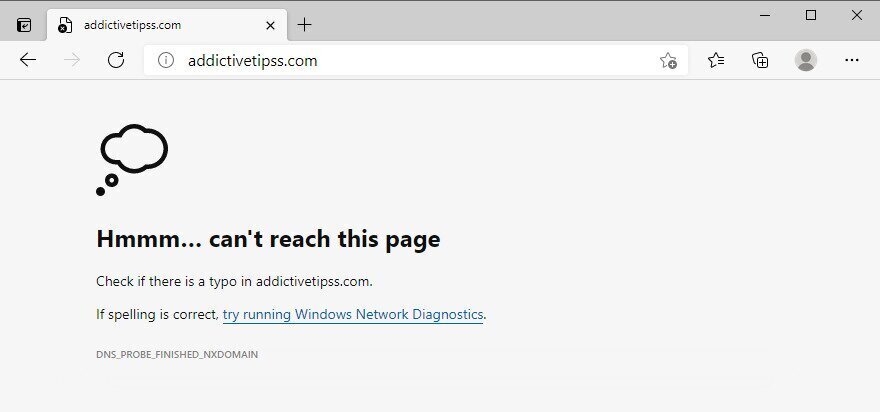
Meanwhile, Microsoft Edge shows Hmmm… can’t reach this page.
Safari says Safari Can’t Find the Server. The DNS_PROBE_FINISHED_NXDOMAIN error is rare on Android. Instead, you might see the ERR_NAME_NOT_RESOLVED message.
How to fix DNS_PROBE_FINISHED_NXDOMAIN error on any device
Get started by eliminating the obvious solution: checking for typos. Once you clear it, make sure that the domain you’re trying to access actually exists.
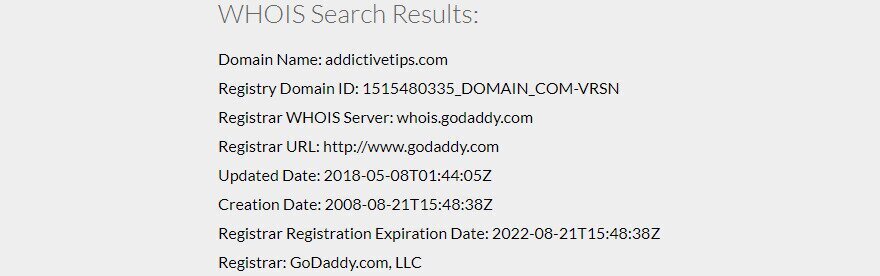
The easiest way to tell is by using any whois service: search for whois on Google, access a whois website, enter the name of the domain you’re trying to access, and see what the results turn up. Pay special attention to the creation and expiration date.
Another possibility is that the domain is currently down, so you just have to wait until it’s back up. If you’re troubleshooting YouTube server problems, temporary outages can also be the cause. If you’re trying to access your own website without success, get in touch with your domain host to see what’s happening.
If you are still encountering the DNS_PROBE_FINISHED_NXDOMAIN error message on Google Chrome at this point, proceed with the following solutions.
1. Use another web browser
We’re not saying you should ditch Google Chrome if it’s your favorite browser. However, if you can access the problematic website by turning to a different browser, at least you will know that there’s something wrong with Chrome. In that case, you can narrow down the list of possible issues and focus on repairing Chrome.
2. Try to access other websites
It’s important to find out if you can access other websites by entering their domain names into the address bar of Chrome. Because, if all pages refused to load, you might be dealing with a bigger issue concerning your Internet connection or device settings.
3. Connect to another network
The Internet connection you’re currently using might not be working anymore. Or maybe the Wi-Fi signal is too poor to load websites. If your router has dual-band support, make sure to connect to the 5 GHz Wi-Fi network instead of 2 Ghz, because the signal is better. However, you might have to move closer to the router.
On the other hand, being connected to a public, unencrypted Wi-Fi network means sharing the bandwidth with everyone, so it’s natural to expect a slow connection that could even trigger browser errors such as DNS_PROBE_FINISHED_NXDOMAIN.
Try connecting to 3G/4G cellular data if possible since the connection might be better than a Wi-Fi network. Or, switch from 3G/4G to Wi-Fi mode in case you ran out of bandwidth.
4. Restart your computer and router
It sounds simple enough but usually works. Restarting your desktop, laptop, smartphone or tablet might be enough to get rid of the DNS_PROBE_FINISHED_NXDOMAIN error message and access your favorite websites once again.
While doing do, it’s a good idea to reboot your router, too, in order to clear its cache. Just find the small switch on the back of the router, keep it pressed for several seconds, then release and wait until your Internet connection is back up.
5. Restart your web browser
Shutting down and restarting Google Chrome might be enough to restore Internet access. Just make sure to close all processes before relaunching the application.
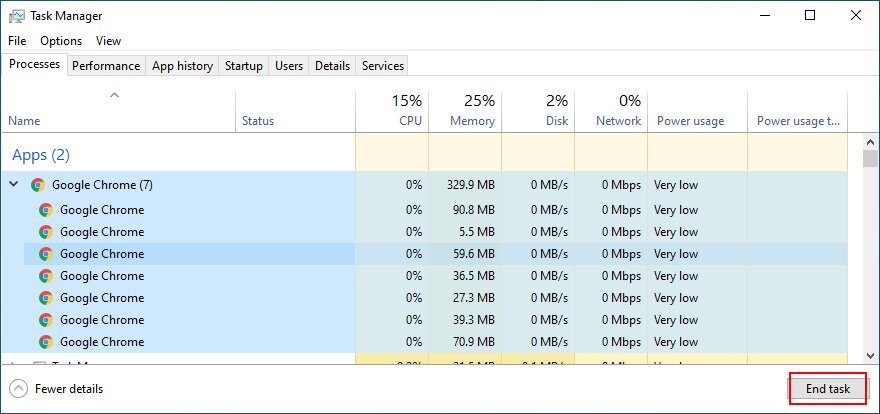
How to correctly restart Chrome on Windows:
- Press Ctrl + Shift + Esc to open Task Manager
- Remain in the Processes tab
- Find and select the entire tree of Google Chrome

- Click End task
- Open Chrome again
How to correctly restart Chrome on macOS:
- Select the Google Chrome window
- Open the Apple menu from the top-left corner
- Select Force Quit
- Launch Chrome again
How to correctly restart Chrome on Android:
- On your Android device, go to the Settings section
- Select Apps and tap Chrome
- Tap Force stop
- Go back to your home screen and launch the Chrome app
How to correctly restart Chrome on iOS:
- Swipe up from the bottom of the screen and stop in the middle
- Swipe left or right to select Chrome
- Swipe up to the app’s preview to close the app
- Open the Chrome app again
6. Update your web browser
Your web browser should automatically check for updates by default, every time you fire it up. However, if it fails to do so for some reason, it’s up to you to trigger the update and bring your browser up to speed.
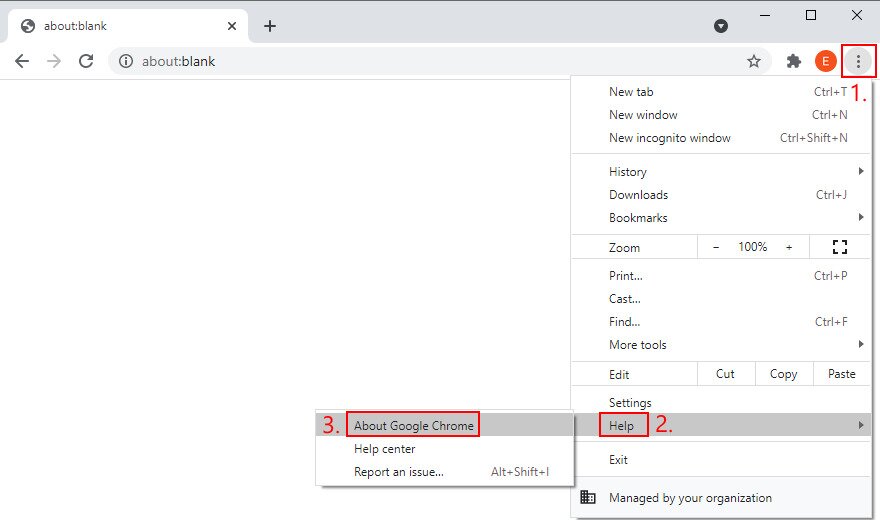
How to update Chrome on Windows and macOS:
- Launch Chrome
- Open the More menu from the top-right corner
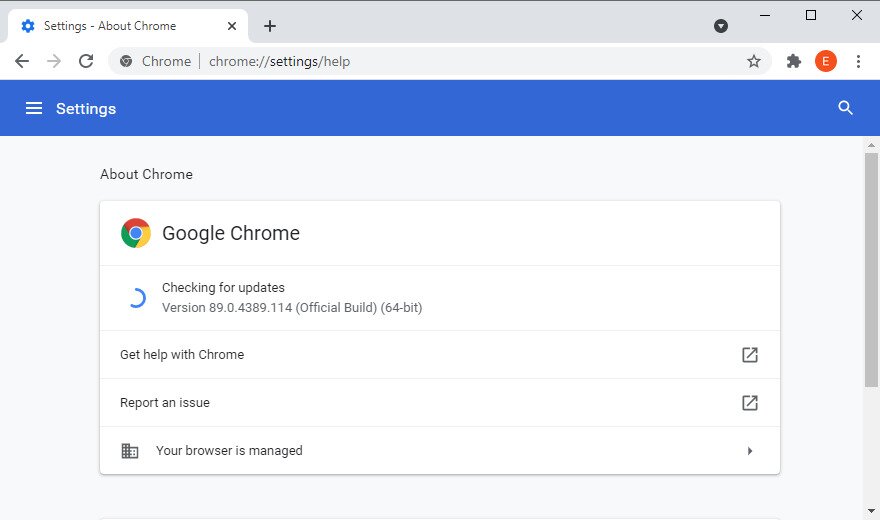
- Select Help and click About Google Chrome (or visit
chrome://settings/help)
- Chrome will check and apply any updates automatically

- Once it finishes, restart the web browser
- See if you can access any pages
How to update Chrome on Android:
- Launch the Play Store app
- Tap your Google account
- Select My apps & Games from the menu
- At Updates, locate Chrome and tap Update
- If you can’t find it, it means that Chrome is already updated
- Open Chrome and check for DNS errors
How to update Chrome on iOS:
- Fire up App Store
- Find Chrome and tap Update
- If it says Open instead of Update, it means that the app is already updated
- Launch Chrome now and inspect it for DNS issues
7. Clear browser cache
If the Chrome cache is full, this could cause page loading issues and even the DNS_PROBE_FINISHED_NXDOMAIN error on your device. But you can solve this problem by emptying Chrome site data and cache. If you encounter problems during this process, you may need to perform cache miss troubleshooting to identify and resolve any underlying issues.
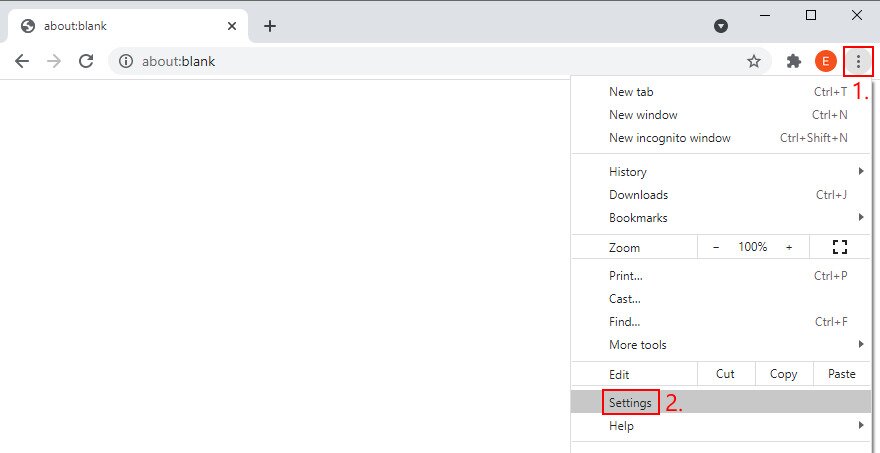
How to clear Chrome cache on Windows and macOS:
- Open Google Chrome
- Click the More button and select Settings

- Go to Privacy and security
- Click Clear browsing data (or visit
chrome://settings/clearBrowserData)
- In the Basic tab, set Time range to All time
- Check the following options:
- Browsing history
- Cookies and other site data
- Cached images and files
- Click Clear data

- Restart Chrome
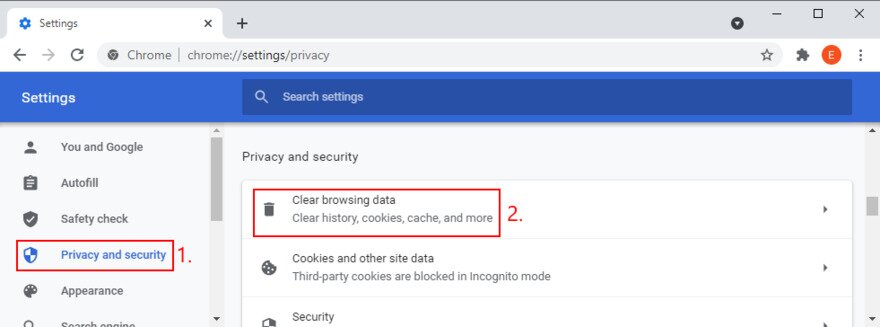
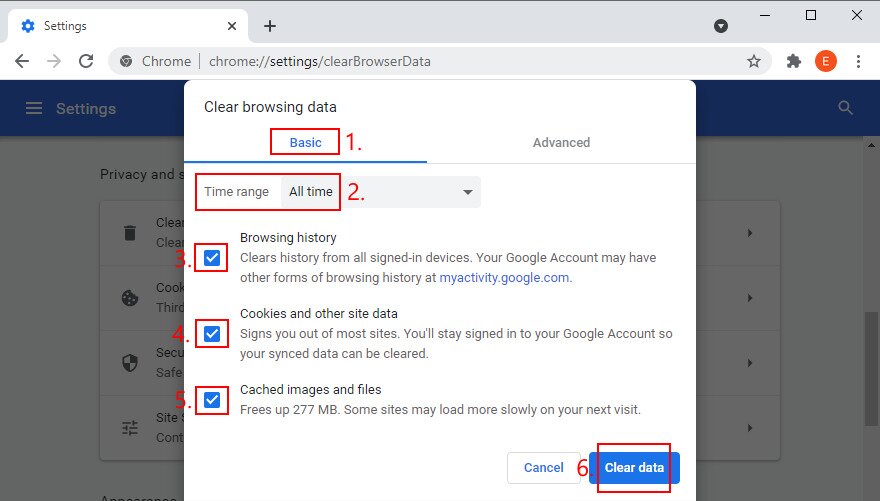
How to clear Chrome cache on Android and iOS:
- Launch the Chrome app
- Open the More menu and go to History
- Select Clear browsing data…
- Remain in the Basic area
- Check all options:
- Browsing history
- Cookies and site data
- Cached images and files
- Click Clear data
- Relaunch the Chrome app
8. Reset your DNS settings
A simple and efficient way to reset your DNS configuration is by emptying the DNS server cache. It’s similar to clearing your browsing cache, which could help get rid of error messages like DNS_PROBE_FINISHED_NXDOMAIN.
How to reset DNS settings on Windows:
- Click the Start button, search for Command Prompt, and launch this app
- Write the following commands (press Enter after each line):
-
ipconfig /flushdns
-
ipconfig /registerdns
-
ipconfig /release
-
ipconfig /renew
-
netsh winsock reset
-
- Exit CMD and restart your PC
- Launch Chrome and check for errors
How to reset DNS settings on macOS:
- Launch the Terminal app
- Type
sudo killall -HUP mDNSResponderand hit Return - If prompted, enter the username and password associated with your admin account
- Reboot your Mac
- Open Chrome and try to access websites now
How to reset DNS settings on Android and iOS:
- Go to the Settings section
- Select General > Reset
- Tap Reset Network Settings
- Launch Chrome and check for errors
An alternative way to refresh your DNS configuration on Android or iOS is by rebooting the device or toggling Airplane mode. You can also open the Chrome app, visit chrome://net-internals/#dns, and click the Clear host cache button.
9. Restart the DNS Client service
If the DNS server is not responding on your Windows PC, you can restart the DNS client service responsible for resolving and caching domain names. It’s worth trying this solution when it comes to repairing the DNS_PROBE_FINISHED_NXDOMAIN error in Chrome and other Chromium-based web browsers.
How to restart the DNS Client service:
- Click the Start button, search for Services, and open this app
- Locate and double-click DNS Client to access its properties

- Set Startup type to Automatic
- If the service is currently stopped, click Start
- Click Apply and exit
- Launch Chrome and inspect results
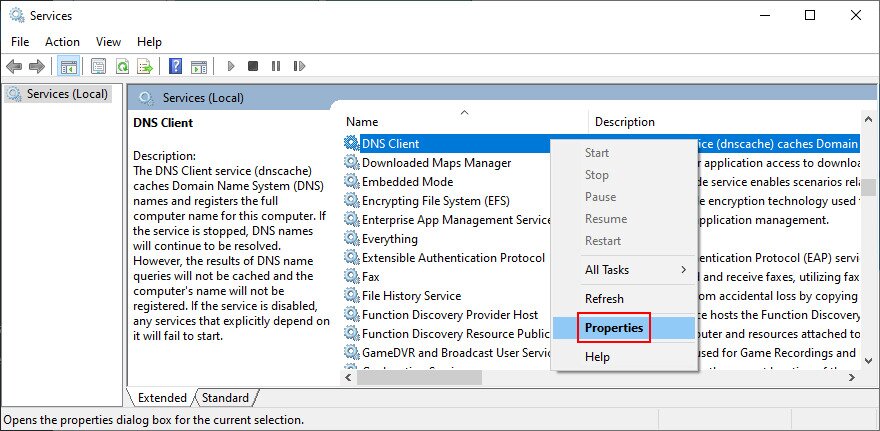
If you can’t click the DNS Client buttons, use the next solution:
- Press the Windows key, search for Registry Editor, and launch this tool
- Go to the next location by copying and pasting the line below:
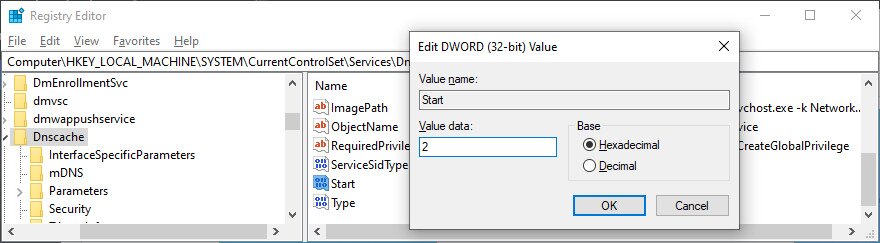
Computer\HKEY_LOCAL_MACHINE\SYSTEM\CurrentControlSet\Services\Dnscache
- In the list of registry entries, double-click Start

- Set Value data to 2 and Base to Hexadecimal
- Click OK

- Exit Services and restart Chrome
- Check for any additional errors
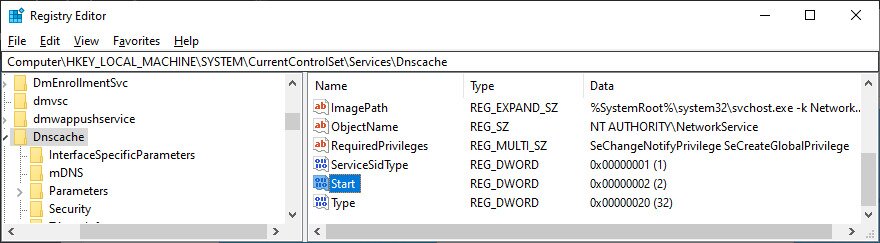
10. Change your DNS servers
If flushing your DNS servers and restarting the DNS Client service won’t do the trick, perhaps your DNS resolver is not working correctly anymore. In this case, you should change your DNS servers to something more reliable.
For example, you can use the DNS servers provided by Google since they are free, safe, and fast.
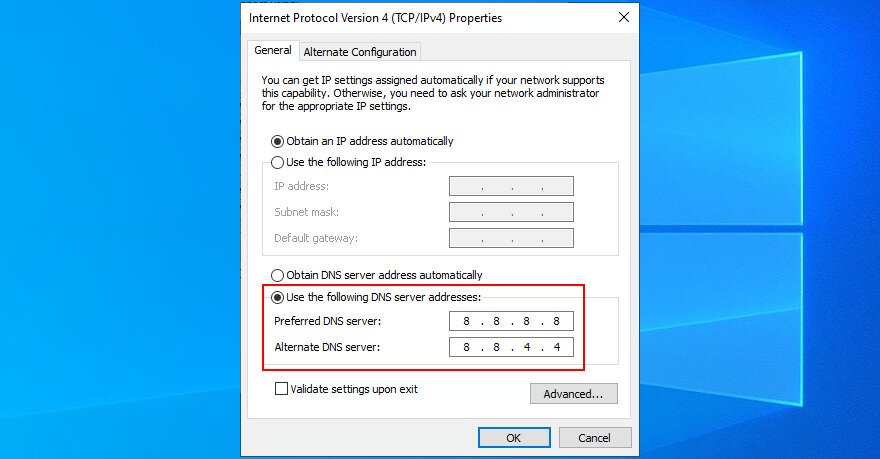
How to use Google DNS on Windows 10:
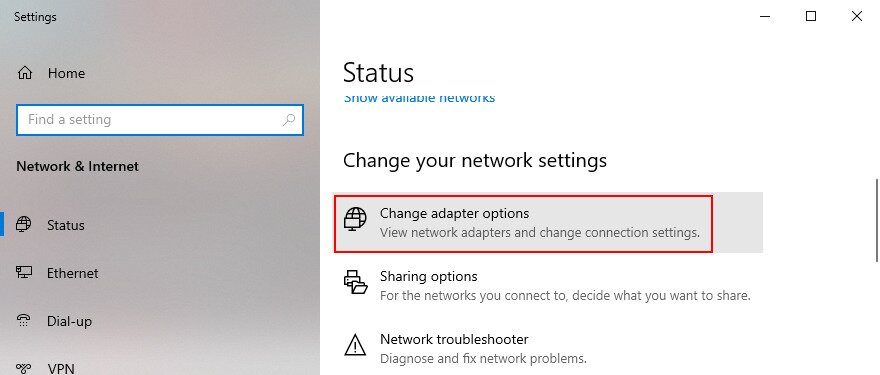
- Right-click the Start button and go to Network Connections
- At Advanced network settings, click Change adapter options

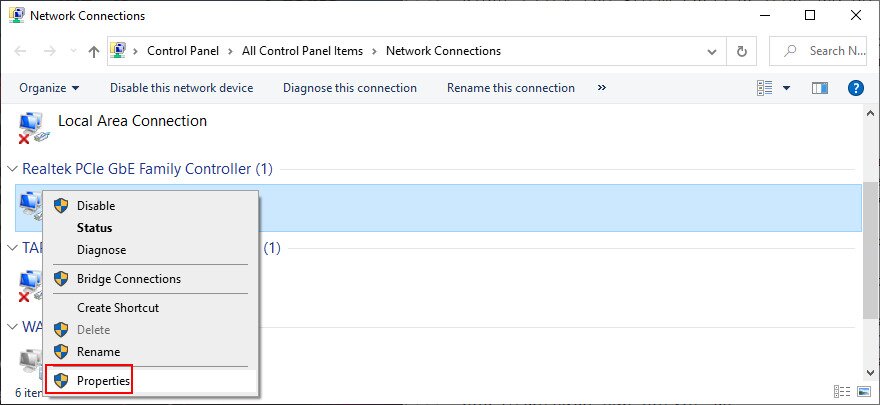
- Right-click your Internet connection and select Properties (you need admin rights)

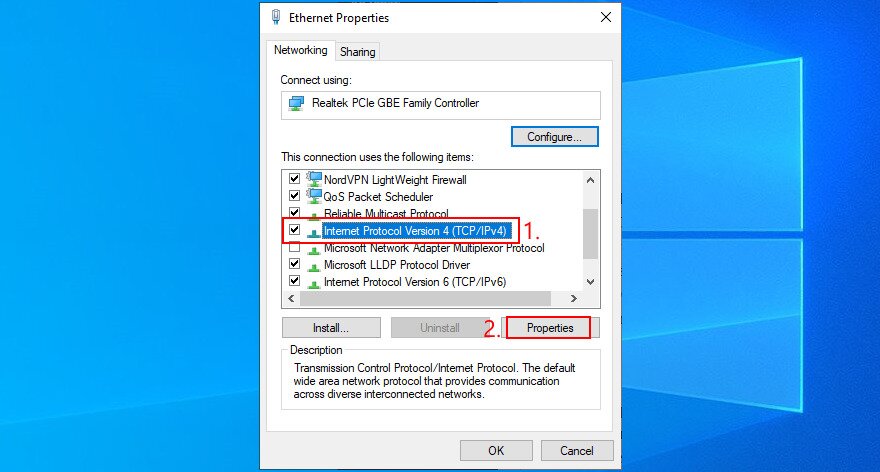
- In the Networking tab, double-click Internet Protocol Version 4 (TCP/IPv4) to access its properties

- In the General area, select Use the following DNS server addresses
- At Preferred DNS server, type 8.8.8.8
- Set Alternate DNS server to 8.8.4.4

- Enable Validate settings upon exit and click OK
- Launch Chrome and check for errors
How to use Google DNS on macOS:
- Open the Apple menu and go to System Preferences
- Select Network and click Advanced
- Switch to the DNS area
- Click + and write 8.8.8.8
- Click it again to also add 8.8.4.4
- Press OK and exit to the desktop
- Fire up Chrome to inspect results
How to use Google DNS on Android:
- On your Android device, select Settings
- Go to Network & Internet
- Tap Advanced > Private DNS
- Select Configure Private DNS
- Type dns.google and exit to the home screen
- Open the Chrome app and check for DNS errors
How to use Google DNS on iOS:
- Using your iPhone or iPad, go to Settings
- Open Wi-Fi
- Find your network and tap i to view properties
- Select DNS and type 8.8.8.8, 8.8.4.4
- Exit to the home screen
- Launch the Chrome app and check for issues
11. Run the Internet Connections troubleshooter
Windows 10 comes with an internal troubleshooter to fix common Internet connection issues. It’s worth a shot if you’re looking for a fast and easy way to resolve the DNS_PROBE_FINISHED_NXDOMAIN error in your Chromium-based web browser.
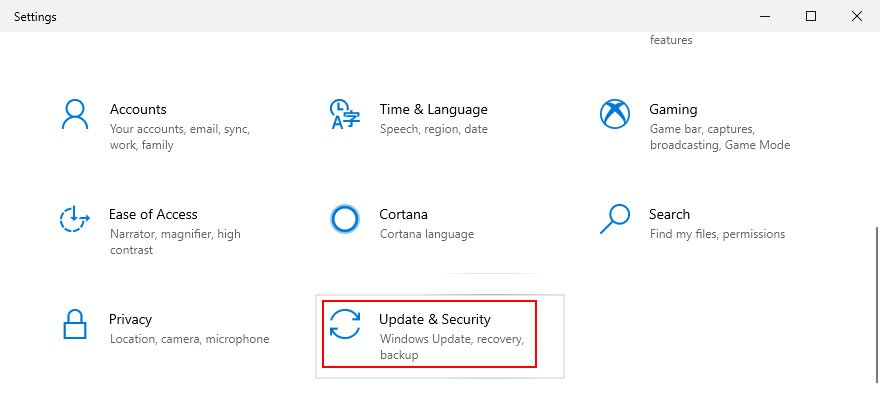
- Press the Win key, search for Settings, and open this app
- Select Update & Security

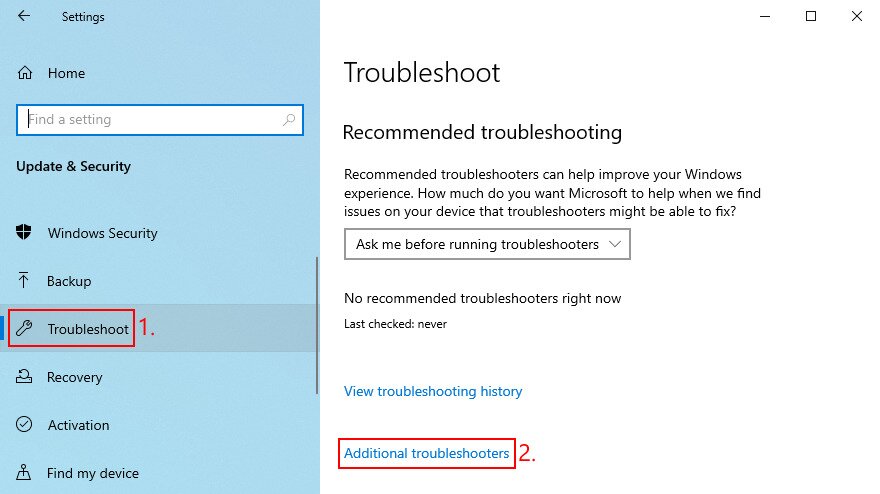
- Jump to Troubleshoot on the left
- Click Additional troubleshooters

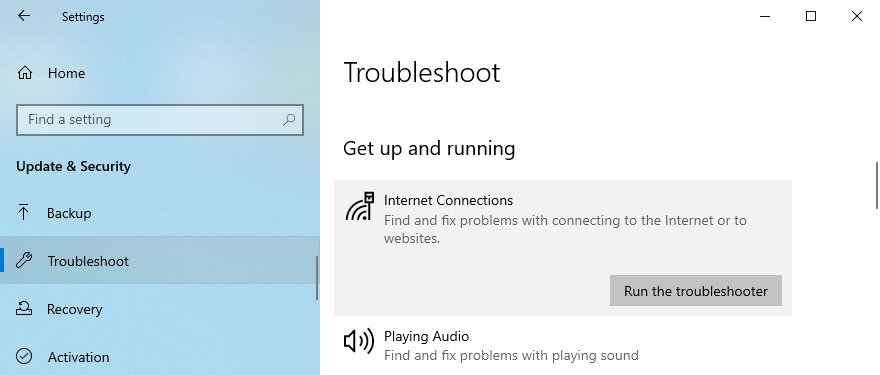
- Select Internet Connections and click Run the troubleshooter

- Follow the on-screen steps and apply any fixes. You might be asked to restart your computer
- Open the web browser and try to access a domain
12. Turn off Chrome extensions
Some web browser extensions can interfere with the way Chrome or your DNS resolver works, preventing pages from loading properly. It’s one of the reasons why you might get error DNS_PROBE_FINISHED_NXDOMAIN.
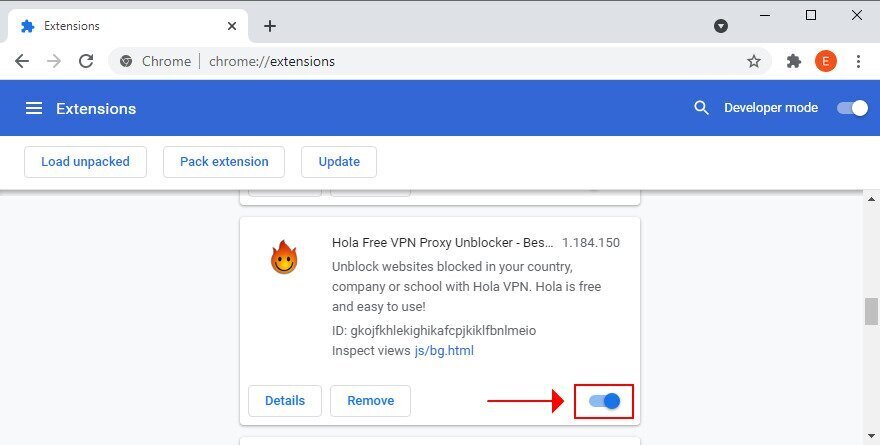
To fix this problem, you should disable the guilty Chrome extensions. It can mean anything that controls your IP and DNS settings, like proxy and VPN extensions for Chrome.
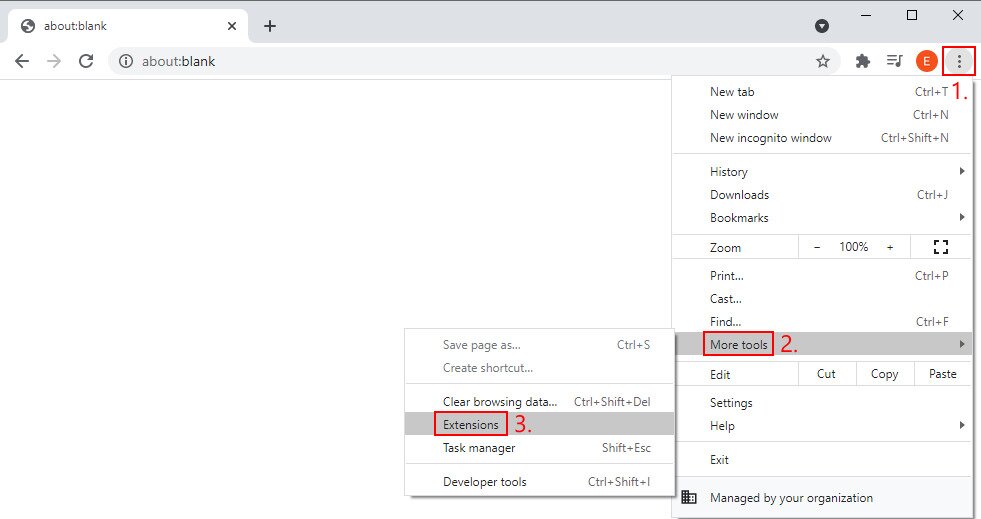
How to disable Chrome extensions:
- Launch Google Chrome
- Open the More menu from the top-right corner
- Select More tools and click Extensions (or visit
chrome://extensions)
- Click the slider button to deactivate extensions

- Restart Chrome and check for DNS errors
13. Disable your VPN or proxy
Since we’re discussing software applications capable of changing your IP and DNS configuration, such as VPN and proxy tools, it’s a good idea to turn them off at the system level.
If you have dedicated apps installed on Windows 10, macOS, Android, or iOS, you just have to switch them off. However, if you’re using the built-in device settings for VPN or proxy, here’s what you need to do.
