How to Fix Windows Update Error 0x8024401c (Full Guide)
`Microsoft regularly releases updates for Windows that your computer needs in order to take advantage of the latest security patches and hotfixes. On most PCs, the Windows Update service is scheduled to run automatically, prompting you about pending Windows updates that require your attention.
Unfortunately, the updating service doesn’t always work as expected, throwing errors such as 0x8024401c as a result. If system updates are blocked on your PC due to error code 0x8024401c, find out how to fix this problem without having to turn to a professional for help.
FIX: Windows Update Error 0x8024401c
Some of the following solutions need you to tinker with the system registry settings. So it’s a good idea to create a system restore point before starting the troubleshooting operation. In case you make any mistakes, you can roll back Windows 10 and begin again.
1. Use the Windows Update troubleshooter
The Windows Update troubleshooter runs a quick scan on your computer to identify and resolve common problems that prevent the system’s updating tool from working properly. Here’s how you can use it:
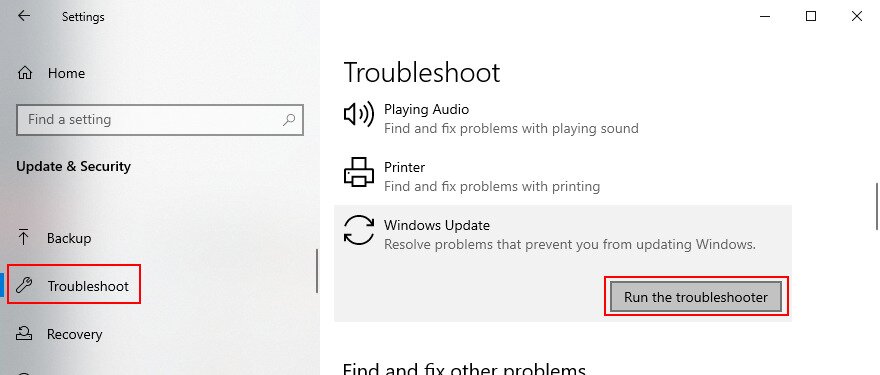
- Press the Win key, search for Troubleshoot settings, and press Enter
- Click Additional troubleshooters
- Find and select Windows Update

- Click the Run the troubleshooter button
- Follow the wizard steps and allow Windows to apply any fixes
2. Use Windows Update Diagnostic
More Windows Update issues can be resolved by Windows Update Diagnostic:
- Sign in to Windows 10 using an admin account
- Download Windows Update Diagnostic from the official website
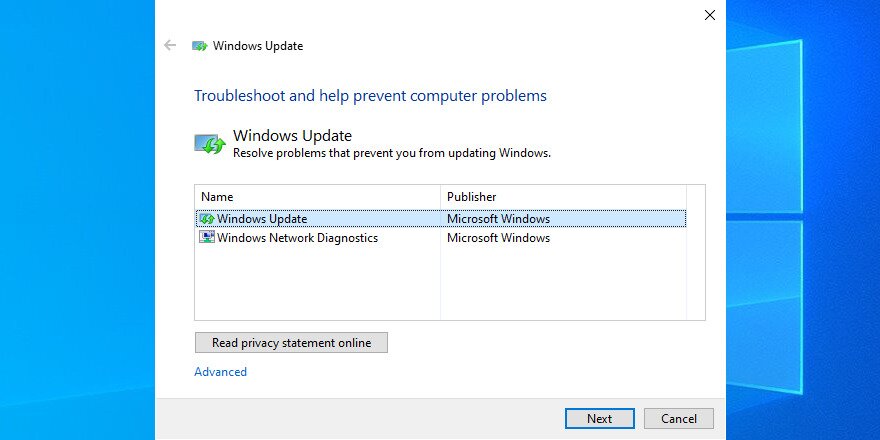
- Start the app and select Windows Update

- Click Next and follow the step-by-step instructions
- Launch the app again and choose Windows Network Diagnostics
- Click Next and follow the remaining steps
- Restart your computer
3. Check Services
Some system services are tied to Windows Update and must be allowed to run. Others might clash with the app and should be disabled to stay on the safe side. Here’s what you have to do:
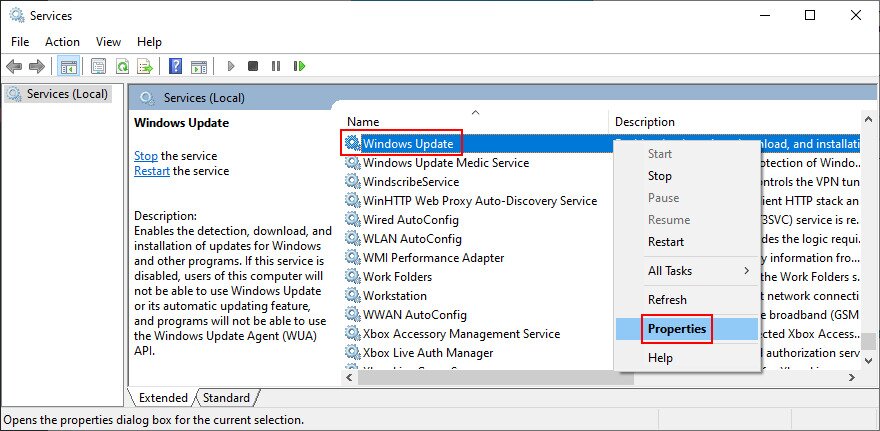
- Click the Start button, write Services, and open this app
- Right-click Windows Update and go to Properties

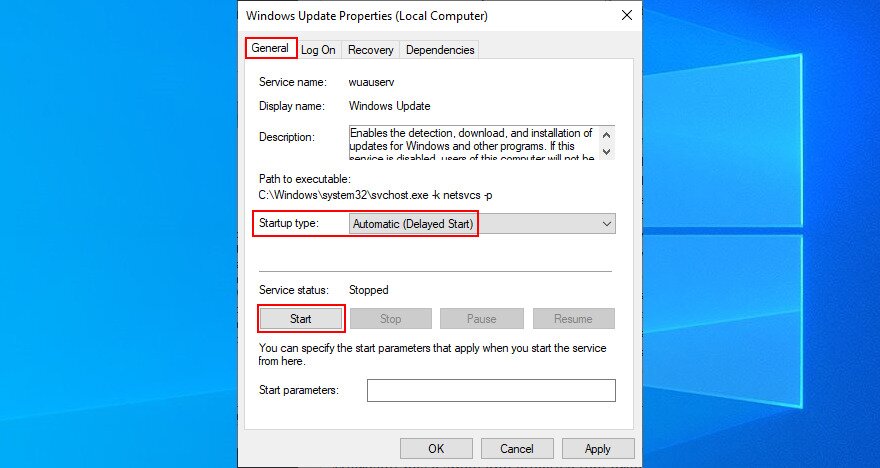
- Set Startup type to Automatic (Delayed Start) and click the Start button

- Click Apply
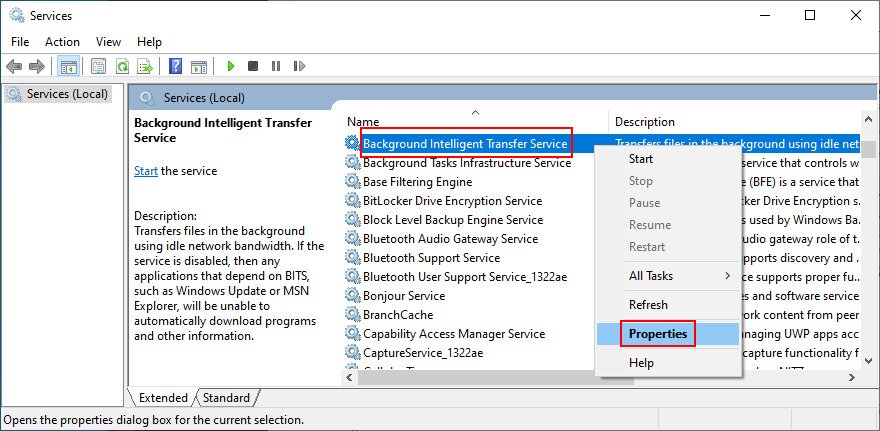
- Find the Background Intelligent Transfer Service and App Readiness entries and set the same options

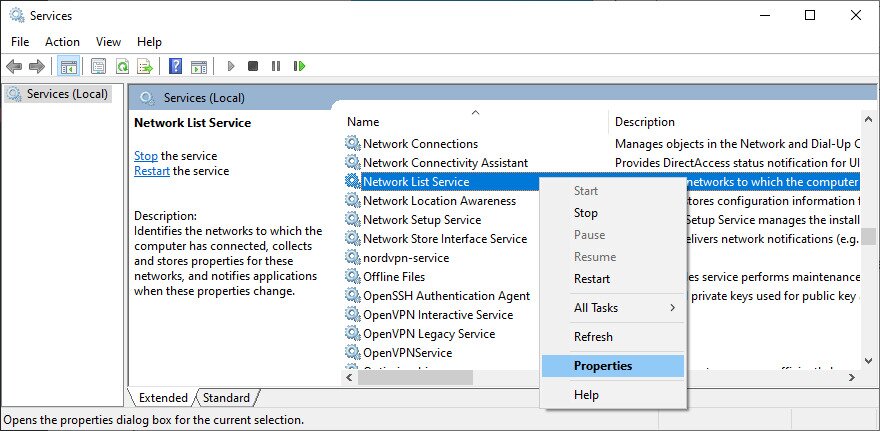
- Find Network List Service and access its properties

- Set Startup type to Disabled and click Stop
- Click Apply and quit to the desktop
4. Check Group Policy
You should head over to the Local Group Policy Editor to make sure that Windows Update is allowed to run on your computer. Otherwise, you could end up with error 0x8024401c. If you prefer to completely turn off updates or block Windows 11 updates instead of troubleshooting them, you can configure Group Policy settings accordingly.
- Click the Start button, search for edit group policy, and hit Enter
- Go to the following location: Computer Configuration > Administrative Templates > Windows Components > Windows Update
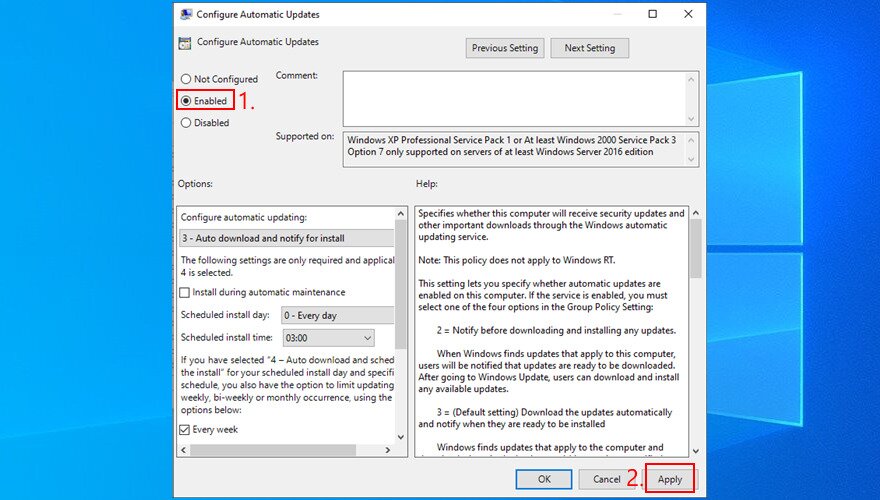
- Double-click Configure Automatic Updates to view its properties
- Select Enabled, click Apply, and exit to the desktop

5. Reset Windows Update from Command Prompt
You can clear the Windows Update cache by resetting all software components involved in its services, thanks to the command-line environment:
- Make sure to log in to Windows 10 using an admin account
- Press the Windows key, type cmd, and open the Command Prompt app
- Enter these commands and press Enter after each line:
net stop wuauserv
net stop cryptSvc
net stop bits
net stop msiserver
ren C:\Windows\SoftwareDistribution SoftwareDistribution.old
ren C:\Windows\System32\catroot2 Catroot2.old
net start wuauserv
net start cryptSvc
net start bits
net start msiserver
- Restart your PC
6. Check registry settings
Using Registry Editor, you should inspect some entries that affect Windows Update, in order to make sure that everything is in working order. Here’s what you need to do:
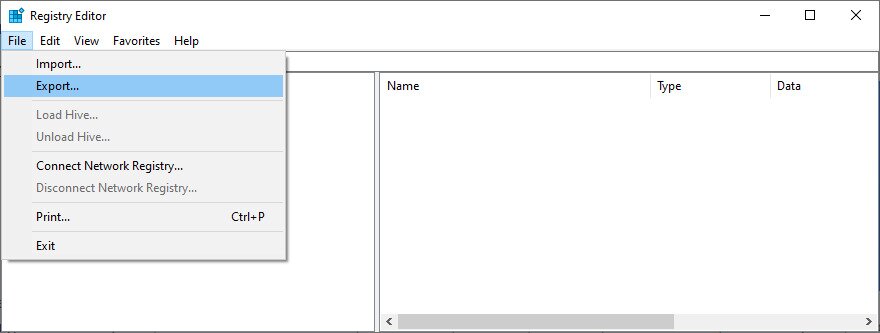
- Press Windows key + R, write regedit, and hit Enter to open Registry Editor. If prompted by UAC (User Account Control), click Yes
- Open the File menu and select Export

- Create a registry backup file by specifying the file name and saving directory
- Go to the following location:
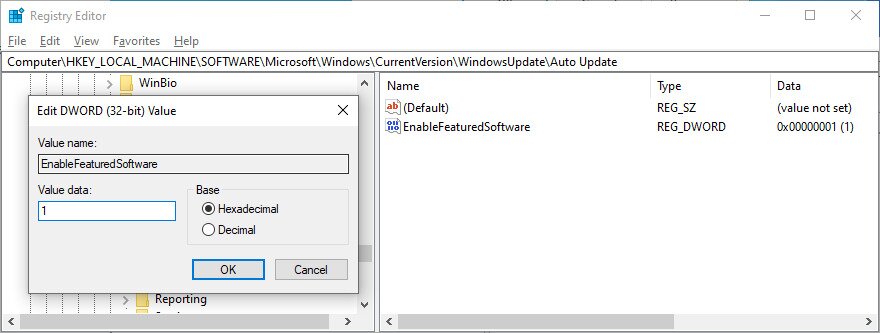
Computer\HKEY_LOCAL_MACHINE\SOFTWARE\Microsoft\Windows\CurrentVersion\WindowsUpdate\Auto Update

- Check whether or not EnableFeaturedSoftware exists. If so, ensure that Data is set to 0x00000001 (1). Otherwise, double-click its entry, set Value data to 1 and Base to Hexadecimal, then click OK
- However, if EnableFeaturedSoftware doesn’t exist, you must create it:
- Select Edit > New > DWORD (32-bit) Value
- Enter the EnableFeaturedSoftware entry and double-click it
- Set Value data to 1 and Base to Hexadecimal, then click OK
- Head over to this location:
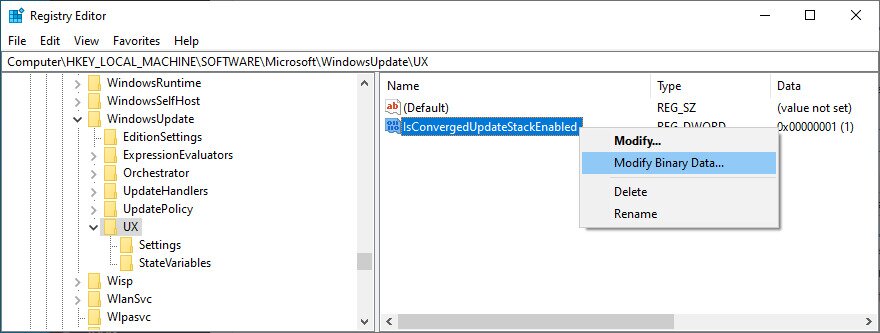
HKEY_LOCAL_MACHINE\SOFTWARE\Microsoft\WindowsUpdate\UX
- Double-click IsConvergedUpdateStackEnabled, set Value data to 0 and Base to Hexadecimal, then click OK

- Now, head over to this destination:
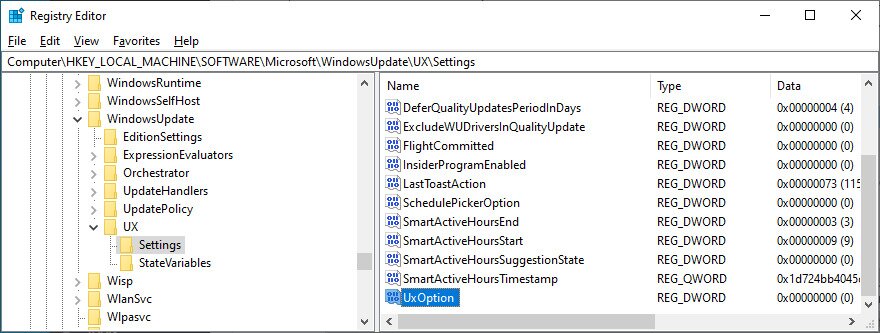
HKEY_LOCAL_MACHINE\SOFTWARE\Microsoft\WindowsUpdate\UX\Settings

- Double-click UxOption, set Value data to 0 and Base to Hexadecimal, then click OK
- Next, visit:
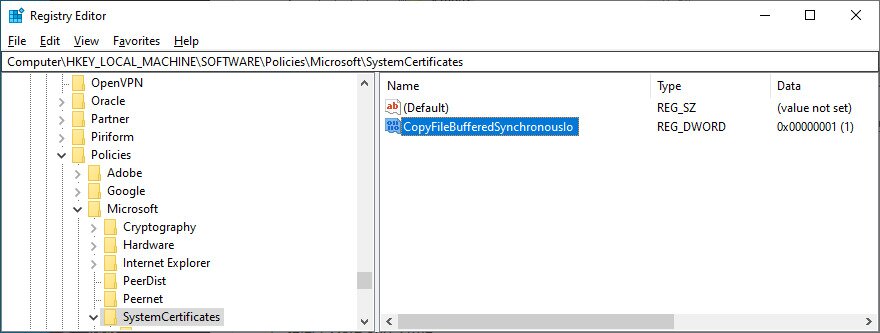
HKEY_LOCAL_MACHINE\SOFTWARE\Policies\Microsoft\SystemCertificates

- Check whether or not CopyFileBufferedSynchronousIo exists. It so, make sure its Data is set to 0x00000001 (1). Else, double-click the entry, set Value data to 1 and Base to Hexadecimal, then click OK
- If CopyFileBufferedSynchronousIo doesn’t exist:
- Select Edit > New > DWORD (32-bit) Value
- Rename the entry to CopyFileBufferedSynchronousIo and double-click it
- Set Value data to 1 and Base to Hexadecimal, then click OK
- Quit to the desktop
7. Update your network drivers
If you’re experiencing network connectivity issues, you should check your network drivers since they might be outdated, especially if you still have the stock drivers because you never performed an update.
The quickest and safest way is to use a driver updating application for updating all obsolete drivers at the same time. However, if you don’t want to install any third-party programs, you can turn to Device Manager:
- Press Windows key + R, type devmgmt.msc, and press Enter
- Click the arrow button next to Network adapters to expand this group
- Right-click your network interface and select Update driver

- Click Search automatically for drivers and wait
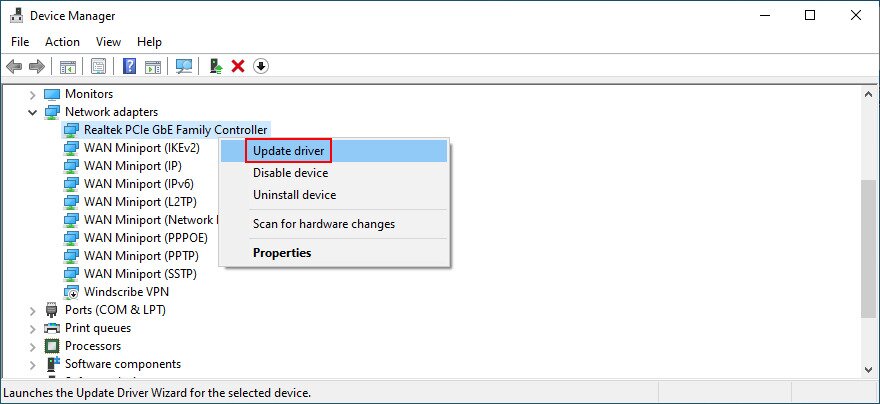
If the online search doesn’t return anything, you can visit the manufacturer website of your network adapter in order to find, download and install the latest version. It’s risky, though, because you could accidentally set up an unsupported driver.
8. Roll back your network drivers
On the other hand, you might have accidentally downloaded and installed a driver that’s not compatible with your network adapter or operating system. It could hurt your entire Internet connections, so it’s better to roll back to the previous version. Here’s how:
- Right-click the Start button and select Device Manager
- Double-click your network adapter to access its properties
- Switch to the Driver tab
- Click the Roll Back Driver button and follow the step-by-step instructions
If you can’t click Roll Back Driver because the button is greyed out, it’s impossible to go through with the rollback because there’s no previous driver saved on your PC.
9. Unplug peripheral devices
Hardware components that were recently attached to your desktop or laptop might not fully support your operating system. In turn, this could affect your applications, Internet connections, and system tools like Windows Update, resulting in error 0x8024401c.
Consider any new pieces of hardware that you connected to your PC, like a webcam, a Wi-Fi adapter, a pen drive, or a memory card. Remove their cables, restart your computer, and check if you can run Windows Update. You should also try plugging the devices into other USB ports in case they are not working properly.
10. Reinstall devices
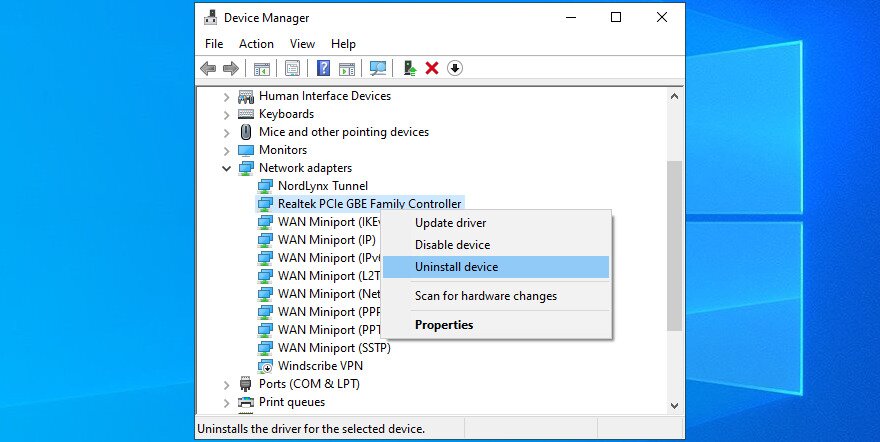
Another way to deal with peripheral devices is by reinstalling them on your Windows 10 PC. This is made possible through Device Manager since you just have to uninstall the adapters. After restarting your computer, Windows will make sure to automatically install all missing devices. Here’s what you need to do:
- Click the Start button, search for Device Manager, and press Enter
- Look for any devices with a yellow exclamation mark
- Right-click it and select Uninstall device

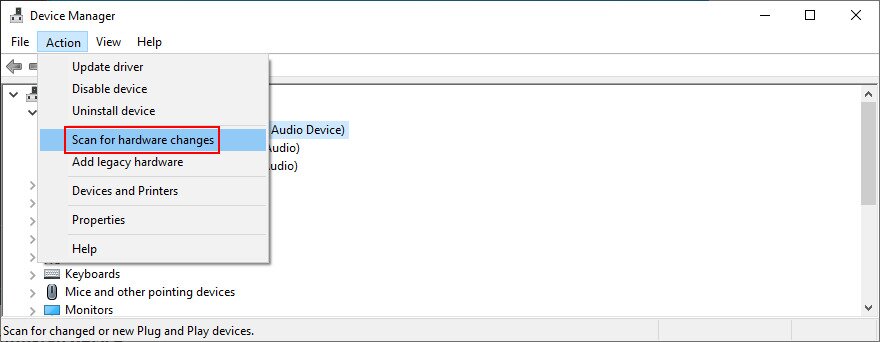
- Open the Action menu and choose Scan for hardware changes

- Reboot your Windows PC
11. Check your hard disk for errors
Your HDD or SSD might be experiencing hardware failure or bad sectors. It could affect your entire system, including the Windows Update service. But you can turn to CHKDSK (Check Disk) to find and fix any problems:
- Click the Start button, search for Command Prompt, and select Run as administrator (click Yes if prompted by UAC)
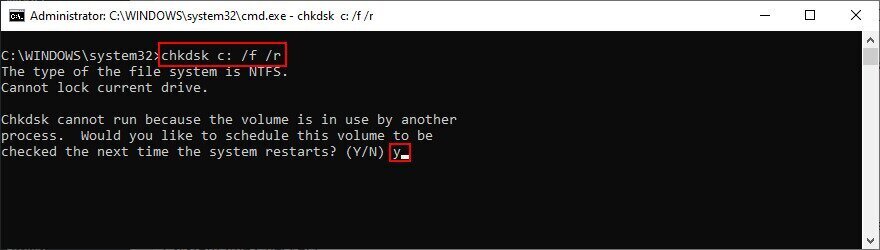
- Take into account the partition letter of Windows and enter
chkdsk c: /f /r(if it’s notc:, replace it with the correct letter)
- CHKDSK will ask you to confirm scheduling the tool at the next Windows boot. Agree by typing y and pressing Enter
- Restart your PC and wait for CHKDSK to do its job
12. Fix corrupt system files
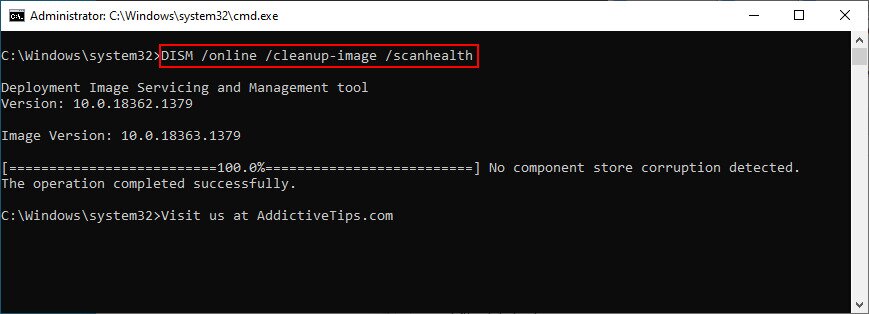
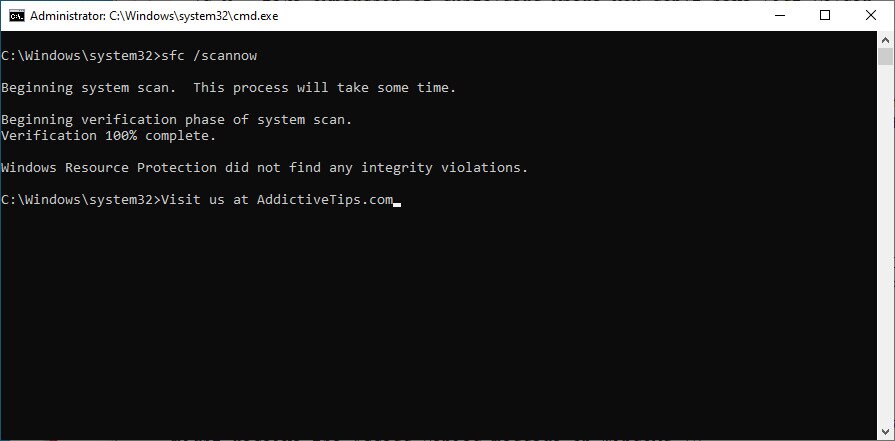
Windows 10 might have damaged, modified or missing files that are essential for Windows Update. Without taking measures, you will keep seeing error code 0x8024401c. But you can fix this problem by running DISM (Deployment Image Servicing and Management) and then SFC (System File Checker). These troubleshooting methods are similar to BSOD fix instructions that can resolve various Windows system errors. If you continue to experience issues with system files or input functionality, you may also need to repair Windows input issues:
- Press the Win key, type CMD, select Command Prompt, and click Run as administrator
- Write
DISM /online /cleanup-image /scanhealthand press Enter
- If it finds any issues, run
DISM /online /cleanup-image /restorehealthto fix them - Reboot your PC and launch Command Prompt with elevated rights
- Type
sfc /scannowand hit the Enter key
- Restart your workstation before trying Windows Update
13. Check firewall settings
Your firewall filters Internet traffic by allowing and denying access to processes and services. If you have accidentally messed up the firewall settings, this could explain why Windows Update throws you errors like 0x8024401c. Unless you have a third-party firewall tool installed, here’s what you can do with Windows Defender Firewall.
How to temporarily disable your firewall:
- Make sure you’re signed in with an admin account on Windows 10
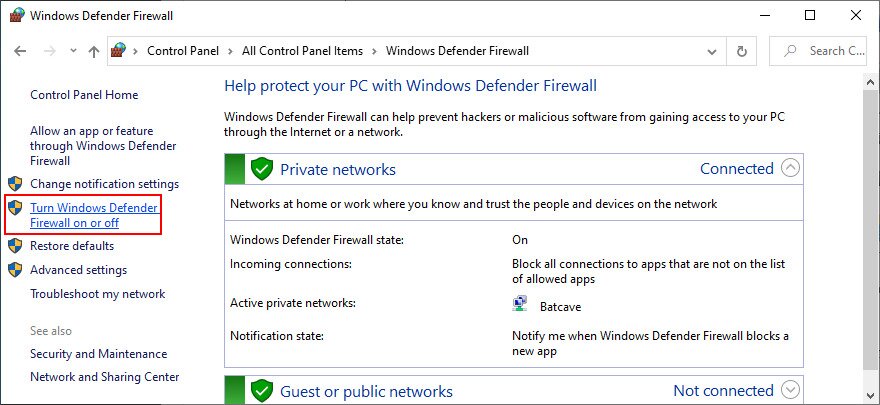
- Click the Start button, type check firewall status, and press Enter
- Click Turn Windows Defender Firewall on or off

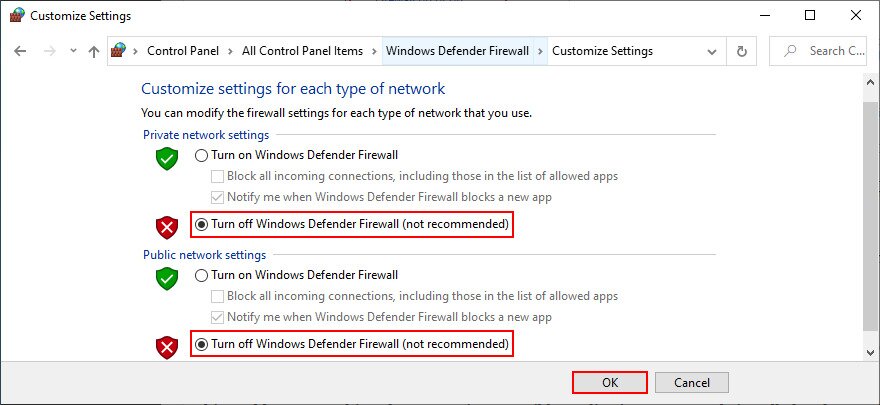
- At Private network settings and Public network settings, select Turn off Windows Defender Firewall and click OK

Try to run Windows Update now. If it turns out to be a successful move, you shouldn’t keep your firewall disabled because it means leaving your PC vulnerable to malware attacks. Instead, you can restore firewall settings to default, in order to undo any customized preferences that could’ve triggered the Windows Update error.
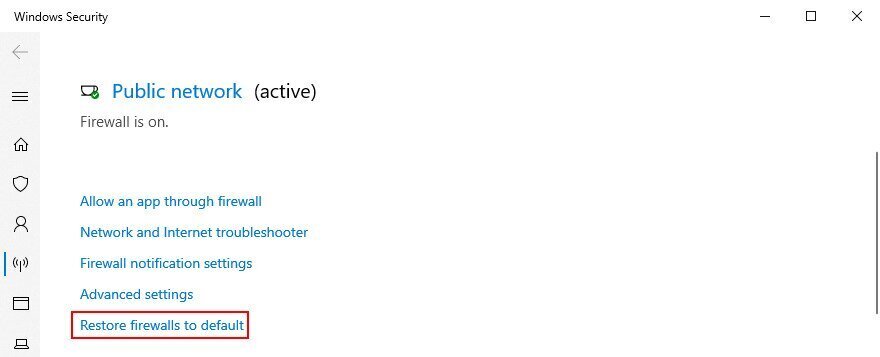
How to restore firewall settings to default:
- Press the Win key, type firewall, and open Firewall & network protection
- Scroll down to the bottom of the page and click Restore firewalls to default

- Click Restore defaults and click Yes to confirm
14. Run a malware scan
A malicious agent could have hijacked your PC and deactivated critical files that Windows Update needs to work properly. Unless you have a third-party security solution installed, here’s how to find and remove malware using Windows Defender:
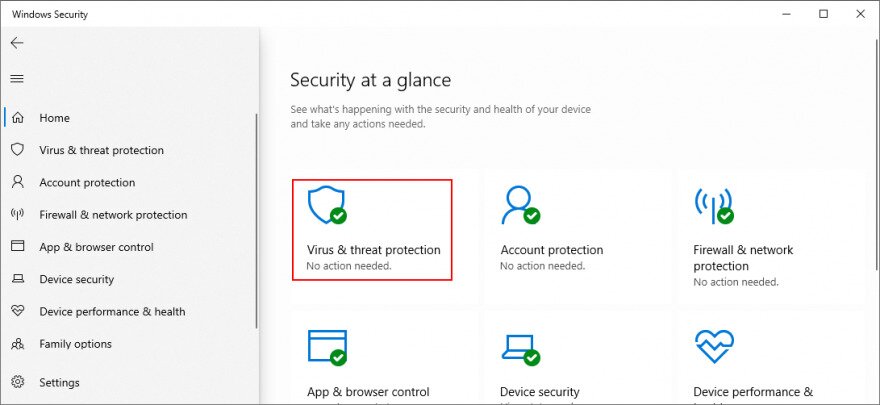
- Click the Start button, write Windows Security, and open this tool
- Pick Virus & threat protection

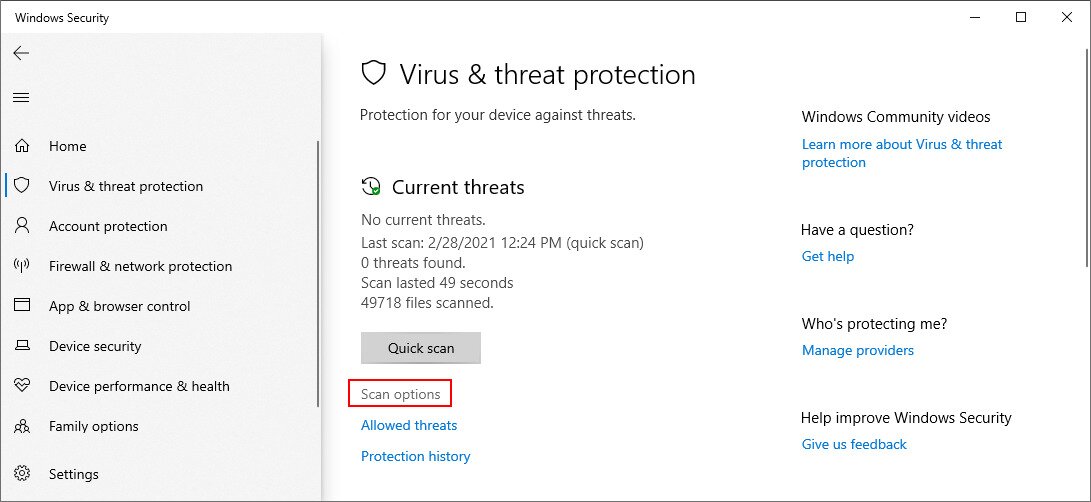
- Click Scan options

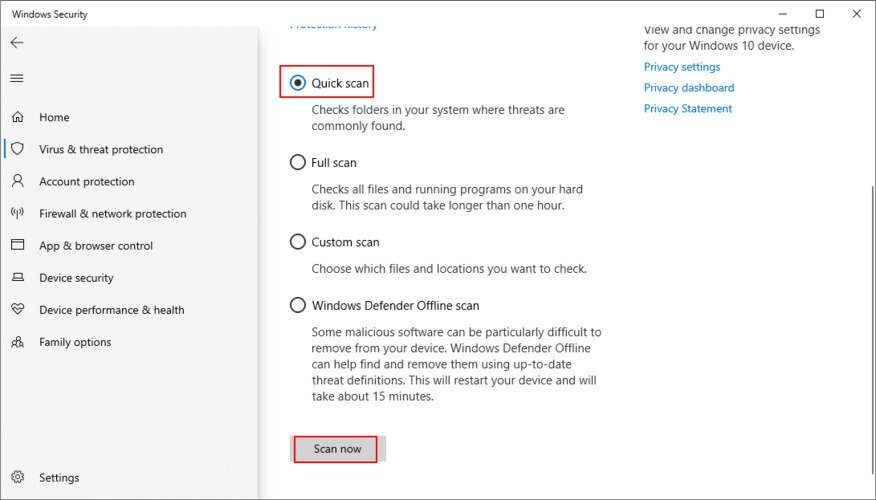
- Select Quick scan and click Scan now

- If the scanner doesn’t find any threats, pick Windows Defender Offline scan and click Scan now