How to Fix Outlook Exception Code 0xc0000005 (Full Guide)
“`html
The 0xc0000005 application error (access violation) can occur when trying to open a file, play a game, or launch a program. It’s triggered by system issues that prevent Windows from accessing the files and settings required for launching one or more applications.
For instance, users have reported getting this error when attempting to launch League of Legends. In other cases, it caused PC audio problems. It might seem impossible to solve the problem when you can’t even access basic system tools, but it can be done nonetheless.
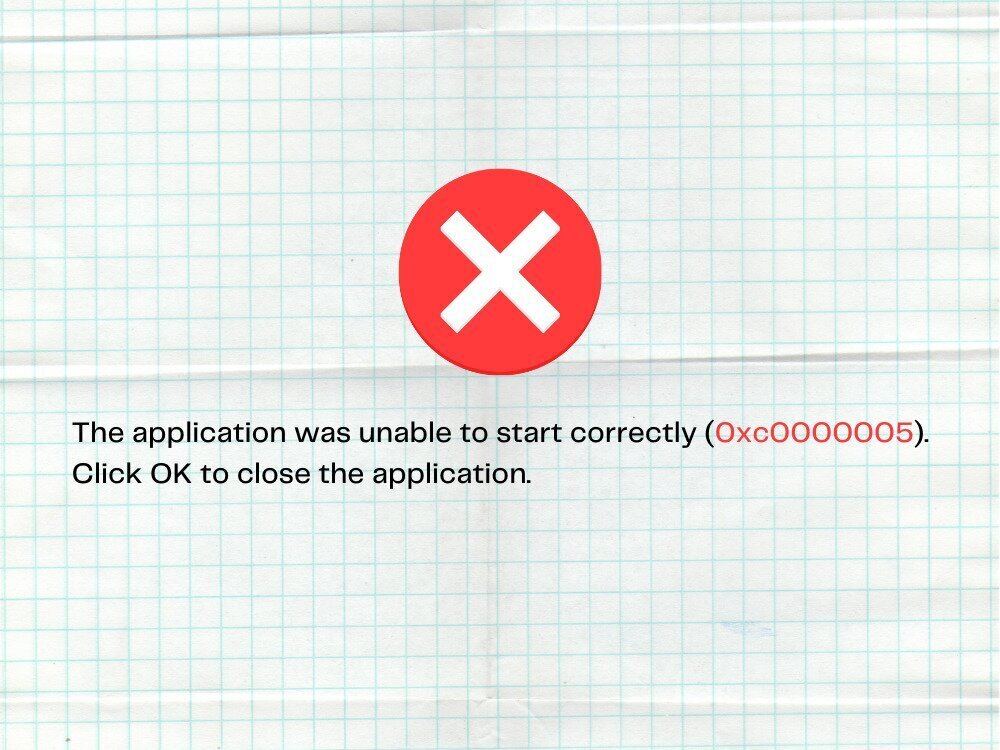
How to fix Exception Code 0xc0000005 on Windows 10
Check out the following solutions to troubleshoot the 0xc0000005 error. We suggest creating a system restore point before getting started, so that you can easily undo changes and start from scratch if necessary.
1. Restart your computer
Get started with the simplest possible solution: restarting your computer. If the 0xc0000005 application error was caused by a hanging process or faulty service, then a PC reboot should do the trick. And, if you want to be thorough about it, you can perform a hard PC reboot in order to clear the memory cache. Here’s how:
- Shut down your computer from the power menu
- Unplug the PC from its power source. If you have a laptop, make sure to remove its battery
- Press and hold the power button for 15-20 seconds to clear the cache
- Plug the computer back into its power source and turn it on
2. Close all application processes
If the application’s processes weren’t properly closed the last time you launched the program, it’s possible that the situation has led to access violation error 0xc0000005. To fix it, make sure to terminate all processes before relaunching a specific program. Here’s what you need to do:
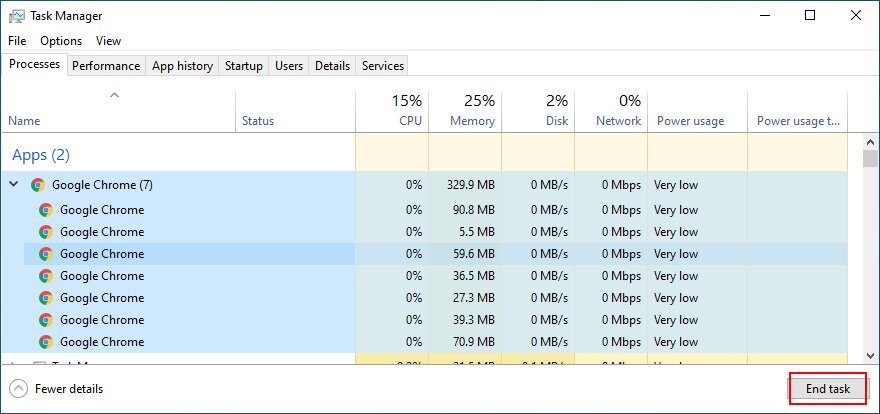
- Press Ctrl + Shift + Esc to open Task Manager
- Find your app and select its entire process tree

- Click End task
- Try to launch the program now
3. Run as administrator
The 0xc0000005 access violation error could be caused by a lack of user permissions when attempting to launch a specific program or system tool. To easily test this, right-click the application’s launcher and select Run as administrator. If the option doesn’t appear in the context menu, hold down Shift when clicking the executable file.

However, if you’re trying to open a file with any other extension besides .exe, you have to run its application with admin rights. For example, let’s assume that you’re trying to open a PNG image using IrfanView. In this case, you must run IrfanView with admin rights and then open the PNG image using the photo viewer.
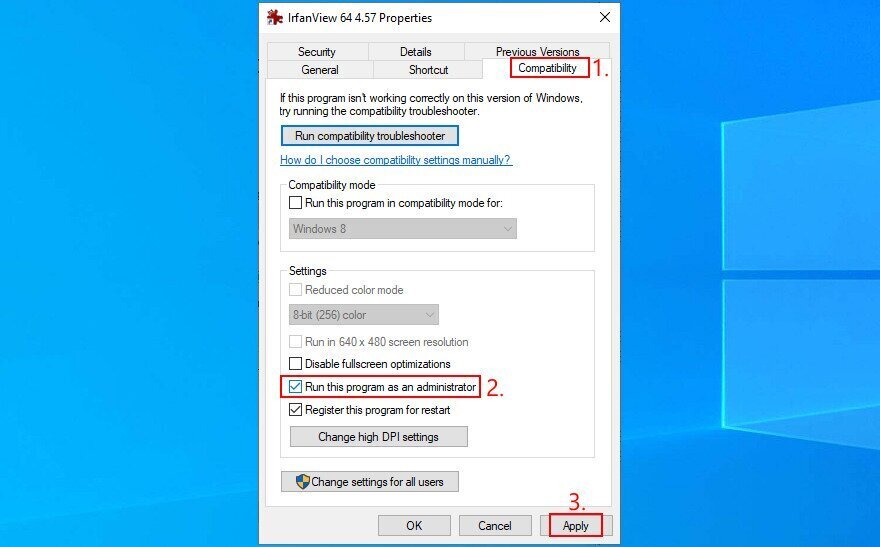
Otherwise, if IrfvanView is set as the default photo viewer on your Windows 10 PC, right-click its launcher file, switch to the Compatibility tab, select Run this program as an administrator, click Apply, and exit. Now you should be able to open the PNG file by just double-clicking it in your file browser. Windows will automatically run IrfanView with elevated rights.
4. Run Program Compatibility Troubleshooter
Windows 10 has an internal troubleshooter dedicated to fixing program compatibility issues. You can use it to repair the 0xc0000005 error if you’re trying to open files using applications that don’t fully support your operating system. Here’s how:
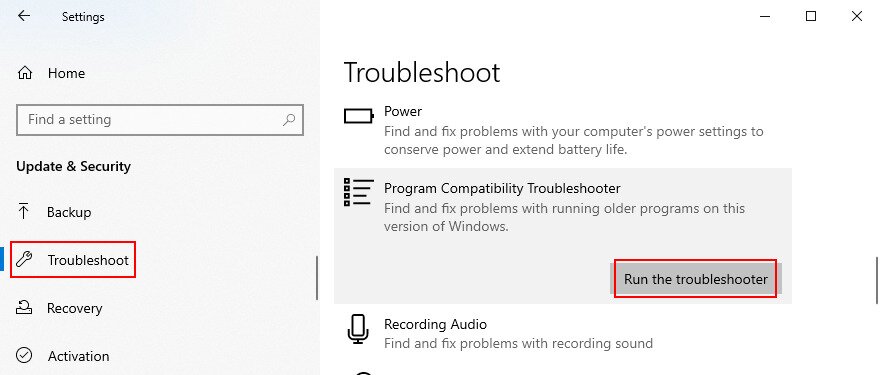
- Click the Start button, search for Troubleshoot settings, and press Enter
- Click Additional troubleshooters
- Select Program Compatibility Troubleshooter and click Run the troubleshooter

- Choose the program you’re having problems with. If it’s not there, select Not Listed and click Next
- Click Browse to find and add the program’s launcher file
- Proceed to the next step and select Try recommended settings
- Click Test the program, observe results, then click Next
- If you still get the 0xc0000005 error, pick No, try again using different settings
- Follow the remaining wizard steps
5. Clear the app cache
You should empty the application’s cache to delete temporary data that might prevent your program from launching correctly. The steps vary for each program, so it’s a good idea to look up the cache clearing steps online. Here are some suggestions.
How to clear the cache of a Microsoft Store app:
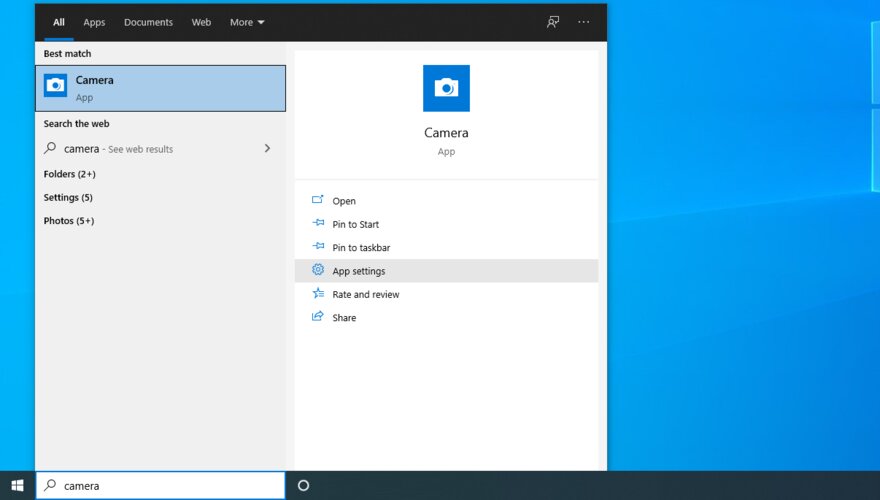
- Click the Start button, search for the app, select it, and click App settings

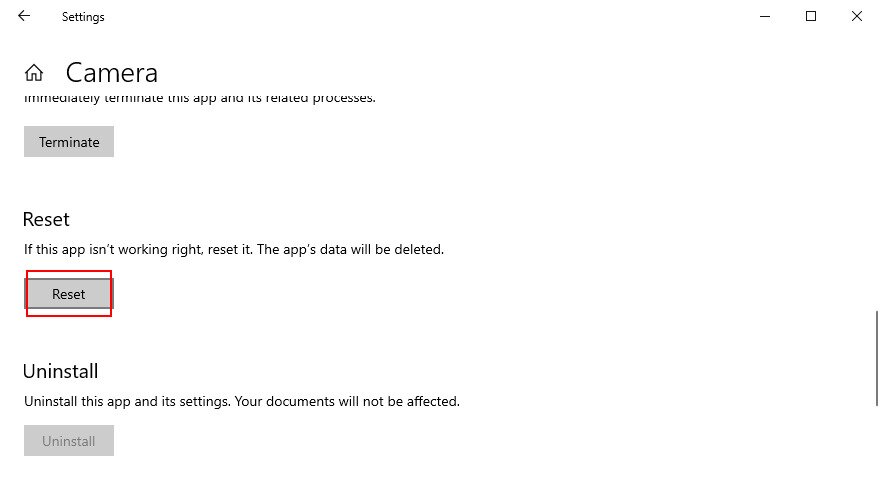
- Scroll down and click Reset

- Click Reset again to confirm
How to clear Google Chrome cache:
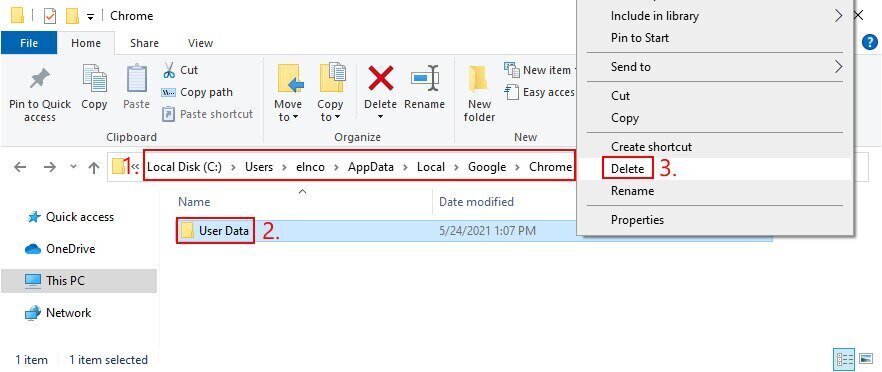
- Press Win key + E to open File Explorer
- Click inside the address bar, type
%appdata%, and press Enter - Go one folder up (from Roaming to AppData)
- Head over to Local > Google > Chrome
- Delete the User Data folder

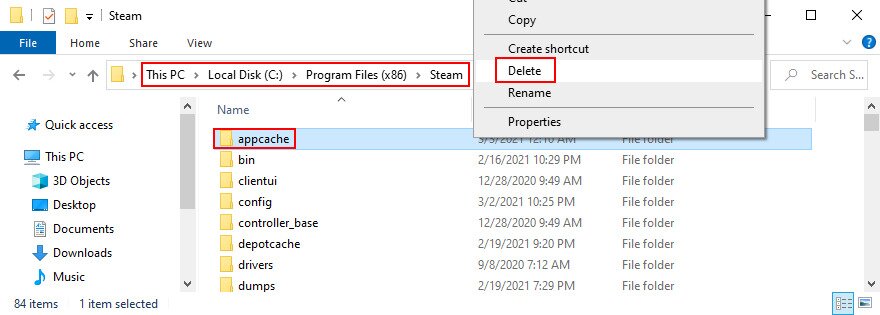
How to clear Steam cache (if you can’t play games on Steam):
- Open File Explorer
- Go to
C:\Program Files (x86)\Steam\if you installed Steam in the default directory - Delete the appcache folder

6. Reinstall the application
There could be something wrong with the application that you’re trying to launch, but you can resolve this problem by removing it from your PC and then reinstalling it. Here’s how to do it correctly:
- Right-click the taskbar and select Task Manager
- Find your application, choose its entire process tree, and click End task
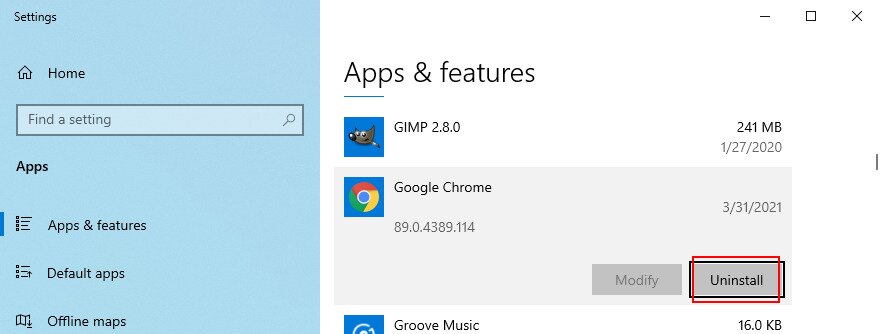
- Right-click the Start button and go to Apps and Features
- Select your application from the list, click Uninstall and again to confirm

- Proceed with the removal operation
- Restart your computer
- Download the application from its official website
- Install and try to launch it
7. Repair and reinstall .NET Framework
Some software programs depend on .NET Framework to work properly. If the Framework package has corrupt, modified, or missing files, it could be the reason why you keep getting application error 0xc0000005. But you can easily fix this issue by repairing .NET Framework using a dedicated tool from Microsoft.
How to use Microsoft .NET Framework Repair Tool:
- Download Microsoft .NET Framework Repair Tool from the official website
- Launch the application and agree to the license terms
- Click Next to begin a computer scan
- Make sure to apply any fixes found by the repair tool, like reregistering or restarting the Windows Installer service
Try to launch your application after using the repair tool. If you still can’t shake off the error code, it’s a good idea to reinstall .NET Framework.
How to reinstall Microsoft .NET Framework:
- Press Win key + R, enter appwiz.cpl, and hit the Enter key
- Find and uninstall .NET Framework. If you have multiple versions installed, make sure to remove all of them
- Using a web browser, visit the .NET Framework official download page
- In the Supported versions group, click the recommended entry
- Download the runtime version (for non-developers)
- Install .NET Framework
- Check if you can open programs now
8. Check for system updates
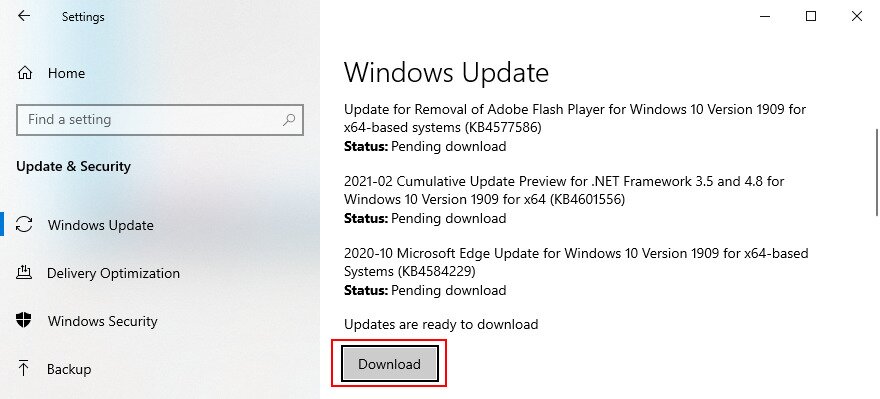
Make sure that your Windows 10 computer is equipped with the latest features, improvements, hotfixes, and security patches from Microsoft. If there’s a system-wide problem known to cause the 0xc0000005 error, Windows Update will likely take care of it soon.
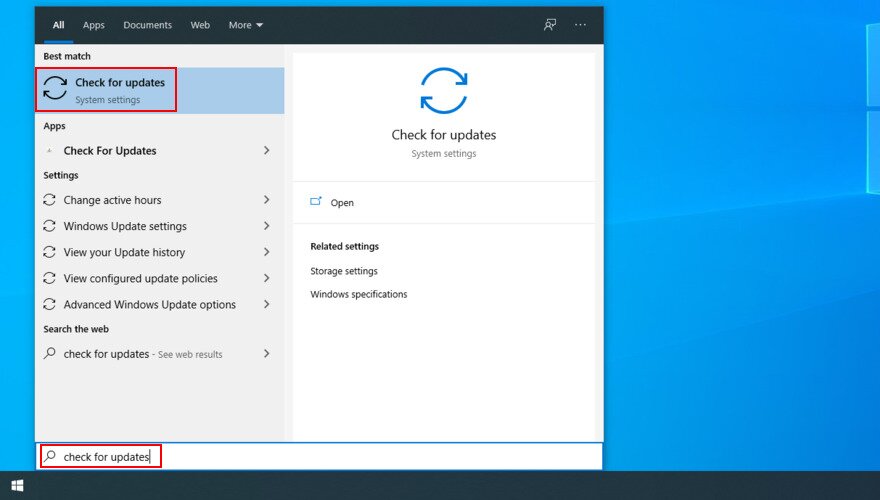
- Press the Windows key, type Check for updates, and press Enter

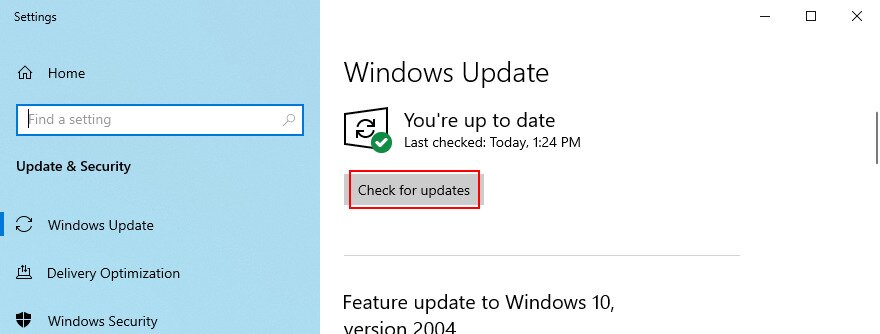
- If the online search doesn’t begin automatically, click Check for updates

- Wait a few seconds until Windows and click Download if there are any pending updates

- Restart your computer
9. Reset Windows Update
If Windows Update doesn’t work properly and gives you various errors, it’s a good idea to reset its cache and all components involved in this tool by turning to the command-line environment.
- Sign in to Windows 10 using an administrator account
- Click the Start button, search for Command Prompt, and open this app
- Enter the following lines of code (press Enter after each one):
-
net stop wuauserv
-
net stop cryptSvc
-
net stop bits
-
net stop msiserver
-
ren %SystemRoot%\SoftwareDistribution SoftwareDistribution.old
-
ren %SystemRoot%System32\catroot2 Catroot2.old
-
net start wuauserv
-
net start cryptSvc
-
net start bits
-
net start msiserver
-
- Reboot your computer and try to run Windows Update again
10. Run the Hardware and Devices troubleshooter
The 0xc0000005 application error could be triggered by malfunctioning hardware and devices. It’s usually a simple problem, like quickly reinstalling a device that wasn’t properly set up on your PC.
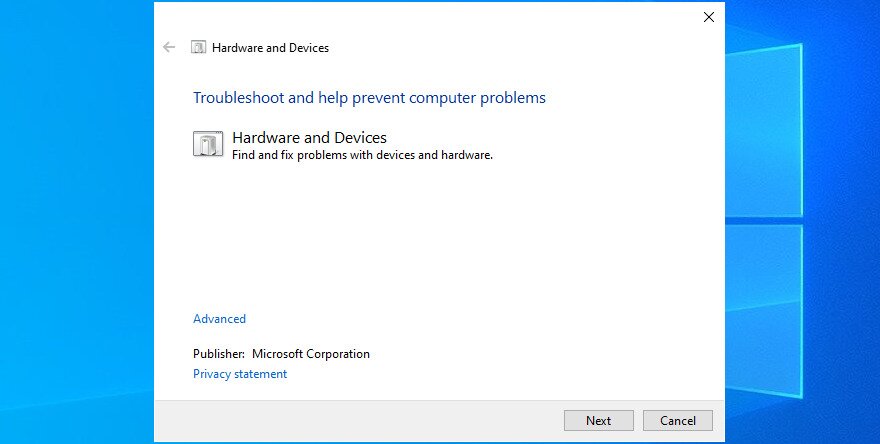
Under normal circumstances, you should find the tool in Troubleshoot Settings. However, if the Hardware and Devices troubleshooter is missing from your computer, here’s what you need to do:
- Press Win key + R, type
msdt.exe -id DeviceDiagnostic, and hit the Enter key - Click Next and allow your operating system to apply any fixes

- Restart your PC after the wizard is finished
- Try to launch programs now
11. Fix hard drive corruption
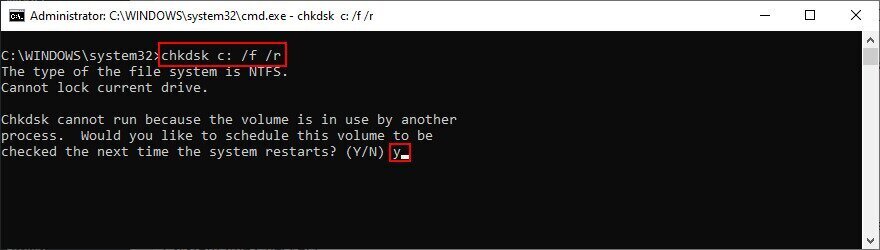
If your hard disk has corrupt files, Windows might not be able to open files or launch programs anymore, resulting in violation error 0xc0000005. But you can fix this problem by using a command-line tool that comes bundled with Microsoft’s operating system, called CHKDSK (Check Disk).
How to use CHKDSK:
- Press Windows key + R, type cmd, and press Ctrl + Shift + Enter to open Command Prompt with elevation rights
- If Windows is installed on the default C: drive, run
chkdsk c: /f /r. Else, replacec:with the correct partition letter
- Run y when you’re asked to confirm scheduling CHKDSK during the next system boot
- Restart your computer and wait for CHKDSK to do its job
12. Repair corrupt system files
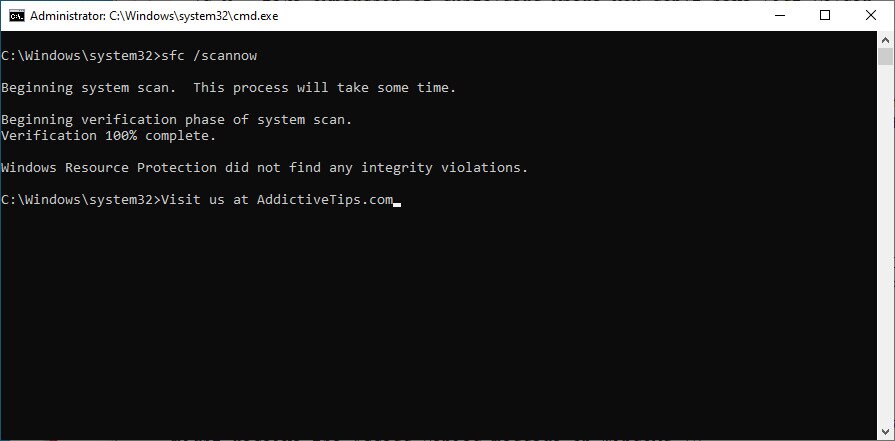
Your operating system could have corrupt or missing files that prevent applications from running properly on your PC. You can restore damaged items with the help of SFC (System File Checker). Just like CHKDSK, you can operate this tool from the console environment.
How to use SFC:
- Run Command Prompt as admin
- Type
sfc /scannowand hit Enter
- Windows will find and repair any issues. Once it finishes, restart your PC
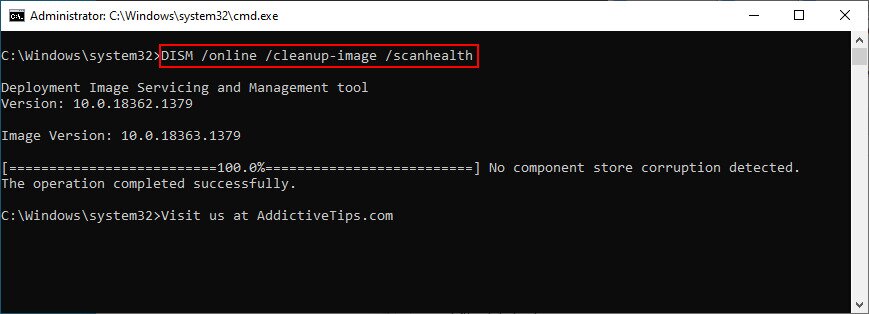
If SFC won’t solve the 0xc0000005 error, you can use DISM (Deployment Image Servicing and Management) to check the component store of the Windows image.
How to use DISM:
- Launch Command Prompt with elevated rights
- Run
DISM /online /cleanup-image /scanhealthand wait
- If it finds any problems, run
DISM /online /cleanup-image /restorehealth - Once it completes its task, restart your PC
- Open Command Prompt as admin again
- Run SFC (
sfc /scannow) - Reboot your PC one last time
13. Check the system memory
If you’re experiencing any problems with the system RAM, it could affect all operations in your computer, including critical ones like opening files or launching apps. To fix RAM issues, you can turn to Windows Memory Diagnostic. Here’s how to use it:
- Make sure to save and close any projects you’re currently working on
- Click the Start button, search for Windows Memory Diagnostic, and open this app
- Click Restart now and check for problems

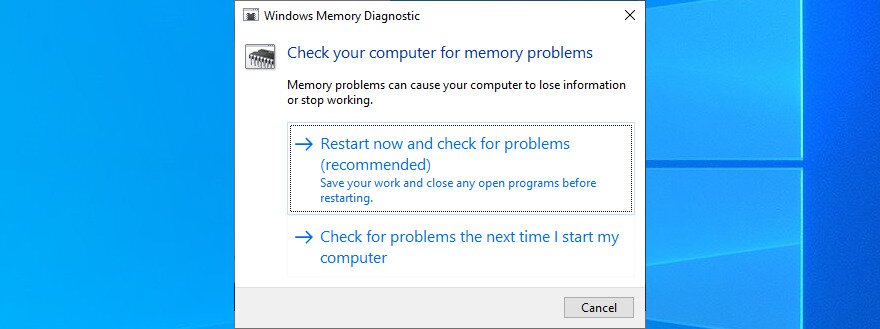
Your computer will reboot and start checking the system memory for issues. It performs a Standard test by default, but we suggest opting for the Extended version since it’s in-depth. Press F1 to go to options, select Extended, and hit F10.
You can leave your PC unattended while it’s busy identifying memory problems. Once it completes, it will start Windows 10 normally and show the scan results in the notifications center. An alternative solution is MemTest86, which you can use to perform a RAM stress test.
14. Check your drivers
Your device driver might be outdated or incompatible with your operating system. In time, this can lead to error 0xc0000005 when attempting to open files, play games, and launch various applications. Begin the troubleshooting process by checking if your device and video drivers are obsolete and need updating.
How to update drivers:
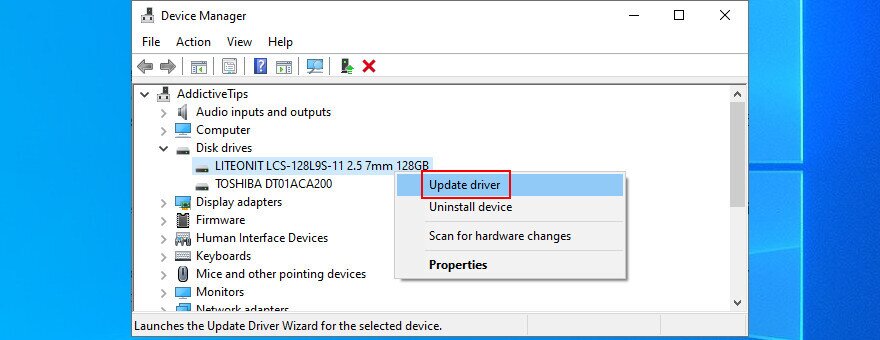
- Right-click the Start button and go to Device Manager
- Click the small arrow next to Disk Drives to extend this group
- Select your disk, right-click it, and choose Update driver

- Click Search automatically for drivers. If you get the The best drivers for your device are already installed message, click Search for update drivers on Windows Update. But if you have already checked for system updates, there’s no need to do this again
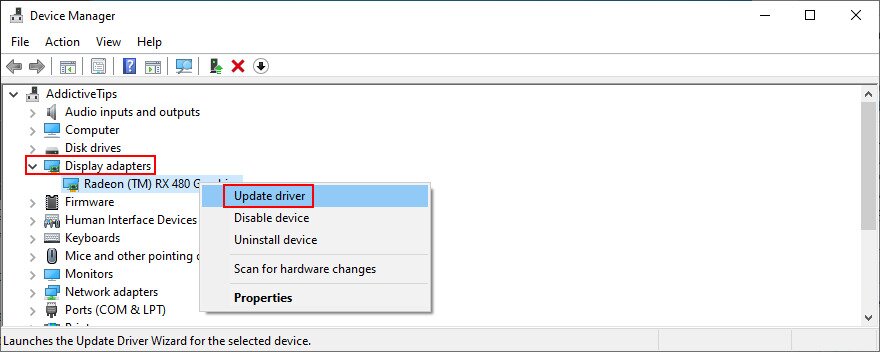
- Do the same for your video driver in the Display adapters category

Windows is rarely successful at finding and downloading drivers on its own. In fact, it’s more reliable to do this manually: find the name of your driver in the Properties section, visit the official website, download a newer version, then return to Device Manager to perform the update by selecting the Browse my computer for drivers option.
However, if you’re having a hard time trying to figure out which drivers are obsolete and where to download them from, it’s easier to use a driver update application. It scans your computer, finds obsolete drivers, locates newer versions on the web, and installs them to your computer. And it’s all performed automatically. Plus, you won’t risk getting incompatible drivers that might end up causing more harm to your PC.
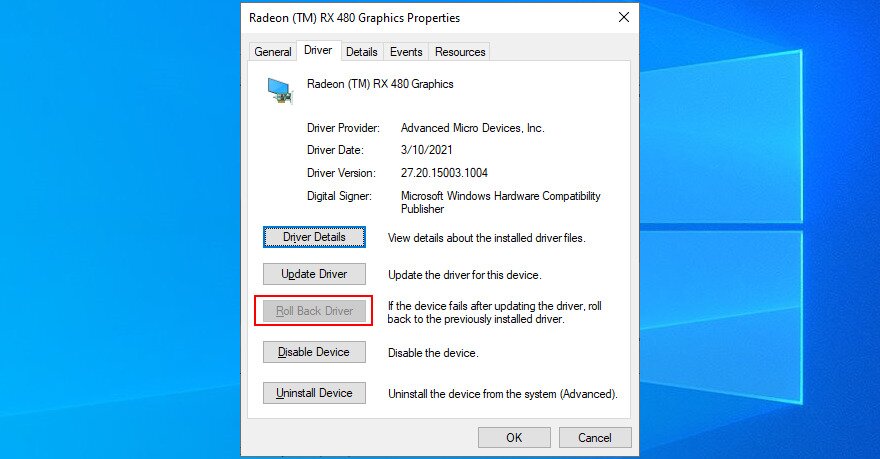
How to roll back unsupported drivers:
- Press Win key + R, type devmgmt.msc, and hit Enter
- Choose the device with the unsupported driver, right-click it, and go to Properties
- Select the Driver section
- Click Roll Back Driver and follow the steps. If the button’s greyed out and you can’t click it, it’s not possible to make the rollback because there’s no previous driver version saved to your PC. You can skip this step

If you’re encountering driver-related issues that cause system crashes, you may also want to learn how to fix a driver power state crash.
15. Run a malware scan
If your operating system has viruses, it’s no wonder that you keep getting error codes like 0xc0000005 when trying to use your computer. It’s time to use Windows Defender or any other third-party anti-malware solution installed, in order to find and eliminate any threats from your hard drive.
How to use Windows Defender:
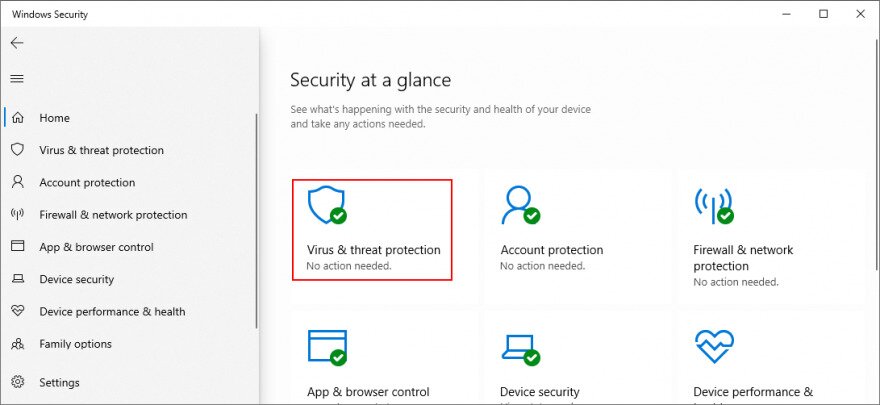
- Press the Win key, search for Windows Security, and launch this app
- Go to Virus & threat protection