Are You Experiencing 0x80080005 Windows Update Error? (FIXED)
“`html
0x80080005 is an error code reported by many users when trying to run Windows Update. It prevents your operating system from downloading and applying the latest updates, which could cause serious issues on the long term.
For example, you might have trouble updating Microsoft Store apps without the latest system updates. The error can be triggered by a software or hardware error. It usually has to do with your computer or network connection settings, which means that you should be able to easily solve them using the solutions below.
How to fix Windows 10 update error 0x80080005
Before starting the troubleshooting process, make sure to create a system restore point on your PC. If you encounter additional problems along the way, you can undo them by rolling back Windows 10 to the restore point. Similar to other Windows errors, this issue requires systematic troubleshooting similar to a blue screen troubleshooting tutorial, and if the problem is tied to system crashes, a crash report analyzer can help identify the cause, while these driver crash fixes cover common BSOD triggers. If you’re also experiencing keyboard or input-related issues during troubleshooting, you may need to fix text input errors before proceeding.
Furthermore, you should try running Windows Update to confirm the error:
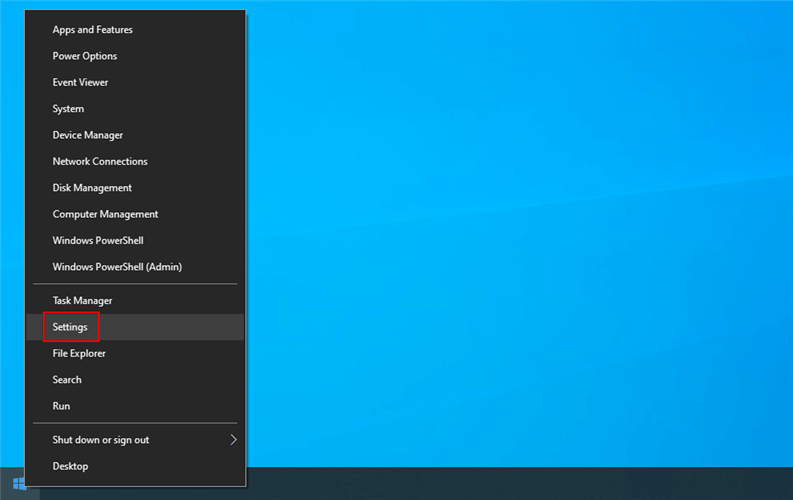
- Right-click the Start button and go to Settings

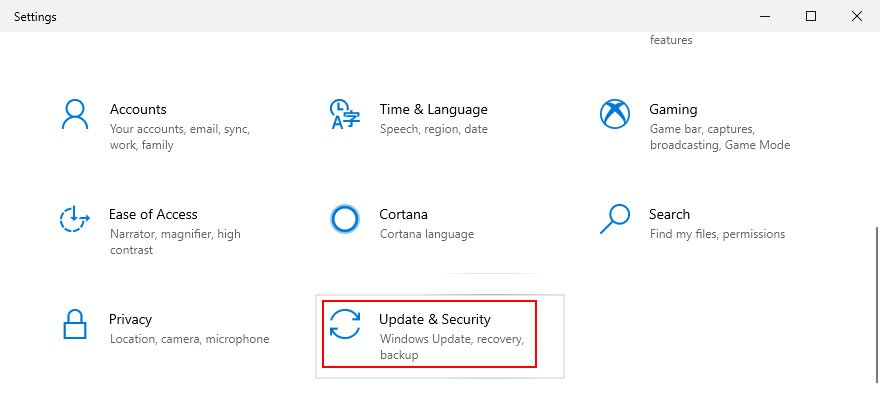
- Select Update & Security

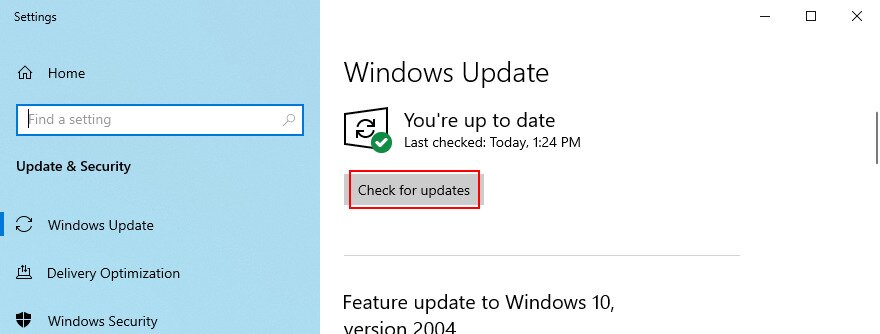
- Click Windows Update on the left side
- Click Check for updates

1. Run the Windows Update troubleshooter
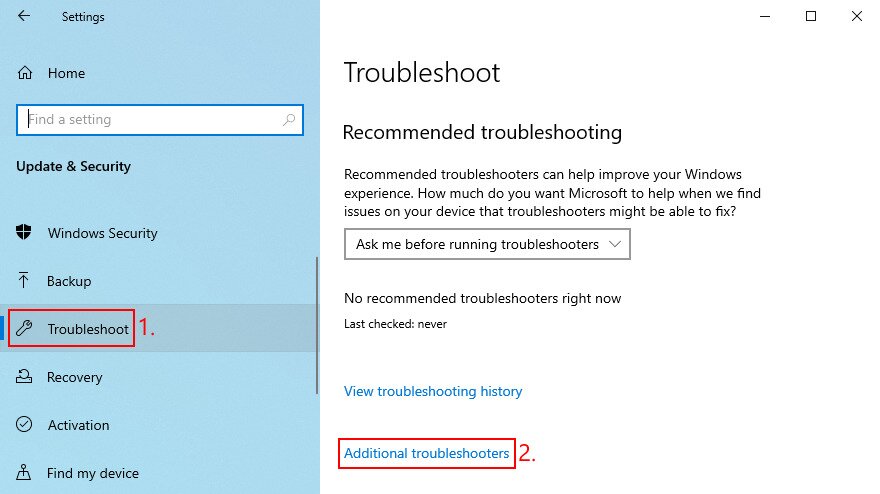
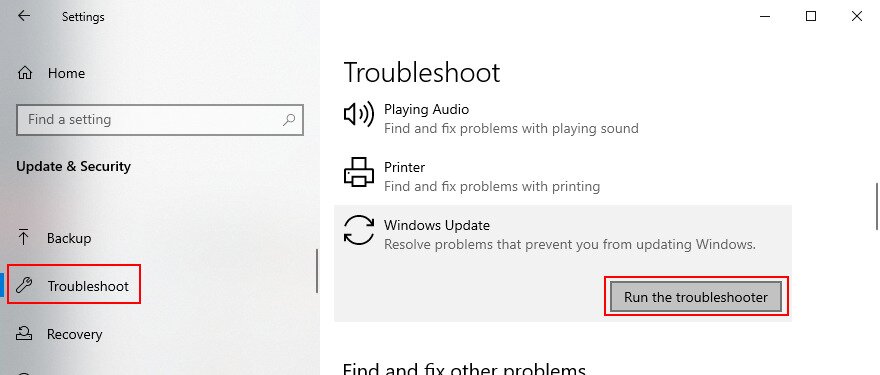
You can start with an easy solution: use the Windows Update troubleshooter. It’s designed to identify and repair common problems that prevent your operating system from getting updated. Here’s how to use it:
- Click the Start button, search for Settings, and open this app
- Go to Update & Security
- Jump to Troubleshoot on the left side
- Click Additional troubleshooters

- Select Windows Update and click Run the troubleshooter

- Follow the wizard steps and apply any fixes
- Restart your PC and try to run Windows Update now
2. Use Windows Update Diagnostic
If the built-in troubleshooter didn’t do the trick, you can turn to Windows Update Diagnostic. It’s a tool made by Microsoft to diagnose and repair Windows Update problems, which must be separately installed. Here’s how to use it:
- Make sure to sign in to Windows 10 with an administrator account
- Download Windows Update Diagnostic from the official website
- Launch the app
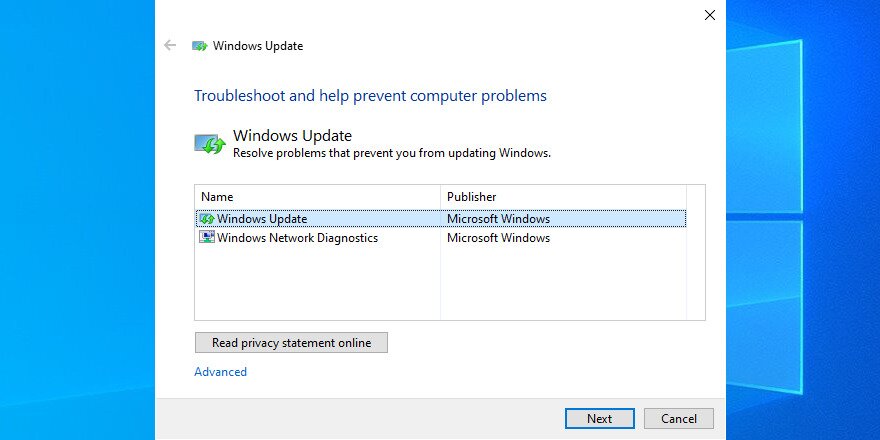
- In the wizard, select Windows Update and click Next

- Follow the step-by-step instructions
- When it finishes, relaunch Windows Update Diagnostic
- Select Windows Network Diagnostics and click Next
- After the wizard applies fixes, restart your PC
- Try to run Windows Update now
3. Restart the Windows Update service
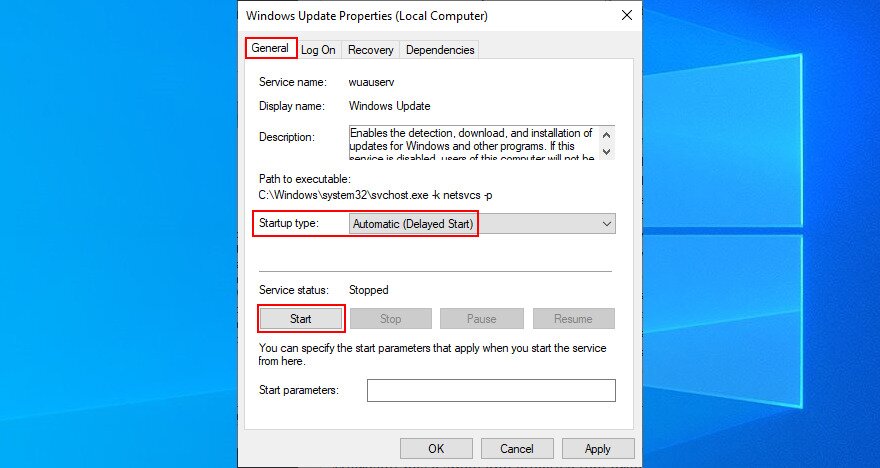
Windows Update is controlled by a service that should automatically start at system boot and run at all times. If, for some reason, that doesn’t happen, then you can expect error codes like 0x80080005. Thankfully, you can easily fix this issue:
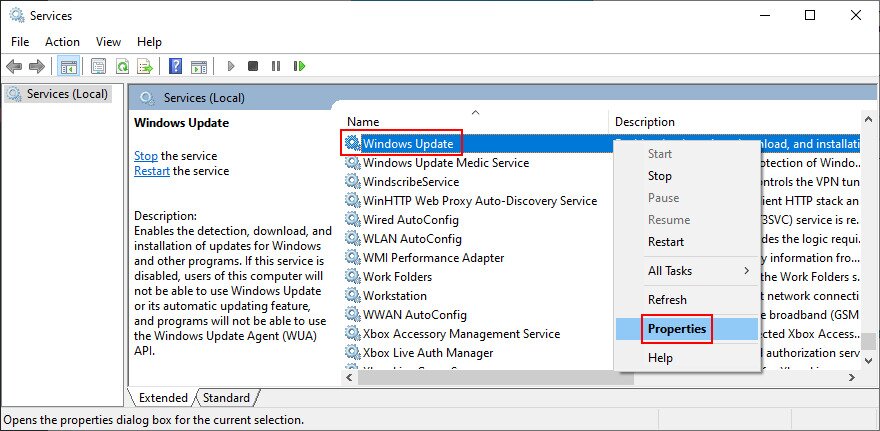
- Click the Start button, search for Services, and launch this app
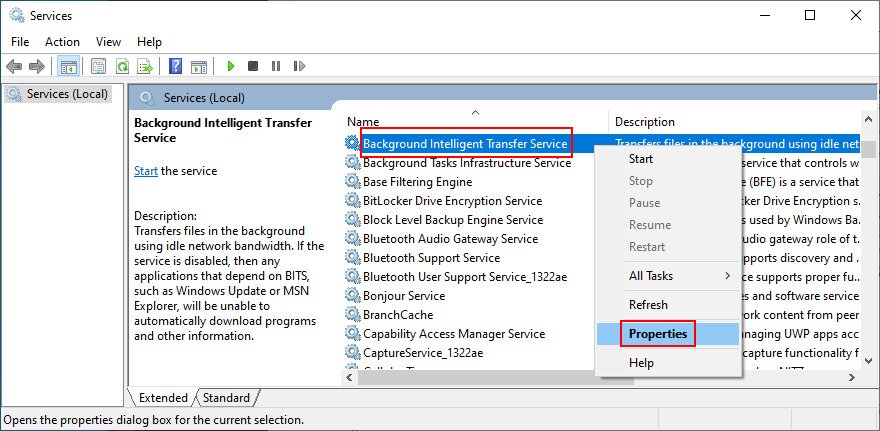
- Find and double-click Windows Update to view its properties

- Stay in the General tab
- Set Startup type to Automatic (Delayed Start)
- If the service is stopped, click the Start button
- Click Apply to commit changes and exit to the Services main window

- Find Background Intelligent Transfer Service and App Readiness to perform the same actions

- Try to run Windows Update
4. Disable Network List Service
Network List Service is required, but some users report that it causes Windows Update issues that led to error 0x80080005. Here’s how to turn it off:
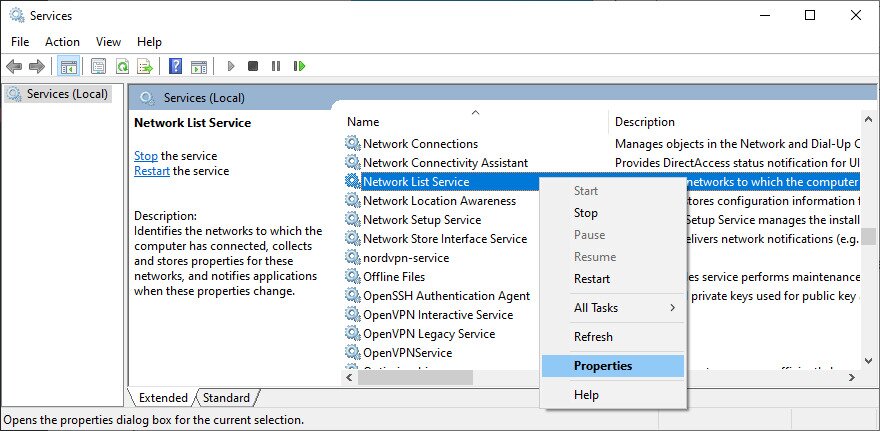
- Press Win key + R, type services.msc, and press Enter

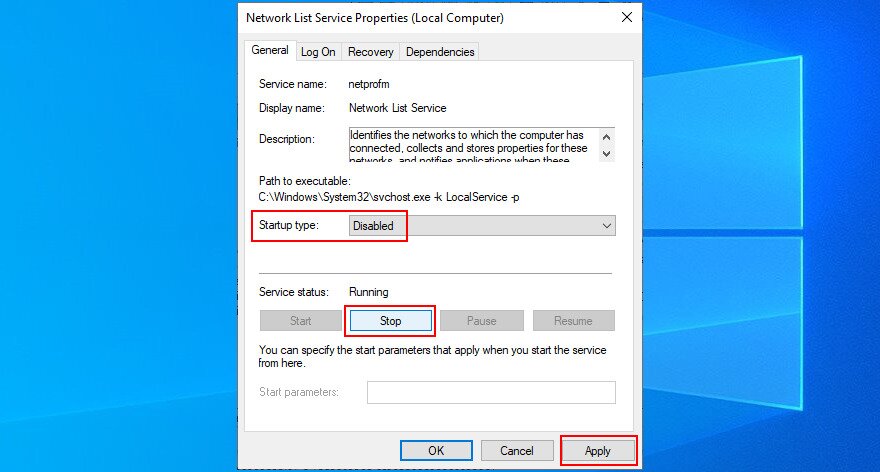
- Locate and double-click Network List Service

- Set Startup type to Disabled

- If the service is running, click Stop
- Click Apply and exit
- Try running Windows Update now

5. Check Group Policy settings
It’s possible that Windows Update error code 0x80080005 was triggered by incorrect settings in Group Policy. Here’s how to check and fix this issue:
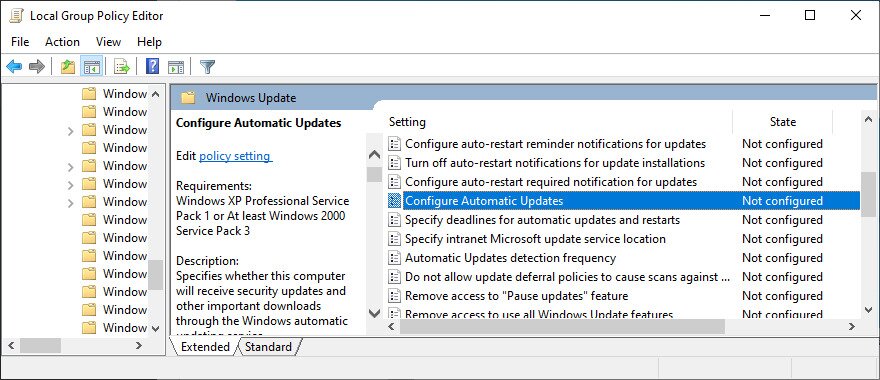
- Press Win key + R, type gpedit.msc, and press Enter to open Local Group Policy Editor

- Go to Computer Configuration > Administrative Templates > Windows Components > Windows Update
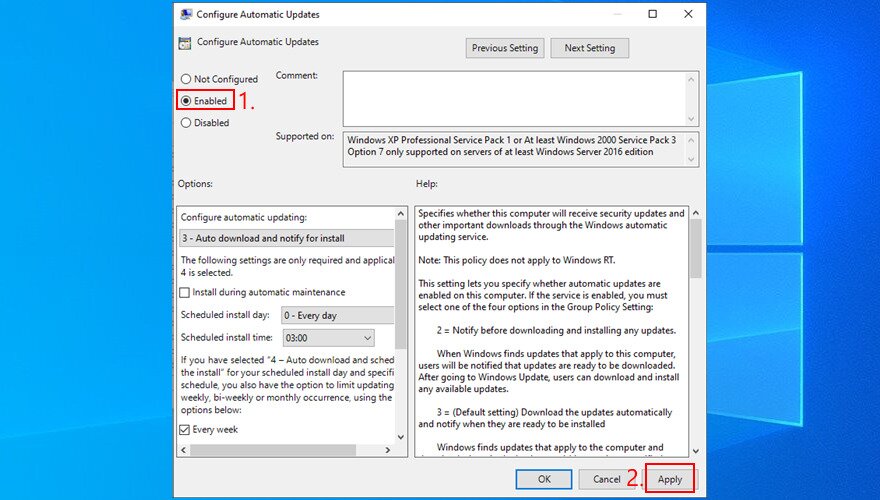
- Locate and double-click Configure Automatic Updates to view its properties

- Select Enabled and click Apply

- Reboot your PC
- Try running Windows Update

6. Reset Windows Update
You can quickly reset the Windows Update components to clear Windows upgrade cache and fix common problems that could lead to error 0x80080005. To make this happen, you just have to use Command Prompt. Here’s what you should do:
- Make sure to log in to Windows 10 with elevation rights
- Click the Start button, search for Command Prompt, and hit Enter
- Copy and paste the next commands (press Enter after each line of text):
-
net stop wuauserv
-
net stop cryptSvc
-
net stop bits
-
net stop msiserver
-
ren C:\Windows\SoftwareDistribution SoftwareDistribution.old
-
ren C:\Windows\System32\catroot2 Catroot2.old
-
net start wuauserv
-
net start cryptSvc
-
net start bits
-
net start msiserver
-
- Exit Command Prompt and restart your PC
- Try to run Windows Update
7. Unplug all peripheral devices
Any external devices that you recently plugged into your computer could have caused error code 0x80080005 due to compatibility or driver issues. Think about any new pieces of hardware you purchased or received as a gift, such as USB pen drives, Wi-Fi adapters, or webcams with plug-and-play features.
To handle this matter, shut down your computer and unplug all peripheral devices, except for your keyboard and mouse. Then, boot the operating system and run Windows Update to confirm that you’re not getting the error anymore.
You have two options at this point: replug all devices and detach them whenever you need to run Windows Update, or single out the guilty piece of equipment to either fix it or stop using it.
8. Run a clean boot
A clean Windows 10 boot means turning off all unnecessary components that may cause software problems, such as drivers, services, and processes. It can help you rule out issues that led to Windows Update error 0x80080005. Here’s what you need to do:
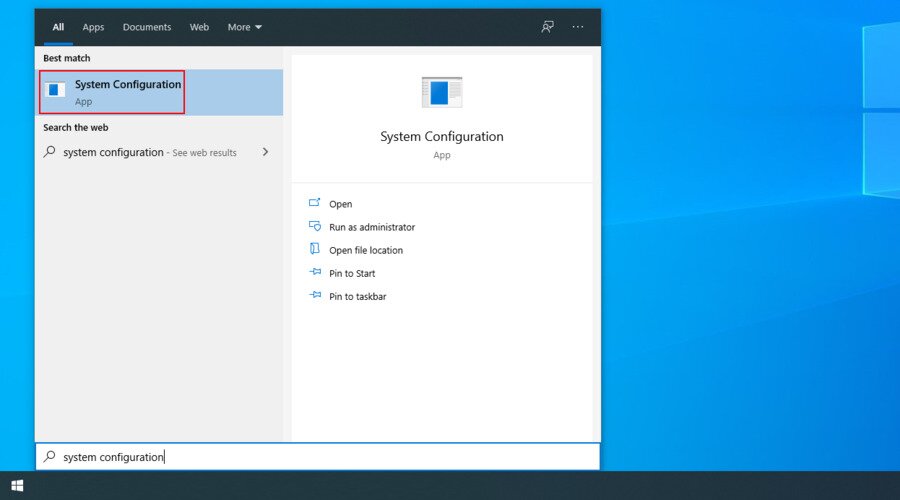
- Press the Windows key, search for System Configuration, and hit Enter

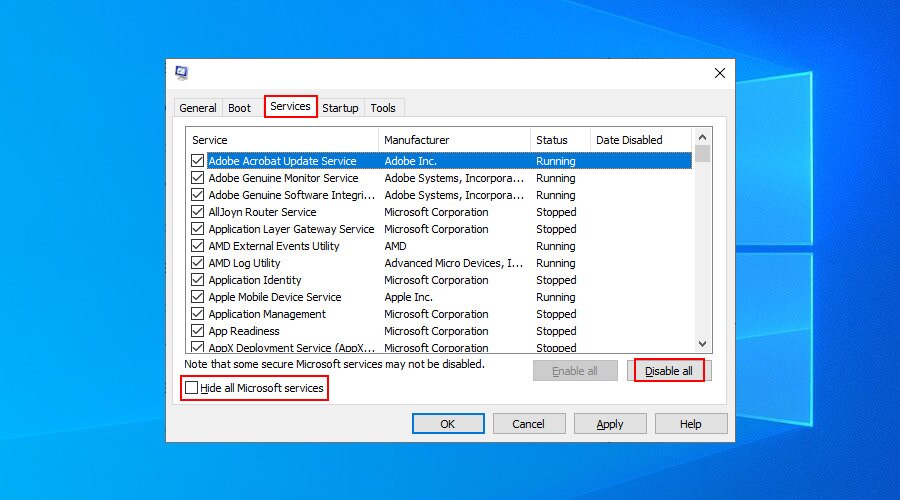
- Switch to the Services tab
- Uncheck Hide all Microsoft services and click Disable all

- Exit System Configuration
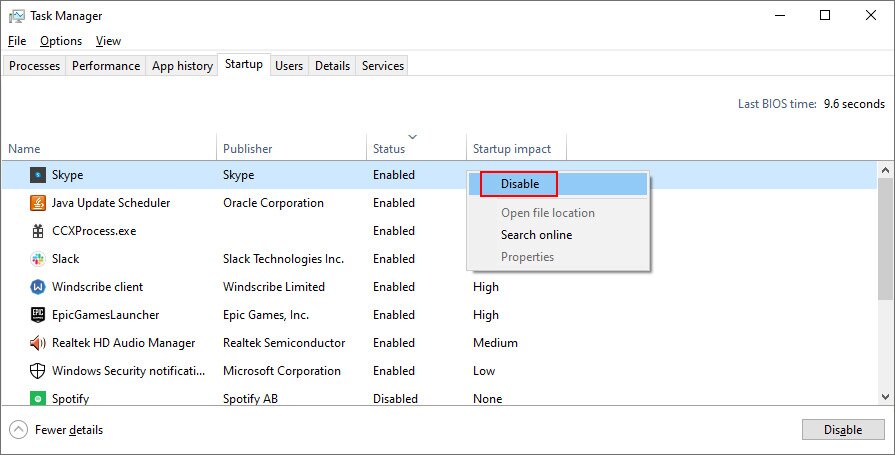
- Right-click the taskbar and select Task Manager

- Switch to the Startup tab
- Click the Status column to sort all apps by status (Enabled first)
- Select the first app and click Disable

- Do this for all apps with the Enabled status
- Restart your PC
- Try running Windows Update now

9. Turn off your firewall
It’s unlikely, but Windows Update could be blocked by your firewall. It usually happens when you change the default firewall settings or install a third-party firewall application that makes it happen.
To stay on the safe side, you can temporarily turn off the firewall to give Windows enough time to install updates. Just make sure to restart it afterward. Otherwise, you will leave your computer exposed to malware.
How to deactivate and re-activate Windows Firewall:
- Sign in to Windows 10 with administrative rights
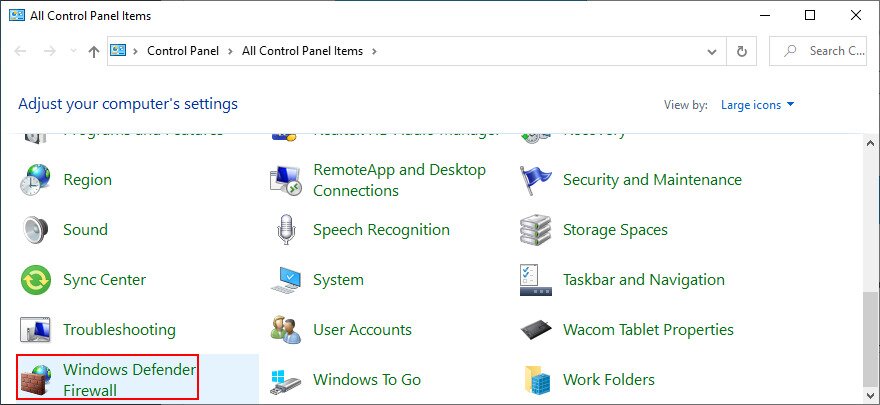
- Click the Start button, search for Control Panel, and open this app
- Find and click Windows Defender Firewall

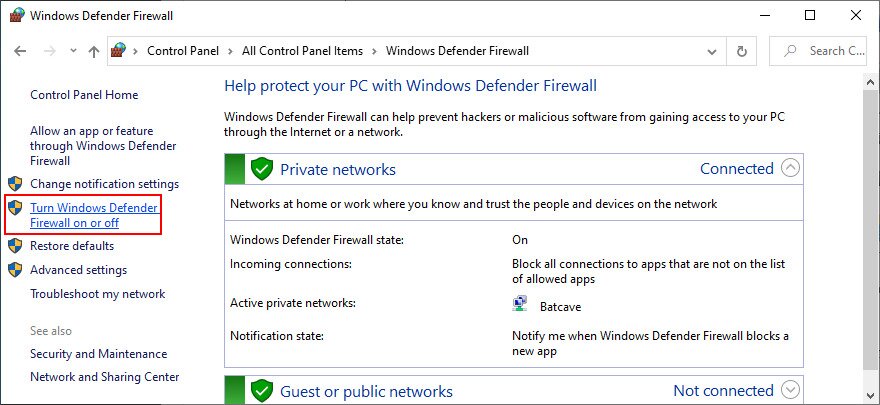
- Click Turn Windows Defender on or off on the left panel

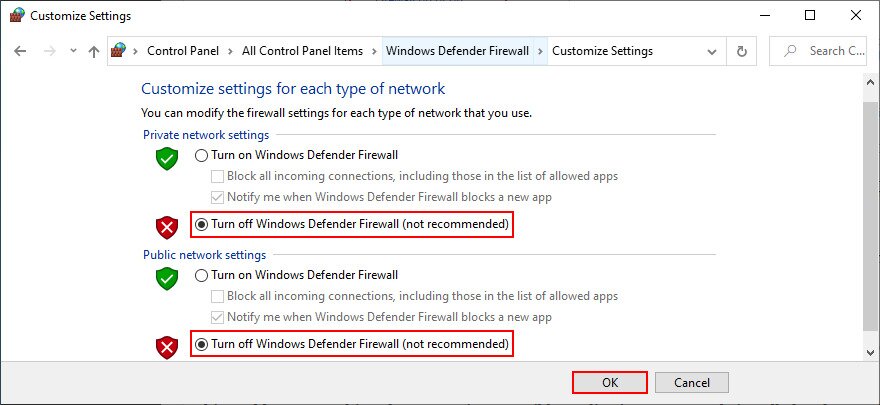
- Select Turn off Windows Defender Firewall (not recommended) at Private network settings and Public network settings

- Click OK to confirm
- Try running Windows Update
- After the update is complete, go back to Control Panel > Windows Defender Firewall
- Select Restore defaults on the left side

- Click Restore default and Yes to confirm
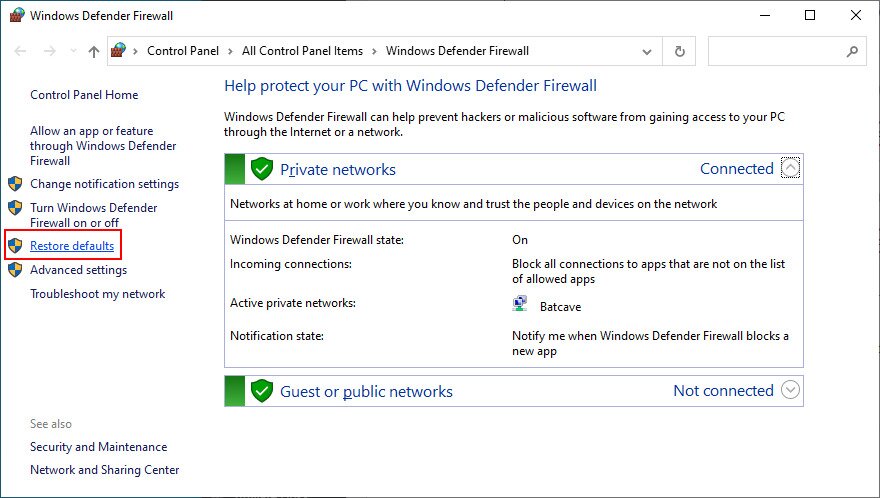
If you have a third-party firewall that takes over Windows Firewall, adapt the steps above to temporarily turn it off.
10. Uninstall third-party software
In the previous solution, we mentioned that a third-party firewall with incorrect settings could block Windows Update and, subsequently, trigger error codes like 0x80080005. However, it’s also possible that the firewall application is built poorly or doesn’t fully support your Windows edition.
It applies not only to firewall apps but also any programs with Internet access. This includes Internet security solutions, VPN services, web browsers, or torrenting clients.
If you started experiencing Windows Update errors right after adding a new piece of software to your PC, that could be the guilty party. But you should be able to fix this problem by uninstalling it.
How to uninstall recent software:
- Right-click the Start button and select Apps and Features

- In the Apps & features section, set Sort by to Install date (newest first)

- Pick the first program in the list and click Uninstall

- Click Uninstall again to confirm and proceed with the wizard steps
- If you recently installed multiple fishy programs, make sure to remove all of them
- Reboot your PC and try running Windows Update
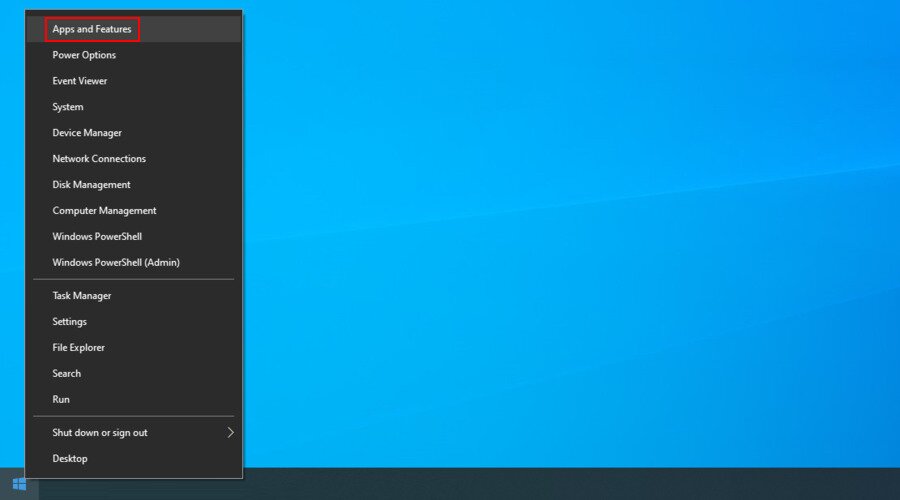
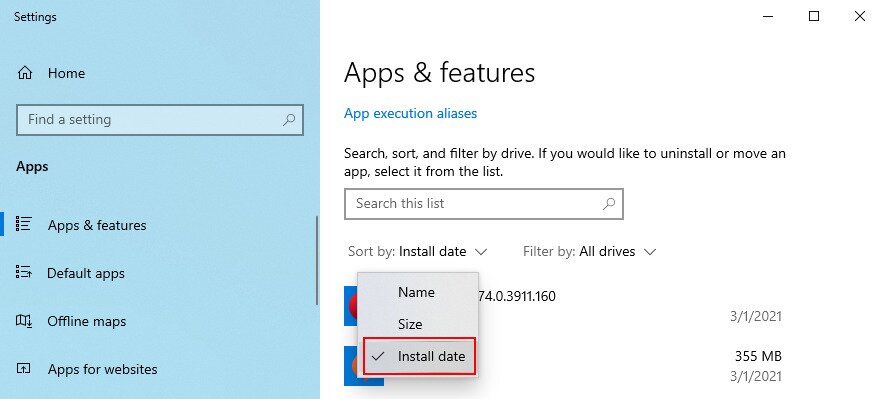
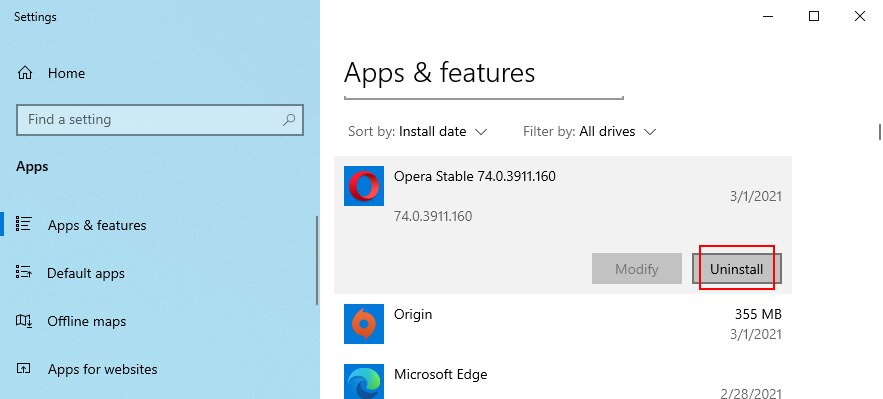
The Windows 10 built-in uninstaller is not that effective. If you prefer a more thorough solution that removes not only programs but also any leftover files and registry entries, use a third-party app uninstaller.
11. Uninstall system updates
Not only software applications can cause Windows Update issues but also a faulty system update. It’s not uncommon for Microsoft to push unreliable updates that affect the computers of millions of users. In some cases, this could even lead to error code 0x80080005.
But you can fix it by uninstalling the most recent Windows updates. If you have pending Windows updates that won’t install properly, removing problematic previous updates may help resolve the issue. Here’s how:
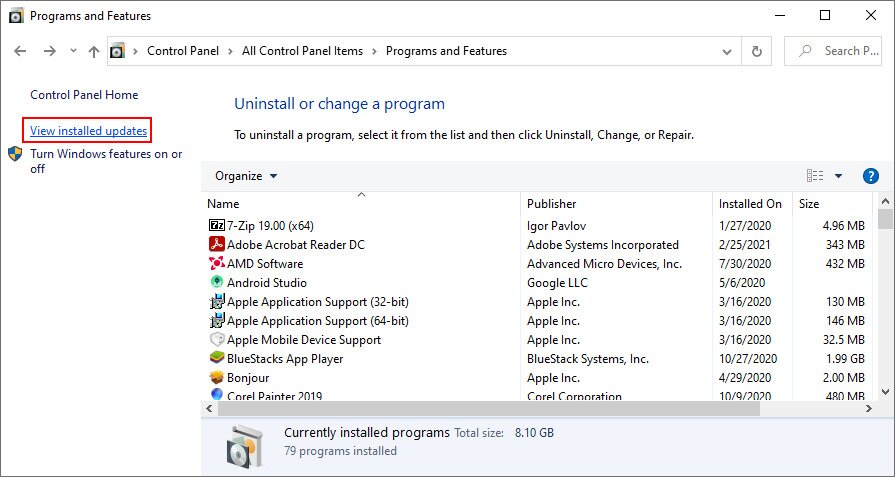
- Press Win key + R, type appwiz.cpl, and press Enter

- Click View installed updates

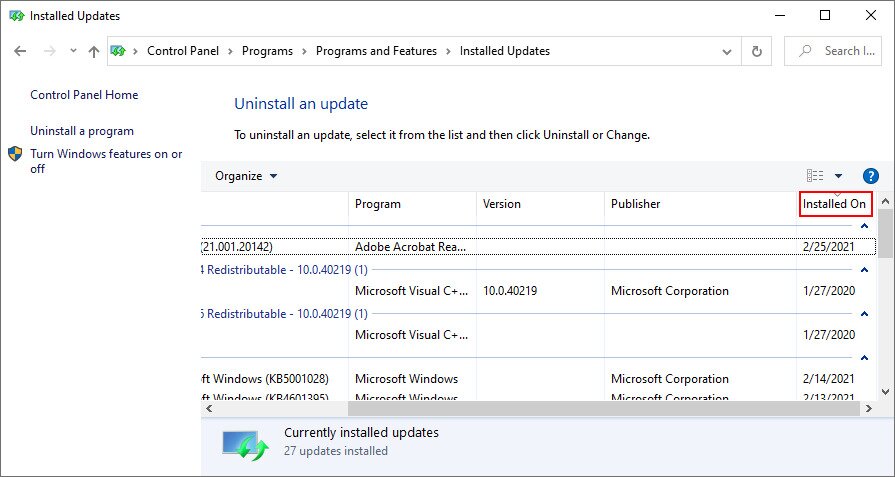
- Click the Installed On column to sort the updates by time (newest first)

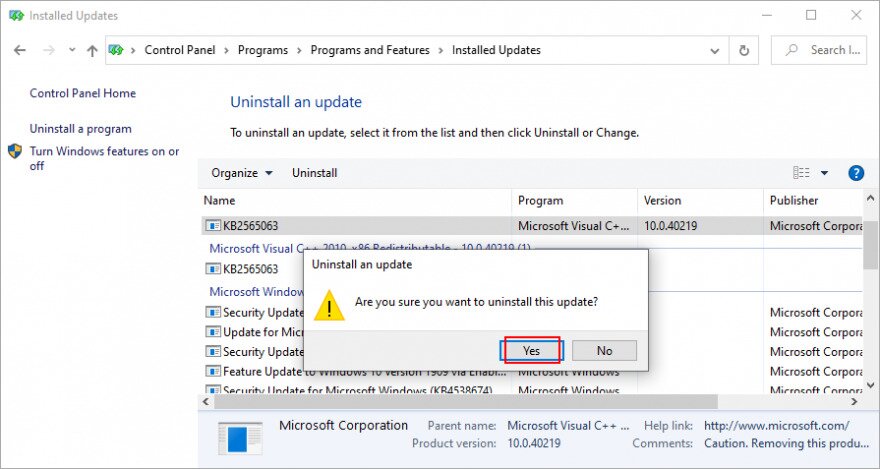
- Double-click the first entry in the Microsoft Windows category
- Click Yes to confirm and proceed with the removal

- Restart your PC and try to run Windows Update now
- If Windows Update works now, make sure to avoid installing the same update that was giving you trouble

12. Check the disk space
If there isn’t enough free disk space on your computer, Windows Update might not be able to carry out its activities, like downloading files or running background processes. You can tell if you get the insufficient disk space message in the notifications center.
To fix this problem, you can increase the disk space on the C: drive (or wherever you have Windows installed) by turning to a partition manager. However, if you don’t want to install any third-party tools, Disk Management should do the trick.
