How to Fix IRQL NOT LESS OR EQUAL (BSoD Error) on Windows 10
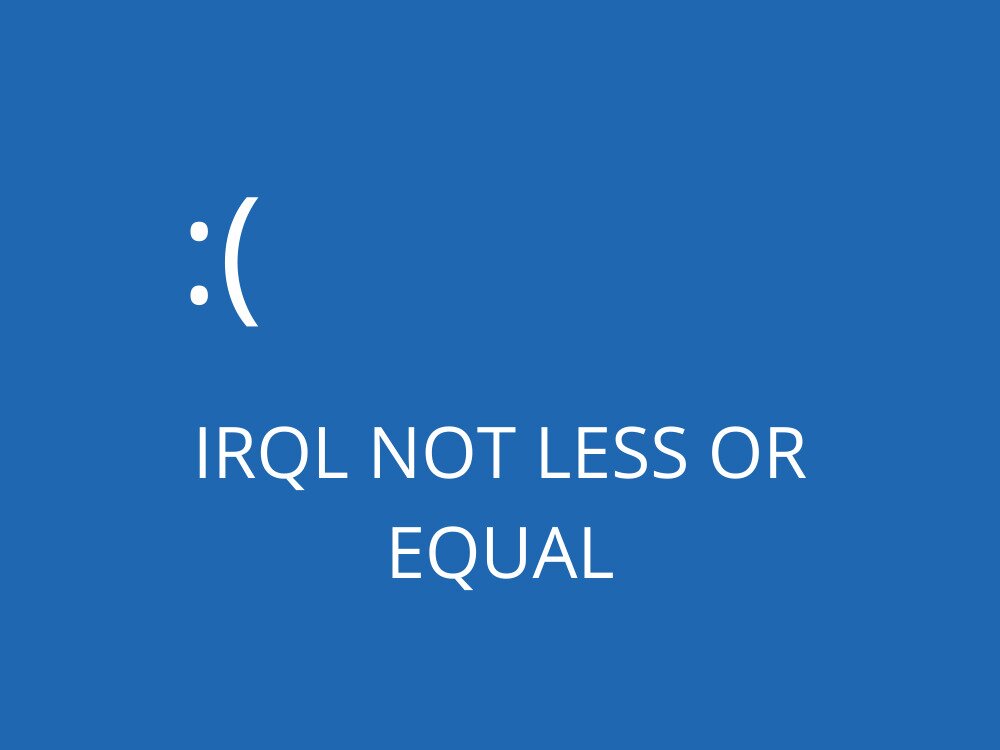
IRQL NOT LESS OR EQUAL is a Blue Screen of Death error message that can occur on Windows 10, 8.1, 8, and older editions. It’s typically accompanied by the 0x0000000A error code.
If you stumble upon it, it means that you can no longer use your computer and must fix the problem before resuming your normal activities.
The stop code can be caused by a wide range of problems, starting with the device drivers, memory, and antivirus software. If you want to inspect crash details before trying fixes, a blue screen report viewer can help. It’s sometimes accompanied by the ntoskrnl.exe file in crash reports, but this does not mean the Windows kernel itself is broken.
ntoskrnl.exe is commonly the module that reports the crash rather than its underlying cause. The real culprit is more often a third-party driver, RAM instability, or a hardware/firmware conflict. If you want to dig deeper, open the minidump file in a crash viewer and look for the faulting .sys driver — that is usually what needs fixing.
How to fix IRQL NOT LESS OR EQUAL on Windows 10
Before attempting to repair any BSOD error messages on your computer, it’s a good idea to set up a system restore point. It’s a failsafe measure that allows you to roll back OS changes in case you make any mistakes.
If possible, you could also create a full backup, especially when it comes to saving precious files.
First: Boot into Safe Mode or WinRE if your PC keeps crashing
If your PC is blue-screening so frequently that you cannot stay on the desktop long enough to try the fixes below, you need to reach Safe Mode or the Windows Recovery Environment (WinRE) first. All of the driver, app removal, System Restore, and Driver Verifier steps in this guide can be performed from Safe Mode.
To trigger WinRE automatically: Force-shut down your PC by holding the power button during boot. Do this two or three times in a row. Windows will detect the failed boot attempts and automatically launch the Windows Recovery Environment on the next start.
Once you are in WinRE, follow this path:
- Click Troubleshoot
- Click Advanced options
- Click Startup Settings
- Click Restart
- When the Startup Settings menu appears, press 4 to enable Safe Mode, or press 5 to enable Safe Mode with Networking (recommended if you need to download drivers)
Alternate path if your PC still boots occasionally: Go to Settings > System > Recovery > Advanced startup and click Restart now. This takes you directly into WinRE without needing to force-shut down.
Once you are in Safe Mode, proceed with the driver uninstalls, app removals, System Restore, and Driver Verifier reset steps described throughout this guide.
1. Check your drivers
Outdated and incompatible drivers can cause BSOD errors on Windows computers, including the IRQL NOT LESS OR EQUAL stop code. However, you can fix this checking and updating your drivers.
Reinstall drivers using the following steps:
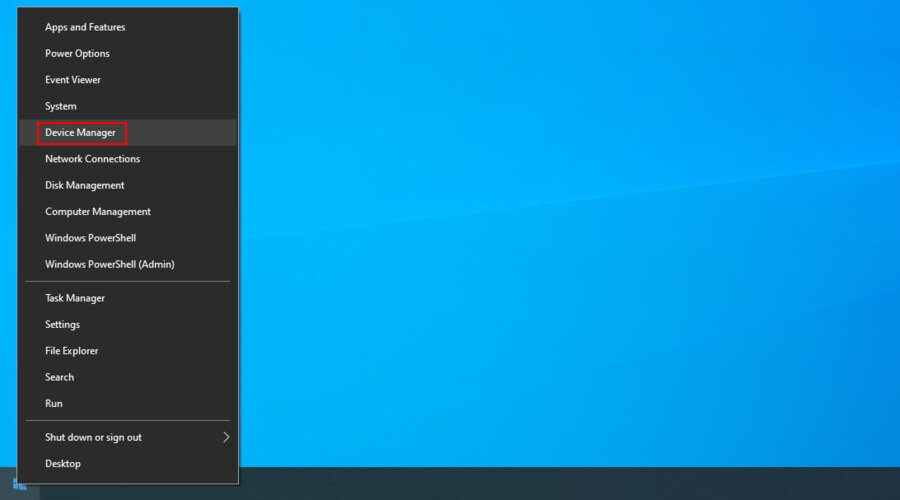
- Right-click the Start button and click Device Manager

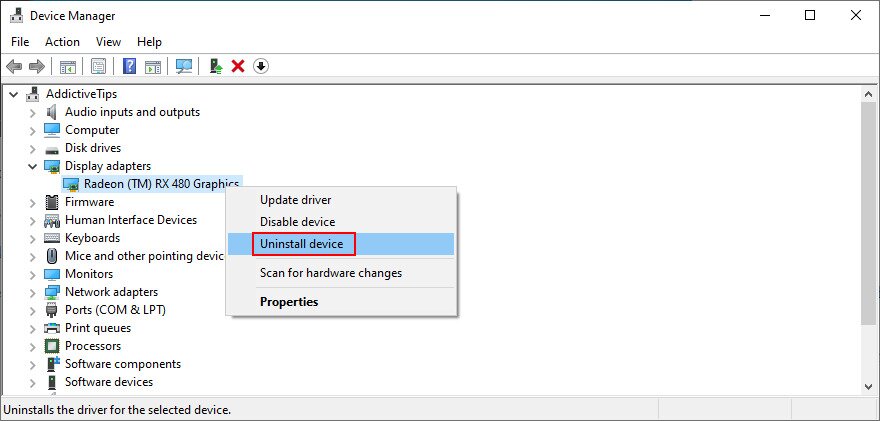
- Select and right-click a device from the list, then press Uninstall device

- Follow the on-screen instructions to remove the device
- Restart your computer. Windows will reinstall the correct driver automatically
Update drivers easily:
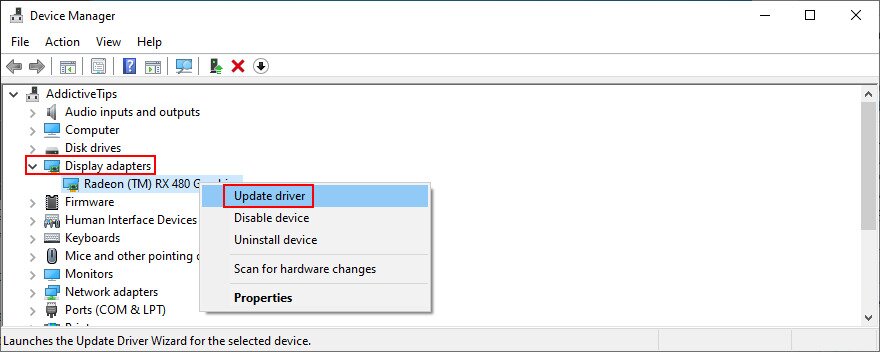
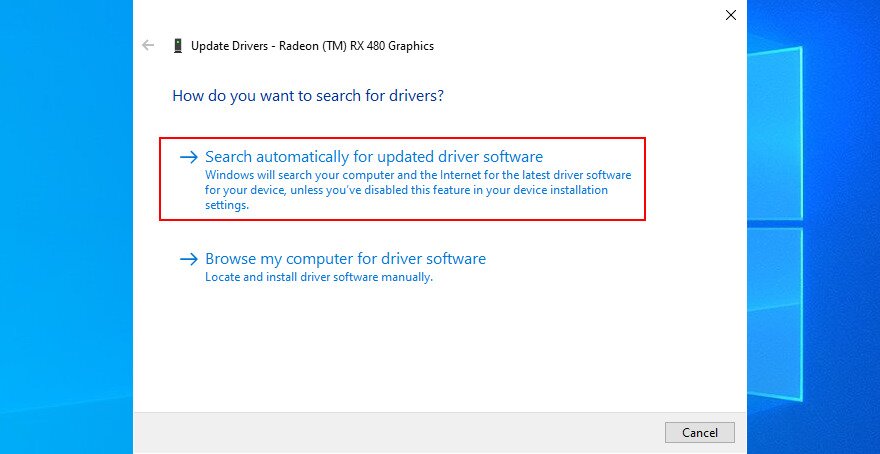
- In Device Manager, right-click a device and select Update driver

- Click Search automatically for updated driver software

- If you get the The best drivers for your device are already installed message, click Search for updated drivers on Windows Update

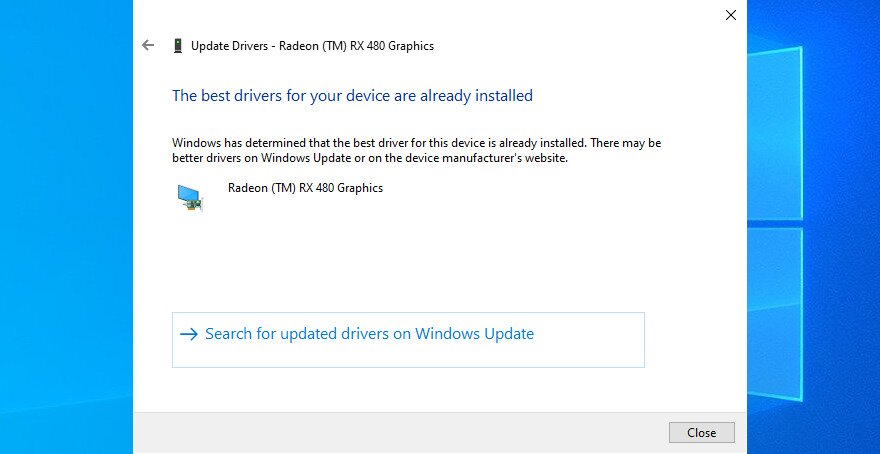
Windows Update may not find newer driver versions to download and install. In that case, you have to visit your device manufacturer’s website and get them yourself.
If you prefer a simpler and safer solution, though, we suggest using driver update software. An application like this autodetects all drivers on your PC, including obsolete ones. It then finds newer versions online, offering to download and install them on your PC.
Use Driver Verifier to identify a bad third-party driver
If updating and reinstalling drivers through Device Manager and Windows Update has not stopped the crashes, Driver Verifier is the most reliable built-in tool for pinpointing exactly which third-party driver is misbehaving. Only use this step for persistent crashes — it is an advanced tool and requires some care.
Before you begin: Create a restore point so you have a safe fallback.
How to run Driver Verifier:
- Open Command Prompt as administrator
- Type
verifierand press Enter to launch the Driver Verifier Manager - Select Create standard settings and click Next
- Select Automatically select all drivers installed on this computer, then uncheck any Microsoft-signed drivers so only third-party drivers are targeted. Click Finish
- Restart your PC and use it normally until it crashes again
- After the crash, open the minidump file with a blue screen report viewer — the faulting driver will now be clearly named
If Driver Verifier causes a boot loop: Boot into Safe Mode or WinRE (see the section at the top of this guide), open an elevated Command Prompt, and run the following commands:
verifier /reset
verifier /bootmode resetonbootfail
This disables Driver Verifier and lets Windows start normally again. Once you have identified the problem driver, uninstall or update it, then run verifier /reset to turn Driver Verifier off completely.
2. Check your memory for IRQL NOT LESS OR EQUAL errors
Your computer might experience issues with your RAM card. In turn, this could lead to Blue Screen of Death errors on Windows 10, including IRQL_NOT_LESS_OR_EQUAL or PFN LIST CORRUPT, both of which are commonly tied to faulty memory modules.
So it’s a good idea to scan your memory card for issues and fix them as soon as possible. Windows 10 has a built-in tool for this purpose, and here’s how to use it:
- Make sure to suspend all active processes
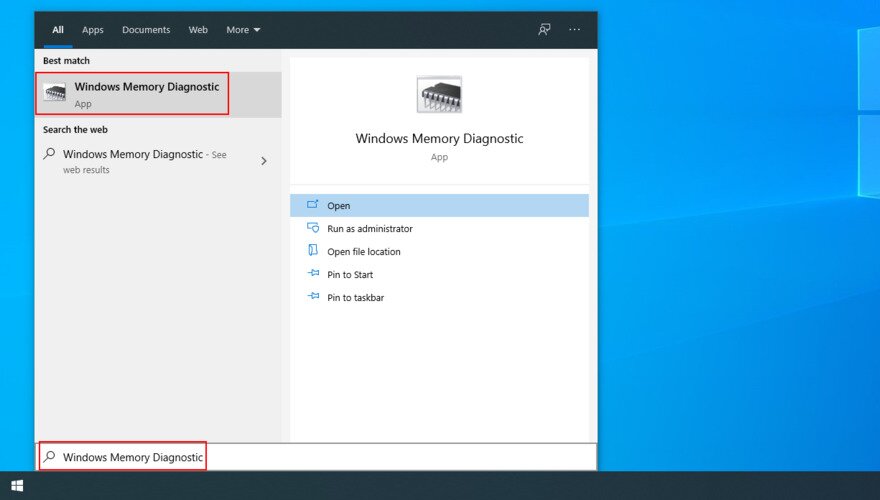
- Press the Win key, type Windows Memory Diagnostic, and launch this app

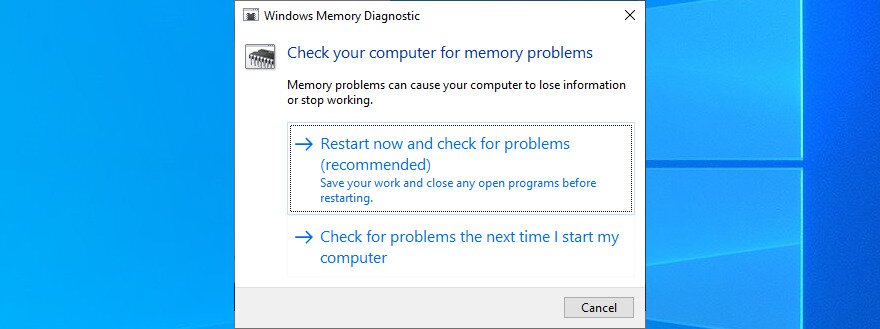
- Click Restart now and check for problems

- When the memory test begins, press F1 to open the options menu
- Under Test Mix, switch from Standard to Extended using the arrow keys, then press F10 to apply and resume the test
The Extended test takes considerably longer but is far more thorough and will catch errors that the Standard pass misses.
How to read the results: After your PC reboots, open Event Viewer and navigate to Applications and Services Logs > Microsoft > Windows > MemoryDiagnostics-Results > Debug. Look for the result entry there. Event ID 2001 means no errors were detected.
If crashes continue after the test:
- Test one RAM stick at a time by removing the others — this isolates a failing module
- Avoid mixing RAM from different kits or with different speeds and timings, as mismatched memory is a common cause of stop code 0x0000000A
- For the most thorough test available, run MemTest86 overnight from a bootable USB drive — it tests RAM independently of Windows and catches instability that Windows Memory Diagnostic can miss
3. Disable or uninstall your antivirus software to stop IRQL NOT LESS OR EQUAL
The real-time engine of third-party antivirus tools could interfere with the Windows runtime and kernel image, triggering the IRQL NOT LESS OR EQUAL error as a result. To fix this, just disable the real-time safeguard or just turn off your antimalware application.
If you have two or more antivirus programs installed, each with its own real-time engine, then they might clash, causing system stability problems as a result.
It’s also a good idea to uninstall any unused security application from your device. Then, restart your computer to check if you still receive the dreadful BSOD error message.
If you don’t have a third-party antivirus solution installed on Windows 10, it means that you have to configure Defender.
Here’s how to temporarily disable Windows Defender:
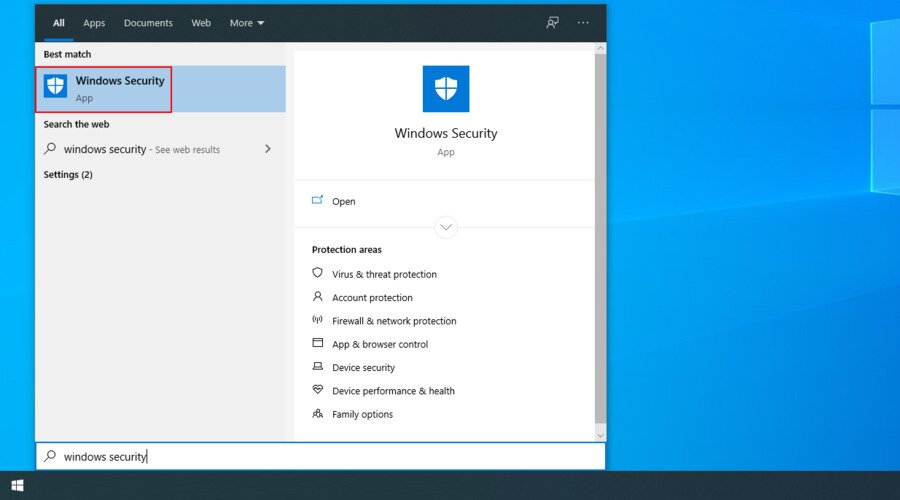
- Click the Start button, type Windows Security, and open this app

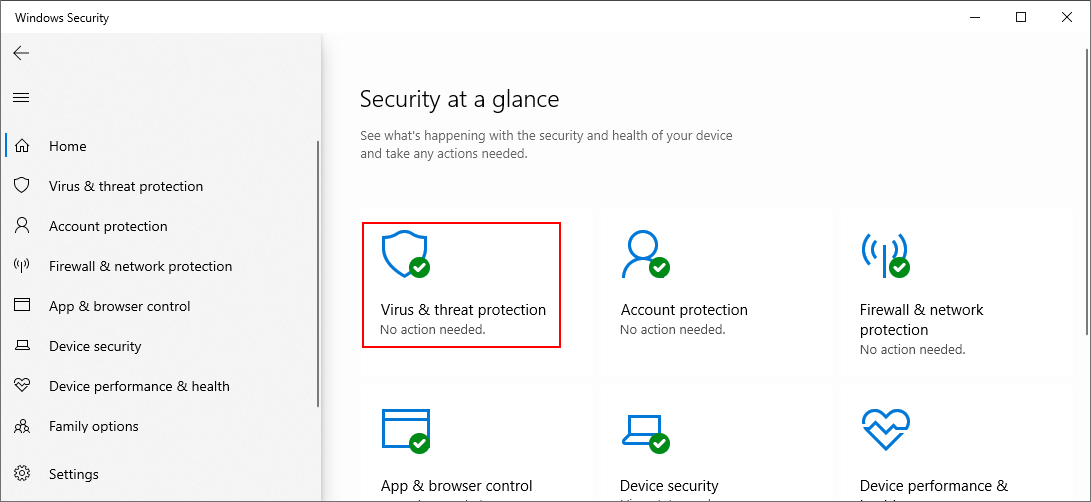
- Select Virus & threat protection
![Windows 10 shows how to select Virus and Threat Protection]()
- Click Manage settings under the Virus & threat protection settings heading
- Toggle Real-time protection to Off
Restart your PC and check whether the BSOD stops occurring. If it does, your security software was the likely cause and you should consider switching to an alternative antivirus solution.
Run a malware scan:
- Click the Start button, type Windows Security, and open this app
- Select Virus & threat protection
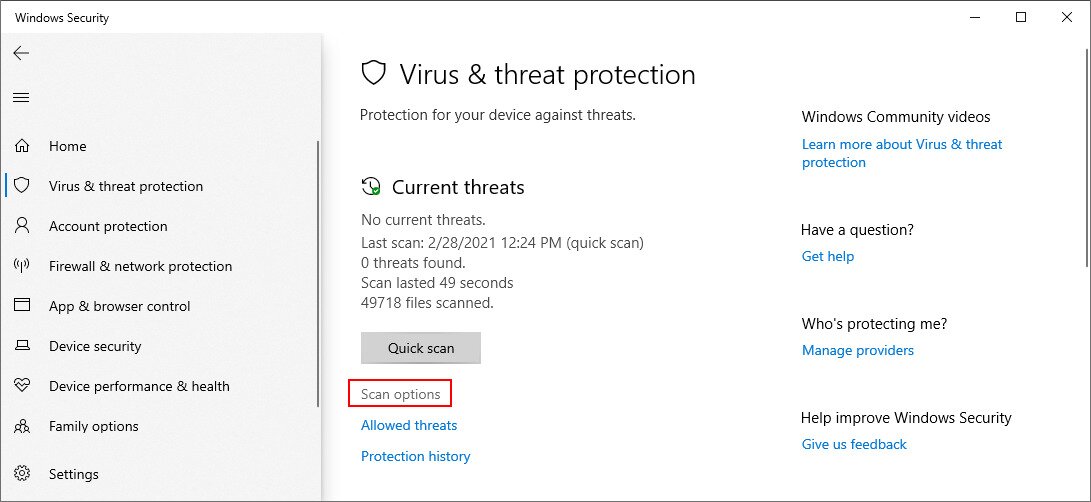
- Click Scan options

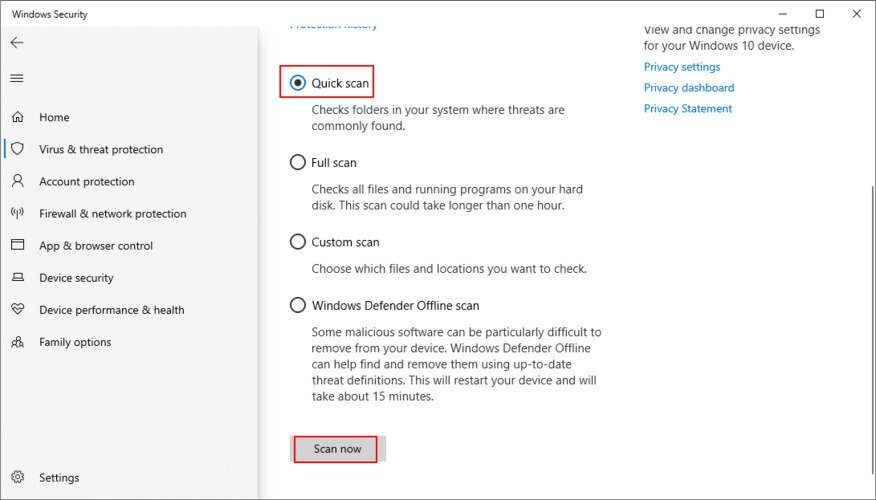
- Select Quick scan and click Scan now

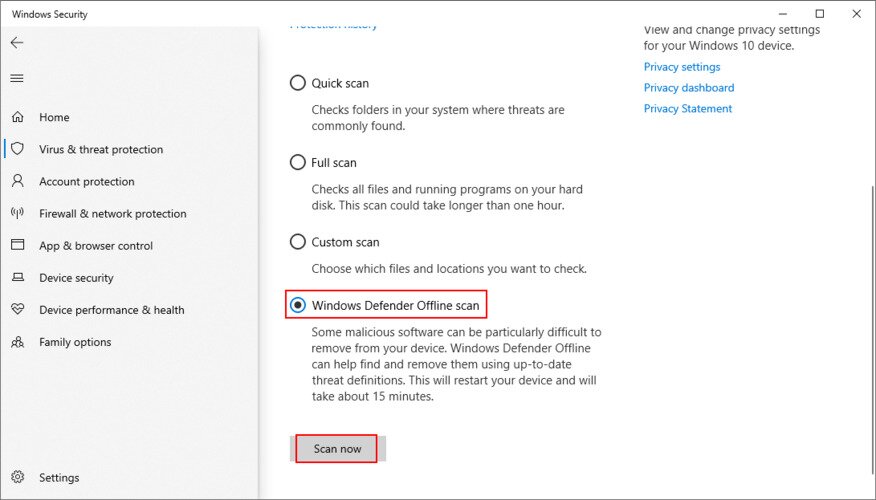
- If the scan results don’t return any malicious agents, try again with Windows Defender Offline scan

4. Fix hard disk and system errors
If your hard disk or operating system isn’t functioning normally due to damaged files, processes, or services, then you should expect Blue Screen of Death messages like IRQL NOT LESS OR EQUAL.
However, you can troubleshoot your HDD, SSD and operating system by entering a few lines of code in Command Prompt, so you don’t need to install anything else on your computer.
Check your HDD or SSD for errors using CHKDSK (Check Disk):
- Open CMD as admin
- If Windows is installed on the C: partition, type
chkdsk c: /f. Otherwise, replacec:with the correct partition
- It will ask you to confirm scheduling CHKDSK at the next Windows boot. Type y to confirm
- Reboot your PC and wait
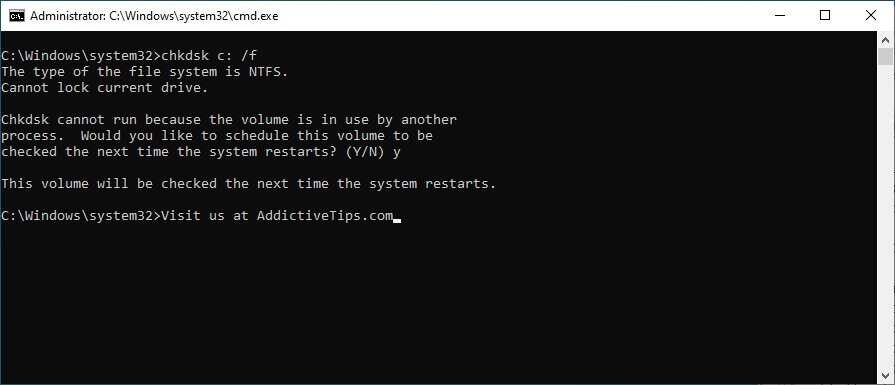
The Check Disk utility focuses on hard disk errors only, so it will fix IRQL_NOT_LESS_OR_EQUAL if the error originated there.
Repair corrupt system files with SFC (System File Checker):
- Launch Command Prompt with admin rights and type
sfc /scannow
- Wait until SFC finishes checking and fixes integrity violations
- Restart your PC
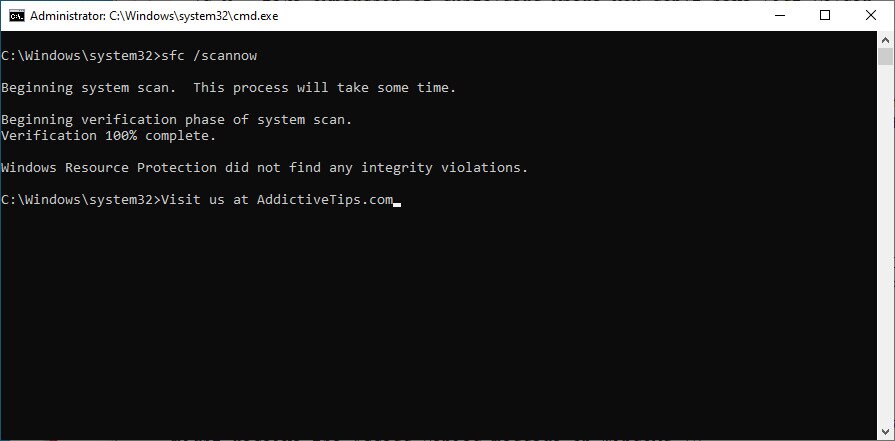
The System File Checker tool focuses on damaged system files. If Windows has any missing or corrupt files, then SFC will take care of them. But if it doesn’t also repair your BSOD errors, then you need something more powerful.
Run DISM (Deployment Image Servicing and Management):
- Open Command Prompt as admin and type
DISM /online /cleanup-image /scanhealth
- If it identifies any issues, you can take care of them with
DISM /online /cleanup-image /restorehealth - Restart your PC and relaunch CMD with elevated rights
- Type
sfc /scannowto run System File Checker - Reboot your computer again
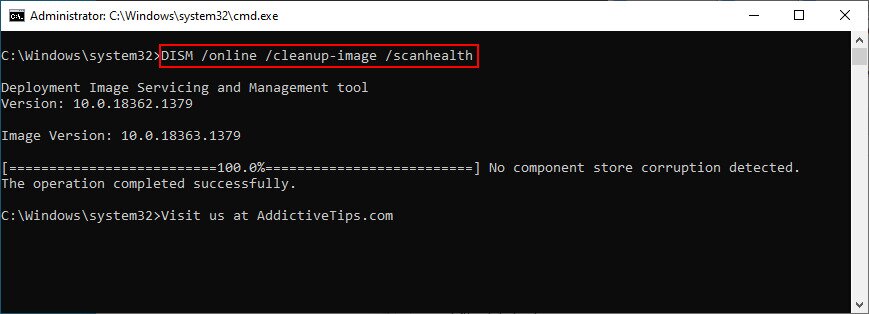
DISM looks for corrupt data in the component store of the Windows image, making it a bit more intrusive than SFC. You can count on it to repair the IRQL NOT LESS OR EQUAL stop code if it has anything to do with the component store.
5. Uninstall recent programs
If you have recently installed a suspicious app that makes too many changes to your operating system, it could be the reason why you keep getting BSOD errors. For example, certain antimalware solutions and VPN services have been known to trigger IRQL NOT LESS OR EQUAL.
In this case, the easiest solution is to remove the fishy software applications. Here’s how to do that:
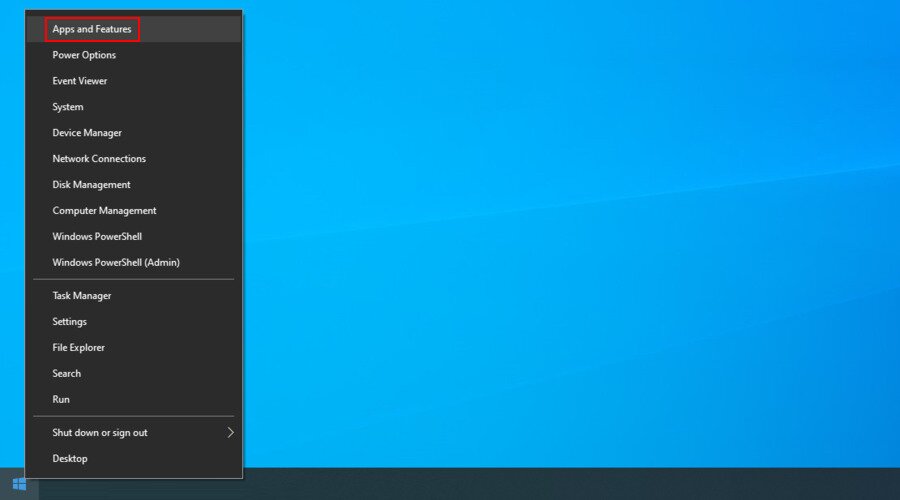
- Right-click the Windows Start button and go to Apps and Features

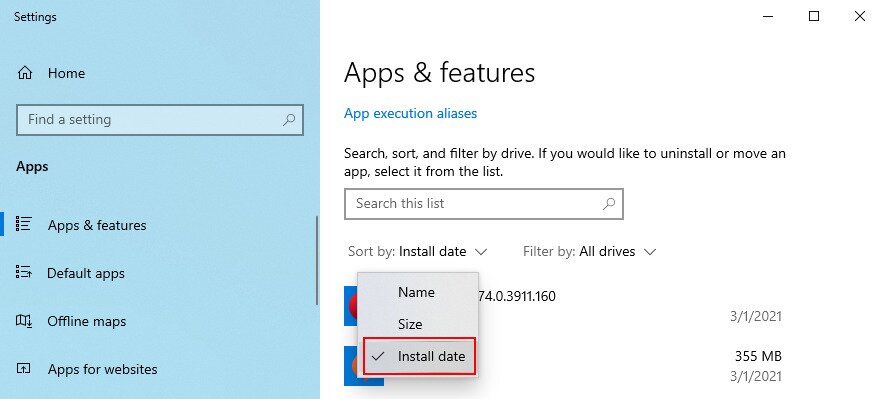
- Click on Sort by and set it to Install date to view recently installed programs

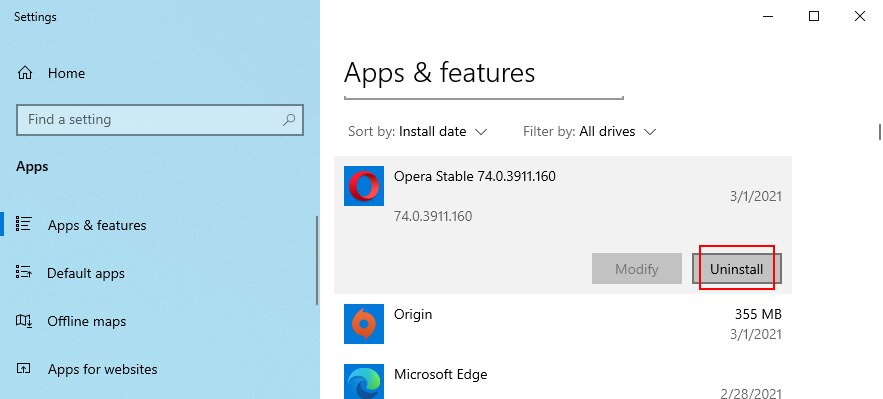
- Select the first program on the list, click Uninstall, and proceed with the removal process

- If you have installed multiple suspicious apps lately, make sure to remove all of them
- Reboot your computer to see if you still receive the BSOD error message
However, if those applications have integrated new entries in the registry and modified system DLL files when you installed them, then removing them using the Windows built-in uninstaller won’t be enough.
We suggest using a dedicated app uninstaller that removes leftover files and restores Windows DLL files to default after eliminating a program.
6. Update Windows
If you disabled automatic Windows updates, this could cause computer problems and BSOD errors since your OS can no longer download and install important security patches or hotfixes.
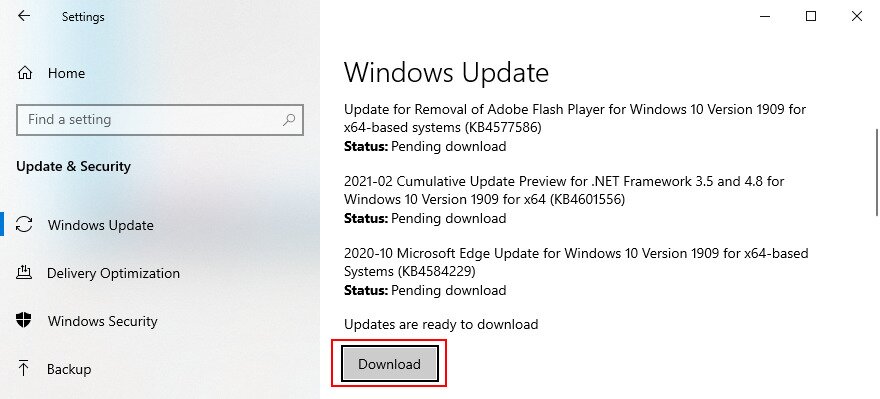
Here’s how to download Windows updates:
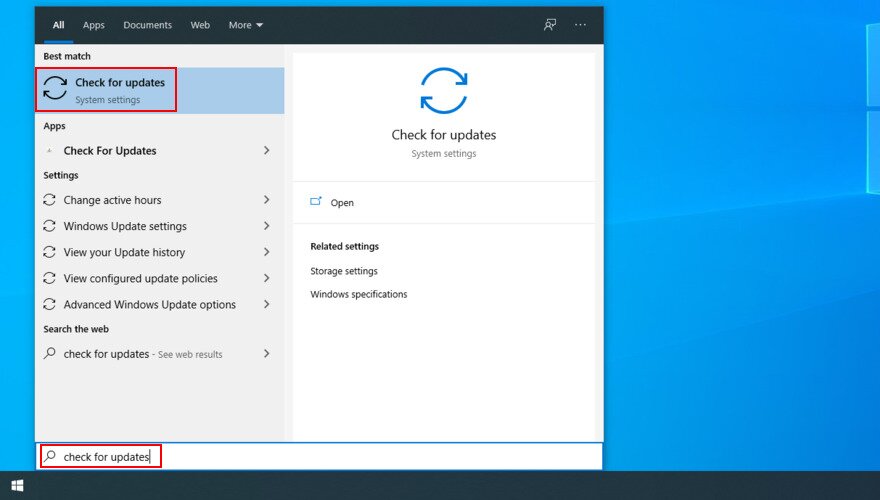
- Press the Windows key, type Check for updates, and hit Enter

- If Windows finds any new updates, click Download

- Restart your PC
7. Remove and reseat your hardware devices
If your USB ports are faulty, this could lead to BSOD errors like IRQL_NOT_LESS_OR_EQUAL. Try plugging your USB-enabled devices into different ports and mix them around.
Furthermore, some Blue Screen of Death messages can be caused by hardware devices that aren’t properly plugged in the computer unit.
To repair this, you have to shut down your PC and detach all hardware parts by removing all cables and gear. Afterward, carefully place each device back in, especially when it comes to the BIOS, graphic, and memory cards.
While you’re at it, it might be a good idea to check if your hardware is compatible with Windows 10.
Disable overclocking and XMP, and update your BIOS or chipset firmware
Memory timing instability, CPU or GPU overclocks pushed too far, and outdated firmware are all well-documented causes of the IRQL NOT LESS OR EQUAL stop code — particularly on gaming PCs and machines that have recently had new hardware installed. If any of the following applies to your system, work through these steps before assuming software is to blame.
Disable overclocking and memory profiles:
- Restart your PC and enter BIOS/UEFI (typically by pressing Delete, F2, or F10 during startup — check your motherboard manual for the exact key)
- Locate any CPU, GPU, or RAM overclock settings and revert them to default
- Disable XMP (Intel) or EXPO (AMD) memory profiles if they are currently enabled — these profiles push RAM beyond its base JEDEC specification and can cause instability on some hardware combinations
- Select Load Optimized Defaults (or equivalent) to reset all BIOS settings to a known-stable baseline
- Save and exit, then test whether the crashes continue
Update your BIOS/UEFI and chipset drivers:
- Visit your motherboard or laptop manufacturer’s official support page and download the latest BIOS/UEFI firmware for your specific model
- Follow the manufacturer’s instructions carefully for flashing — do not interrupt the process
- Also download and install the latest chipset drivers from the same support page, as these govern communication between the CPU, RAM, and other components
- Avoid using third-party sites for firmware — only use files directly from the manufacturer to prevent compatibility or security issues
After completing these steps, restart and monitor your system. If the IRQL NOT LESS OR EQUAL errors stop, an unstable overclock or outdated firmware was the root cause.
8. Use System Recovery
The System Recovery mode allows you to roll back Windows 10 to a previous checkpoint. So, if the IRQL NOT LESS OR EQUAL stop code was caused by a software problem, then you should be able to quickly fix it this way.
Just keep in mind that any new software applications you installed will be gone after the rollback.
- Log in as the computer administrator
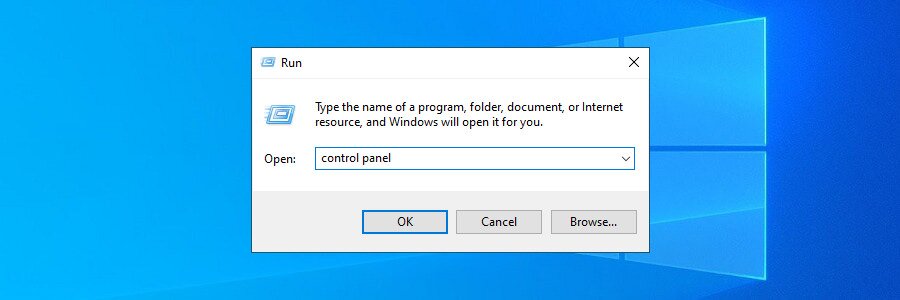
- Press Win key + R, type control panel, and hit Enter

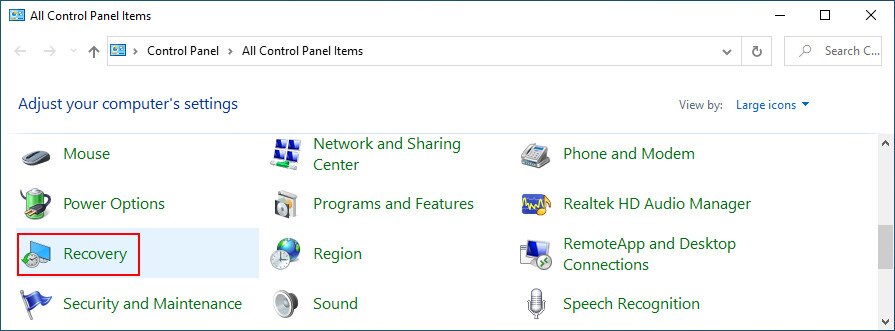
- Click Recovery

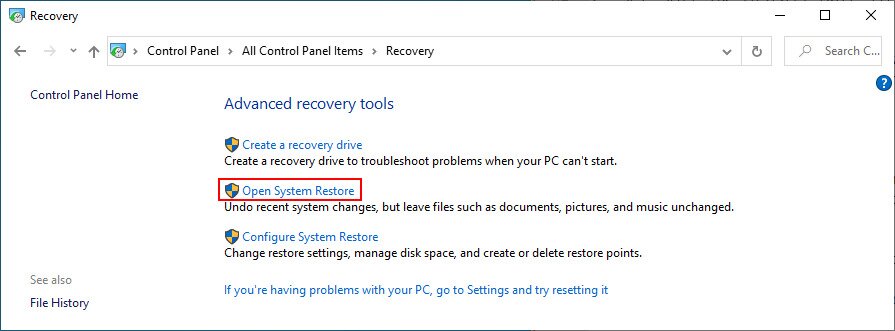
- Click Open System Restore

- Select a restore point from the list that was created before you started receiving the BSOD error
- Restart your computer
9. Clean boot Windows
A clean Windows boot means starting up Windows 10 by loading only the necessary components at the software level when it comes to drivers, services, and processes. Everything else is excluded.
If the IRQL NOT LESS OR EQUAL stop code was caused by a faulty driver, service or process, then a clean boot will create a safe environment to help you further troubleshoot the problem.
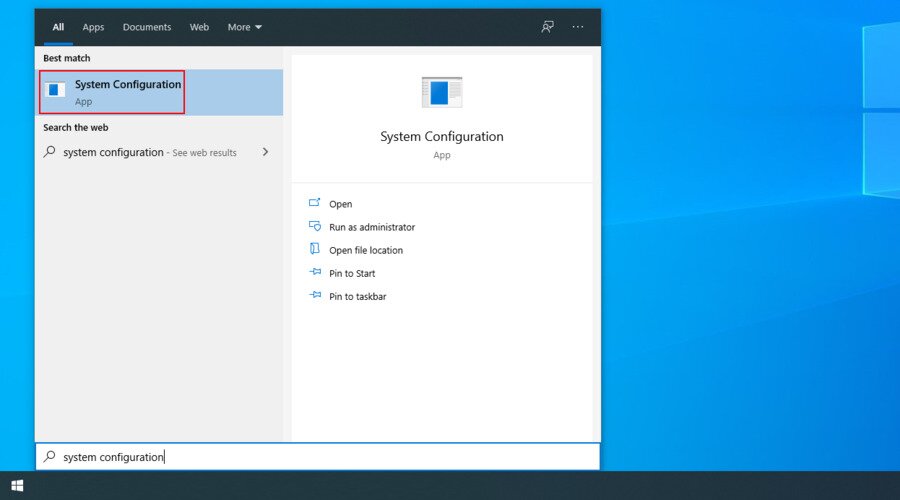
- Press the Win key, type System Configuration, and launch this app

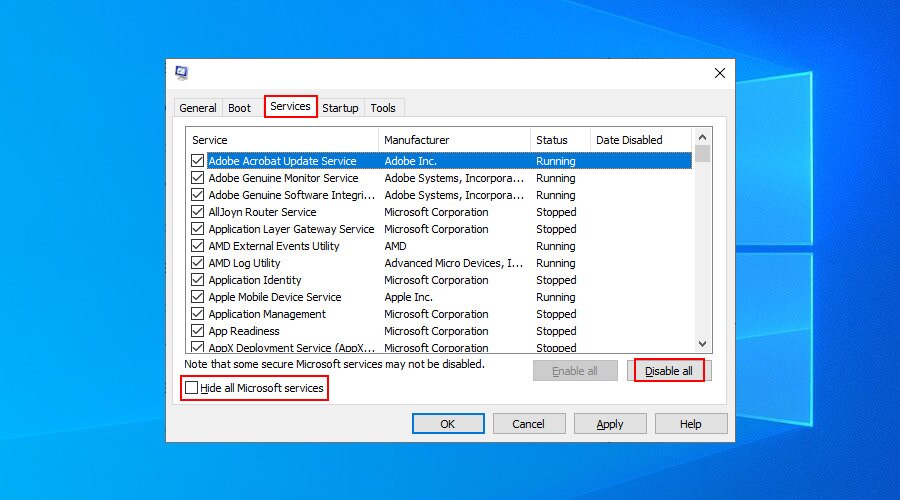
- Go to the Services tab, deselect Hide all Microsoft services, and click Disable all

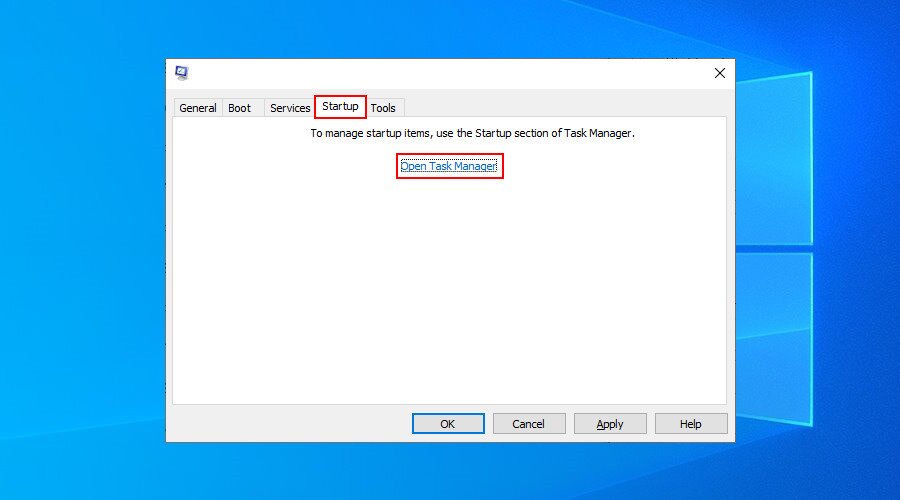
- Select the Startup tab and click Open Task Manager

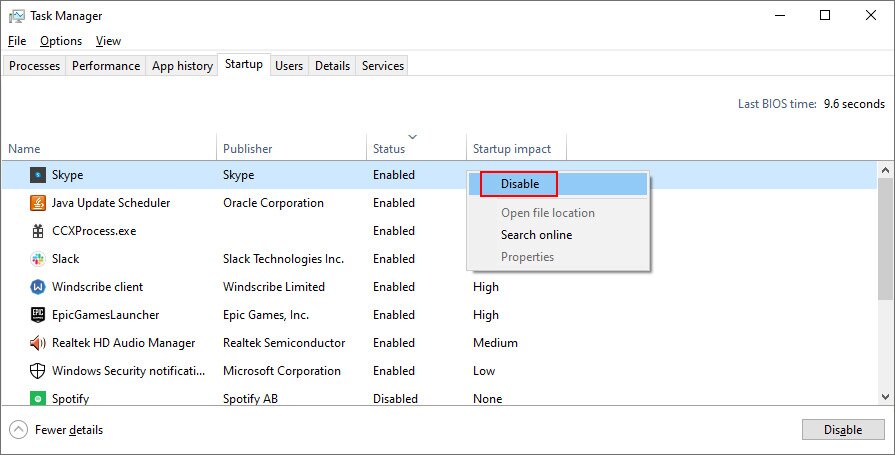
- Right-click the first item in the list and select Disable

- Do this for all startup processes with the Enabled status
- Restart your computer
10. Run Disk Cleanup
If you don’t have enough free disk space, Windows 10 fails to run its processes and get updated. In time, this can cause serious problems on your computer, including BSOD errors like IRQL NOT LESS OR EQUAL.
However, you can fix it by running Disk Cleanup, a simple and effective tool built into Microsoft’s operating system. Before using it, make sure you don’t need to save any files from the Downloads folder or restore anything from Recycle Bin.
Here’s how to free up disk space with Disk Cleanup:
- Log in as the computer admin
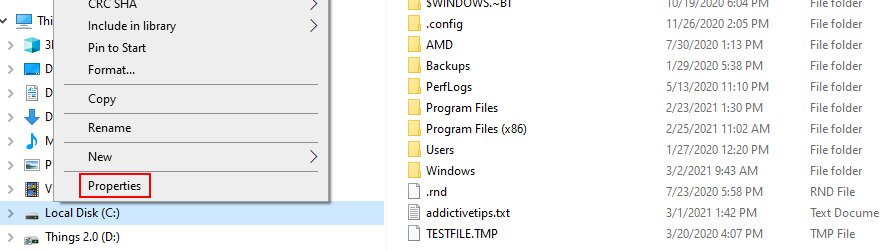
- Launch Windows Explorer with Win + E, right-click the C: drive, and select Properties

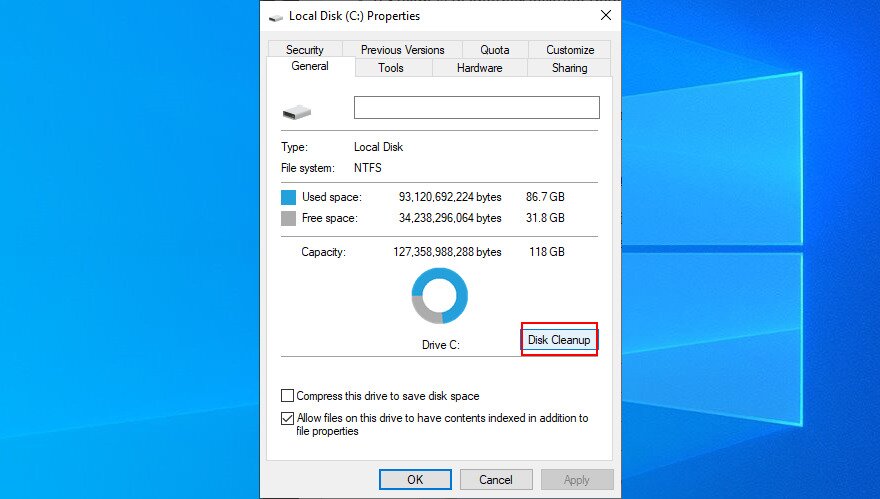
- Head over to the General tab and click Disk Cleanup

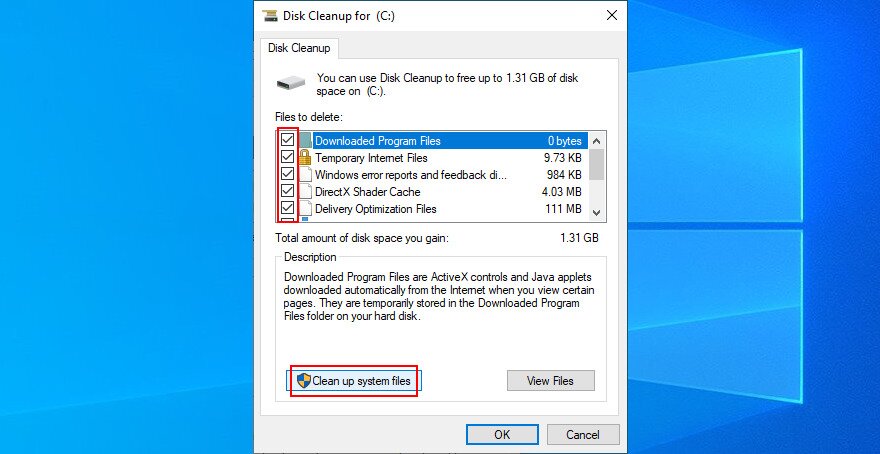
- At Files to delete, select everything. Click Clean up system files

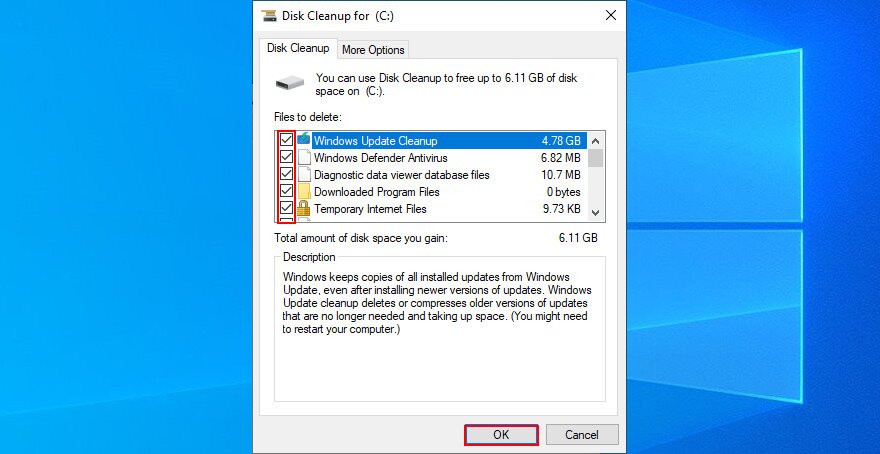
- Once the scan is over, select everything again, click OK and then Delete Files

- Restart your computer
If you need to delete more files, make sure to back up your important pictures, videos and work documents to an external disk. You could also burn discs or upload files to the cloud to keep them safe.
A rundown of IRQL NOT LESS OR EQUAL fixes
To conclude, the IRQL NOT LESS OR EQUAL BSOD error can be caused by a software or hardware issue on Windows 10, 8.1, 8, and older.
However, you can try to fix it by checking your device drivers and system memory, disabling or uninstalling your antivirus software, and repairing any hard disk or system errors.
You should also uninstall any suspicious programs you recently installed, use Windows Update and System Recovery, remove and reseat your hardware devices, as well as run Disk Cleanup and clean boot Windows.
Which of these fixes did the trick for you? Did we miss anything important? Let us know in the comment section below.
