Fix Error 0x800705b4 in Windows: Step-by-Step Guide
“`html
Microsoft strongly encourages users to regularly install system updates so that they can maintain the safety of their devices and fix various problems. Unfortunately, Windows Update doesn’t always work as expected. For instance, many users report getting error 0x800705b4, which prevents the updating component from doing its job. If you’re also experiencing issues like a PFN list corrupt error, it could be related to deeper system-level faults.
Error 0x800705b4
Windows Update error 0x800705b4 usually signals a problem with Windows Defender, which means that you have to repair Microsoft’s antimalware solution to be be able to check for system updates. There are other possible problems, which we are exploring in detail below.
There are several approaches toward repairing this issue. However, before getting started, we strongly recommend creating a system restore point.
It allows you to undo all changes and start the troubleshooting process from ground up.
How to fix Windows Update error 0x800705b4
1. Run the Windows Update troubleshooter
You should get started with the simplest solution: using the Windows Update troubleshooter to fix common errors that prevent the system updating component from functioning normally. Here’s how you can use it:
- Click the Start button, type Troubleshoot settings, and press Enter
- Click Additional troubleshooters
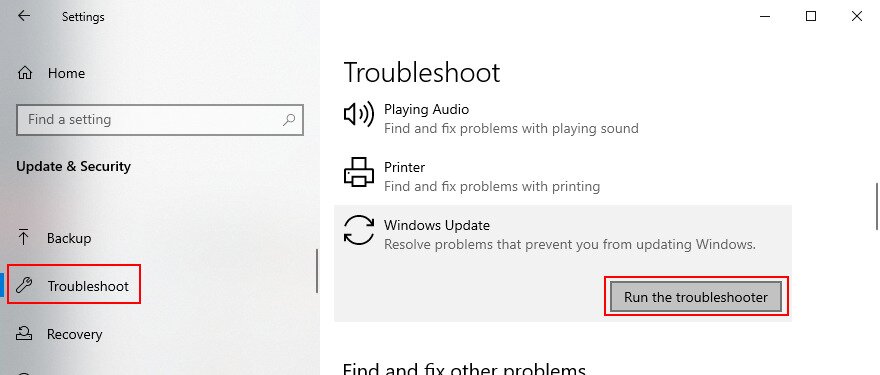
- Select Windows Update and click Run the troubleshooter

- Allow the troubleshooter to scan your PC and detect possible issues. If it finds any solutions, click Apply this fix
- Restart your computer
- Try to run Windows Update now
2. Check the Windows Defender Firewall service
Unless you have a third-party security application installed, the Windows Defender service should be running all the time, in order to protect your PC from malware. The easiest way to check this is by accessing the Services app. Here’s how:
- Type Win key + R, type services.msc, and press Enter to open Services
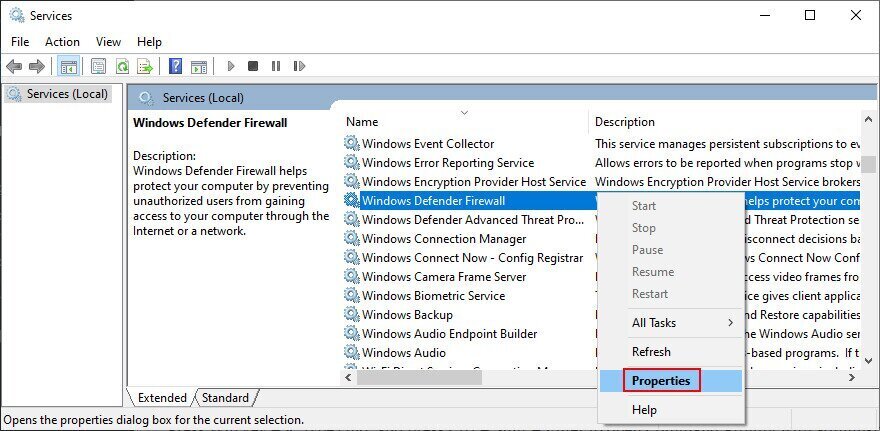
- Find and double-click Windows Defender Firewall to access its properties

- Set Startup type to Automatic
- If Service status says Stopped, click the Start button
- Click Apply and exit
If the buttons are greyed out, you can use Command Prompt:
- Press Win key + R, type cmd, and press Ctrl + Shift + Enter to open Command Prompt with administrator rights
- Type these two commands (press Enter after each one):
-
netsh advfirewall set domainprofile state on
-
netsh advfirewall set domainprofile firewallpolicy blockinbound,allowoutbound
-
- Exit Command Prompt
- Restart your computer
- Try to use Windows Update
3. Update your drivers
If your device drivers are obsolete, your operating system will eventually fail to work properly. But you can fix this problem by updating all drivers. Here’s how to make it happen:
- Right-click the Start button and go to Device Manager
- Extend the device categories
- Right-click a device and select Update driver. If you’re unsure, we suggest selecting the network and display drivers

- Click Search automatically for drivers and follow the instructions
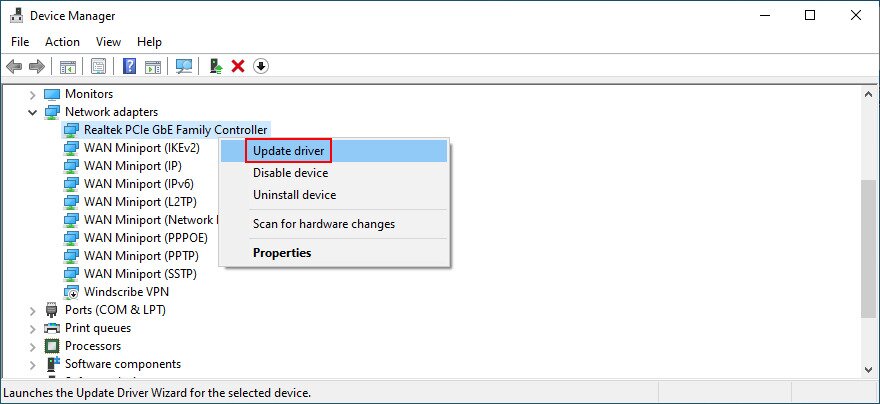
If Windows doesn’t find newer drivers, you can go to the manufacturer website of each device to find, download, and manually install drivers. However, it can take a long time and you might accidentally install an unsupported driver.
A safer alternative is to turn to a driver updater. It’s the type of application that automatically identifies all old drivers installed on your computer and updates them after downloading newer versions from the web. Plus, it won’t get incompatible drivers.
4. Roll back drivers
Incompatible device drivers end up hurting your computer because your devices won’t function anymore. The driver update option won’t work in this case. Instead, you should roll back the unsupported devices before performing an update. Here’s what you need to do:
- Click the Start button, search for Device Manager, and press Enter
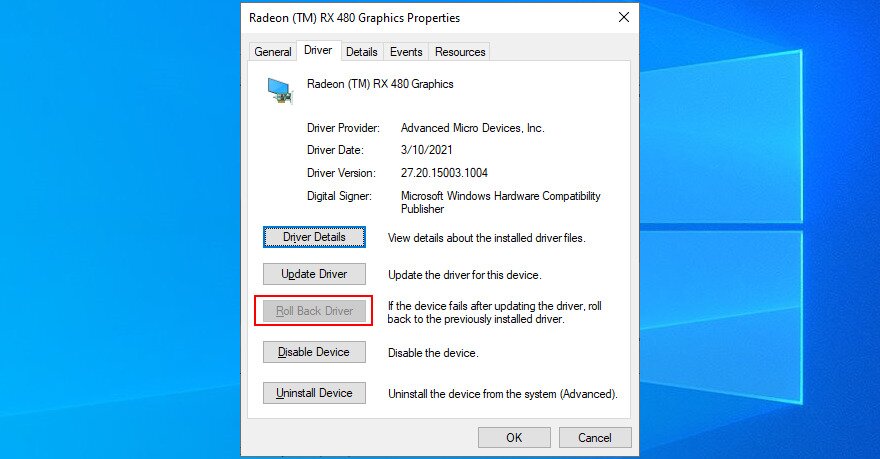
- Right-click a device and go to Properties
- Select the Driver tab
- Click Roll Back Driver and follow the instructions. If you can’t click the button, it means that no previous driver exists on your PC, so you can’t go through with the rollback

5. Uninstall third-party antivirus and firewall software
If you have third-party antivirus or firewall applications installed, they might clash with Windows Defender. It particularly applies to free tools that don’t fully support Windows 10 and its internal components. In this case, you should disable these programs before attempting to run Windows Update.
And, if that doesn’t do the trick, consider removing the software applications from your computer. For example, if you have two or more anti-malware programs set up, their real-time engines are probably not compatible. This eventually results in system stability issues and errors like 0x800705b4.
How to uninstall programs:
- Right-click the Start button and go to Apps and Features
- Search for the security app in the list
- Select the entry, click Uninstall, and then again to confirm
- Proceed with the uninstall wizard
- Restart your computer and try to run Windows Update now
The Windows 10 default uninstaller is good but not great. If you want a more thorough way to get rid of programs, check out software uninstallers. They are designed to remove not only a program but also any leftover files and registry entries.
6. Check the Windows Update and other services
Under normal circumstances, the Windows Update service should start running on your computer automatically. However, if that doesn’t happen, you can expect various error codes such as 0x800705b4. Here’s how you can restart the Windows Update service and check its startup type:
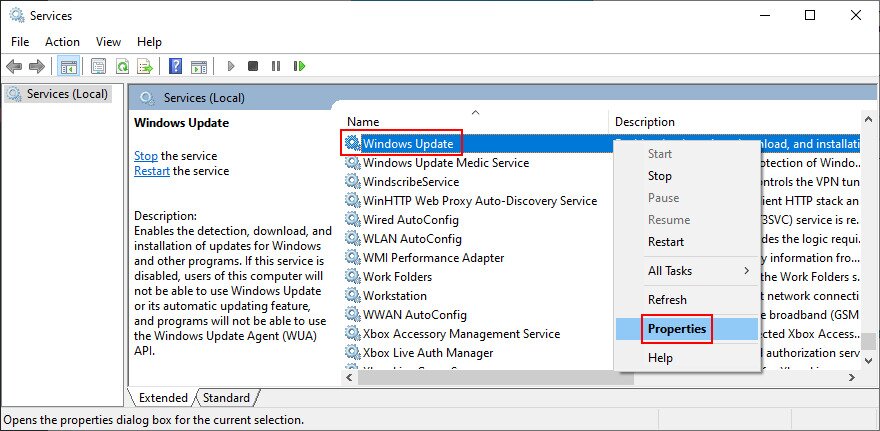
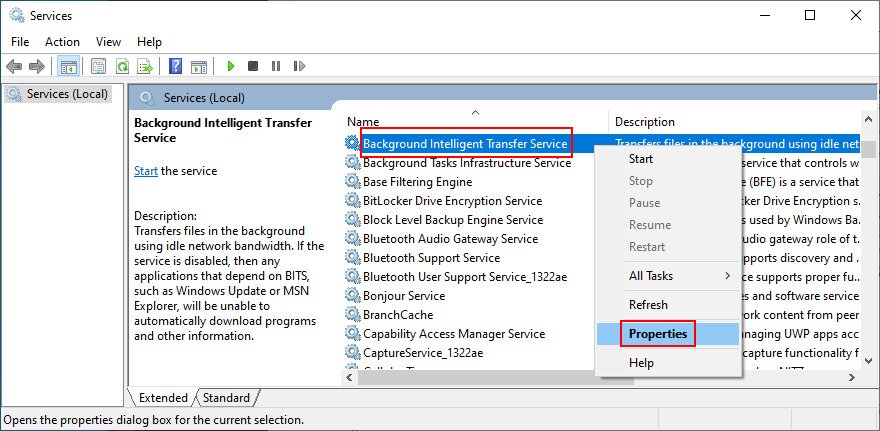
- Press the Win key, search for Services, and launch this app
- Locate and double-click Windows Update to check out its properties

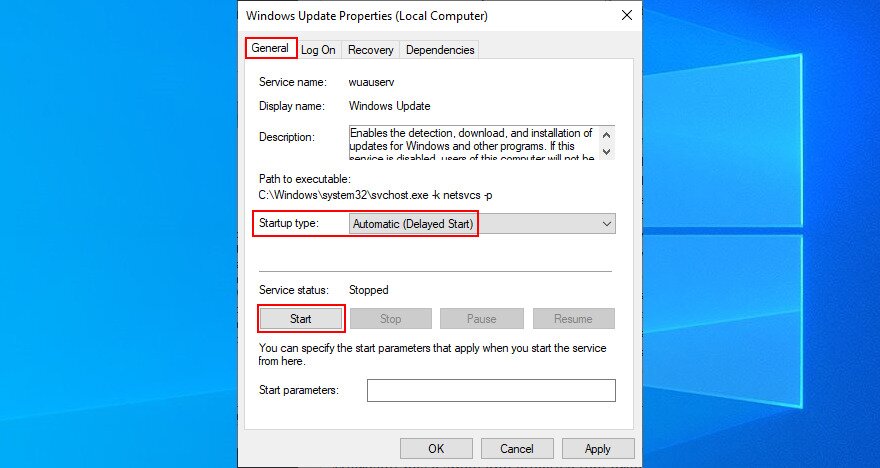
- Set Startup type to Automatic (Delayed Start)
- Click the Start button if the service is not currently running
- Click Apply and return to the main window

- Locate the Background Intelligent Transfer Service and App Readiness to set the same options as above

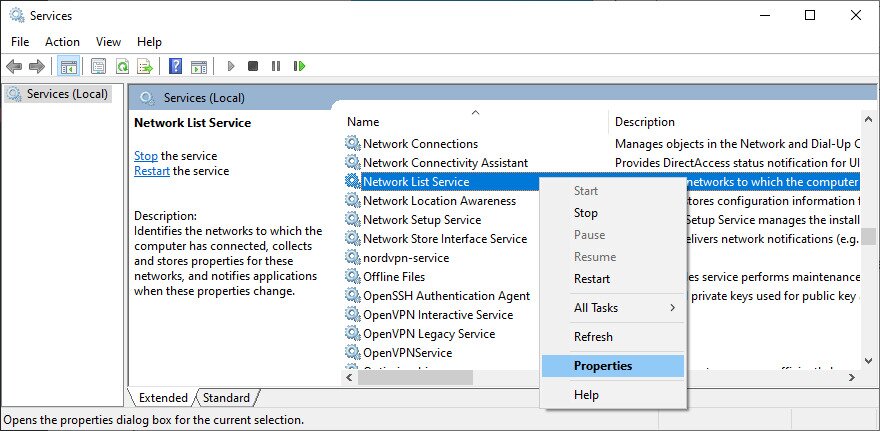
- Find and double-click Network List Service

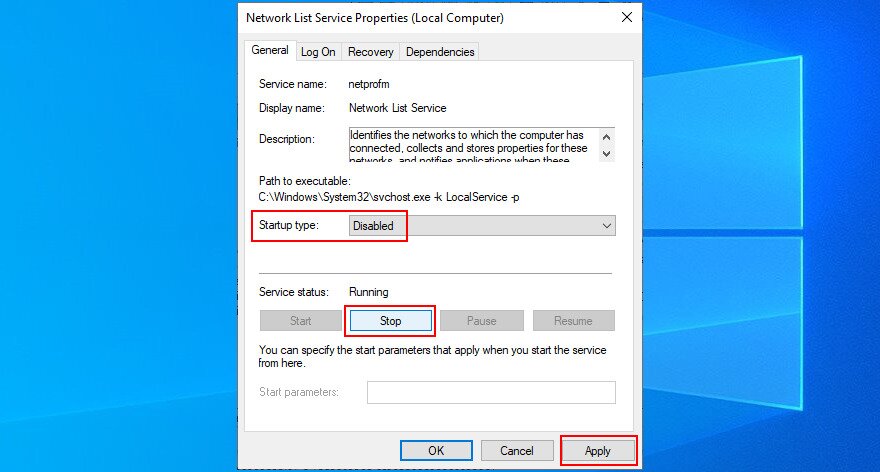
- Set Startup type to Disabled
- Click Stop if the service is currently running
- Click Apply and exit

- Try checking for system updates now
7. Reset the Windows Update components
Perhaps Windows Update needs a jolt by refreshing its components and emptying its cache. You just need to access Command Prompt and enter the exact commands we listed below.
- Sign in to Windows 10 using an admin account
- Press Win key + R, type cmd, and press Enter
- Write the following commands and hit Enter after each one:
-
net stop wuauserv
-
net stop cryptSvc
-
net stop bits
-
net stop msiserver
-
ren C:\Windows\SoftwareDistribution SoftwareDistribution.old
-
ren C:\Windows\System32\catroot2 Catroot2.old
-
net start wuauserv
-
net start cryptSvc
-
net start bits
-
net start msiserver
-
- Reboot your machine and try to check for system updates
8. Start Windows 10 in Safe Mode
You can start Windows 10 in Safe Mode to create a secure environment by turning off any services, processes and drivers that your operating system doesn’t need to work properly. Then, you can try to run Windows Update in Safe Mode to see if it works. Here’s what you need to do:
- Right-click the Start button and select Settings
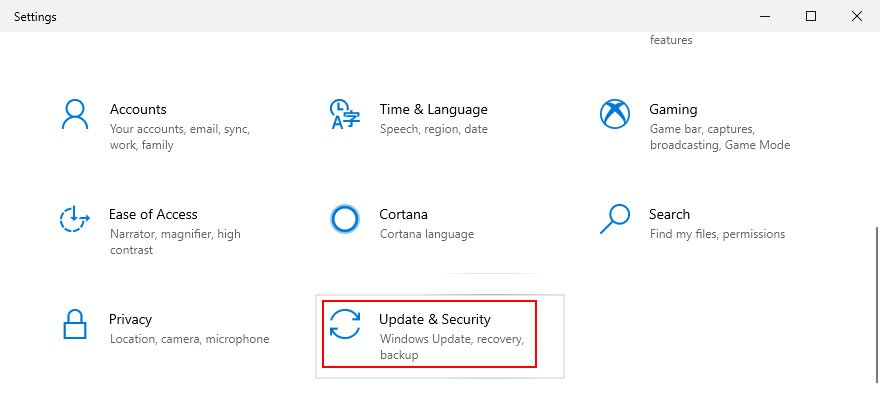
- Click Update & Security

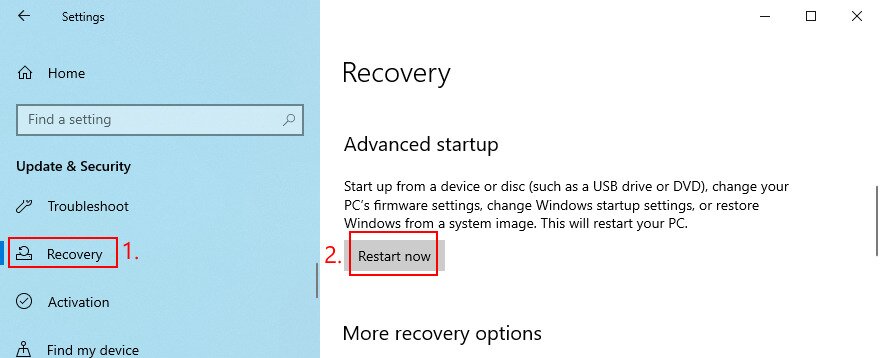
- Jump to the Recovery section
- At Advanced startup, click Restart now

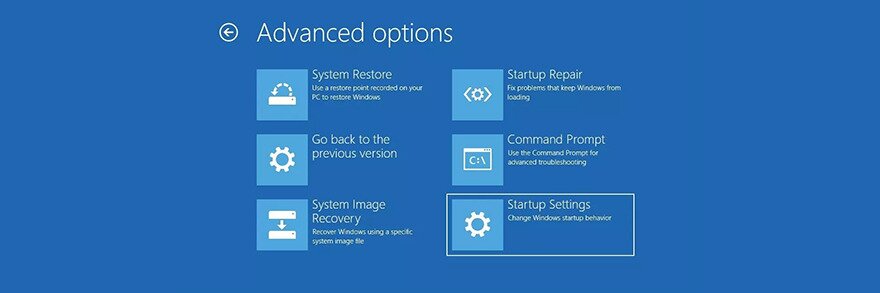
- Windows will boot in troubleshooting mode. Go to Troubleshoot > Advanced options > Startup Settings

- Click Restart
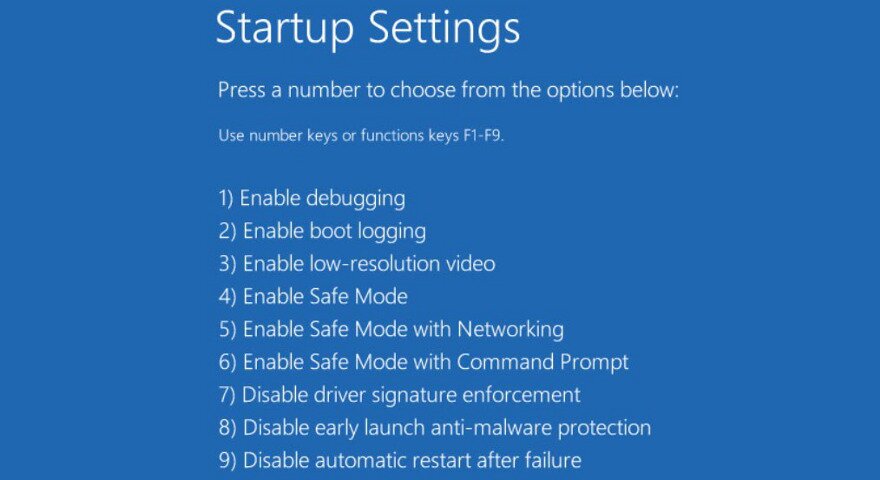
- Press F5 to enable Safe Mode with networking

- After the OS starts, try to run Windows Update
- If the update is successful, restart your PC as normal to exit Safe Mode
9. Run a clean boot
It’s possible that Windows Update is hampered not only by services, processes and drivers, but also by startup applications. For example, it could happen if you have a third-party antivirus solution that’s scheduled to run every time you turn on your computer. But you can run a clean Windows 10 boot:
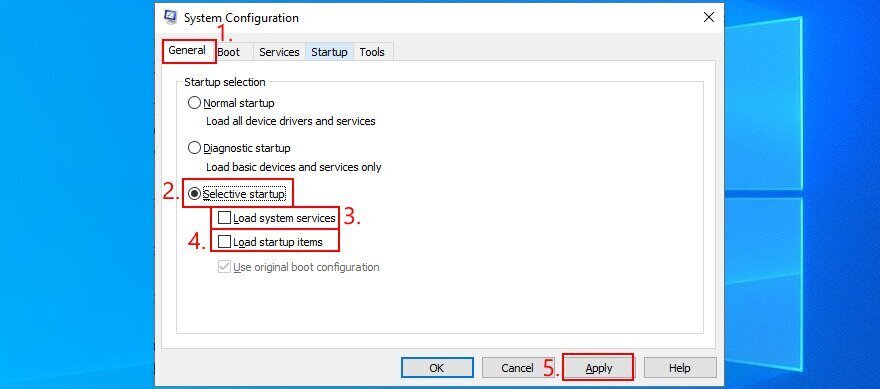
- Press Win key + R, type msconfig, and hit Enter to open the System Configuration app
- In the General tab, choose Selective startup
- Disable Load system services and Load startup items
- Click Apply and exit

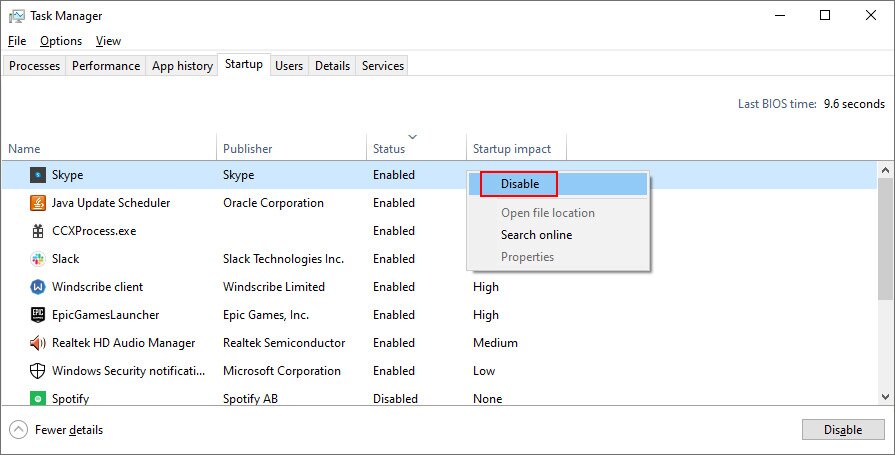
- Press Ctrl + Shift + Esc to open Task Manager
- Switch to the Startup tab
- Disable all programs with the Enabled status

- Restart your computer
- Try to run Windows Update
- If it works, restart your PC after the updates
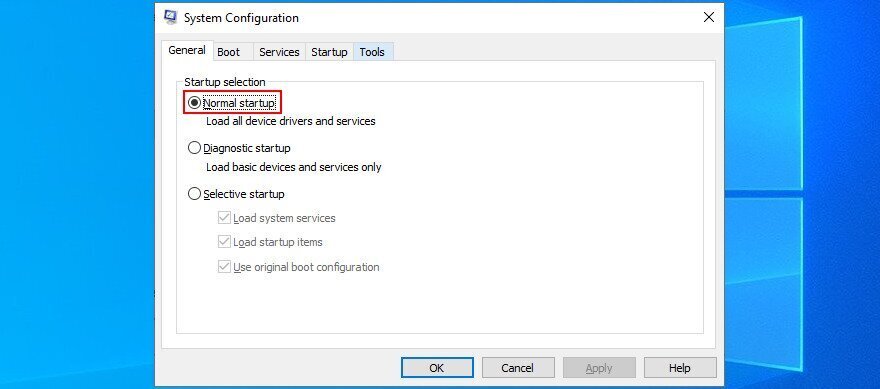
- Open System Configuration
- Select Normal startup, click Apply, and exit to the desktop

10. Restore firewall settings to default
If you have tinkered with the Windows Defender Firewall settings, you might have unknowingly restricted the Internet access of critical files that Windows 10 needs in order to perform updates. It can be challenging to undo one setting at a time, but a simpler solution is to restore everything to default. Here’s how:
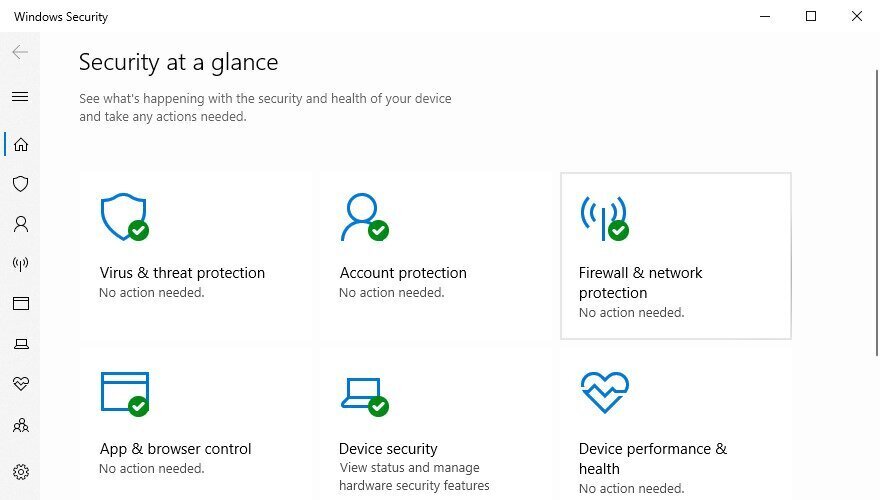
- Click the Start button, type Windows Security, and open this app
- Select Firewall & network protection

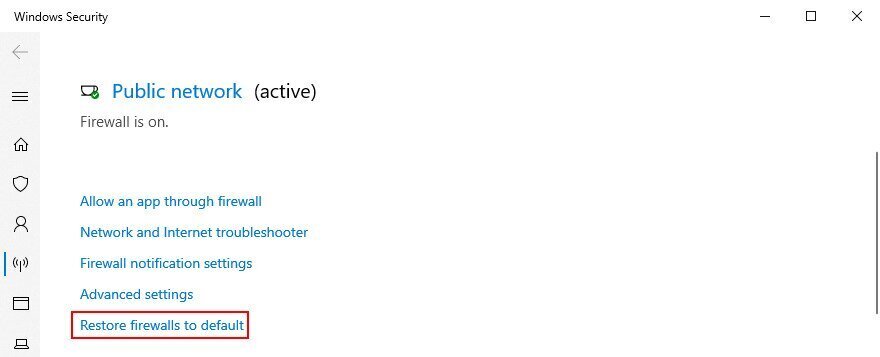
- Scroll down to the bottom of the window and click Restore firewalls to default

- Click Restore defaults and Yes to confirm
- Try downloading system updates now
11. Uninstall system updates
It might sound absurd that a system update released by Microsoft could corrupt the very feature used by Windows 10 to check for updates. But it can happen since many system updates are unpredictable. Thankfully, you can resolve this matter by removing the most recent Windows update from your PC. If you have pending Windows updates that won’t install, this could also be contributing to the error. If the update issues persist and you prefer to avoid them altogether, you can also learn how to disable Windows updates temporarily or permanently, stop forced Windows updates in Windows 11, or remove Windows 10 upgrade files left behind by failed update attempts.
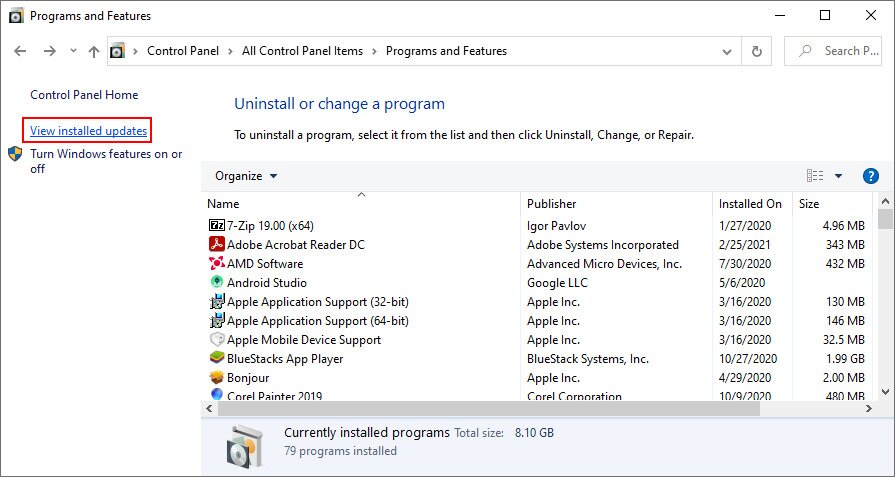
- Press Windows key + R, type appwiz.cpl, and hit Enter

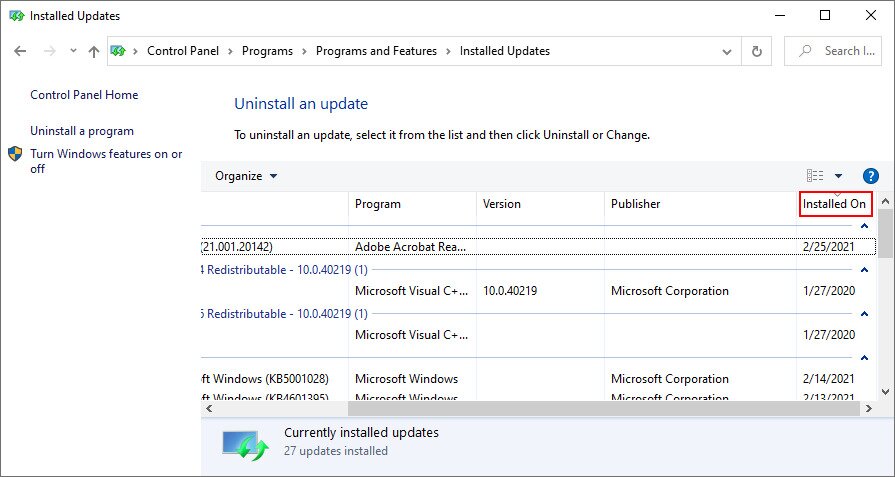
- Click View installed updates on the left side

- Click the Installed On column to sort the updates (newest first)

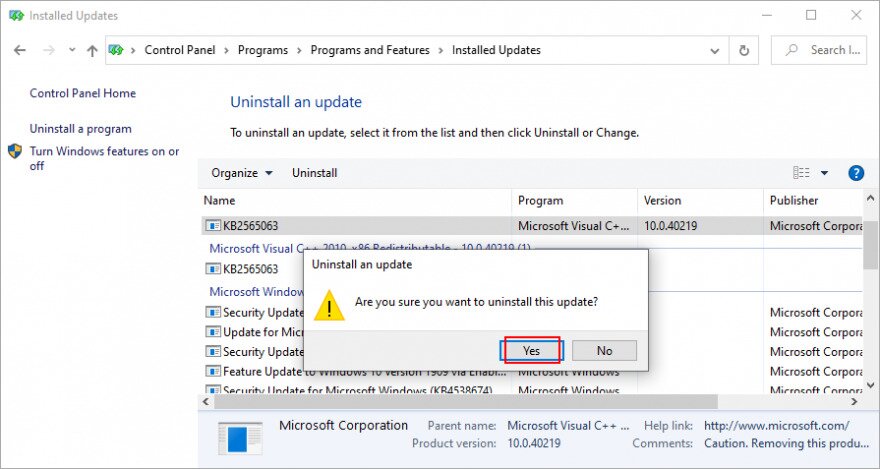
- In the Microsoft Windows group, double-click the first update
- Click Yes to confirm and follow any further instructions

- Restart your PC and check for updates
- If it works, make sure to not download the same update again

12. Fix hard disk errors
If your HDD or SSD has corrupt files or bad sectors, this could cause Windows Update functionality problems, leading to error code 0x800705b4. However, you can resort to CHKDSK (Check Disk) for help.
How to use CHKDSK:
- Press Win key + R, type cmd, and press Ctrl + Shift + Enter to run Command Prompt with elevation rights (click Yes if asked by User Account Control to confirm)
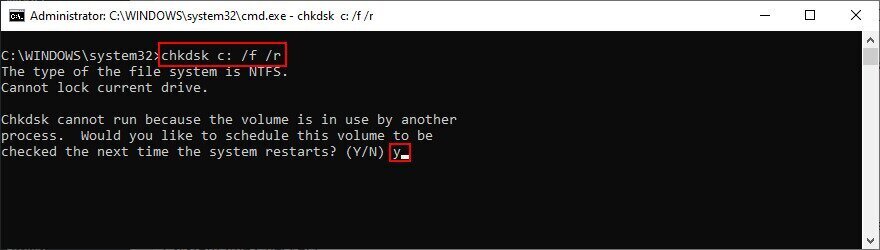
- If Windows is installed on the default C: partition, run
chkdsk c: /f /r. Else, make sure to use the correct drive letter instead ofc:
- When you’re asked to schedule the checkup at the next system startup, type y and press Enter
- Restart your computer. CHKDSK will check the disk and fix any errors
13. Repair corrupt system files
If CHKDSK doesn’t work, it’s likely because your operating system has corrupt files, which you can resolve with the help of SFC (System File Checker). System file corruption can also lead to other critical errors, so if you’re encountering blue screen issues, you may want to review thread exception repair steps as well as a BSOD crash report to identify the cause.
How to use SFC:
- Click the Start button, search for Command Prompt, and click Run as administrator
- Run
sfc /scannowand wait until SFC does its job
- Restart your PC and try Windows Update
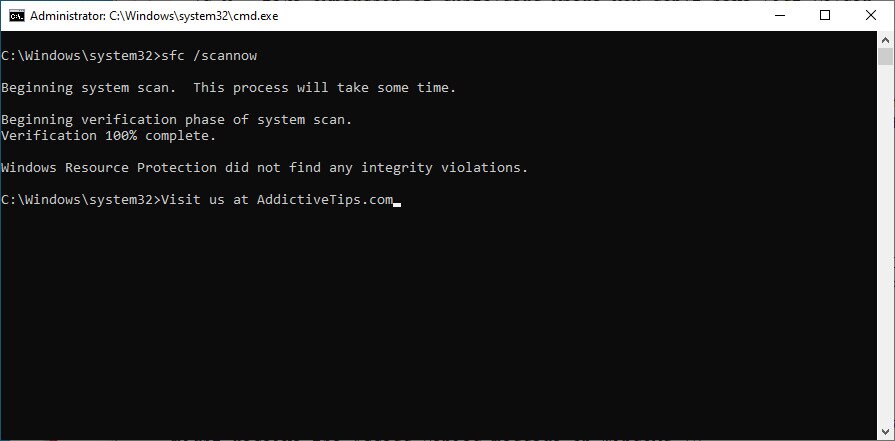
If SFC doesn’t show any problems, you can use DISM to check the component store of the OS image.
How to use DISM:
- Launch an elevated instance of Command Prompt
- Run
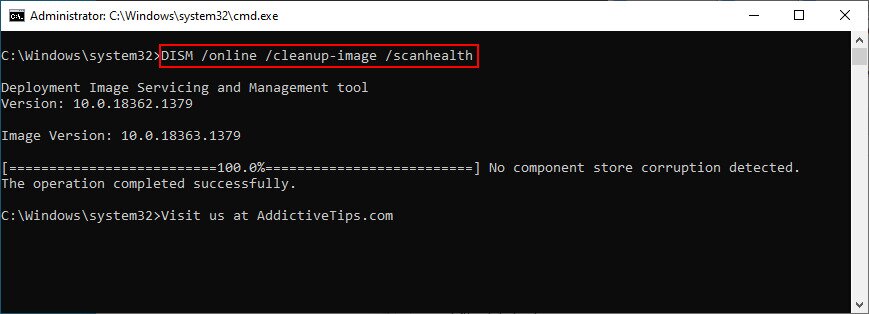
DISM /online /cleanup-image /scanhealth
- If DISM finds any problems,