How to Install IPVanish on Firestick 2026 Guide
Your search for a guide on how to install IPVanish on Firestick ends here. Today’s comprehensive guide will walk you through everything you need to know, step by step. We’ll also delve into why IPVanish is so good for streaming, plus show you how to actually use it on your Fire TV Stick once it’s been installed.
The Amazon Fire TV Stick (or Firestick for short) is one of those devices that comes along every few years and completely shakes up the accepted norm. This USB stick-sized device has revolutionized the online streaming sector, which had previously been built around either set-top boxes plugged into your TV or websites and apps which left you peering at your laptop or tablet screen. But with Smart TVs failing to capture the public’s imagination, Amazon saw an opening and their portable streaming device, which can be plugged into your TV, laptop, or any other HDMI-enabled device, has made a huge splash.
It is not just the portability of the Firestick which is attractive to users, but its flexibility. Through your Firestick, you can stream content from almost any service imaginable, including the biggest and most popular providers like Netflix, Amazon Prime, and the open-source media player Kodi. There are a number of reasons why it is highly advisable to use a VPN with your Firestick, which we will detail below. In this guide, we will also explain the advantages of IPVanish as a VPN provider, and how to install IPVanish on Firestick.
Editor's Pick November 2026

Why Use a VPN with a Firestick?
Not everyone is convinced that they need to use a VPN when streaming content on a Firestick. They argue that they are using their Firestick to stream legitimate content and it is an unnecessary cost that will only serve to slow down their Fire TV’s internet connections. This is based on a false premise, as the best VPNs will only have a minimal impact on speeds. But it also overlooks a number of compelling reasons why VPNs should be essential tools for all Firestick users:
- Security: The Firestick is built on a version of the Android operating system known as Fire OS. Android is hugely popular but also notoriously insecure. This leaves Firestick users open to attacks from hackers as well as surveillance from governments, ISPs, and other bodies. A VPN will encrypt all of the online data coming from your Firestick protecting you against these risks.
- Public Wi-Fi: One of the big attractions of a Firestick is its portability with people thinking they can take their entertainment anywhere in the world. But this will often mean using public Wi-Fi in hotels and other places which is also very insecure. Again, the encryption offered by a VPN will allow you to use your Firestick on these networks safely.
- Accessing content abroad: While it is easy to take the Firestick device around the world, many of the most popular streaming services people use it for are geo-restricted to only be used in a single country. With a VPN, it is possible to bypass geoblocks and access content no matter where you are.
- Using Kodi: The Firestick is a hugely popular device for Kodi users, but like every other device there are risks of legal repercussions if you are found to be using Kodi to access content illegally on your Firestick. But a VPN can protect you from this and allow you to use Kodi on a Firestick with confidence by encrypting data and allowing you to go online anonymously.
READ MORE: What does a VPN hide exactly?
Why Choose IPVanish to Install on Your Firestick?


IPVanish is not only the most popular VPN for Firestick users, but also the best — and there are some good reasons for this. One of the biggest is the fact that IPVanish has an official add-on available in the Amazon App Store. This app has been designed specifically for Firestick users and, as you will see below, allows you to install IPVanish on Firestick easily. This is not to be taken for granted, as this VPN provider was the first among a very few to offer dedicated software for Amazon’s device. Of course, IPVanish offers plenty more reasons why you should choose them as your VPN of choice for your Firestick.
IPVanish is one of the securest providers on the market. They offer AES 256-bit encryption, which is virtually unbreakable, as well as various other useful security features including DNS leak protection and an automatic kill switch. Their connection speeds are among the fastest around too, which is ideal for those looking to stream content online.
Notably for Kodi users, this VPN imposes no restrictions on either data amounts or the types of files you can use. And with more than 1,300 servers available in 60 countries around the world, IPVanish is a great bet for those who want to unblock geo-restricted content around the world too.
Read our full IPVanish review.
How to Install IPVanish on Firestick
There was a time fairly recently when installing a VPN onto a Firestick was a real pain. But that all changed when IPVanish became the first provider to get their app into the Amazon Appstore. Now, the process to install IPVanish on Firestick could not be easier. All you have to do is follow these simple steps:
- From your Firestick Home screen, navigate to Find, then select Search.
- A keyboard screen containing letters and numbers will appear. Navigate around and click the letters to enter IPVanish into the search facility. (Don’t worry about letter cases).
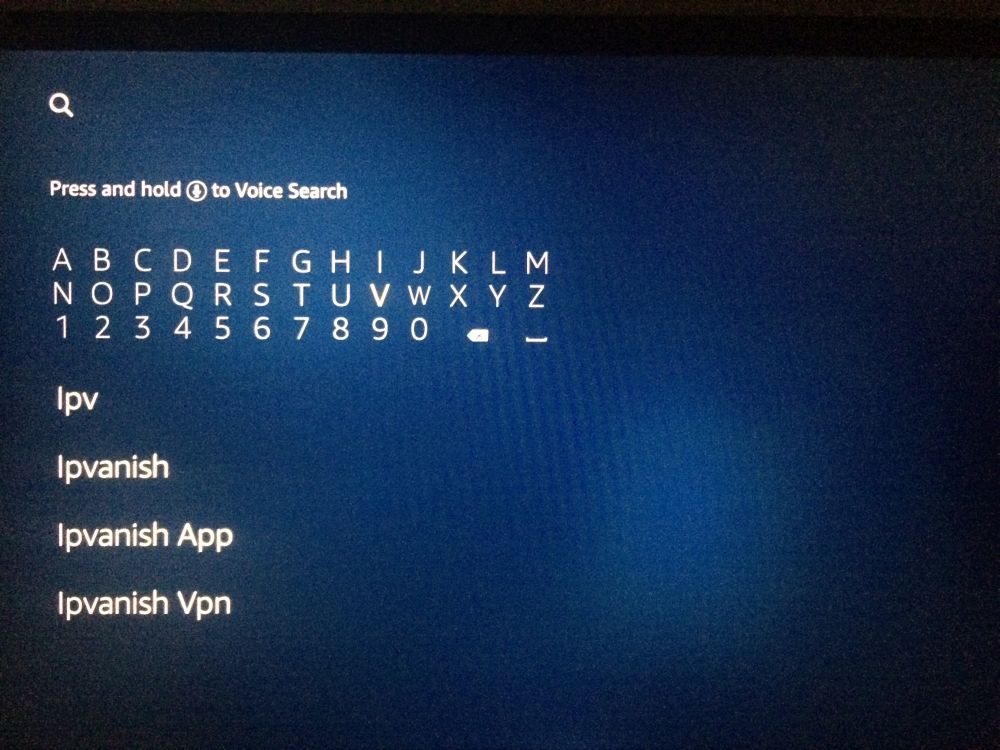
- Underneath the keyboard, the option IPVanish should now appear. If it doesn’t, just keep entering more letters of the name IPVanish into the keyboard until it does. Once you see it, scroll down and click where it says IPVanish.
- Under the heading Apps and Games, the IPVanish VPN app should now be listed. Click on it.
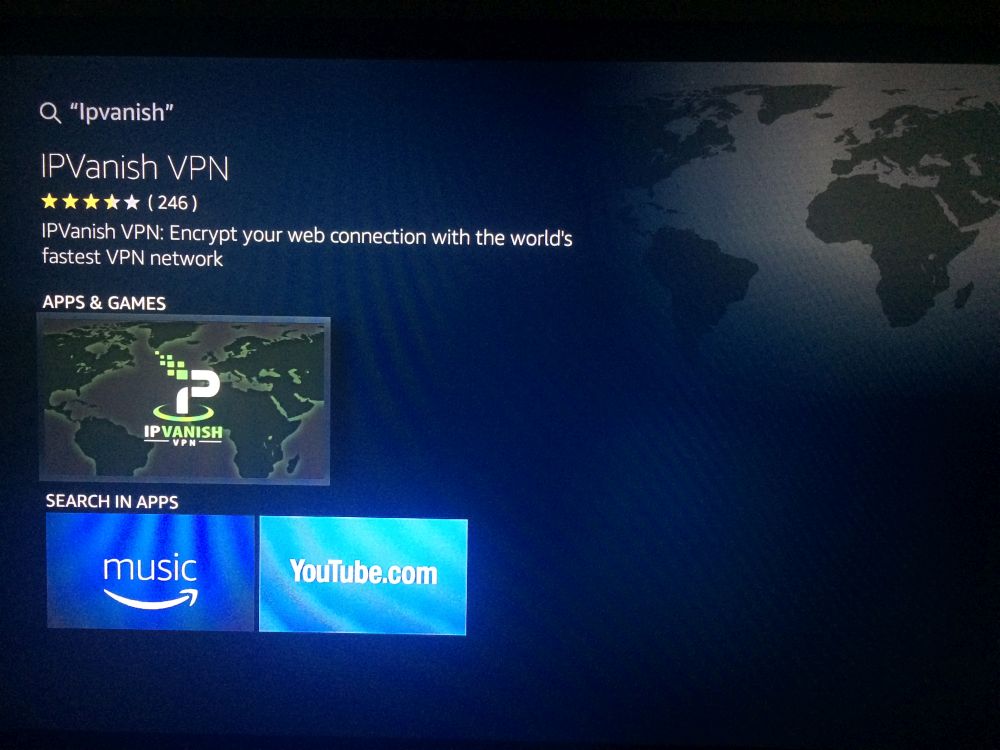
- The following screen will contain a few details about the app and a button to install it. Click Get or Download to begin the installation.
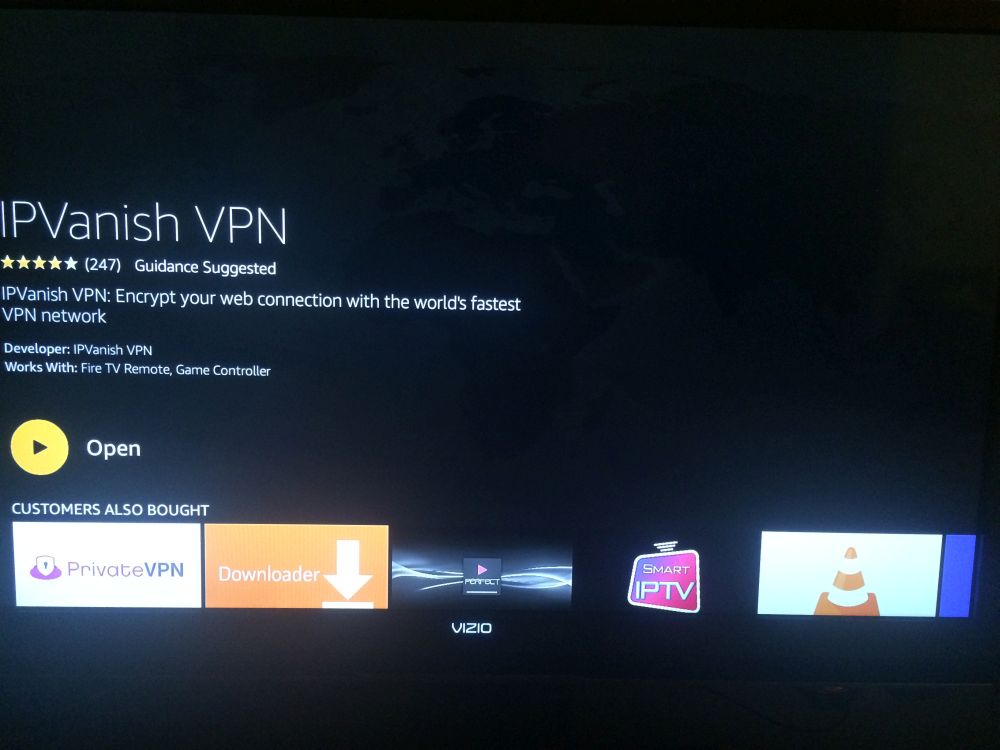
- Once the download and installation process has completed, you will be invited to Open the add-on. Click on this button.
- An IPVanish login screen will now appear and you will need to enter your IPVanish Username and Password. On supported models, you can also select the QR login option to sign in quickly using a second device. You can sign up for IPVanish using the links above.
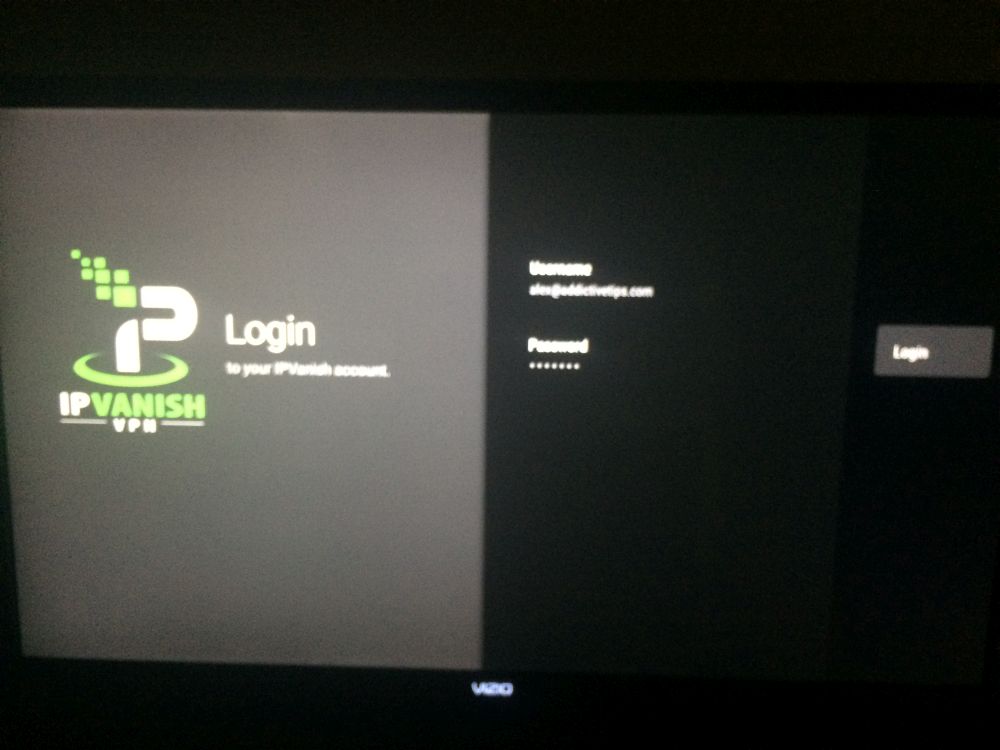
- Once you have entered the correct username and password, click Login.
- Press CONNECT to establish your VPN connection.
- Fire TV will display a VPN permission prompt asking to set up a VPN connection on your device. Select OK to allow it and complete the connection.
Note: Amazon Fire TV devices may not display a VPN key icon in the status bar once you are connected. Rather than looking for that icon, confirm your VPN is active by checking that the IPVanish app shows a Connected status or that the main button has changed to Disconnect.
Generational Issues: Which Firestick Can Install IPVanish?
IPVanish does not work on 1st-generation Fire TV Stick hardware. If you own a 1st-gen device, the installation process may appear to complete successfully, but the IPVanish app will not function correctly on that hardware. IPVanish supports 2nd-generation and newer Fire TV devices, including the Fire TV Stick Lite, Fire TV Stick 4K, Fire TV Stick 4K Max, Fire TV Cube, and current Fire TV models.
If you are not sure which generation your Fire TV Stick is, the most reliable way to check is to go to Settings > My Fire TV > About and note your exact device model name and number. You can also look up the model number or FCC ID printed on the back of the device itself. Note that checking your remote type alone is not a reliable way to identify which generation you own, so use the device info screen or model number lookup for a definitive answer.
If you own a 1st generation Firestick, it is therefore strongly advisable on security and privacy grounds to upgrade to a 2nd generation or newer model. Alternatively, you can still install a VPN onto your router, thereby protecting any device connected to it. Learn how in our complete guide to VPN routers.
How to Install IPVanish on Firestick If It’s Not in Your Amazon Appstore
In some regions, IPVanish may not appear in the Amazon Appstore at all. If you search and cannot find the app, sideloading the APK directly onto your Fire TV device is a reliable workaround. Here is how to install IPVanish on Firestick using the sideloading method:
- On your Firestick, go to Settings > My Fire TV > Developer Options and enable Apps from Unknown Sources (you may also see this listed as allowing installs from the Downloader app specifically).
- Go to the Amazon Appstore and install the Downloader app by AFTVnews — this is a free utility available in all regions.
- Open Downloader and enter the IPVanish shortcode 697672 in the URL bar, or enter the direct APK URL for IPVanishTV.apk if you have it from the IPVanish support page.
- Downloader will fetch and display the APK. Select Install when prompted.
- Once installation completes, select Open to launch IPVanish, then log in with your username and password and press CONNECT.
Important: Sideloading the IPVanish APK does not make a 1st-generation Fire TV Stick compatible with IPVanish. The hardware limitation described in the section above still applies regardless of how the app is installed. Sideloading is only a solution for 2nd-generation and newer devices in regions where the Appstore listing is unavailable.
How to Use IPVanish on Firestick After You Install It
Once you install IPVanish on Firestick and log into your account, the app is extremely simple to use. However, the interface you see will depend on which operating system your Fire TV device is running — FireOS or the newer Vega OS. Read the relevant section below for your device.
FireOS Devices
On Fire TV devices running FireOS, the IPVanish homepage consists primarily of a graph which indicates the available download and upload speeds when the VPN is connected. To the left of the screen are the four main menu options: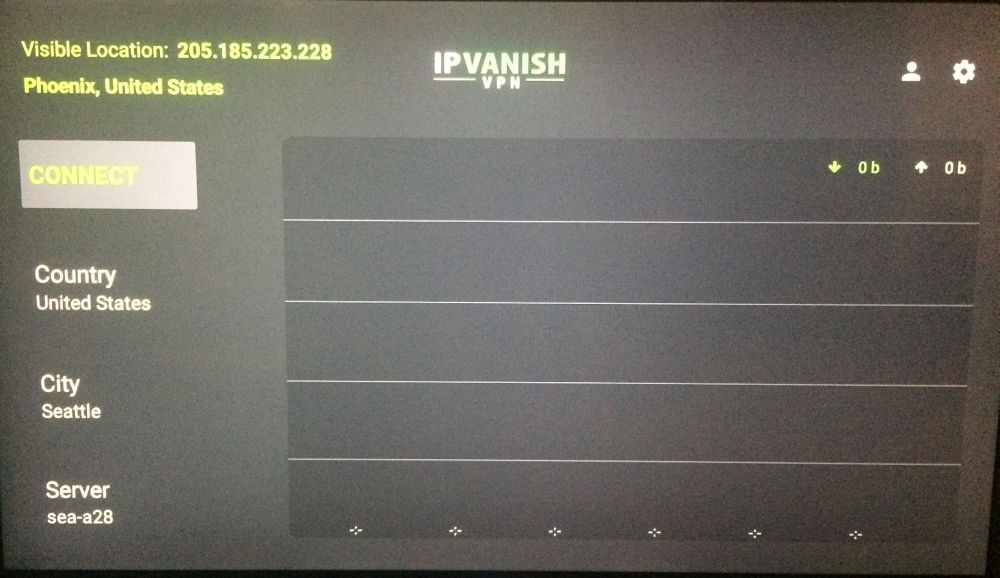
- Connect – this is the button you click to connect to an IPVanish server. When you are connected, this changes to a Disconnect
- Country – Clicking on this tab will open up a menu consisting primarily of large flags and the names of each country in which IPVanish provides servers. At the very top is a Best Available option. This will be the default setting when you first log in and will connect you to the fastest server for your particular location.
- City – Many of the countries that host IPVanish servers have them in more than one location. In smaller countries, this is less important, but if you are connecting to somewhere like the USA, it can make a difference in speeds whether you are connected to LA or New York. A list of available cities will appear when you click on this link, with Best Available again the default setting.
- Server – If you want to get technical, this menu option gives you the opportunity to specify the exact server you want to connect to. It also defaults to best available and for most users, it will be fine to leave it at that.
Unless you are trying to connect to a specific country, new users should be fine to simply click on Connect and then wait a few moments while IPVanish automatically hooks you up to the fastest available server. When you connect for the first time, it will pop up a Connection Request which will ask you if you are happy for IPVanish to monitor your network. Click Ok to complete the connection.
IPVanish keeps no user logs so there are no risks associated with agreeing to this. Once connected, the graph will spring into life and you can leave the app and use other apps at your leisure.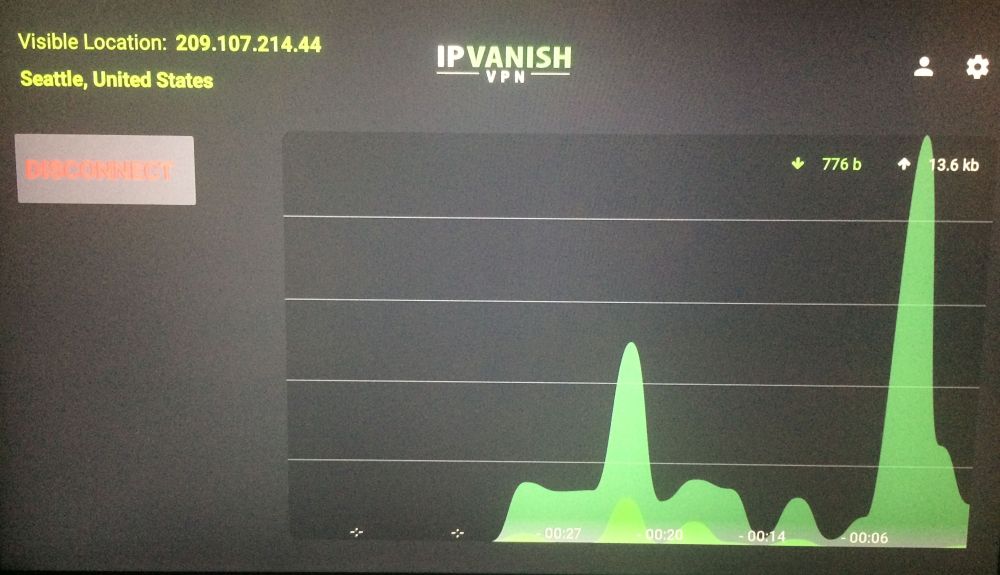
In the top right of the screen are two icons. The one which looks like a person will show your account details and also give you the option to log out of that account. The gear wheel icon is the settings function and gives you a number of extra functions.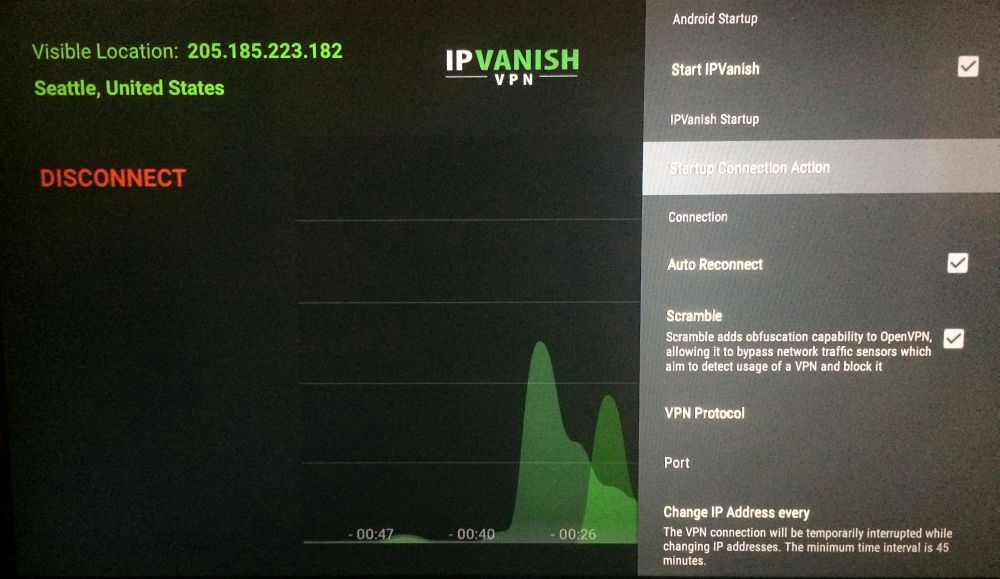
- Android Startup – Ticking the box titled Start IPVanish will ensure the IPVanish app opens up automatically when you start using your Firestick.
- IPVanish Startup – Clicking on the Startup Connection Action option allows you to choose whether to connect to the last connected server or the fastest server automatically on startup or otherwise to not connect automatically.
- Connection – The Auto Reconnect setting is defaulted to on, but you can switch it off if you wish. You can also activate Scramble which IPVanish say will “add obfuscation capacity to OpenVPN allowing it to bypass network traffic sensors which aim to detect usage of a VPN and block it”. You can also switch VPN Protocol too.
- Port – The Change IP Address every option allows you to instruct IPVanish to regularly switch IP addresses. This option will cause a short break in connection and the minimum length of time available between switches is 45 minutes.
- About – This section includes the IPVanish Terms of Service and Customer Support details.
Vega OS Devices (Newer Fire TV Models)
If you own a newer Fire TV device running Amazon’s Vega OS — such as a recent Fire TV Stick 4K Max or newer Fire TV model — your IPVanish app experience will look noticeably different from the FireOS layout described above. Vega OS uses a redesigned version of the IPVanish app that features a simpler, more streamlined interface with fewer advanced options visible by default.
On Vega OS, the app presents a cleaner connect/location workflow: select your desired server location from the location picker, then press Connect to establish the VPN tunnel. If you want to switch to a different location after connecting, you may need to press Disconnect first, choose your new location, and then reconnect — switching locations while actively connected is not always supported on Vega OS.
Some of the advanced settings available in the FireOS version of the app — such as protocol switching, Scramble mode, or the IP address rotation timer — may not be accessible or may appear in a different location within the Vega OS app layout. If you need any of those features, open the app’s settings menu to check what options are available on your specific device.
Once you are connected to an IPVanish VPN server, it is safe to leave the app running in the background while you use your Firestick for streaming content or other activities. It is advisable to ensure that IPVanish connects on startup and that your Auto Reconnect setting remains enabled to give you maximum protection. This is especially important if you are using Kodi on your Firestick.
For most users, once you install IPVanish on Firestick and configure these startup settings, you shouldn’t ever have to think about the app again — it will just be there working in the background to deliver security and privacy protection whatever you are doing. And if you ever run into issues with your Firestick not working as expected, there are plenty of troubleshooting tips to help you get things running smoothly again.
Conclusion
Firestick, when equipped with Kodi and IPVanish, has transformed the way that we stream, making it easier than ever to enjoy the vast offerings of the internet on your home television. When you install IPVanish on Firestick, you gain a powerful combination of speed, security, and unrestricted access to global content. How do you harness the potential of this device? Do you have any tips or tricks for optimising the experience? Or, did you have some trouble with our installation instructions? Leave a comment below!
Interested in other VPNs? Check out our comprehensive guide on the best VPNs for Amazon Fire TV Stick.
If you need a VPN for a short while when traveling for example, you can get our top ranked VPN free of charge. NordVPN includes a 30-day money-back guarantee. You will need to pay for the subscription, that’s a fact, but it allows full access for 30 days and then you cancel for a full refund. Their no-questions-asked cancellation policy lives up to its name.

