ExpressVPN Router Setup Help: Quick Installation Guide
ExpressVPN is the best VPN on the market, and that’s partially because you can install it on anything–even your router. If you’re looking to complete an ExpressVPN router setup, you’ve come to the right place. Whether you’ve got a VPN-compatible router or need to handle installation and configuration manually, our guide will walk you through it all step by step.
We often talk about the importance of getting a VPN to keep your devices safe, and to protect your privacy when you go online. Typically, users will install the software from their VPN provider on each of their devices and use that app to control the VPN connection. However, there is another way to connect to a VPN, and that’s by installing VPN software directly onto your router. There are some advantages to this ExpressVPN router method that we’ll discuss in depth.
ExpressVPN is one of the most popular and trusted VPNs among serious internet users thanks to its fast speeds, high level of security, and software that supports many platforms and is easy to use. In this article we’ll walk you through the steps of ExpressVPN router setup so that you can have your VPN software right on your router.
Editor's Pick August 2026

Why Install VPN Software Onto Your Router?
If you’re a regular home user, you might wonder why you would need VPN software on your router. And it’s true that home users can happily install VPN software onto each of their devices in order to keep them safe. In fact, even if you do install VPN software onto your router, it’s still a good idea to install VPN apps onto your phone and tablet too if you’re going to connect those devices to other networks as well as your home network—especially if you’re comparing the top VPNs for iPad. So why would you want VPN software on your router?
Convenience
With VPN software on your router you only have to change your VPN settings in one place and it will automatically affect all of your devices. So you can set up the VPN on your router to connect to a server in the US, for example, and then every device that connects to your internet will have its traffic routed via the US. This also helps with security, as one area of vulnerability with VPNs is the time in which the software is starting up. If you turn your computer on and it starts downloading data before the VPN software is loaded, then your data could be vulnerable. Having the software on your router protects you from this as every piece of data on the network will be encrypted before it is sent over the internet.
Protect All Your Devices
Another advantage of having VPN software on a router is that every device which connects to your network will be protected. If you give your wifi password to a friend, for example, their device will be protected while they are on your network – and if they do something illegal like using torrents on your network, you are protected from legal issues. Related to this, there are some devices which connect to the internet and which you want to protect with a VPN but which cannot run VPN apps natively. Game consoles — such as PlayStation and Xbox — are a prime example: they do not support native VPN app installations, which is precisely why router-level setup is so useful for them. If you’re gaming on a console, a Black Ops 4 router VPN setup is a good example of how router-level protection can help when native VPN apps aren’t available. Smart TVs are a mixed picture: some TV platforms now have native ExpressVPN apps, but router setup is still the most reliable option for consoles, IoT devices, and always-on whole-home coverage regardless of what any individual device supports.
Is Your Router Compatible?
Before diving into setup, it’s worth spending a minute confirming that your router can actually run ExpressVPN — the answer will determine which path you take. There are four broad categories to be aware of:
- Routers that support ExpressVPN firmware directly. A specific list of Asus, Linksys, and Netgear models can have ExpressVPN’s custom firmware flashed onto them. These give you the full ExpressVPN router app experience, including easy location switching and device management.
- Routers with a built-in VPN Client or OpenVPN Client in stock firmware. Many Asus routers and some other brands include a VPN Client section in their standard admin panel. You don’t need to flash new firmware — you configure ExpressVPN manually using an .ovpn file. This is Option #2 in this guide.
- Routers that can be flashed with DD-WRT or OpenWrt. If your router isn’t on ExpressVPN’s supported list but has community-supported third-party firmware, you may be able to set up OpenVPN through that route. This is an advanced path and carries some risk if done incorrectly.
- ISP-supplied routers. Routers provided by your internet service provider almost never support VPN Client mode. If this is what you have, you will generally need a separate router to run ExpressVPN.
How to check your compatibility before doing anything:
- Check the label on the bottom of your router for the exact model name and hardware version number (for example, “RT-AC68U v3” or “R7000 v1”). Hardware version matters — the same model name can have different chipsets across revisions, and only certain revisions are supported.
- Log in to your router’s admin panel (usually at 192.168.1.1) and look for a VPN or VPN Client section. If it’s there, your stock firmware may already support manual OpenVPN configuration.
- Visit ExpressVPN’s official router compatibility and setup pages to confirm your exact model and version are listed before attempting to flash anything.
If your router is not compatible: You have three practical fallback options. You can replace your router with one of the supported models listed below, purchase a preconfigured ExpressVPN Aircove router (see the next section), or use a small travel router as a dedicated VPN gateway sitting between your modem and your existing router.
How Do You Complete an ExpressVPN Router Setup?
You can see from this why people might want to have the VPN installed on the router instead of on individual devices. But how do you actually achieve this and what goes into ExpressVPN router setup? Most people don’t have a lot of experience with working with routers or installing software on them. But fortunately, there are guides to installing ExpressVPN on a whole range of devices.
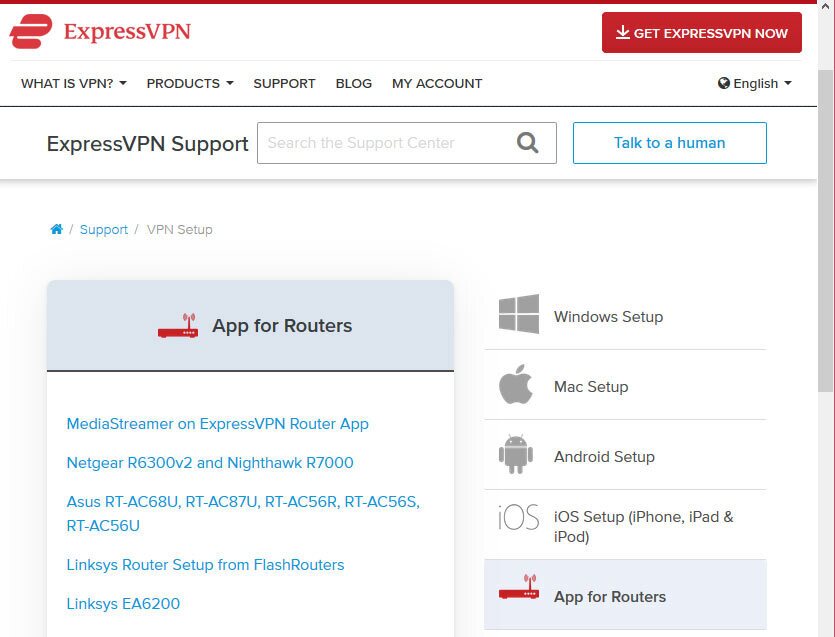
The simplest way to get ExpressVPN on your router is to buy one of the routers that have a compatible ExpressVPN app. If you select one of these compatible routers, you only need to download the corresponding firmware from ExpressVPN, then flash this firmware onto your device. We’ll give you more details about how to do that below.
The second option, if you already have a router and you don’t want to purchase a compatible Express VPN router, is to manually configure ExpressVPN in your router’s settings. This method is a bit trickier and requires some technical knowledge. It also doesn’t work on all routers, so it depends on the features that are available on your particular router. If you’re new to VPN router setup or looking for more options, check out our guide to the best VPN routers to find a model that suits your needs. We’ll give you instructions on manually setting up a router to work with ExpressVPN as well.
Easiest Setup Option: ExpressVPN Aircove Router
If you want whole-home VPN protection without the hassle of flashing firmware or configuring OpenVPN profiles, the simplest modern option is ExpressVPN’s own Aircove router. This is a Wi-Fi 6 router that comes with ExpressVPN built in — no manual firmware installation required.
Setup is straightforward: plug the Aircove into your modem, connect to its Wi-Fi network or admin page, and sign in to your ExpressVPN account or enter your activation code. From there you choose a VPN server location and you’re protected. The entire process takes a few minutes and requires no technical knowledge.
The Aircove also supports Device Groups, which let you assign different VPN locations to different groups of devices — or keep certain devices off the VPN entirely. This makes it far more flexible than a manually configured router running a single OpenVPN profile.
This option makes the most sense if you don’t already own a supported Asus, Linksys, or Netgear router, if you’d rather avoid any risk of a bad firmware flash, or if you simply want the easiest possible path to router-wide VPN coverage. If you already have a compatible router and are comfortable with the setup process, the firmware options below will also serve you well.
Option #1 – ExpressVPN Router Setup on a Compatible Router
You can easily install the ExpressVPN app for routers on the following models of router. Note that hardware revision matters — check the label on the bottom of your router for the exact version number before downloading firmware, as support does not always extend across all hardware revisions of the same model name:
- Asus RT-AC56(U/R/S)
- Asus RT-AC68U (up to v3)
- Asus RT-AC87U
- Linksys EA6200
- Linksys WRT1200AC
- Linksys WRT1900AC (hardware versions 13J1 and 13J2)
- Linksys WRT1900ACS and WRT1900ACS V2
- Linksys WRT32X
- Linksys WRT3200ACM
- Netgear R6300v2
- Netgear R6400v2
- Netgear R6700v3
- Netgear R7000 (Nighthawk)
- Netgear R7000P
Instructions For Setting Up An ExpressVPN Compatible Router
If you have any of these router models, then there is a ready-made firmware for you that you can download from the ExpressVPN website. Here’s how to do that:
- First, open your web browser and navigate to https://www.expressvpn.com/users/sign_in
- Sign in with the username and password you used when you signed up for ExpressVPN
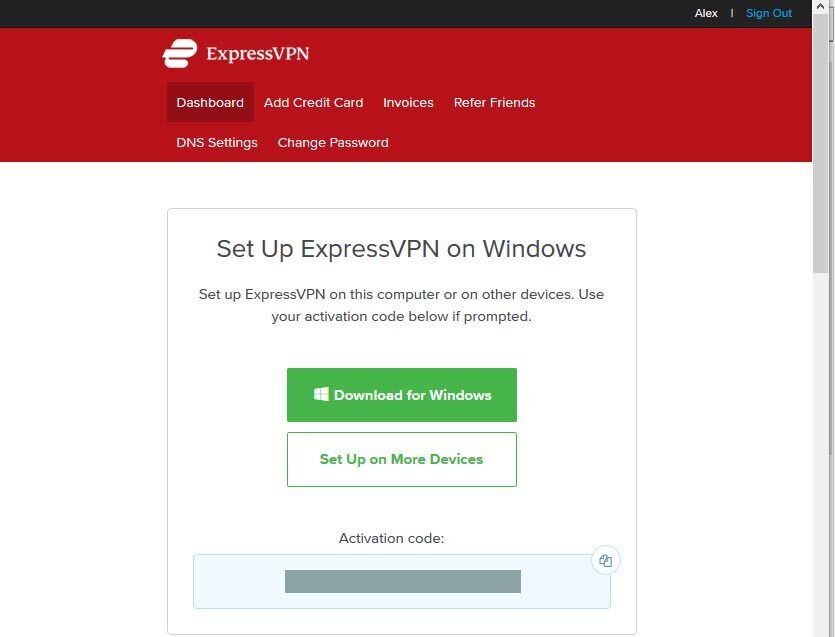
- On the My Account page, look on the Dashboard tab. If you’re on Windows, you’ll see a button saying Download for Windows. But that’s not what we need, so next to that look for a button that says Set Up on More Devices

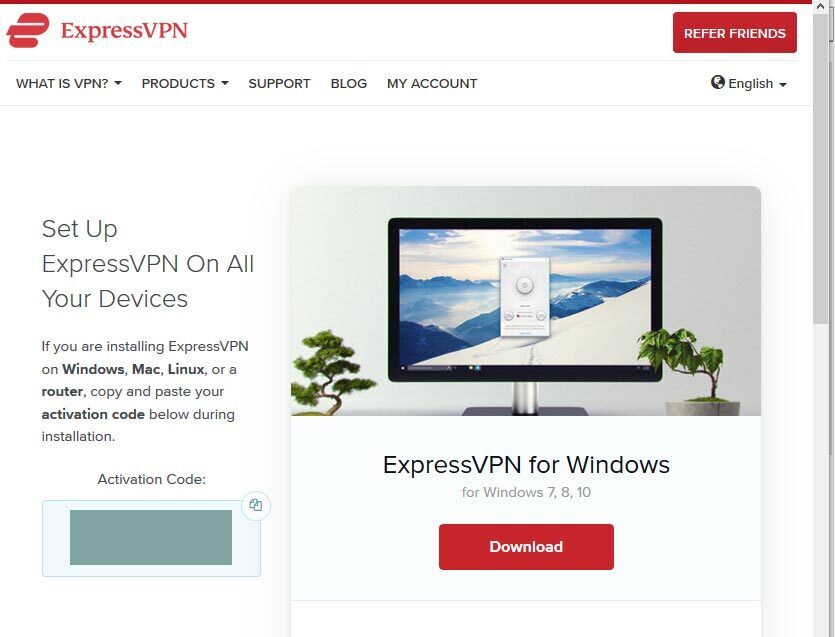
- This will open a tab to the downloads page at https://www.expressvpn.com/setup

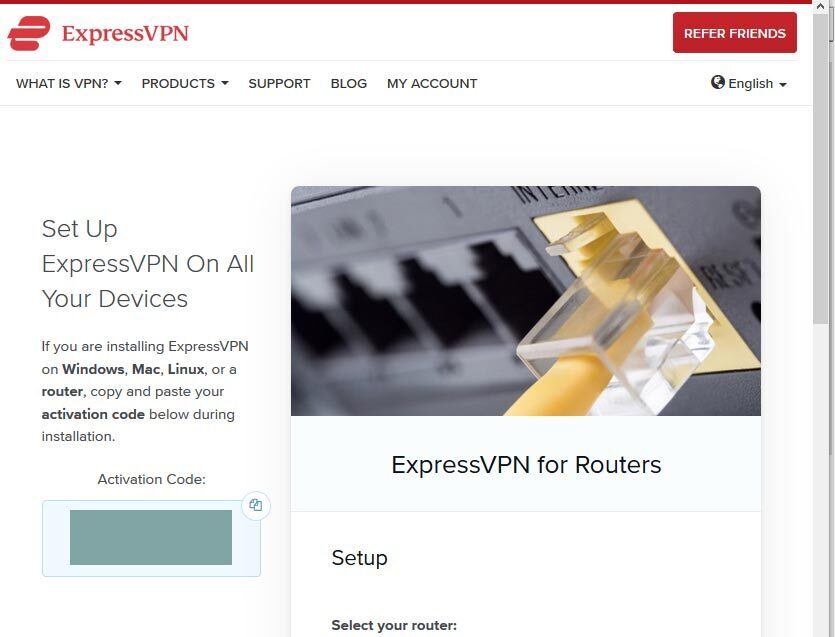
- On this page you’ll see your Activation Code in the blue box (it’s blanked out in our image for security reasons, but your code should be right there). Take a note of the code as you’ll need it later
- Scroll down the page until you find the Router option in the left hand menu. Click on this

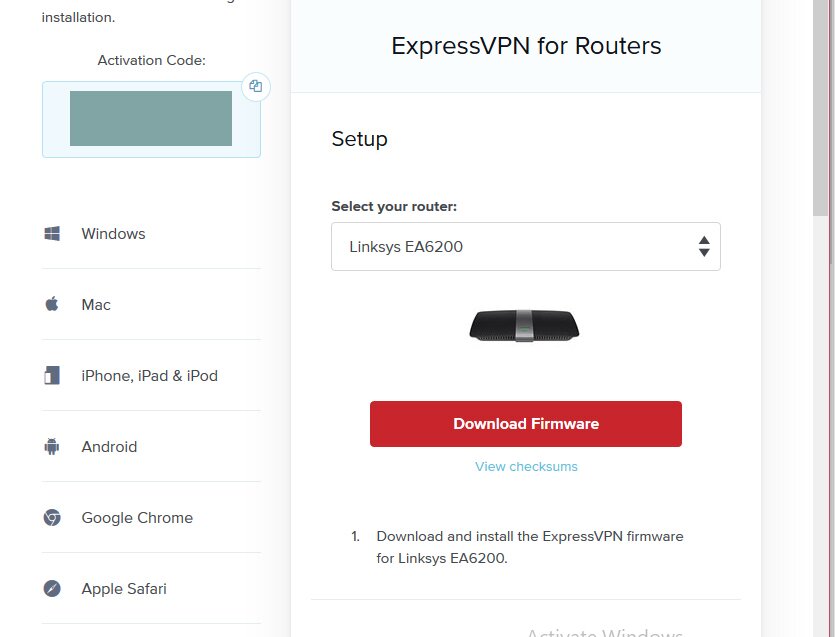
- Now you’ll see an ExpressVPN for Routers header. Under the Setup subheader you’ll see a drop down menu with options to select your router. Use this menu to choose your compatible ExpressVPN router
- For example, we’ll choose the Linksys EA6200 router. Now you’ll see a red box that says Download Firmware. Click on this button and the download will begin

Now that you have the software that you need, you can install it onto your ExpressVPN router. The exact details of how to do this will vary by the specific router, as each router company has its own software and user interface. Understanding firmware on routers is essential for this process, as you’ll be replacing the router’s existing firmware with ExpressVPN’s custom version.
If you need more specific guidance on your ExpressVPN router setup then you can look on the ExpressVPN website here.
- First you should navigate to your router admin panel. In the case of a Linksys EA6200, that panel should be located at https://www.linksyssmartwifi.com/
- Log in to your router with your username and password if required
- Find the Connectivity menu on the left side of the Linksys panel
- There should be a Router Firmware Update subheading, with a Manual option
- Click on Manual and you’ll be prompted to select a file. Find the firmware file that you downloaded earlier and click Start to begin the firmware update
- The router will restart while it updates. Once it is complete, use wifi or LAN to connect to the router, then visit https://www.expressvpnrouter.com/
- Sign in using the code that is printed on the bottom of the router
- Find the activation code that you saved earlier and paste this into the ExpressVPN router website
- Now you’ll be able to use this web interface to control the VPN on your router
A note: if you are setting up ExpressVPN router without current internet access then you will need to connect your computer to the router via cable or wifi, then set up your options such as passwords using the router admin panel before you can flash the firmware.
In other models of router, the firmware update option will be in another location in the router admin panel. Try looking for Firmware Update options under Administration or other similar headings.
Managing A VPN On Your Router
Now that your router has the ExpressVPN router firmware installed, you can start using it to protect all of your devices:
- Connect your device to the router via either cable or wifi. The wifi username and password should be written on the back or on the bottom of your router
- Go to https://www.expressvpnrouter.com/ in your web browser
- You’ll see your current status: it should say that ExpressVPN is connected and say which server you are connected to
- To connect to a new server, first click Disconnect to disconnect from the old server
- Click on Select another location and choose the location you want from the drop down menu. This connects your VPN to the new location
- You can also manage devices on your network by going to the VPN tab, then to the VPN Options item. Here you’ll see a list of devices that have recently connected to your network, and you can toggle VPN protection on or off for each device
The ExpressVPN router app also supports Device Groups, which is one of its most useful features for households with mixed needs. You can create multiple groups of devices and assign a different VPN server location to each group independently. For example, you could have one group routed through a US server for streaming, another group routed through a UK server, and a third group that bypasses the VPN entirely for devices that don’t need it. Changing the location for one group does not interrupt the connections in your other groups, which means you get per-device flexibility without disrupting everyone else on the network.
It’s worth noting that these Device Group controls are specific to the ExpressVPN router app and firmware. If you’re using the manual OpenVPN configuration method described in Option #2 below, you will not have the same per-device or per-group flexibility — you’ll be connected to a single fixed server location, and switching requires loading a different configuration profile manually in your router’s admin panel.
Option #2 – Setting Up A Router Manually
The other option, if your router does not have a specific app available for it, is to change your settings to use ExpressVPN. This is indicated by ExpressVPN to be less secure than using a custom router firmware, however, so if you want a very high standard of security then you should purchase one of the compatible routers. If you just want to be able to have basic VPN functions on your router, however, that is possible too.
Each brand of router is different, and there are differences between each model too. We’ll give you general instructions on the ExpressVPN router setup manually, but you should bear in mind that your experience will be different depending on the specific router that you use. There are guides on the ExpressVPN website for manually configuring routers from different manufacturers.
If you know what particular protocol your router uses (for example, L2TP or OpenVPN) then there are also specific guides on the ExpressVPN website for different VPN technologies.
Let’s assume that we have an Asus router with OpenVPN, that is not one of the Asus routers with a compatible app available. In this case we’ll perform the setup using the stock Asus firmware. Here’s how to do that:
Instructions For Setting Up A Router Manually
- First, open your web browser and navigate to https://www.expressvpn.com/users/sign_in
- Sign in with the username and password you used when you signed up for ExpressVPN
- On the My Account page, look on the Dashboard tab. If you’re on Windows, you’ll see a button saying Download for Windows. But that’s not what we need, so next to that look for a button that says Set Up on More Devices
- This will open a tab to the downloads page at https://www.expressvpn.com/setup
- On this page you’ll see your Activation Code in the blue box (it’s blanked out in our image for security reasons, but your code should be right there). Take a note of the code as you’ll need it later
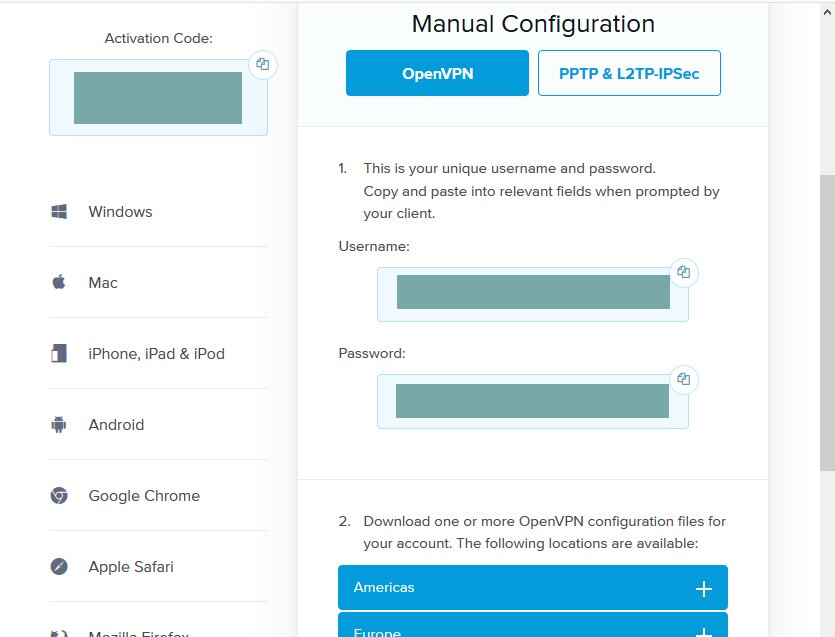
- Scroll down the page until you find the Manual Config option in the left hand menu. Click on this

- Click on OpenVPN in the main section
- You’ll see a username and password (obscured here for security purposes). Take a note of this information
- Below that you’ll see options for configuration files organised by region. Select the server that you want your router to connect to. For example, we want to connect to the server in London, so we click on Europe then on UK – London
- This will start a download of a .ovpn file. Save this file somewhere convenient, like your desktop
- Now we’ll configure your router to work with the .ovpn file
- Do this by opening your web browser and going to your router control panel. Typically, this will have an address like 192.168.1.1
- Log in with your router username and password
- Find your OpenVPN settings. In Asus routers, you go to the VPN section in the left hand menu
- Find the VPN Client section. There should be an Add profile button there. This allows you to use the .ovpn file to configure your router
- Now you’ll need to enter the details of the profile. You need to give the profile a name, and a username and password if you want. Then you can upload the .ovpn file that we got from the ExpressVPN site earlier
- Click OK to save these settings, then you should see your new profile in your settings. Click Activate to start the VPN
- Now check your IP address, and you should see that you are connected to the London UK server
The downside of this method is that you can only connect to one server using it – the server that you chose in step 9. If you want to have the option to switch to another server, such as one in the US, then you should go back to the ExpressVPN site and download more .ovpn files. You can add a number of these files to your router as profiles, then you can switch between them using your router control panel when you want to use another one.
Special ExpressVPN Router Deals
If this guide has inspired you to try out a VPN on your router, but you haven’t chosen a VPN provider yet, then we have a special deal available on ExpressVPN that you won’t want to miss out on.



- Unblocking Netflix, iPlayer, Hulu, Amazon Prime
- Reliable and fast connections
- Supports ALL devices
- No logs for personal data
- 24/7 Chat Support
- Expensive month-to-month plan
ExpressVPN is one of the best names in the game for VPN providers. They offer everything that a VPN user could want: top notch security, super fast connections, and software that can be installed on a range of devices including the routers that we described above in our ExpressVPN router setup guide.
The security features include the use of strong 256-bit encryption and a strict no logging policy, so you can be sure that no records of your internet use will be kept and your anonymity will be protected. If you’re comparing security-focused remote access tools, our GlobalProtect security review is also worth a look. In addition, in the software you’ll find more security features like a kill switch option to cut off your internet connection if the VPN goes down so that you don’t accidentally send data over an unencrypted connection, plus DNS leak protection to ensure your ISP can’t spy on your browsing activities, and an IP address checker so you can see for yourself that your VPN is connected and working.
This security won’t slow you down, though. The connections available from ExpressVPN are super fast so they’re perfect for downloading large files or streaming high definition videos. The network of servers is very large, with servers available across 105 countries, so you can get around geo-restrictions and browse the internet freely. Finally, you can protect all of your devices as the software can be installed on Windows, Mac OS, Linux, and Android, plus some smart TV platforms — and for devices that don’t support native VPN apps, like game consoles, router-level setup is the way to go. There are also browser extensions for Google Chrome, Mozilla Firefox, and Apple Safari browsers.
Read our full ExpressVPN review.
Conclusion: Is ExpressVPN Router Setup Right for You?
If you want to protect every device that connects to your network, even your games console or smart TV and your friends’ devices too, then you should consider completing an ExpressVPN router setup. This process takes a bit of time, but once you’ve done it then you can know that every single device you add to your network in the future will be protected with no extra effort on your part.
Encrypting every single piece of data from your network before it goes to the internet will help improve your security by ensuring that your devices don’t accidentally send data over an unsecure connection before your VPN software has loaded.
ExpressVPN has support for a massive range of devices, and it offers custom firmware for compatible routers that makes managing your VPN dead easy. If you have a compatible ExpressVPN router, you can follow the instructions in Option 1 of this article to complete the ExpressVPN router setup. If you don’t have a compatible ExpressVPN router, you can still usually make this work, as long as the router supports OpenVPN or similar. To do this, follow the instructions in Option 2.
Have you tried installing ExpressVPN or another VPN onto your router? Did you find it gave you better security than installing VPN software onto each of your devices individually? Let us know about your ExpressVPN router setup experience in the comments below.
If you need a VPN for a short while when traveling for example, you can get our top ranked VPN free of charge. NordVPN includes a 30-day money-back guarantee. You will need to pay for the subscription, that’s a fact, but it allows full access for 30 days and then you cancel for a full refund. Their no-questions-asked cancellation policy lives up to its name.

