How to Fix the ERR_EMPTY_RESPONSE Chrome Error (Full Guide)
“`html
Browsing issues prevent you from navigating the web, accessing your favorite websites, playing with your friends, and uploading important documents for work. All web browsers experience problems sooner or later, showing various error codes on the screen to let you know the nature of the problem. Even Google Chrome fails to work sometimes.
What does ERR_EMPTY_RESPONSE mean?
ERR_EMPTY_RESPONSE is a web browser error that can appear in Chrome and Chromium-based web browsers, such as Microsoft Edge or Opera. It means that, after sending data packets to a remote server, your computer is not receiving anything back (no response).
This error can occur on any platform, including Windows 10, Mac, Android, and iOS. It can be caused by various issues, but the most common one is that the website you’re trying to reach doesn’t exist or is down for maintenance. You have to wait it out and try again later or check if there’s a typo in the domain address.
Here are other possible causes for ERR_EMPTY_RESPONSE:
- The website you’re trying to reach doesn’t exist, has a typo, its domain expired, or is currently down for maintenance
- Incorrect device or Internet connection settings
- Outdated web browser, operating system, or drivers
- Incompatible drivers, applications, or system updates
- DNS servers are malfunctioning
- Browser or system cache is full
- Your computer is infected with malware
- You have tried to reach the website too many times and your IP address is blocked
How to fix ERR_EMPTY_RESPONSE on any device
Check out the following solutions to fix Chrome browsing errors. Before getting started, we recommend creating a system restore point.
1. Access other websites
If you can’t access a specific website, it could mean that it doesn’t exist, has a typo, or is currently down for maintenance. It might be necessary to clear your browsing cache or change your IP address in case the remote server is rejecting your connection due to too many requests. In some cases, you may need to reach blocked websites if the site has restricted access from your location. If the problem only affects YouTube, this YouTube server error fix can help you troubleshoot site-specific server issues.
However, if you get the ERR_EMPTY_RESPONSE error even when attempting to access other websites, this indicates a bigger problem with your web browser, device settings, or Internet connection.
2. Try another browser
It could be your application’s fault, whether you’re running Chrome or another Chromium-based browser. To quickly test this theory, try to access the same website using a different application, such as Internet Explorer or Mozilla Firefox.
If you happen to have another Chromium-powered browser on your computer or mobile, such as Microsoft Edge, Opera or Brave, try using it, too. There might be a problem with Chromium if you get the same browsing error across all these applications.
3. Use Chrome on another device
The ERR_EMPTY_RESPONSE error might not be tied to the remote server or Chrome but to your device. Try to access websites using Chrome on another desktop, laptop, tablet, or smartphone and see what happens. If the pages load without issues, your device configuration could be incorrect, which is good news since this can be easily fixed.
4. Run the ping command
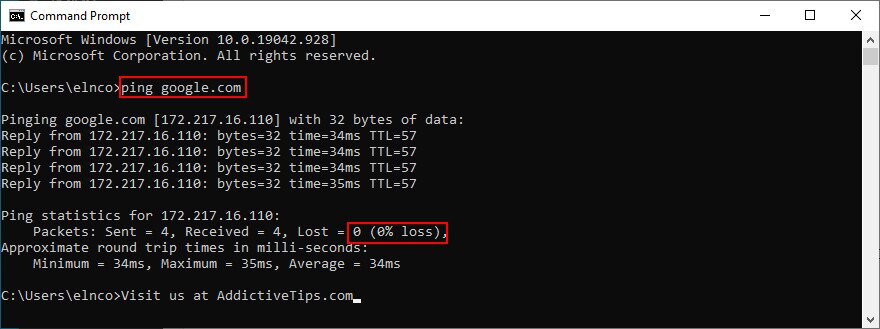
The ping command helps you take a closer look at how your device attempts to establish a connection with the website you keep trying to access. For instance, it can measure packet loss so that you can figure out whether the remote connection doesn’t get established at all or is too slow.
You can run ping from Command Prompt or PowerShell on Windows, as well as from the Terminal app on Mac. However, if you prefer a graphical interface, then we suggest examining some third-party ping applications. On Android and iOS, there’s no other way except installing ping apps from Play Store and App Store, respectively.
How to use ping on Windows 10:
- Click the Start button, search for Command Prompt, and open this app
- To ping the Google homepage, run
ping google.comand wait for statistics
- Observe the % loss shown at Ping statistics
How to use ping on macOS:
- Open the Apple menu and select Applications
- Go to Utilities and click Terminal
- Run
ping google.comand wait until the test is over - At Server ping statistics, check out the packet loss
Now, let’s analyze the results:
- 0% packet loss is great. It means that your machine can successfully reach the remote server, so you shouldn’t be getting any errors when trying to access that website. Your web browser could have incorrect settings or might not be working properly
- 100% packet loss is the worst case scenario. It tells you that not a single bit of data can be transferred between your computer and the remote server. There’s something wrong with your device, Internet connection, or the website
- Anything between 0% and 100% packet loss means that the connection gets established but isn’t stable because your device and the remote machine can’t exchange all information. The website exists, but there’s something wrong with your computer settings or Internet connection
5. Restart Chrome
It’s sometimes as easy as restarting the Chrome application to fix browsing errors like ERR_EMPTY_RESPONSE. To do it correctly, though, make sure to terminate its processes before relaunching Chrome.
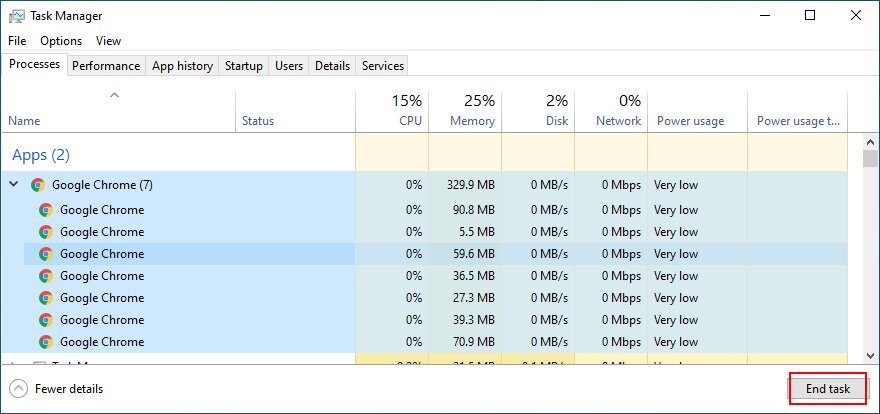
How to properly restart Chrome on Windows:
- Press Ctrl + Alt + Del and select Task Manager
- In the Processes tab, select the Chrome process tree
- Click End task

- Exit Task Manager to launch Chrome
- Check if you can access websites now
How to properly restart Chrome on macOS:
- Switch to the Google Chrome window
- Open the Apple menu and click Force Quit
- Start Chrome and check for browsing errors
How to properly restart Chrome on Android:
- Go to Settings > Apps
- Select Chrome and tap Force stop
- Start the Chrome app and check results
How to properly restart Chrome on iOS:
- Swipe up from the bottom of the screen and hold in the middle
- Swipe left or right to select Chrome
- Swipe up to the app’s preview to close Chrome
- Start Chrome
- Try to access websites now
6. Restart your device
If restarting Chrome didn’t do the trick, you should restart the device. A better idea is to hard-reboot it, in order to properly shut down all processes and services as well as to clear the temporary cache.
How to hard-reboot your device:
- Shut down your Windows PC or Mac the traditional way
- Unplug the power cord. On laptops and notebooks, make sure to also remove the battery
- Now, hold down the power button for 20-30 seconds
- Put the battery back in the laptop or tablet
- Reconnect your device to the power source and switch in on
- After your operating system boots, check if you still have browsing errors
7. Reboot your router
In addition to rebooting your computer, you should restart your router to give a jolt to your Internet connection. It’s particularly useful for networks with dynamic IP addresses since restarting the router will change your IP address to something else.
So, if you can’t access a particular website because it rejects all requests from your origin, then modifying your IP should do the trick.
Here’s how to properly reboot your router:
- Pick up and flip over your router to look for a small power button
- Press and hold it for 10-12 seconds. If you can’t find it, just unplug the router from the power source and wait for that amount of time
- Wait until your Internet connection is restored throughout your household
- Try to visit the website now
8. Connect to another network
There might be a problem with the network connectivity. Try connecting to a different network to see if you can access websites without any more issues. If you’re in a public place, search for another open Wi-Fi network. It’s also a good idea to switch from wireless or Ethernet mode to 3G/4G mobile data plan (or the other way around) if possible.
9. Check for system updates
Browsing errors like ERR_EMPTY_RESPONSE could occur due to obsolete or missing system features. To fix this problem, you should download and install the latest system updates. Under normal circumstances, your OS automatically checks for updates and prompts you to set them up. However, if that doesn’t happen on your device, here’s what you need to do.
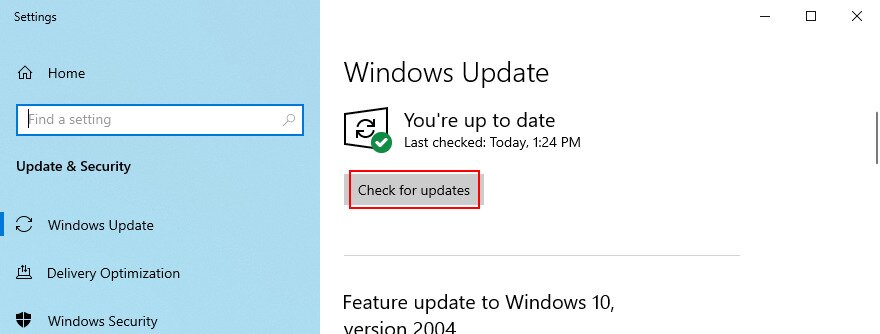
How to update Windows 10:
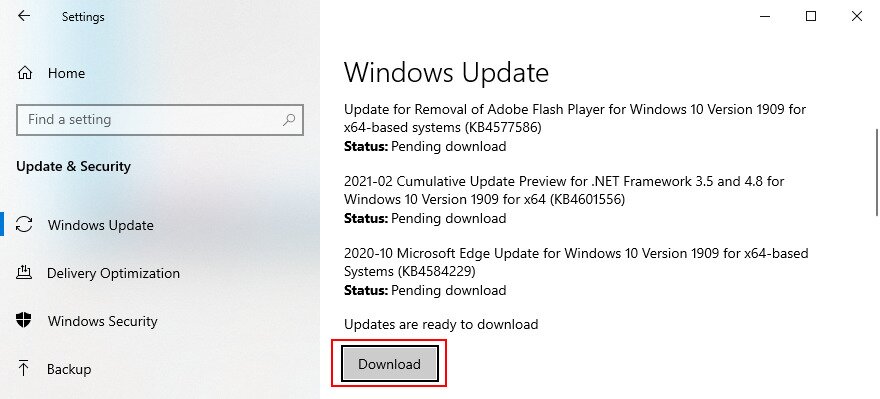
- Click the Start button, type Check for updates, and press Enter
- If Windows doesn’t start the auto-search, click Check for updates

- Wait a bit. If it finds anything available and doesn’t begin the download and install, click Download

- Restart your PC after the update and check for browsing issues
How to update macOS:
- Open the Apple menu
- Select Software Update
- Your Mac will begin checking for updates and downloading them right away
- If prompted, specify the username and password associated with your administrator account to confirm the installing
- Restart the device after it finishes, and try to visit websites now
How to update Android:
- Ensure that your Android’s battery is at least 50% charged
- Go to Settings > System > Advanced
- Tap System Update
- Android will reboot itself to finalize the update
- Open the Chrome app and try to visit websites now
How to update iPhone or iPad:
- Check the battery of your iOS device or plug it into a power source
- Visit Settings > General > Software Update
- Tap Download and Install
- If there isn’t enough free space available, you might be asked to temporarily remove apps. Agree by tapping Continue since iOS will reinstall your apps later
- Tap Install and use your fingerprint or passcode to confirm your identity
- Restart your iPhone or iPad to complete the update
- Launch the Chrome app and inspect results
10. Update Chrome
An outdated web browser might not be able to connect to certain websites if it doesn’t pass security checkups, resulting in error code ERR_EMPTY_RESPONSE. By default, Chrome searches for updates and installs them every time you launch the application.
If that doesn’t happen on your computer, you might be stuck with an old version. However, you should be able to swiftly resolve this matter by updating Chrome.
How to update Chrome on Windows and macOS:
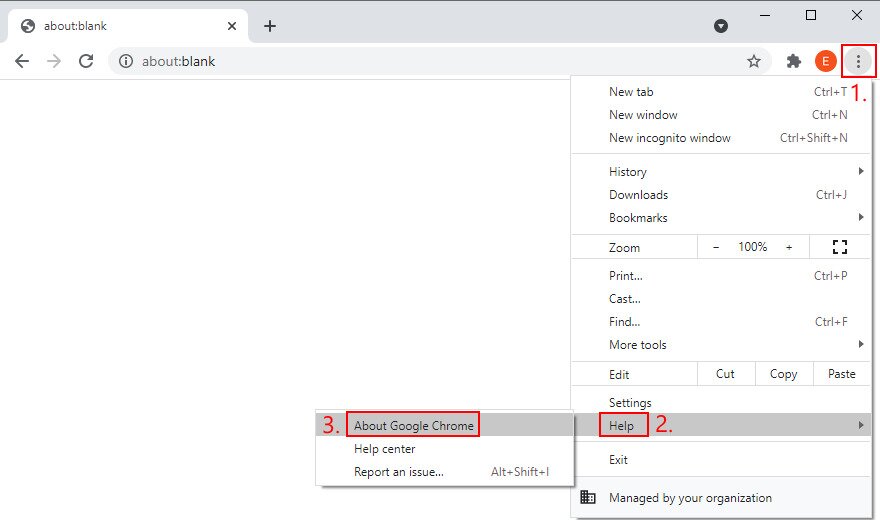
- In Chrome, open the More menu
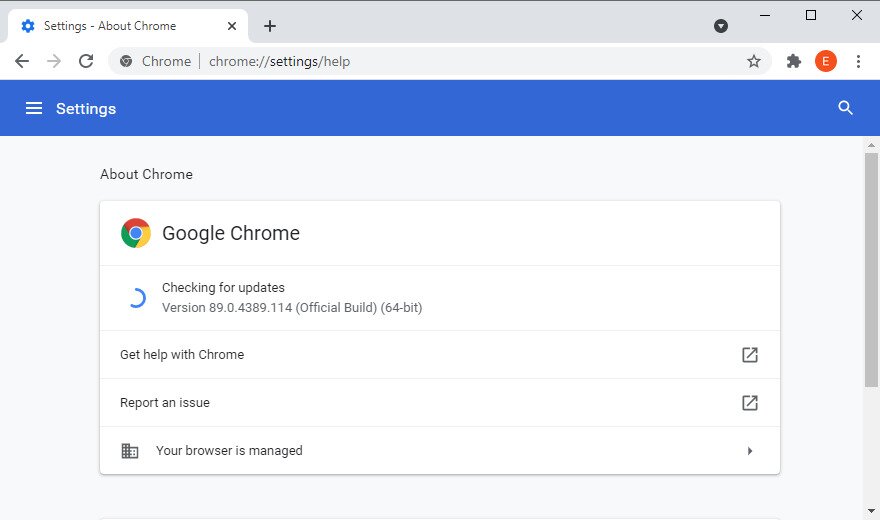
- Go to Help > About Google Chrome (or, enter
chrome://settings/helpin the address bar)
- The tool should find and apply any updates, unless Chrome updates are disabled

- Restart Chrome after the update
- Check if you still have browsing errors
How to update Chrome on Android:
- Open Play Store
- Tap your Google account > My apps & Games
- In the Updates section, find Chrome and tap Update
- If the app’s not on that list, it means that no new updates are available
- Launch the Chrome app and inspect results
How to update Chrome on iOS:
- Open App Store
- Locate Chrome and tap Update
- If Open is displayed instead of Update, there are no new updates
- Fire up the Chrome app and try to visit websites
11. Clear browsing data
You might be experiencing page navigation issues due to the web browser cache, which can be easily emptied. For example, if you keep trying to access a specific webpage but can’t get around the dreadful error, you can hard-refresh the web browser by pressing Ctrl + Shift + R, Ctrl + F5, or Shift + F5 on Windows, or Shift + Command + R on Mac.
When it comes to all website pages, you must manually empty the cache of your web browser. If you encounter a cache loading error, this could be another sign that clearing your browser data is necessary.
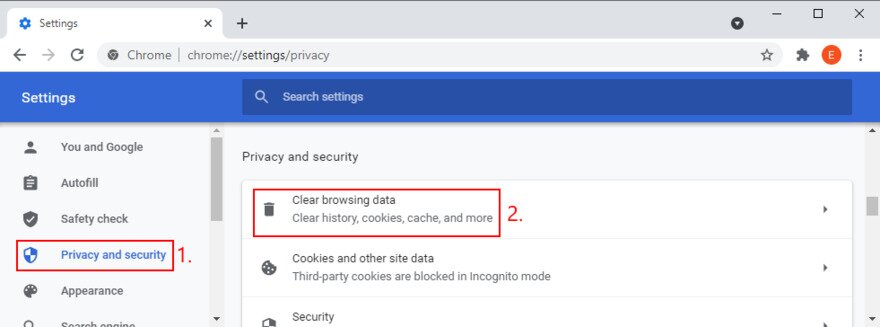
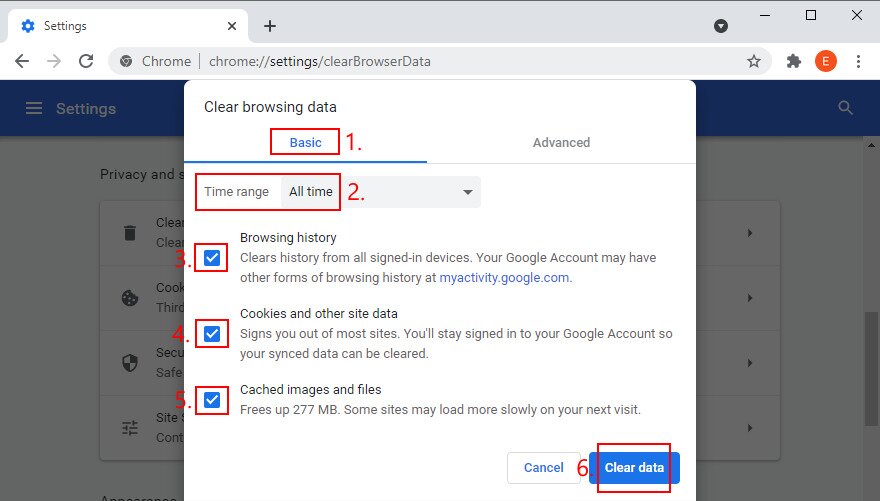
How to clear Chrome cache on Windows and macOS:
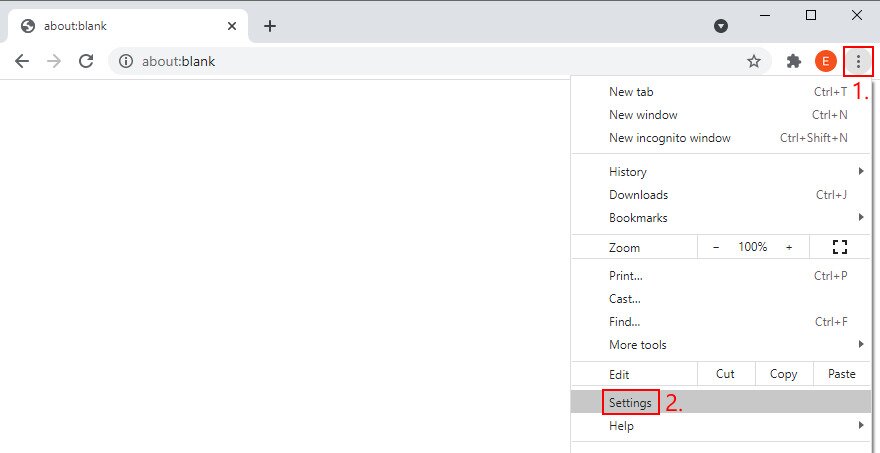
- In Chrome, open the More menu and select Settings

- Jump to the Privacy and security section
- Click Clear browsing data (or enter the
chrome://settings/clearBrowserDataaddress)
- In the Basic area, set Time range to All time
- Enable these settings:
- Browsing history
- Cookies and other site data
- Cached images and files
- Click Clear data

- Restart Chrome
How to clear Chrome cache on Android and iOS:
- In Chrome, open the More menu and select History
- Click Clear browsing data
- In the Basic section, enable these options:
- Browsing history
- Cookies and site data
- Cached images and files
- Click Clear data
- Restart Chrome
12. Disable browser extensions
Proxy, DNS and VPN extensions for Chrome take over your Internet connection settings within the web browser. If the IP configuration is incorrect, this could end up harming your browsing session and preventing you from accessing websites, resulting in error code ERR_EMPTY_RESPONSE.
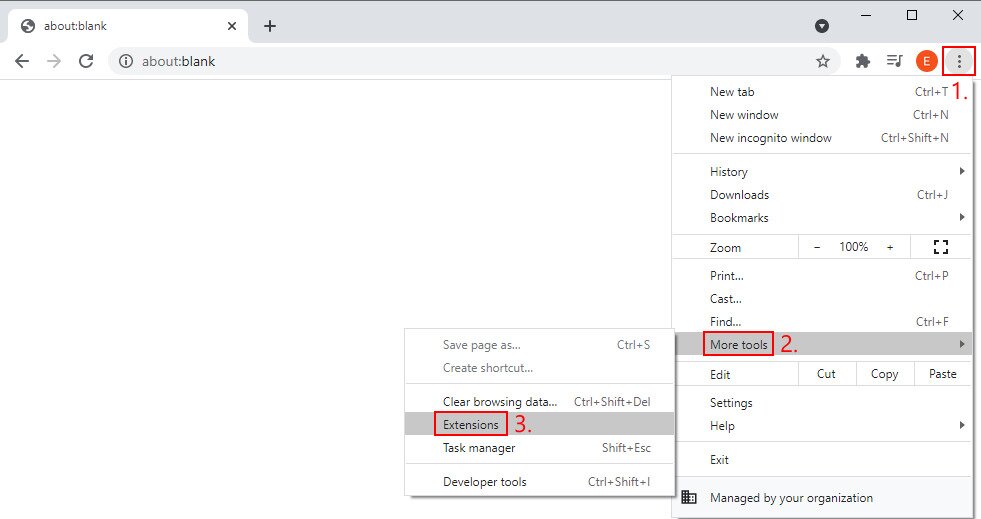
It can be difficult to identify the damaging extensions, so it’s a good idea to disable all of them in Google Chrome. Here’s how:
- Click the More button to open a menu
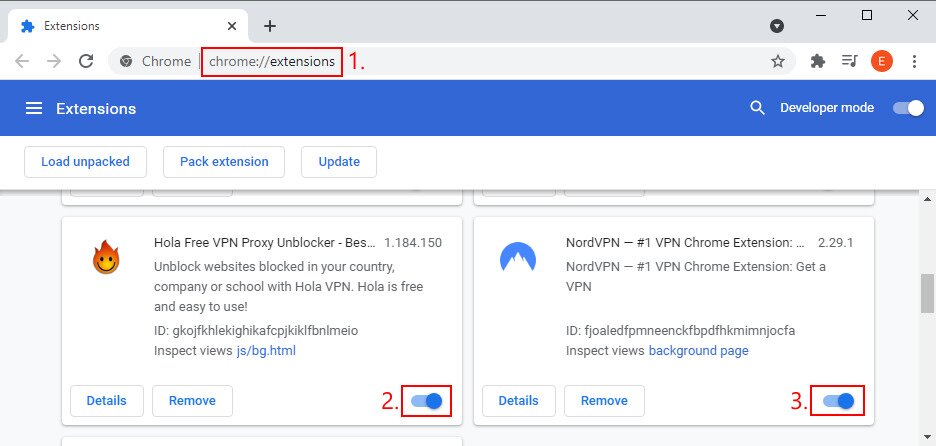
- Go to More tools and select Extensions (or enter
chrome://extensionsin the address bar)
- Click the slider button to deactivate an extension. Do this for all of them

- Try to access websites now
13. Use incognito browsing mode
An alternative solution to clearing browsing cache and disabling browser extensions is by navigating Google Chrome in incognito mode. It’s a privacy-based browsing session that prevents Chrome from saving your browsing history, information entered in forms, together with cookies and other site data.
Furthermore, incognito doesn’t allow extensions by default. So, if you don’t want to go through the trouble of deactivating your favorite extensions, the workaround is entering incognito mode.
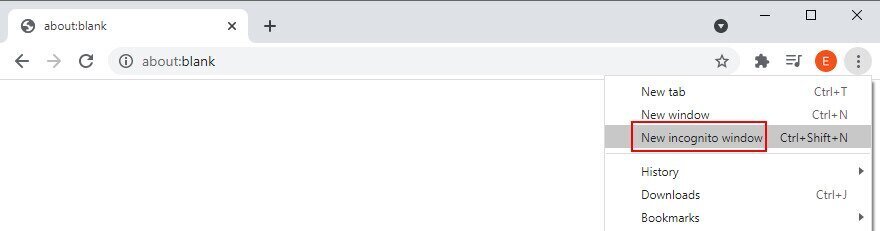
How to use Chrome incognito on Windows and macOS:
- Launch a normal browsing session in Chrome
- Open the More menu from the top-right corner
- Select New incognito window

- Alternatively, press Ctrl + Shift + N on Windows or Command + Shift + N on macOS
How to use Chrome incognito on Android and iOS:
- Open the Chrome app
- Click the More menu from the upper-right corner
- Choose New incognito tab
14. Restore Chrome to default
If you can’t access any websites due to Chrome settings, the easiest way to fix this is by resetting the entire browser configuration to default.
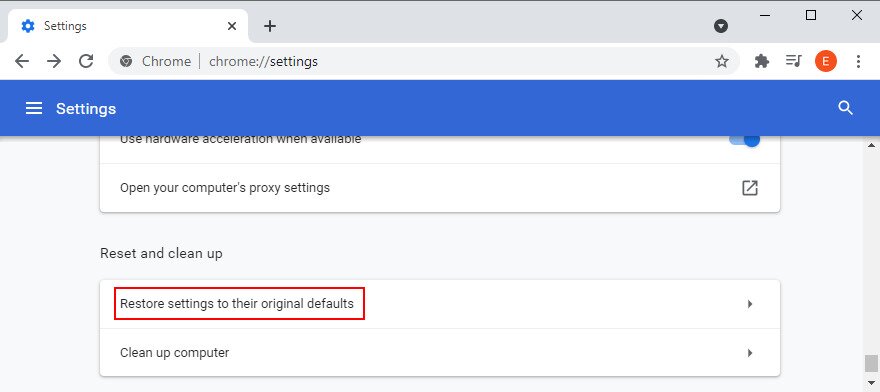
How to reset Chrome on Windows and macOS:
- Open the More menu and go to Settings
- Select Advanced
- Click Restore settings to their original defaults (or enter the
chrome://settings/resetaddress)
- To confirm, click Reset settings
- Relaunch Chrome and inspect results
How to reset Chrome on Android:
- Go to Settings > Apps
- Find and select Chrome
- Tap Storage > Manage storage
- Tap Clear all data and OK to confirm
- Restart the Chrome app and try to access websites
How to reset Chrome on iOS:
- In Chrome, visit Settings > Privacy
- Tap Clear Browsing Data
- Select all options
- Tap Clear Browsing Data
- Restart and check Chrome
15. Reinstall Chrome
It might be necessary to reinstall the Google Chrome application on your computer or mobile, in order to get rid of error messages like ERR_EMPTY_RESPONSE. Here’s how to make it happen.
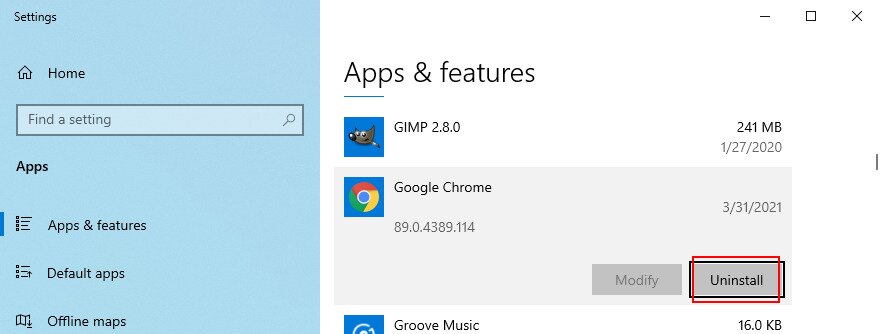
How to reinstall Chrome on Windows 10:
- Press Ctrl + Alt + Del and open Task Manager
- Stay in the Processes tab
- Find and select Chrome, then click End task
- Exit Task Manager
- Click the Start button, type Apps and Features, then press Enter
- Locate and select Google Chrome
- Click Uninstall and again to confirm

- After the wizard completes, download Chrome from the official website
- Set up the browser, open it, and try to access webpages now
How to reinstall Chrome on macOS:
- Make the Google Chrome window active
- Open the Apple menu and select Force
