How to Fix the Faulty Hardware Corrupted Page Stop Code on Windows 10
“`html
Blue screen errors take over your computer and stop you from using it. Each type of error has its own specifications, but most of them can be resolved by following a set of well-defined instructions.
Whatever problem you might be experiencing, keep in mind that all BSOD errors can be repaired. Take Faulty Hardware Corrupted Page, for instance. It’s triggered by hardware corruption in order to prevent major data loss on your computer, so you may need to repair corrupted Office documents if any files were affected.

Faulty Hardware Corrupted Page Error
To repair the Faulty Hardware Corrupted Page error means to identify and resolve the underlying issue. Here are some possible causes:
- Your hard disk has bad sectors
- The operating system has missing or corrupt files
- Windows or device drivers are outdated
- Your firewall settings are incorrect
- Certain software applications you have installed might conflict with each other
- Some external devices might not be compatible with your PC
- Your GPU, CPU or RAM is overclocked
There are multiple approaches to fixing the Faulty Hardware Corrupted Page stop code. Before getting started, though, it’s a sound idea to create a Windows restore point. In case you make any mistakes and need to start again from scratch, you can simply roll back your operating system to a saved checkpoint.
One more essential aspect we should make clear from the start is that, if you can’t use your computer at all because it enters a restart loop due to Faulty Hardware Corrupted Page, interrupt the Windows boot sequence three times to trigger Advanced Startup mode. It will grant you access to critical tools required in the following solutions. For similar issues with other BSOD errors, you may find this stop code repair guide helpful, along with these bugcheck troubleshooting tips. If your display stays blank instead of showing a stop code, this black screen error guide may also help.
How to Fix the faulty_hardware_corrupted_page Error
1. Repair HDD errors
We’re going to start with the most obvious solution: repairing any bad sectors that your hard disk could be experiencing. No special tools are required for this job since you can turn to CHKDSK (Check Disk), an internal utility that can be operated from Command Prompt.
How to run CHKDSK:
- Click the Start button, search for Command Prompt, and click Run as administrator
- If prompted by UAC (User Account Control), click Yes
- Type
chkdsk c: /fif your operating system is installed on the C: drive. Else, replacec:with the correct partition letter. Press Enter
- You will be asked to schedule CHKDSK during the next system boot. Type y and hit Enter
- Restart your computer
- During reboot, CHKDSK will do its job. Once it finishes, start Windows as normal and check for BSOD errors
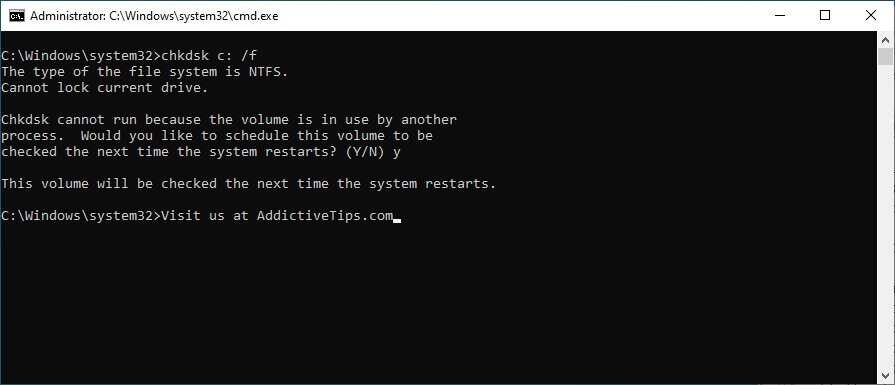
You can also access Command Prompt from Advanced Startup mode if you can’t boot to Windows due to hard disk corruption.
2. Fix damaged OS files
Your operating system could have corrupt files that prevent its processes from running properly. As a result, you could be experiencing BSOD error Faulty Hardware Corrupted Page. But you can fix it by running SFC (System File Checker), another command-line utility that comes bundled with Windows 10.
How to run SFC:
- Press Win key + R, type cmd, and press Ctrl + Shift + Enter to open Command Prompt with elevation rights
- Type
sfc /scannowand press Enter
- Patiently wait while SFC does its job. Once it finishes, restart your computer
- Check for BSOD errors now
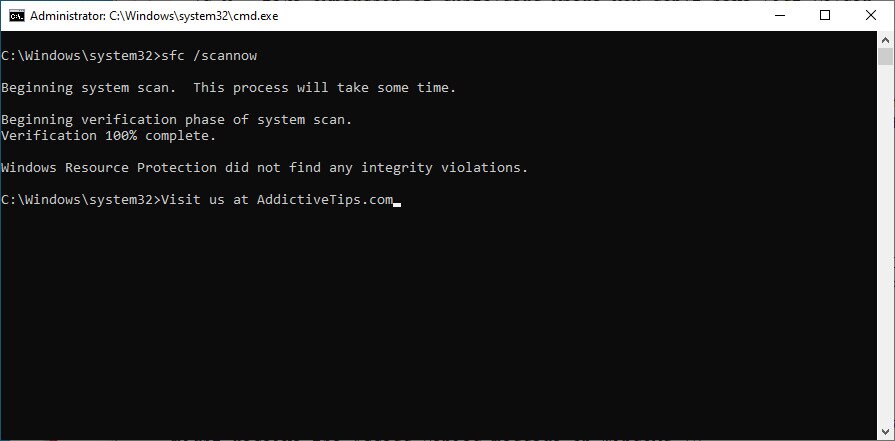
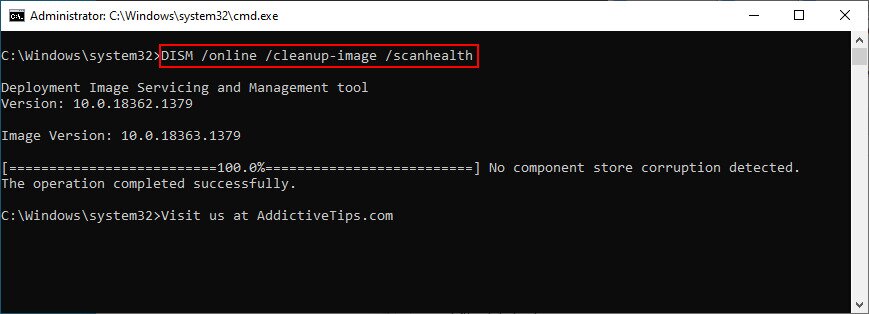
If SFC is not enough to get rid of your blue screen issues, you should turn to DISM (Deployment Image Servicing and Management). It’s a more powerful tool capable of repairing any issues found in the component store of the Windows image. Just like SFC and CHDKSK, DISM can be found within Windows and handled from the console environment.
How to use DISM:
- Run Command Prompt with administrator rights
- Write
DISM /online /cleanup-image /scanhealthand hit Enter
- If it shows any errors, run
DISM /online /cleanup-image /restorehealthto fix them - Wait while DISM does its magic. When it finishes, restart your computer
- Launch Command Prompt as admin again
- Run SFC (
sfc /scannow) - After SFC finishes, restart your PC again
- Check for blue screen errors now
3. Update Windows 10
Your operating system should be kept updated so that your computer can take advantage of the latest hotfixes and security patches. If Windows 10 doesn’t automatically fetch updates on your PC, here’s what you should do:
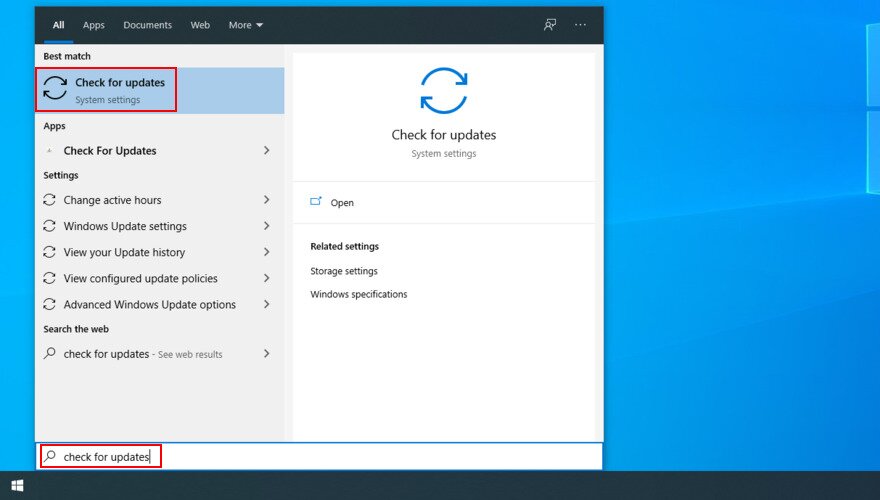
- Press the Windows key, type check for updates, and press Enter

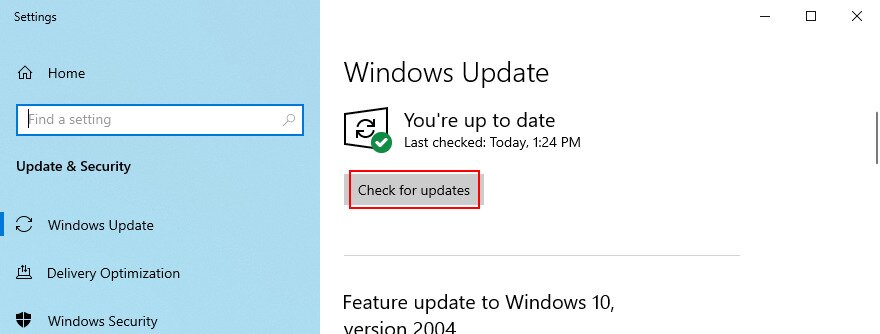
- Click Check for updates

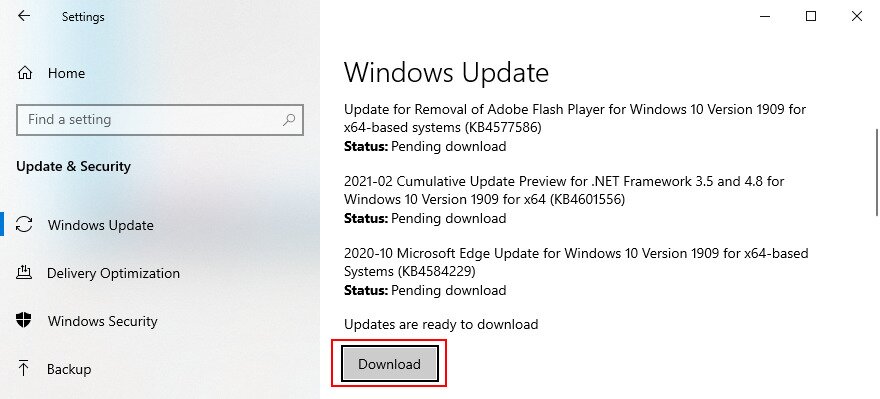
- If there’s anything available, click Download

- Your computer might restart several times, especially if you haven’t made updates for a long time
- Once it boots, check for BSOD errors
4. Uninstall Windows updates
On the other hand, you should also take into account that certain system updates can damage your computer and cause BSOD errors. When that happens, you should get rid of the faulty update to restore the stability of your computer.
How to uninstall recent system updates:
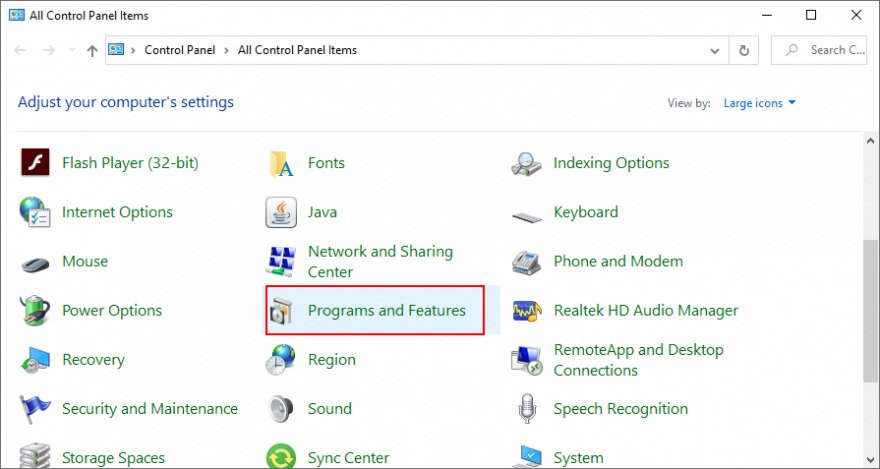
- Click the Start button, search for Control Panel, and press Enter
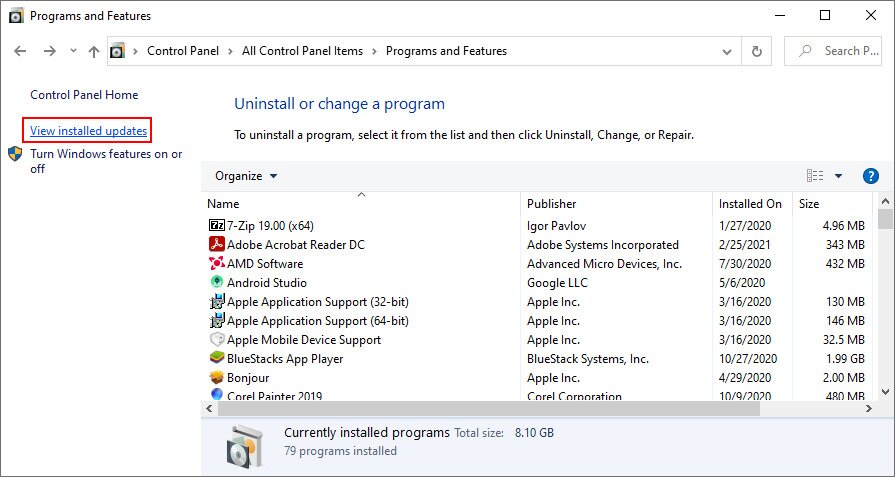
- Select Programs and Features

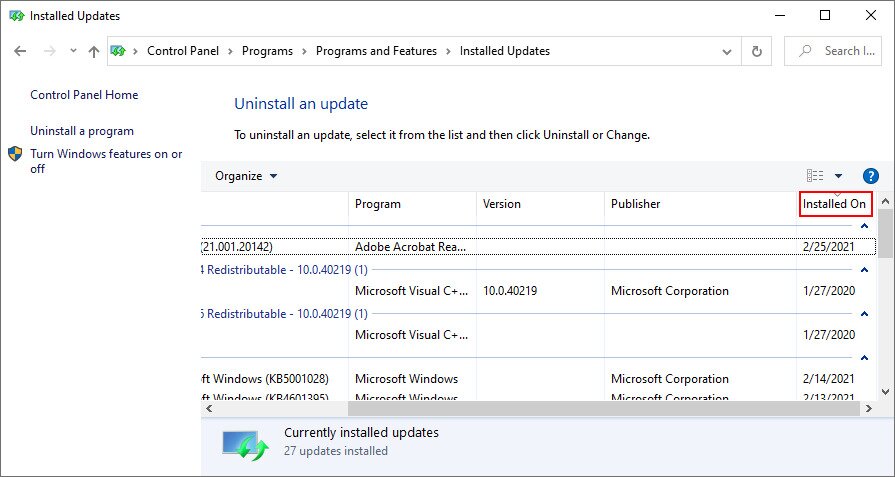
- Click View installed updates on the left side

- Click the Installed On column to sort all system updates (newest first)

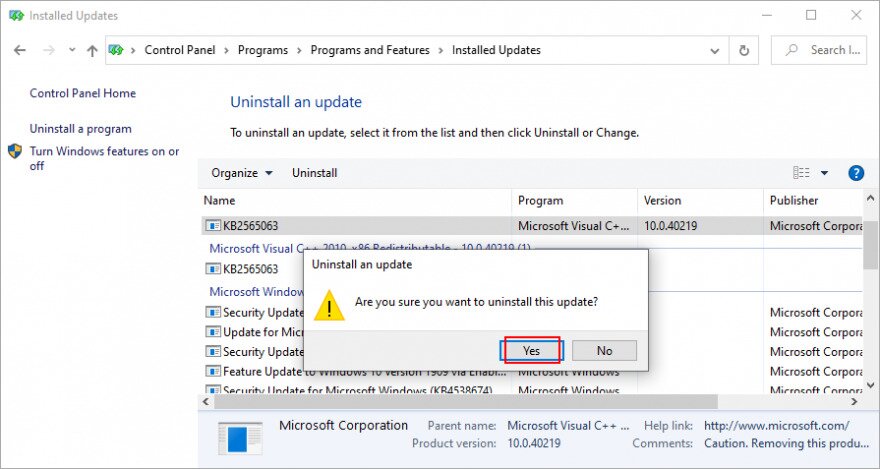
- Double-click the first update in the list to uninstall it
- Click Yes to confirm and proceed with on-screen instructions

- Restart your computer and check for blue screen issues
5. Update your drivers
If your drivers are outdated, it could be the reason why your screen turns blue and shows the Faulty Hardware Corrupted Page error message. To fix this issue, you should update your drivers. If you’re experiencing driver-related BSOD errors, you may also want to check out our guide on driver power state repair for additional troubleshooting steps.
How to update drivers on Windows 10:
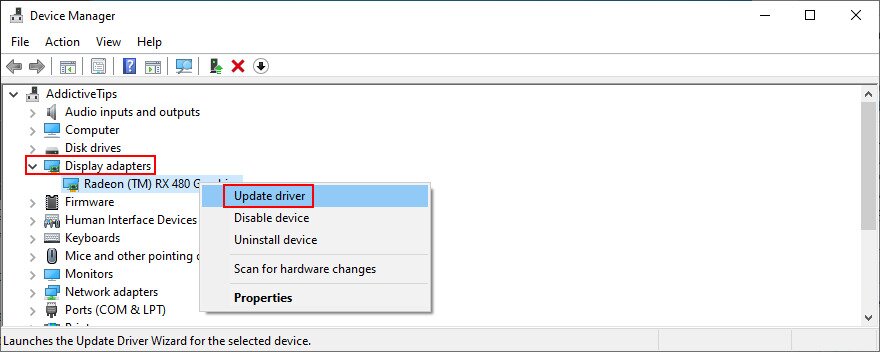
- Right-click the Start button and select Device Manager
- Explore the list of all devices in Device Manager
- Right-click a device and select Update driver

- When you get two options, go with Search automatically for drivers
- Wait for a bit. If the online search doesn’t show anything, click Search for updated drivers on Windows Update. But if you already updated Windows 10 to the newest version, you can skip this step

- Check if you still get BSOD errors on your computer
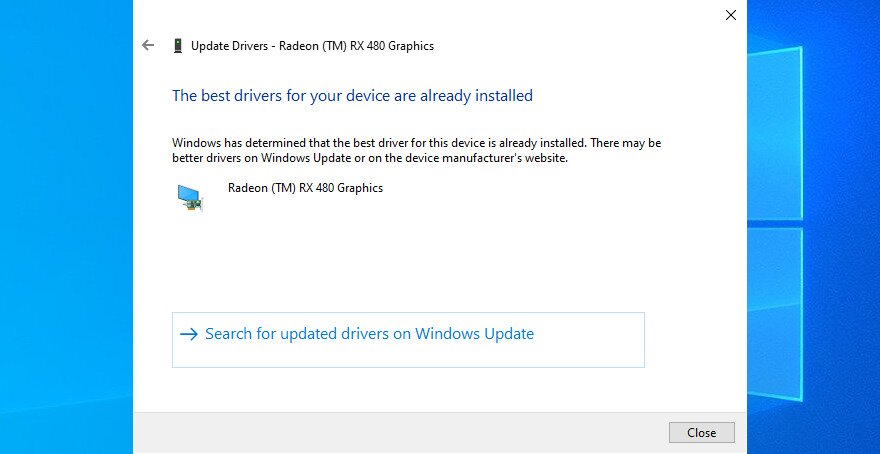
If you don’t know which drivers are obsolete, we suggest resorting to a driver update software application since it will save you a lot of time. It automatically detects all outdated drivers and brings them to the newest version. Plus, you can use it for all types of drivers.
6. Roll back your drivers
Incompatible drivers can cause more damage than outdated ones. In case you accidentally installed a version that’s not compatible with your operating system and hardware, you should immediately roll back the driver to a previous, stable version. For more driver crash fix tips, keep in mind that it’s not necessary to use a third-party software application since Device Manager is enough for the job.
How to roll back drivers on Windows 10:
- Right-click the Start button and head over to Device Manager
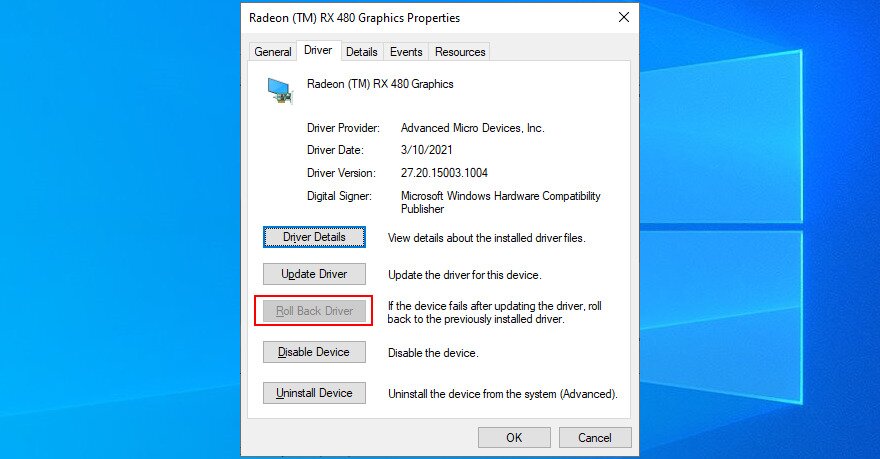
- Select a problematic device and double-click it to view its properties
- Switch to the Driver tab
- Click the Roll Back Driver button and follow the on-screen instructions
- If you can’t click the button because it’s greyed out, it means you can’t perform the rollback because a previous driver doesn’t exist on your PC

7. Use the Hardware and Devices troubleshooter
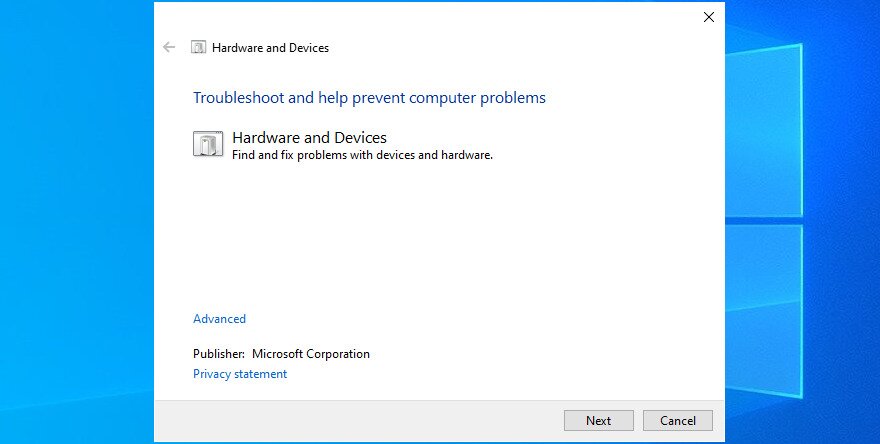
The Hardware and Devices troubleshooter is a component that comes bundled with Windows 10 and helps you fix common hardware and devices issues. It’s worth a shot when it comes to repairing the Faulty Hardware Corrupted Page error. If you can’t find the Hardware and Devices troubleshooter in Settings > Additional troubleshooters, you can fire it up from the Run utility. Here’s how:
- Press the Win key + R, type
msdt.exe -id DeviceDiagnostic, and press Enter
- Click Next and follow the wizard steps

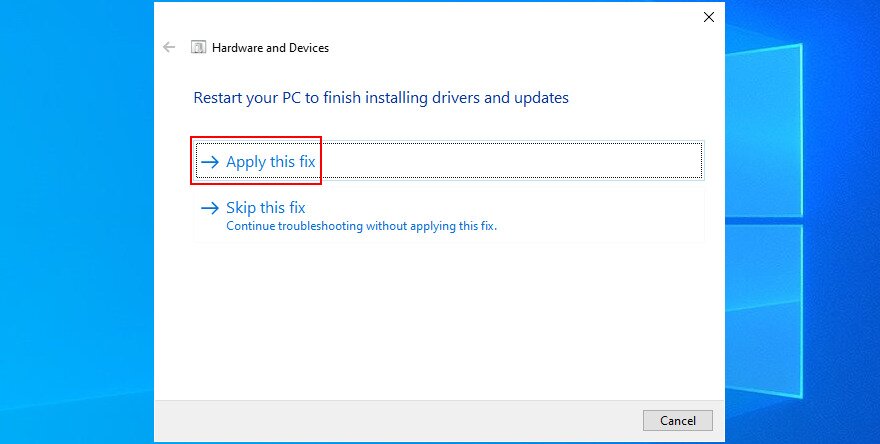
- If it finds any solutions, click Apply this fix

- Restart your operating system
- Check for blue screen messages now

8. Reinstall hardware devices
If you have recently attached new devices to your computer or laptop, perhaps they weren’t properly installed. It even applies to adapters with plug-and-play features. However, you can easily solve this problem at the software level, thanks to Device Manager.
How to quickly reinstall devices:
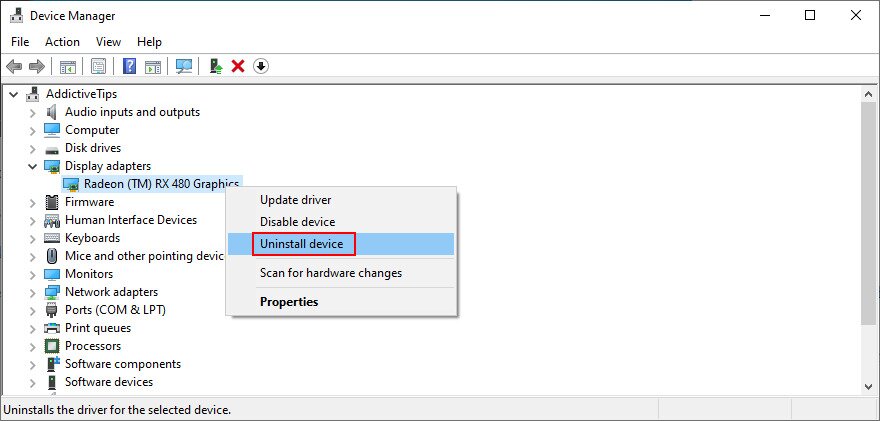
- Right-click the Start button and go to Device Manager
- Look for any device with a yellow exclamation point
- Right-click it and select Uninstall device

- Click Uninstall to confirm
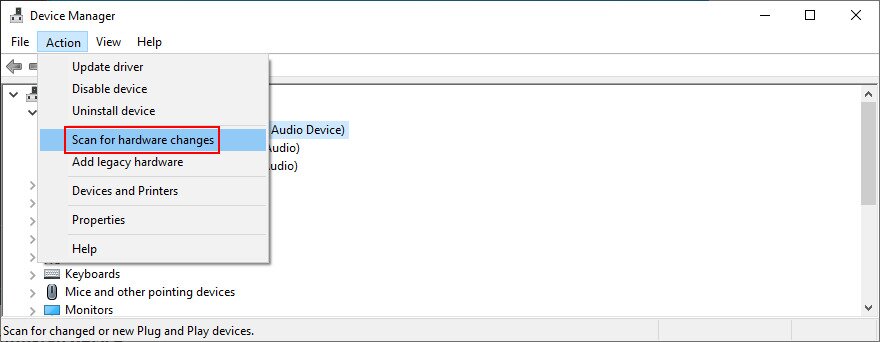
- Open the Action menu and pick Scan for hardware changes

- Restart your computer. Your OS will auto-reinstall the missing device
- Check for BSOD errors now
9. Remove peripheral devices
If the device reinstall didn’t do the trick, make sure to detach any new peripheral devices that are currently connected to your computer. Consider any piece of equipment you recently purchased or received as a gift.
It could be anything, from a webcam or printer to a Wi-Fi adapter or headphones. Shut down your PC and remove everything if you’re unsure, except for your keyboard and mouse.
Then, boot Windows to confirm that you’re no longer getting the Faulty Hardware Corrupted Page stop code. At this point, you can start replugging the devices one at a time to see which triggers the blue screen message.
10. Clean your hardware components
Another possibility is that you have malfunctioning ports. Just plug the devices into different sockets, assuming that you have multiple identical ports. It’s also a good idea to check your cables for scratches and replace them if necessary.
And, if you’re handy with your computer, consider taking it apart to clean off the dust. Pay special attention to your cooler while you’re at it since the Faulty Hardware Corrupted Page error could be caused by overheating.
It’s also a good idea to remove and reseat your devices. Just take them out of their sockets and put them back it firmly but without using force. You can do this with your motherboard and CPU, for instance.
11. Check your RAM
Since we’re discussing hardware parts, you should make sure that your system memory is working properly. It’s not necessary to analyze the RAM card since you can turn to a software utility built into Windows 10, called Windows Memory Diagnostic.
How to use Windows Memory Diagnostic:
- Save any ongoing projects and close all applications
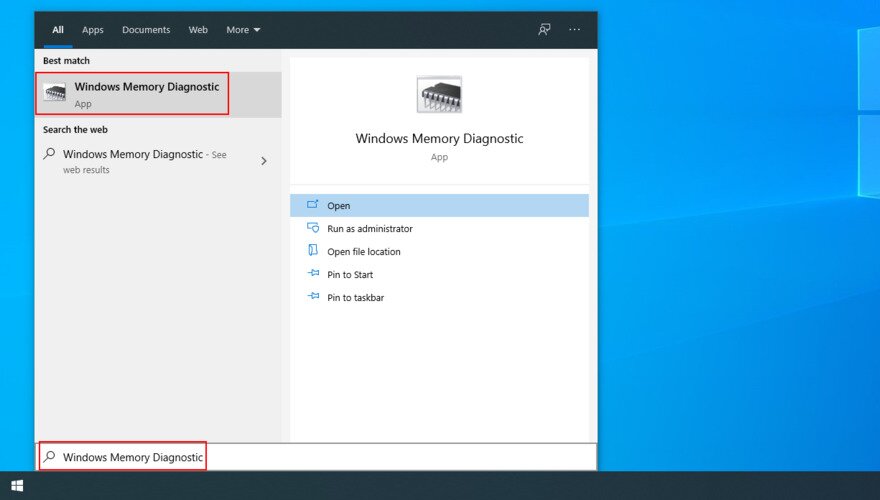
- Click the Start button, type Windows Memory Diagnostic, and open this tool

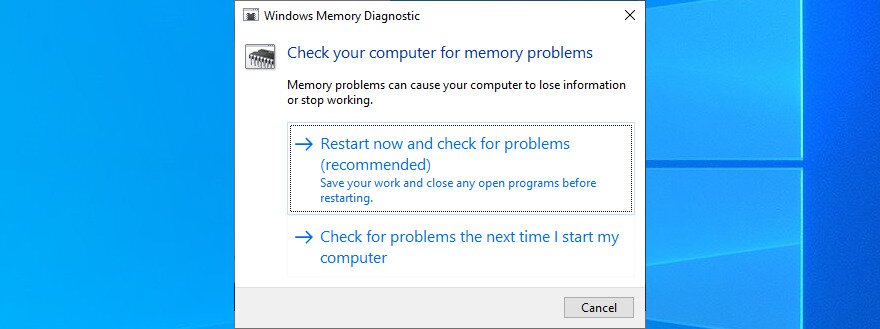
- Click Restart now and check for problems (recommended)

- Windows will reboot and start checking your RAM for issues
- When it finishes, check for BSOD errors
Windows Memory Diagnostic shows basic information about your system memory. If you’re looking for something a bit more advanced, we suggest checking out MemTest86.
12. Scan your PC for malware
Some malware attacks are serious enough to disarm your computer’s defenses and disable essential files, processes, or services. They could even lead to the Faulty Hardware Corrupted Page error. So it’s up to you to find and eliminate these threats.
If you don’t have a specific Internet security solution installed, then you can turn to Defender on your Windows 10 PC. Here’s what you need to do:
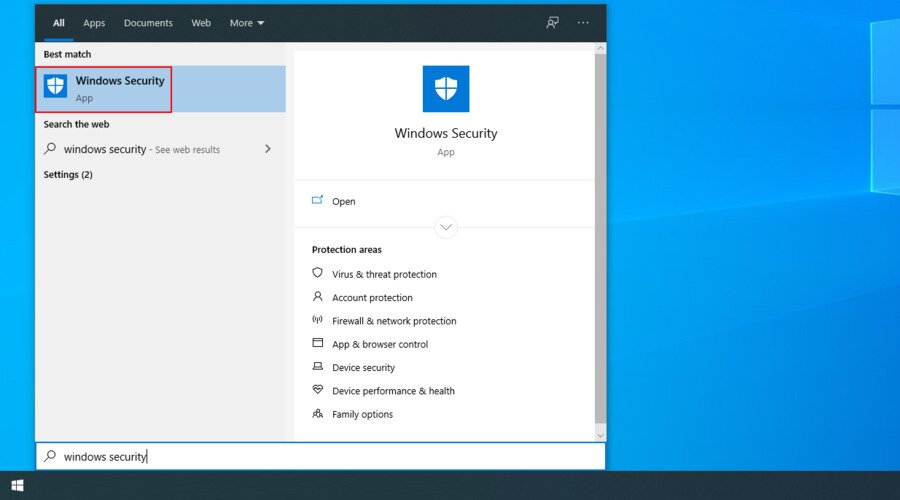
- Click the Start button, search for Windows Security and hit Enter to launch this application

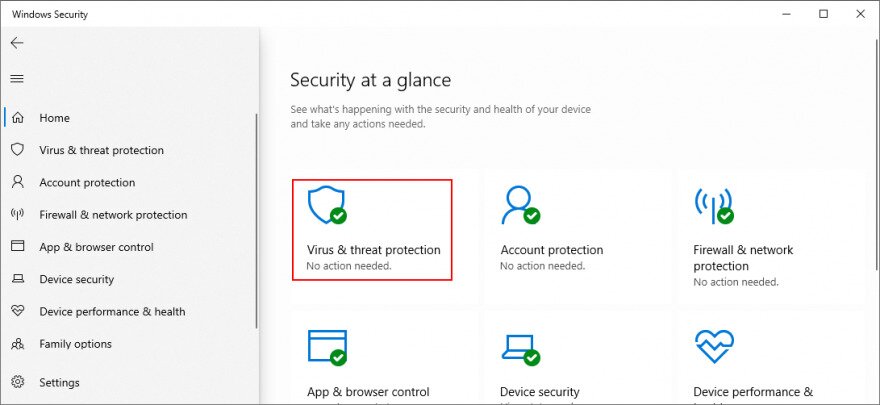
- Go to Virus & threat protection

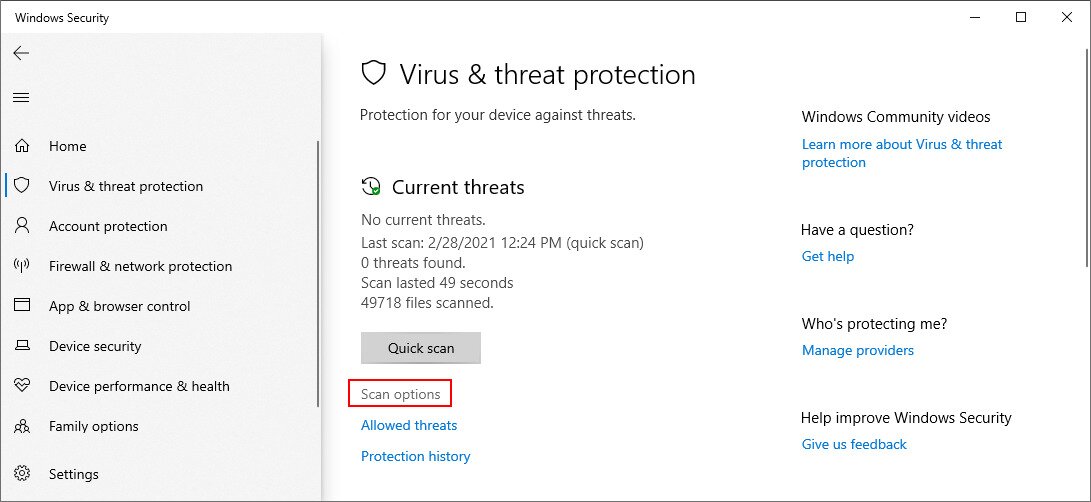
- Click Scan options

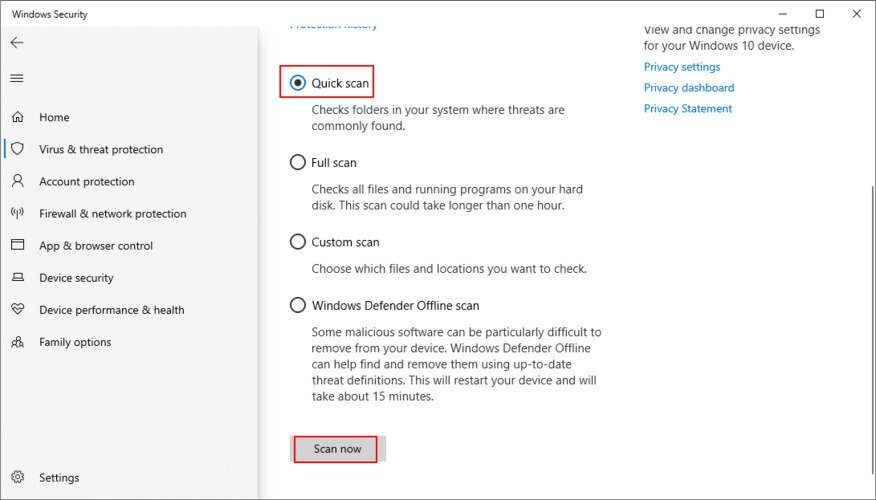
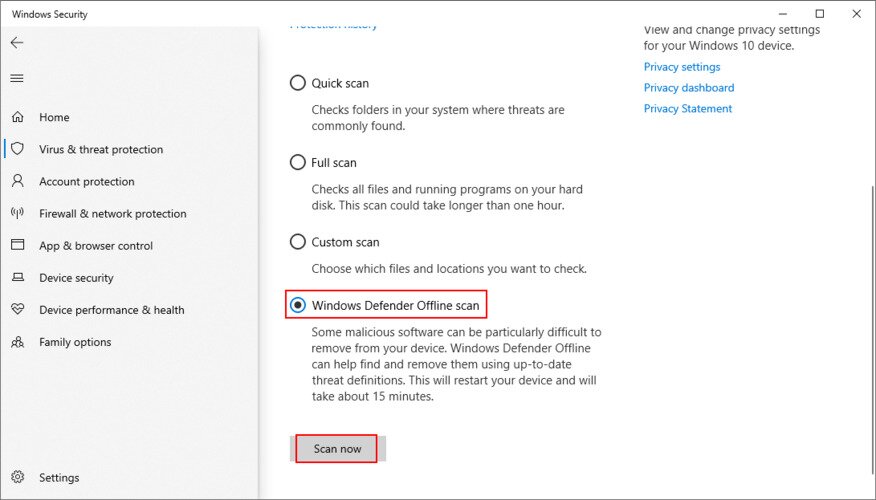
- Select Quick scan and click Scan now

- If the search results don’t return anything, select Windows Defender Offline scan and click Scan now

- Follow the on-screen instructions to quarantine or remove any infected files
- Restart your computer and check for BSOD errors
13. Uninstall recent software
If you have recently installed third-party software programs on your computer, it’s possible that they aren’t fully supported by Windows 10. As a result, you might be seeing the Faulty Hardware Corrupted Page error on a blue screen. To fix this problem, you should remove any unknown or suspicious programs. If you’re also experiencing issues with Windows startup processes, you may need to fix CTF startup bugs that can interfere with system stability.
How to remove recent apps:
- Press the Win key, type Apps & features, and press Enter
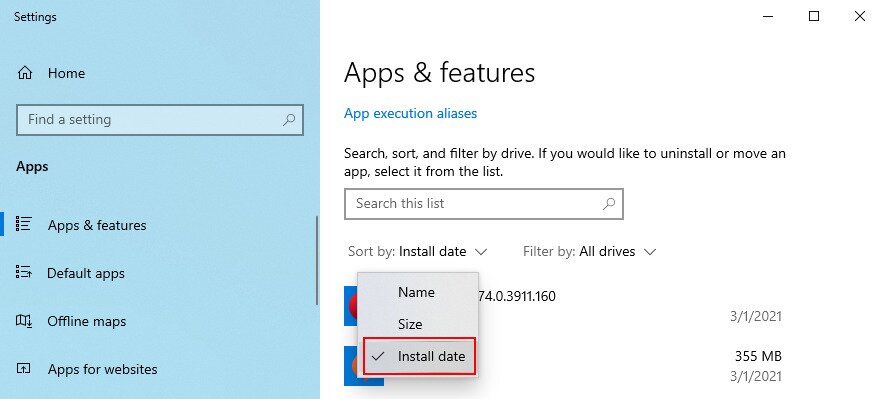
- Click Sort by and select Install date to sort the programs by date of installation (newest first)

- Choose the first unknown or suspicious program from the list
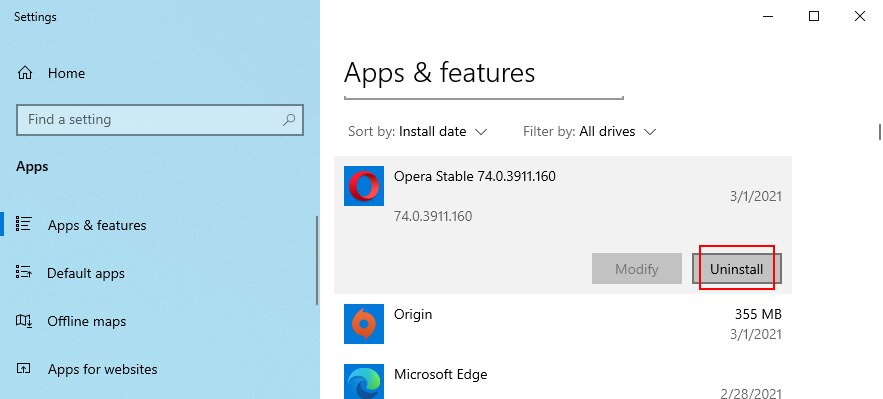
- Click Uninstall and then again to confirm

- Follow the wizard steps to remove the application
- Reboot your computer and inspect results
14. Temporarily disable your firewall
Your firewall could prevent critical system processes from reaching the Internet and performing required tasks. If you or someone else has tinkered with your computer’s default firewall configuration, it’s a good idea to temporarily turn off the firewall to put this theory to the test.
How to turn off Windows Firewall:
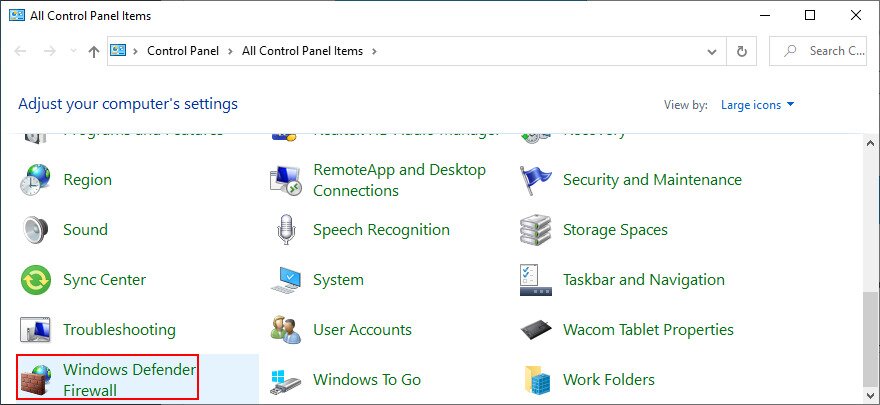
- Press Win key + R, type control panel, and hit Enter
- Select Windows Defender Firewall

- Click Turn Windows Defender on or off (you need